
Add a Shipping order
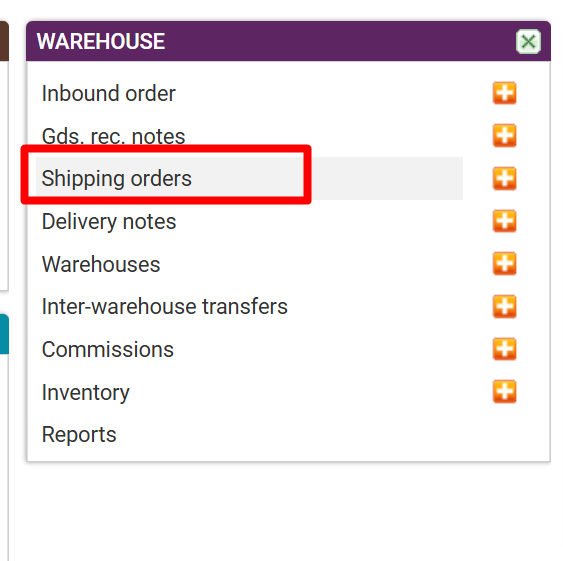
Warehouse - select Shipping order
Click on ''Picking lists''
List of Shipping orders - select Adding a new Shipping order
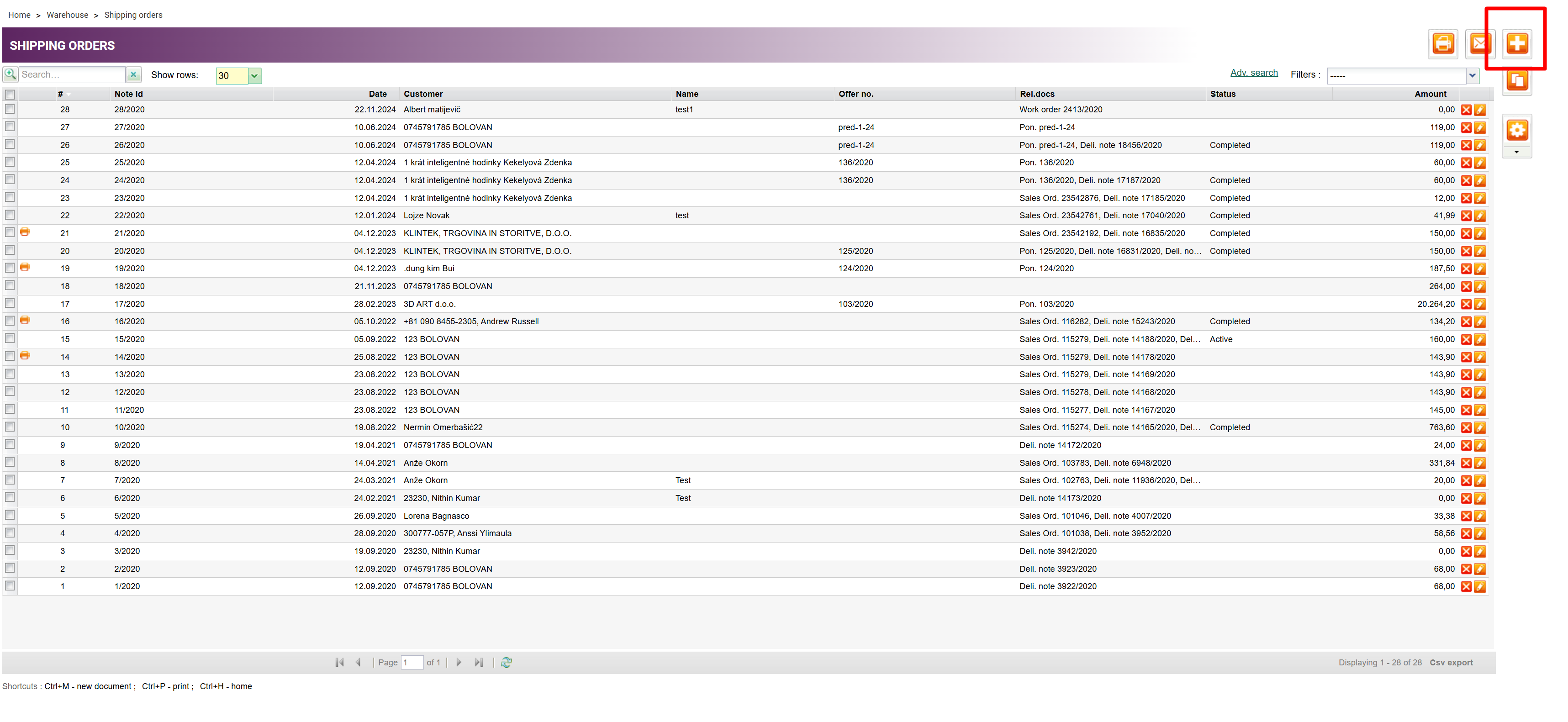
Click on the icon (+) to add a new Shipping order.
Entering Shipping order data - page header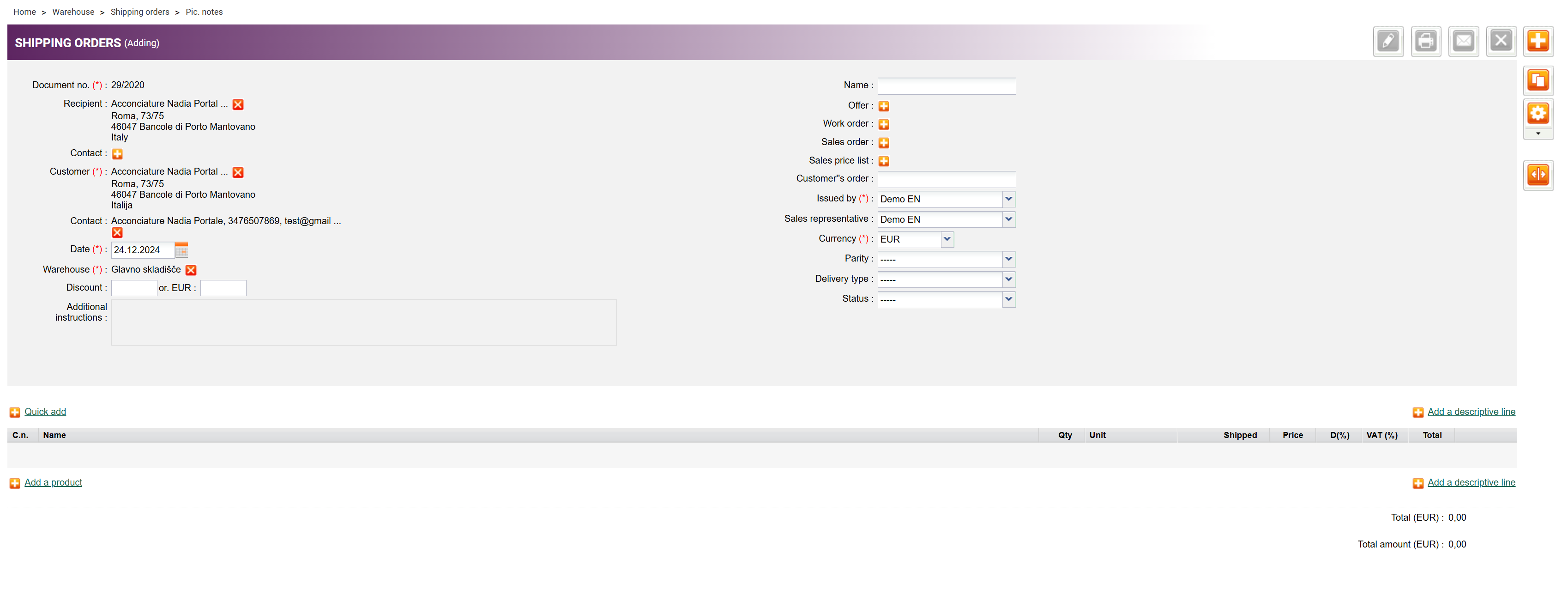
Enter data in the header of the Shipping order page. Mandatory fields are marked with (*)
1. Enter the picking list number (if automatic numbering is not set)
2. Enter the receiver/customer
3. Enter the date
4. Select the Warehouse from which the goods will be issued
If an Offer was sent to the customer or a Work/Sales order was created for goods, select the document, and products will be automatically transferred to the Shipping order.
Adding Products to the Shipping order

By clicking on (+) Add product, a dialog will open, where you can search for, select, or enter the products into the shipping order.
By clicking on (+) Quick add, you can enable quick adding to the shipping order via the bar-code scanner.
Save data

Save your entries by clicking on ''Save''; to cancel the entries, click on ''Cancel''
Transfer the Dispatch note to the Shipping order

Was this article helpful?
That’s Great!
Thank you for your feedback
Sorry! We couldn't be helpful
Thank you for your feedback
Feedback sent
We appreciate your effort and will try to fix the article