1. Sales - prepaid invoice
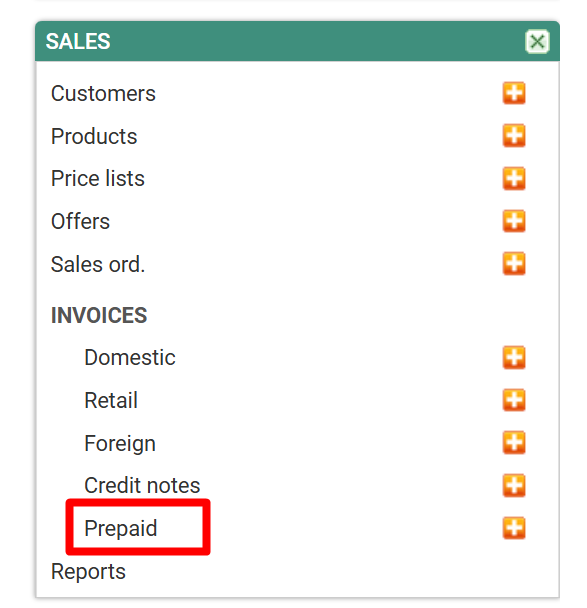
Select ''prepaid''
1. Select/search the prepaid invoice that you wish to cancell.
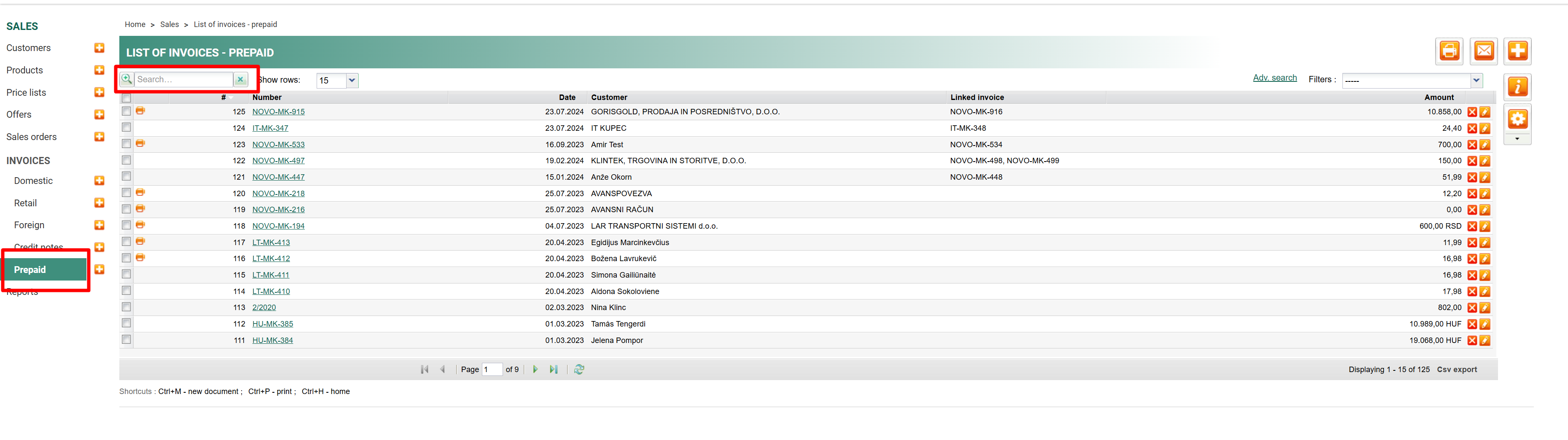
2. Deleting the prepaid invoice
Select delete on the invoice
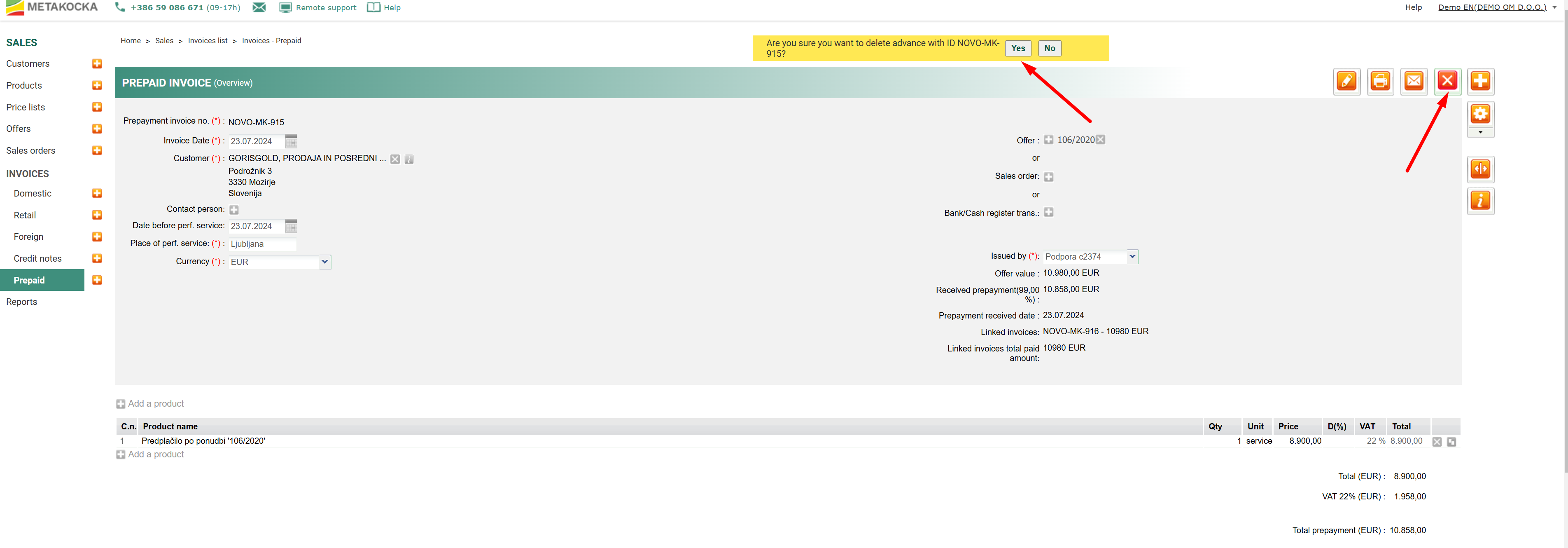
You will see a notice for deleting the invoice - select ''yes''. If the invoice is the last on the list, the program will offer you the option of deleting the invoice. Otherwise you will get this notice as in the picture below.
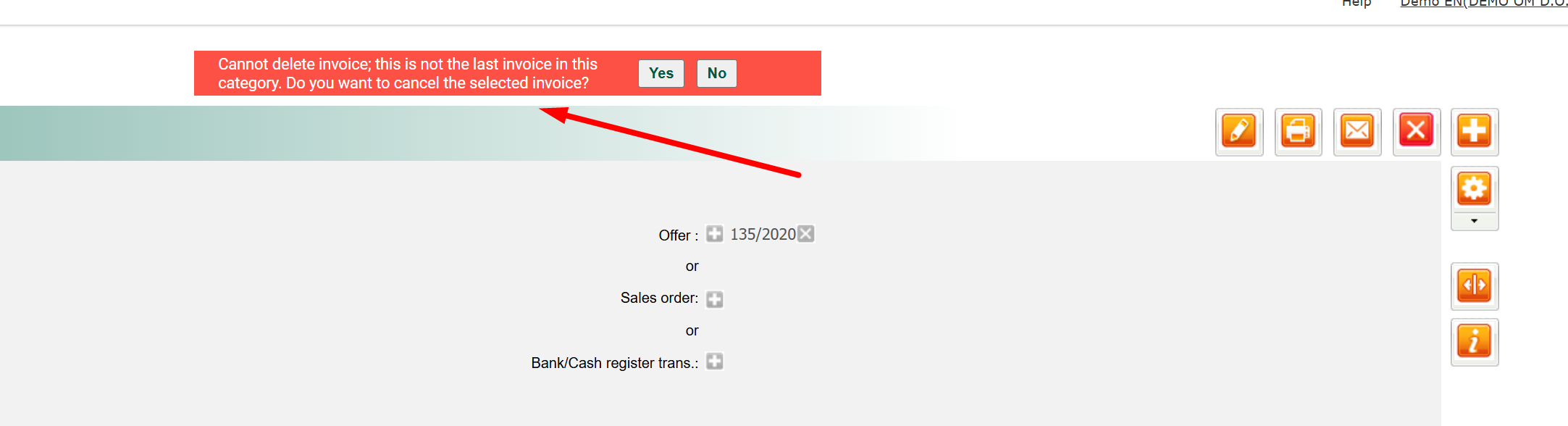
If the cancellation is aproved this window will appear:
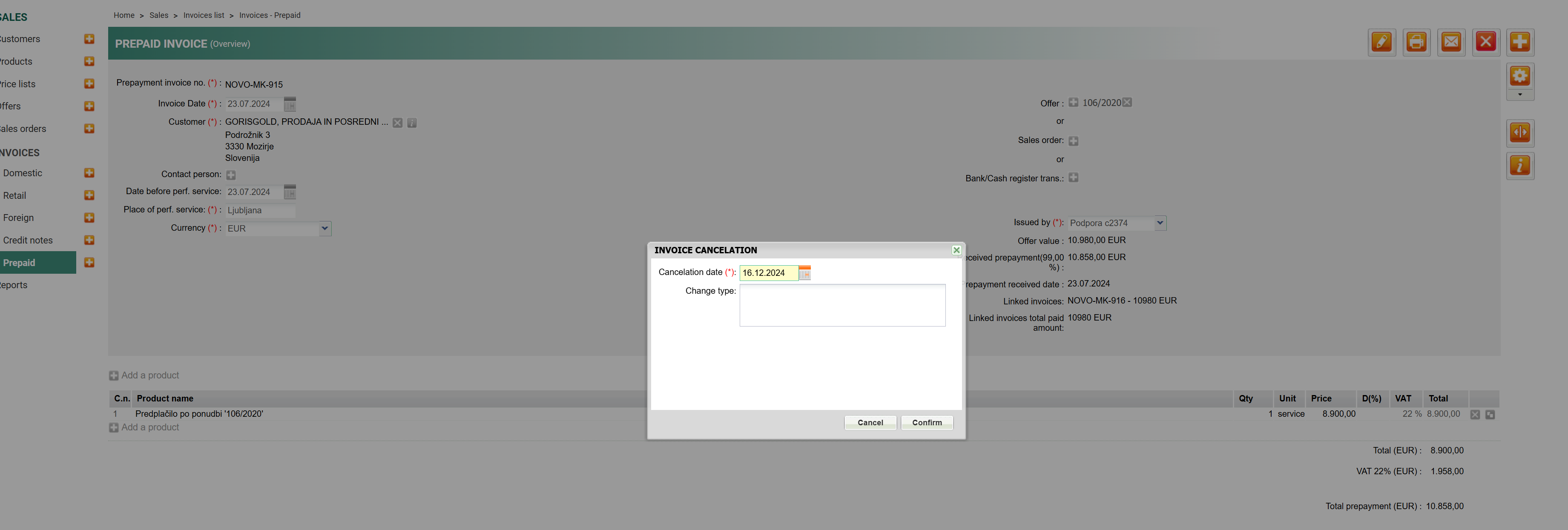
Write the cancellation reason and save.
IMPORTANT: If you don't have fiscal cash registers:
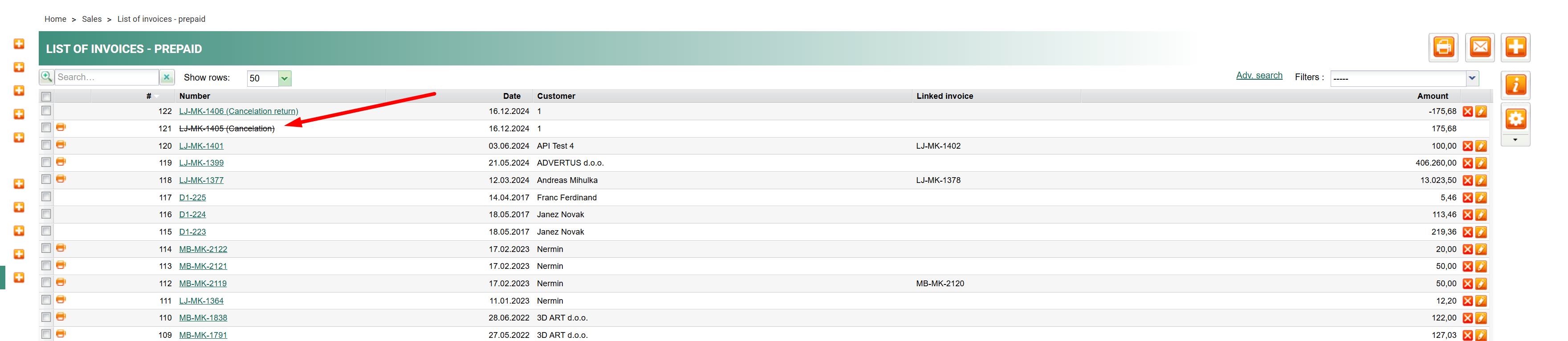
The ''cancellation'' info is added next to the prepaid invoice like on the picture below.
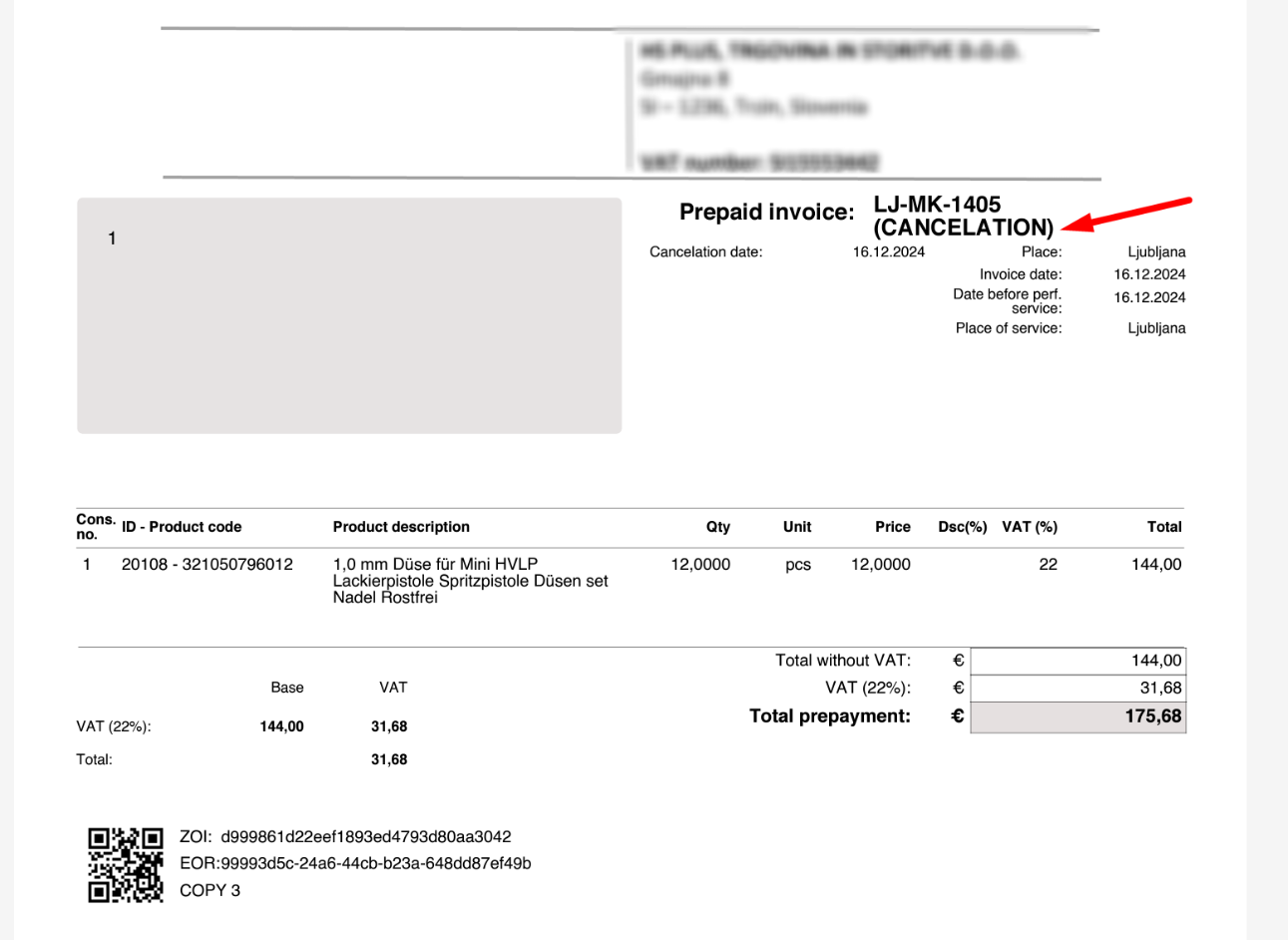
Also shown on the printed invoice.
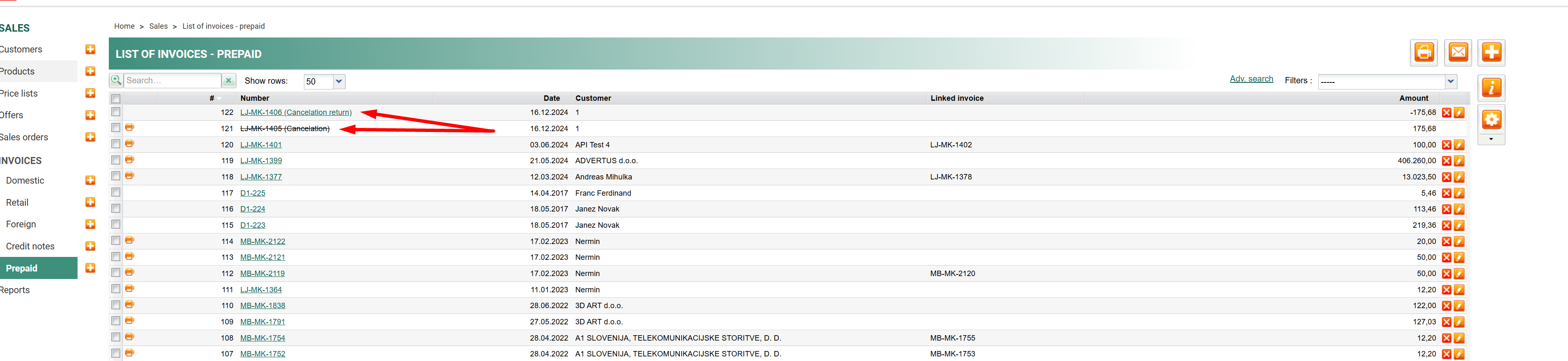
IMPORTANT: If you have fiscal cash registers
When confirming the cancellation for the prepaid invoice, it is cancelled and at the same time, a new prepaid invoice is generated with the negative value of the cancelled invoice.
Create pagination and provide a printout for accounting if needed.
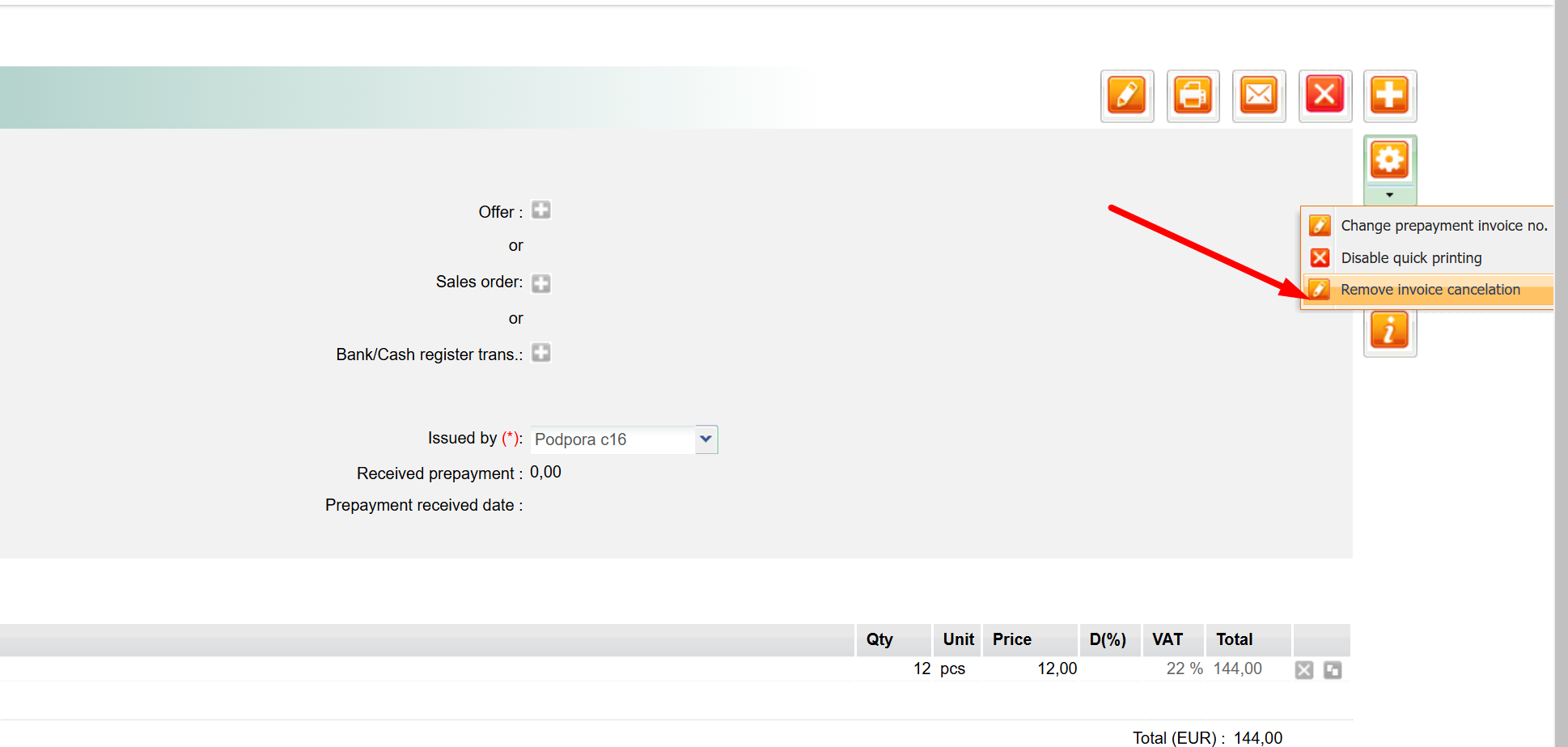
3. Remove the cancellation of the prepaid invoices
You can remove the cancellation on the invoice you created. Open the cancelled invoice and in settings you will find a function ''remove invoice cancellation''
Was this article helpful?
That’s Great!
Thank you for your feedback
Sorry! We couldn't be helpful
Thank you for your feedback
Feedback sent
We appreciate your effort and will try to fix the article