
Adding/disabling a company's bank account
1. Settings/Your Company
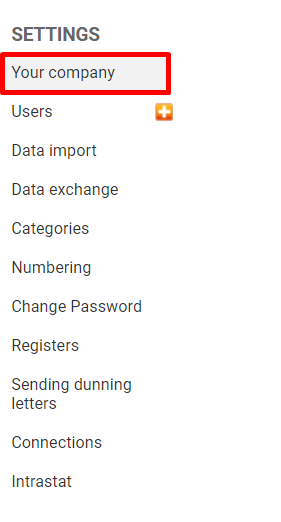
select Your company"
2. Settings - select "Business data" tab
In the bottom part of Your company page, click on Business data
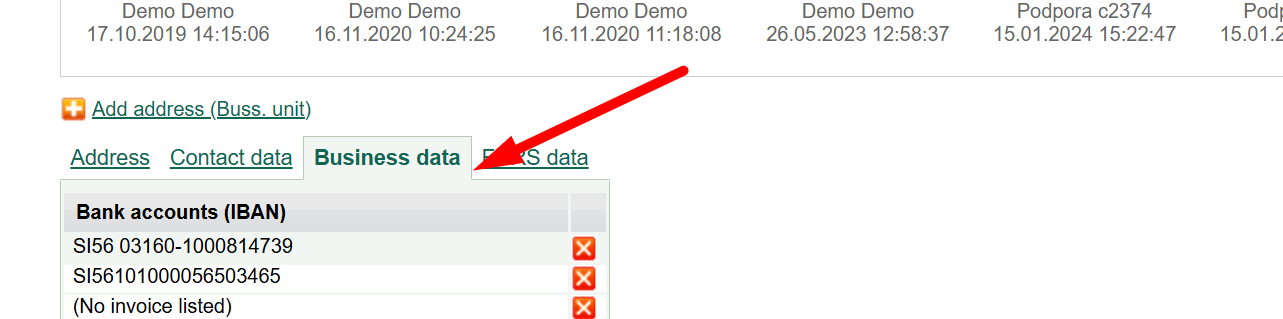
To add a bank account, click on "no invoice listed"
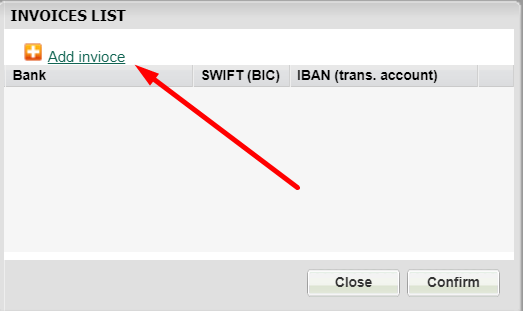 Click on "Add invoice".
A dialog for adding a bank invoice will open.
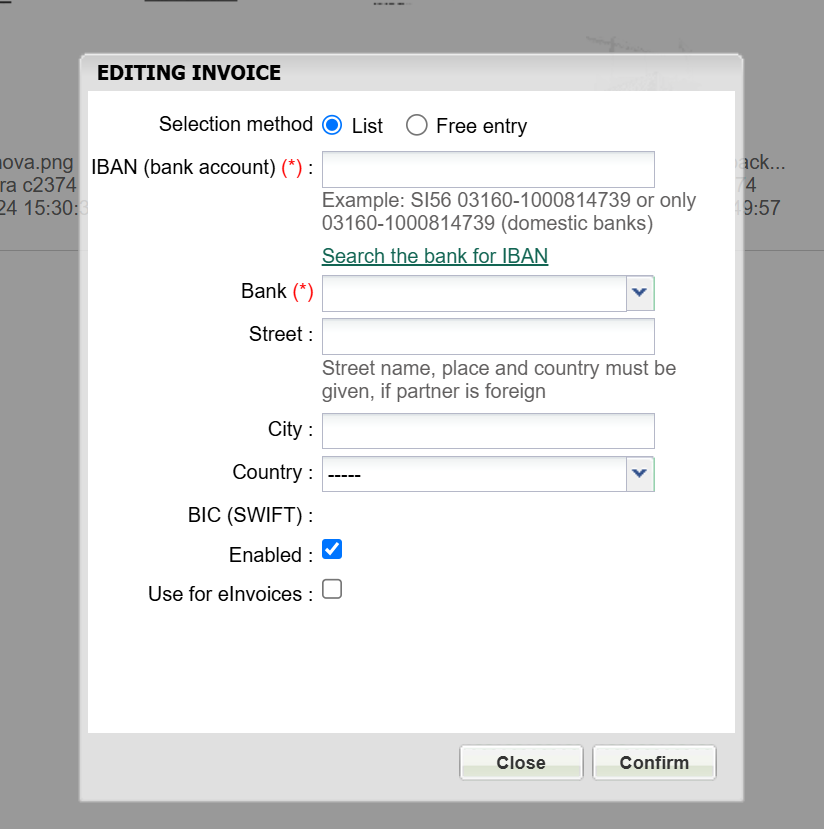
Enter IBAN and bank data will be added automatically; then click on "Confirm" and in the next dialog also "Confirm".
Save entered data.
NOTE: When adding foreign bank accounts, click on "free entry" and enter IBAN, bank, and address
3. Disabling a bank account
If a bank account is closed in one bank and such should no longer be displayed on your documents, select that bank account (click on it)
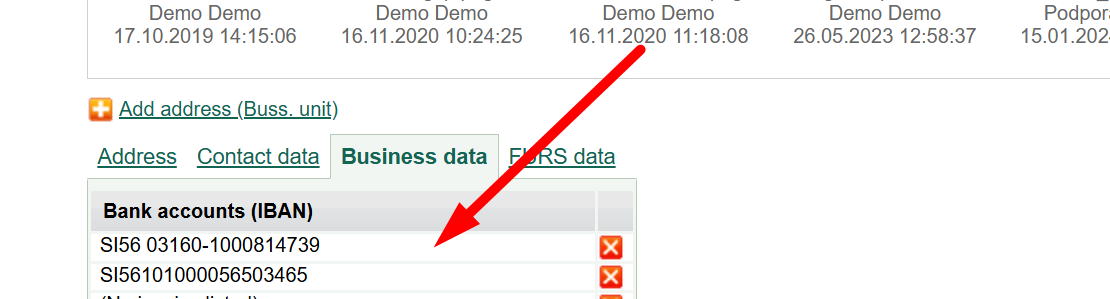
a dialog will open in which all previously added company's bank accounts are displayed - select the one that should be disabled
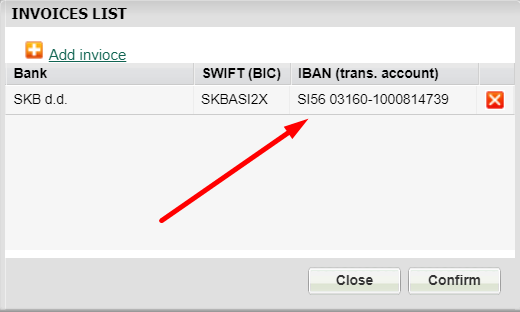
and click on the bank account which should be disabled
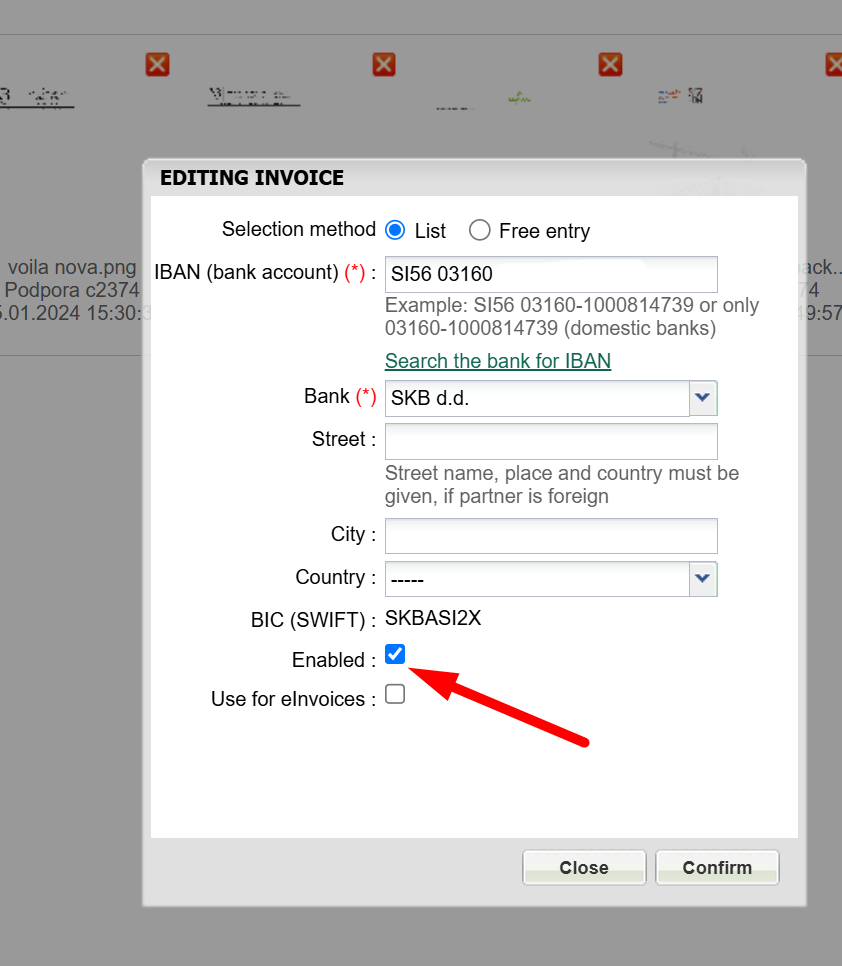
Remove the tick from "Enabled" and click on "Confirm"
Save changes.
Was this article helpful?
That’s Great!
Thank you for your feedback
Sorry! We couldn't be helpful
Thank you for your feedback
Feedback sent
We appreciate your effort and will try to fix the article