
Single Sign-On (Google and Microsoft)
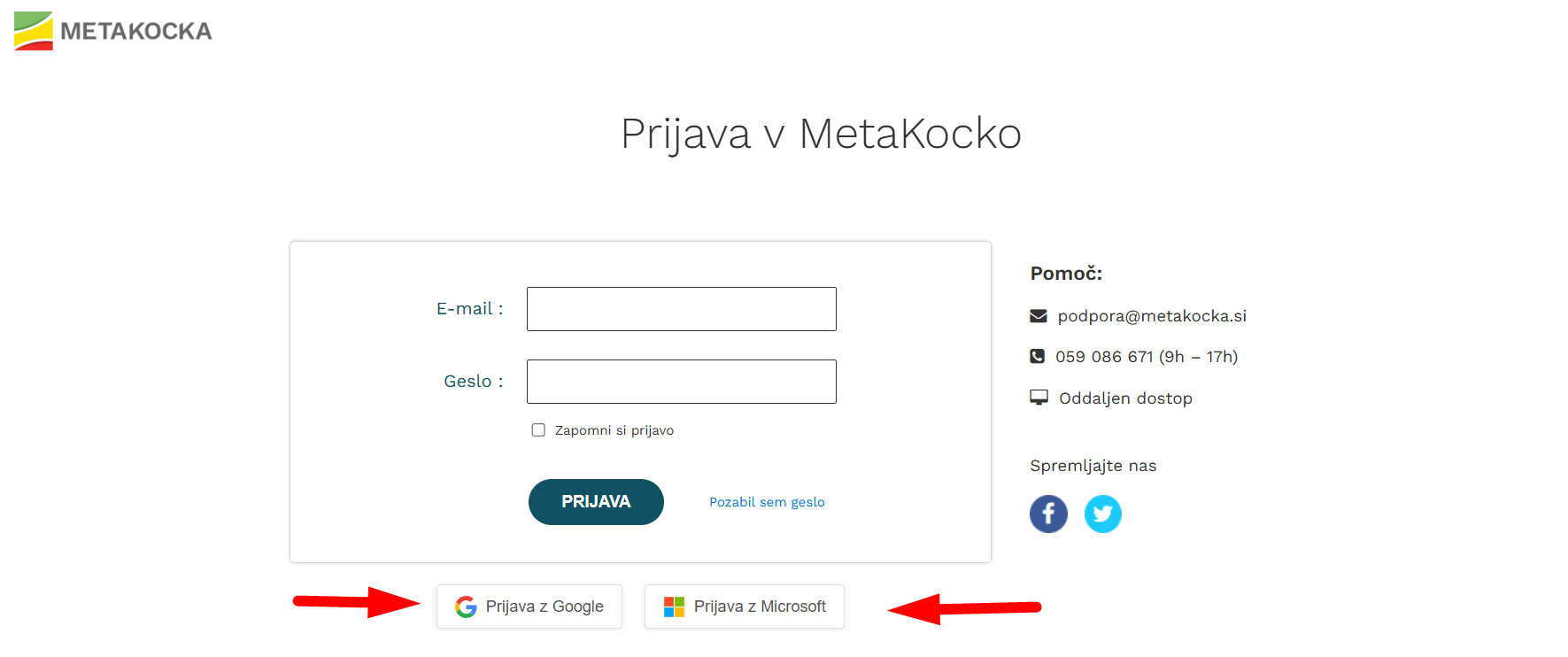
The operation of signing in via Google or Microsoft accounts works as follows:
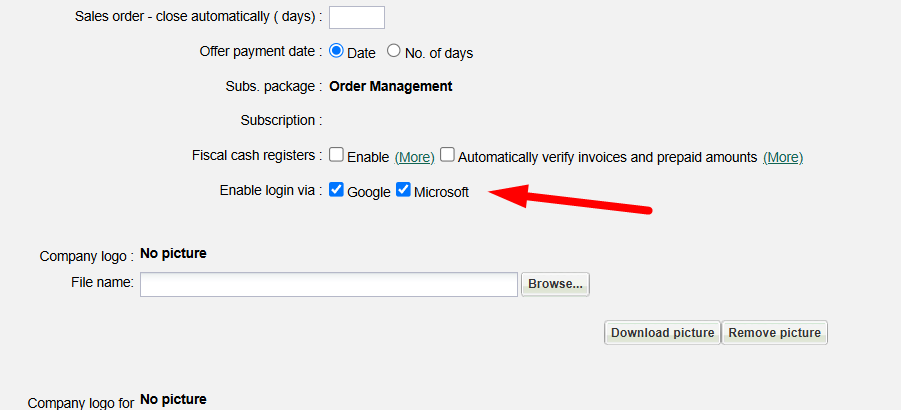
- The company must have the option enabled to allow single sign-on through Google or Microsoft accounts.
- The user with the same email address must already be added under the company (e.g., janez.novak@gmail.com).
The user completes the sign-in through the button on the login page.
Error: The company does not have Google or Microsoft sign-in enabled in MetaKocka.
You need to enable the Google or Microsoft sign-in option under Settings - Your company.
Error: User with the email address my.email@gmail.com does not exist
It is necessary to add a user with the exact same email address under MetaKocka users (Settings -> Users). If you do not have access, please contact your account administrator.
Adding a user: https://metakocka.freshdesk.com/en/support/solutions/articles/3000062296-adding-a-customer
First login
Upon first login, it is necessary to confirm the login to Google through the MetaKocka application.
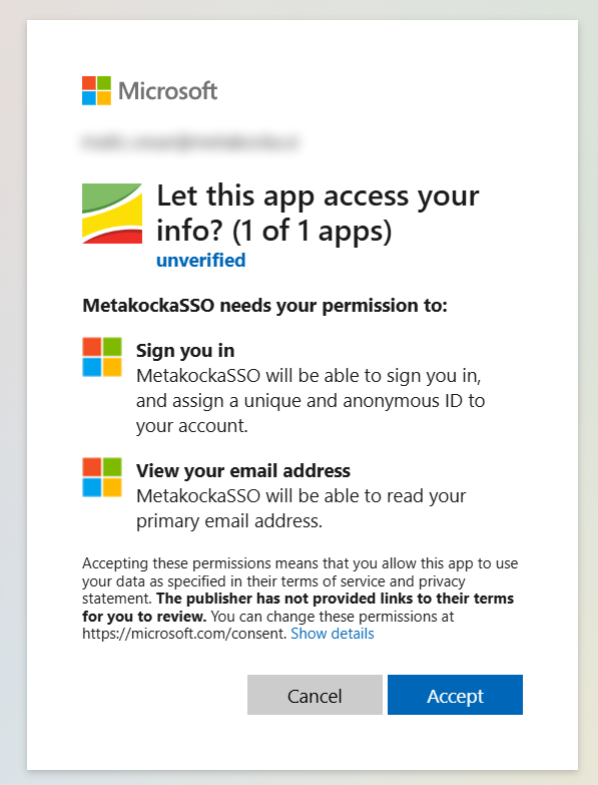

For first login, both regular email accounts (for example, janez.novak@gmail.com) and Google Workspace accounts (usually tied to your domain - janez.novak@mycompany.com) are supported.
Remove permissions for SSO
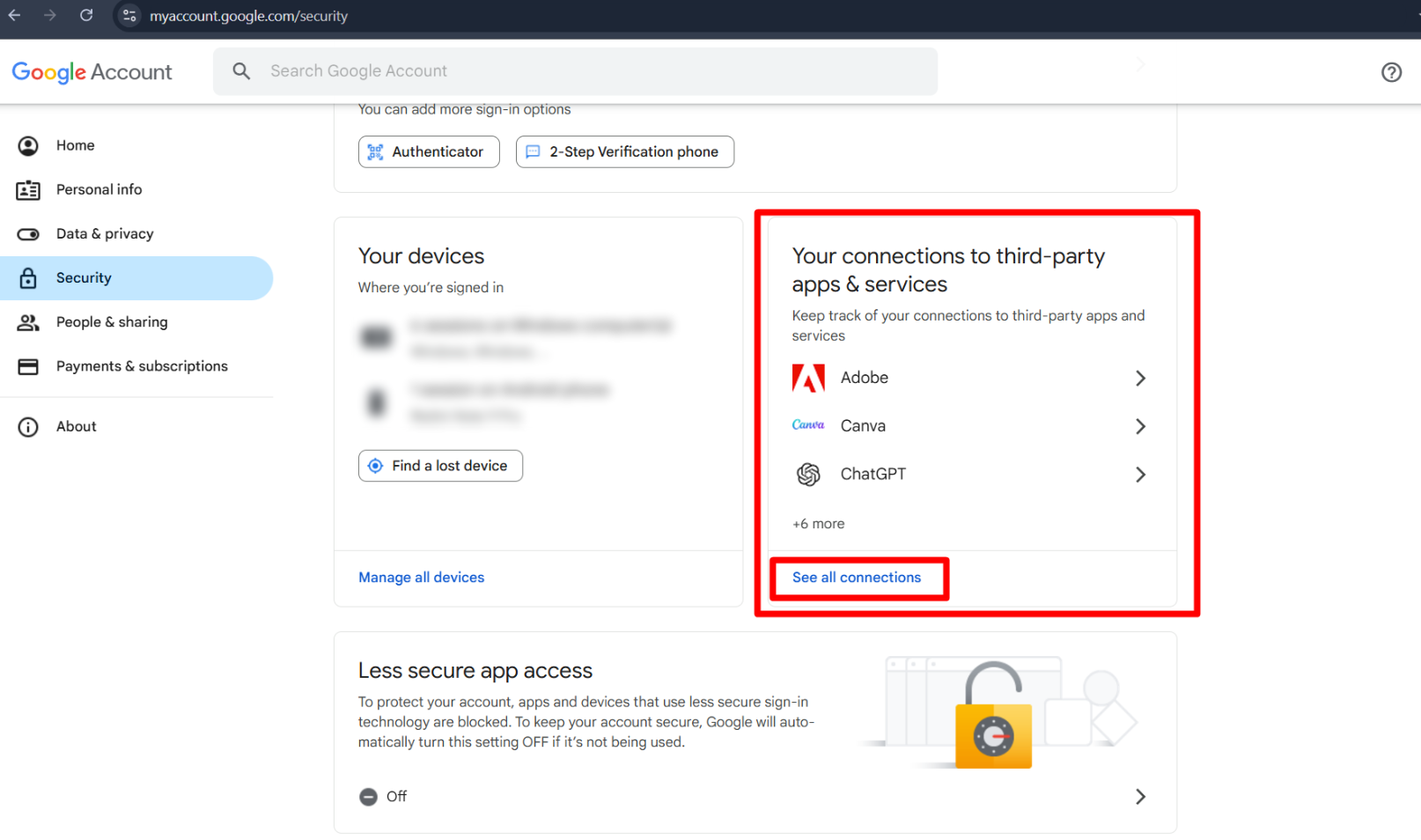
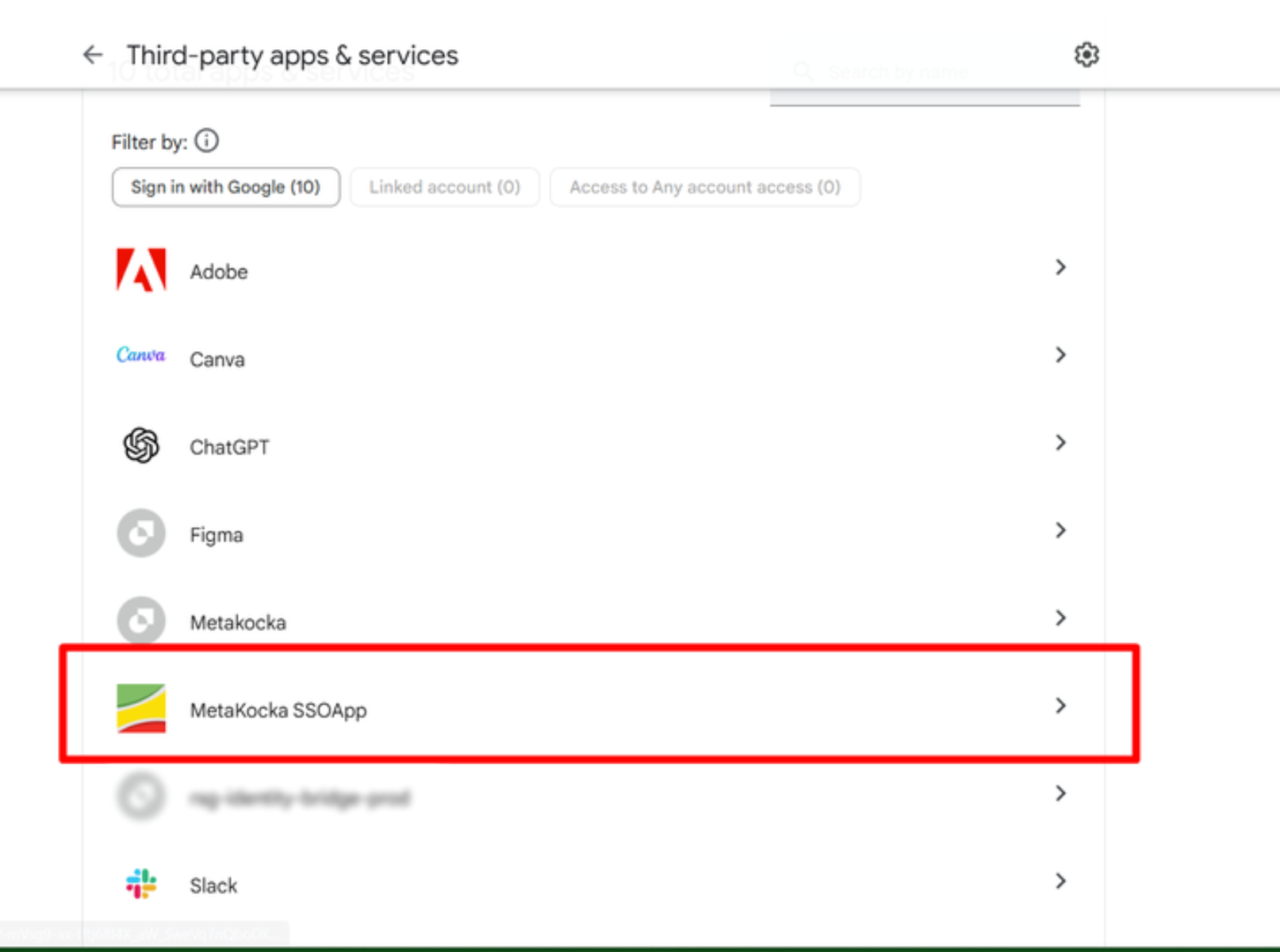
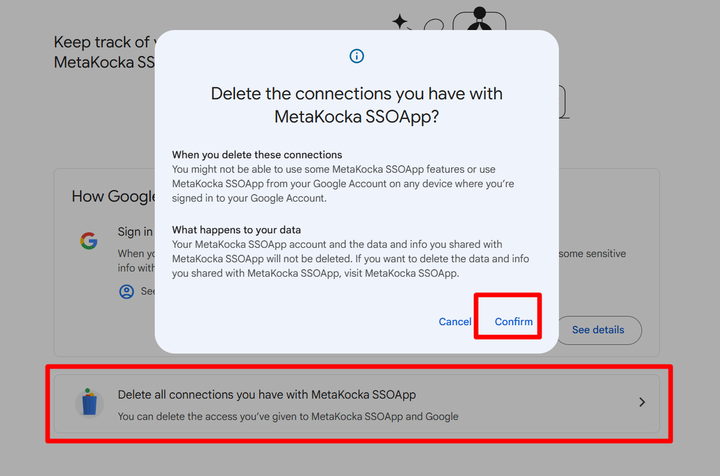
Google: On your account page: https://myaccount.google.com/ you need to remove the permission for using connected applications.
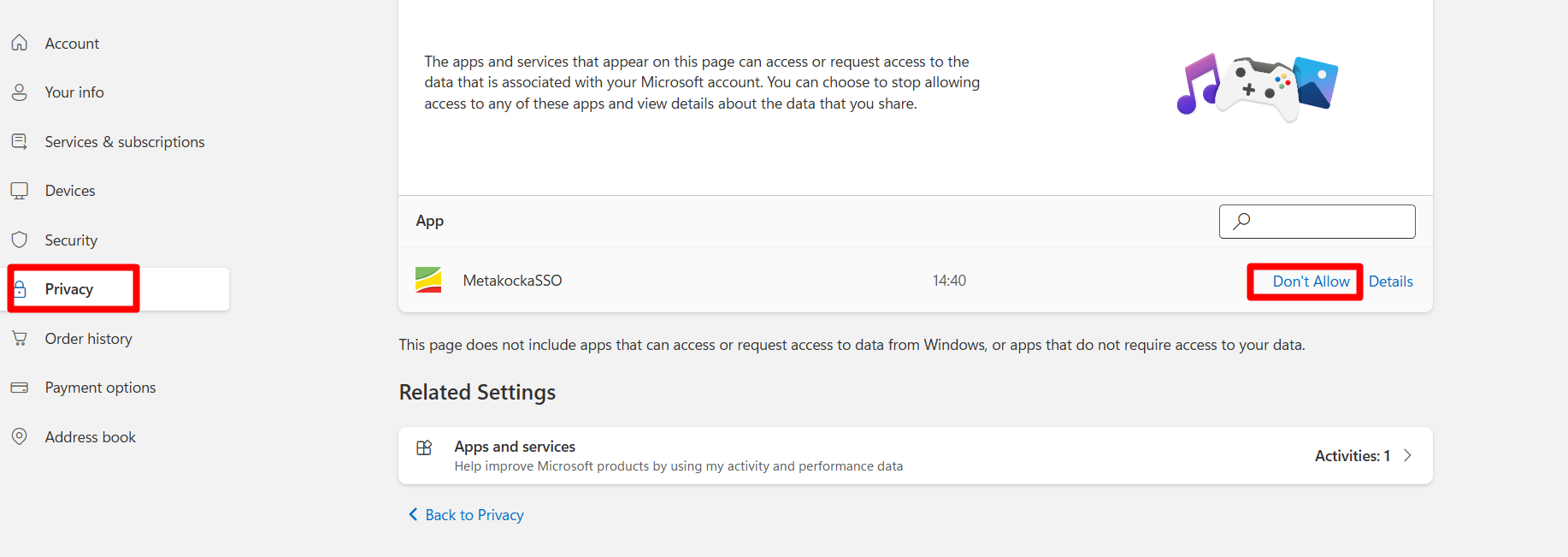
Microsoft: On your account page: https://account.microsoft.com/privacy/app-access, you need to sign in, and then you'll receive a verification code on your Email. Enter the code to access your account privacy settings and remove the permissions for connected applications.
Was this article helpful?
That’s Great!
Thank you for your feedback
Sorry! We couldn't be helpful
Thank you for your feedback
Feedback sent
We appreciate your effort and will try to fix the article