Order Management 2 – Cash-on-Delivery Import
Updated 17.12.2025
The General Cash-on-Delivery Import allows you to use a prepared Excel file where you can copy one of the order identifiers or tracking codes along with the cash-on-delivery amount. Upon a successful import, the order—and consequently the invoice—will be marked as Paid.
Order Management – Cash-on-Delivery
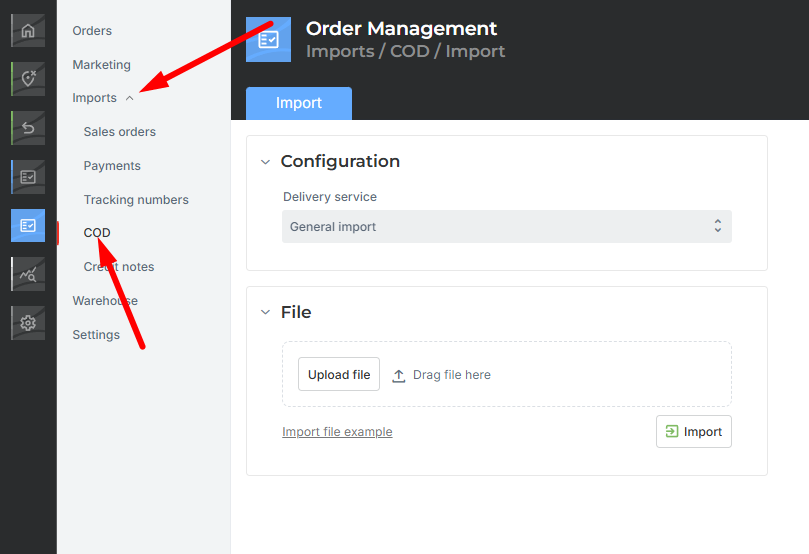
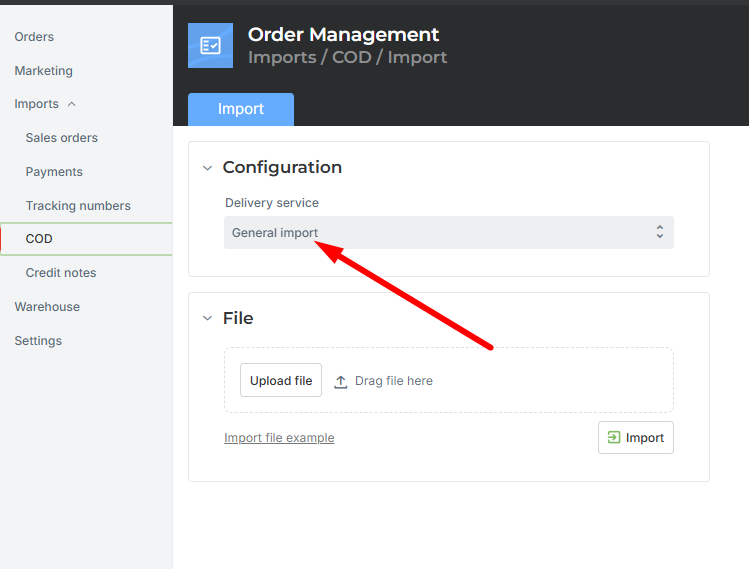
Configuration
By default, General Import is selected, so no additional selection or changes are needed. If you want to use a different import, you must select it manually.
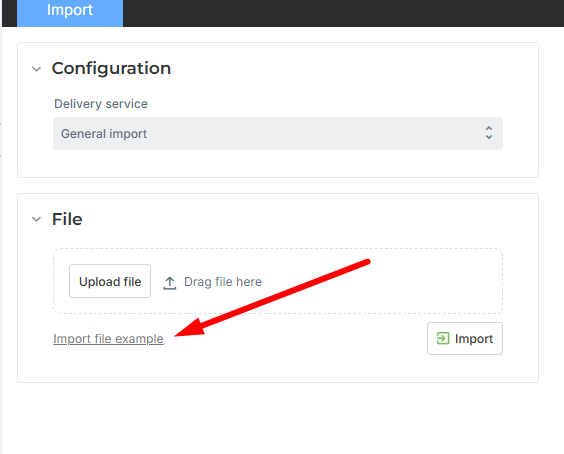
Import File
You can download the template for the import file from the application by clicking “Example Import File”. It is important that at least one order identifier for which you received the cash-on-delivery payment is entered – Order Number / Customer Order from the online store or Tracking Code.
If multiple pieces of data for the same order are entered in the table, the comparison is performed from left to right. If the cash-on-delivery date is not provided, the current date will be used.
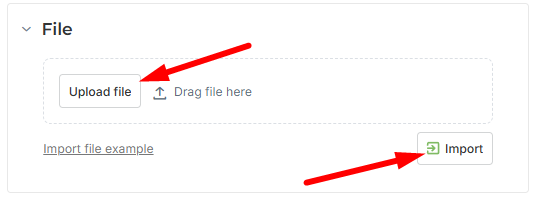
Adding the File
Import the completed template into the program as shown below.
Payment Marking and Cash-on-Delivery Date
Upon a successful import, the order and invoice will be marked as Paid – Cash on Delivery with the provided date (or the import date if no date is given).
Control Amount
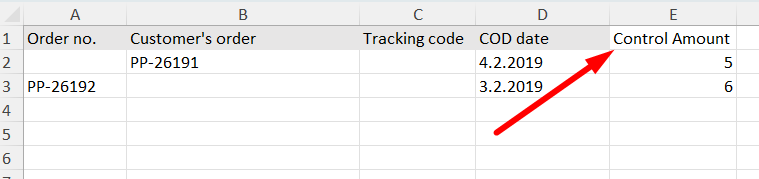
The import file also contains a Control Amount column. If you want to verify that the cash-on-delivery amount matches the order amount, you can enter the value in the Control Amount field. In case of a discrepancy, an appropriate error message will be displayed (see image below). If there is a discrepancy, the cash-on-delivery amount will not be added to the order.
In Excel, the value must be entered in column E, and the column must be named Control Amount.
Payment Verification and Recording – First Installment
If the customer pays the order in installments and pays the first installment upon receiving the order, you can enter the amount of this installment in the First Installment column.
The system will perform the appropriate amount check and record the installment payment.
In Excel, the value must be entered in column F, and the column must be named First Installment.

Changing the Payment Method via Cash-on-Delivery Import
If you enter a value in column G for Payment Method, the payment method on the order will be updated during the cash-on-delivery import.

Review of Previous Import Statuses
You can access the review via Additional Settings → Order Management → Other – Requests.
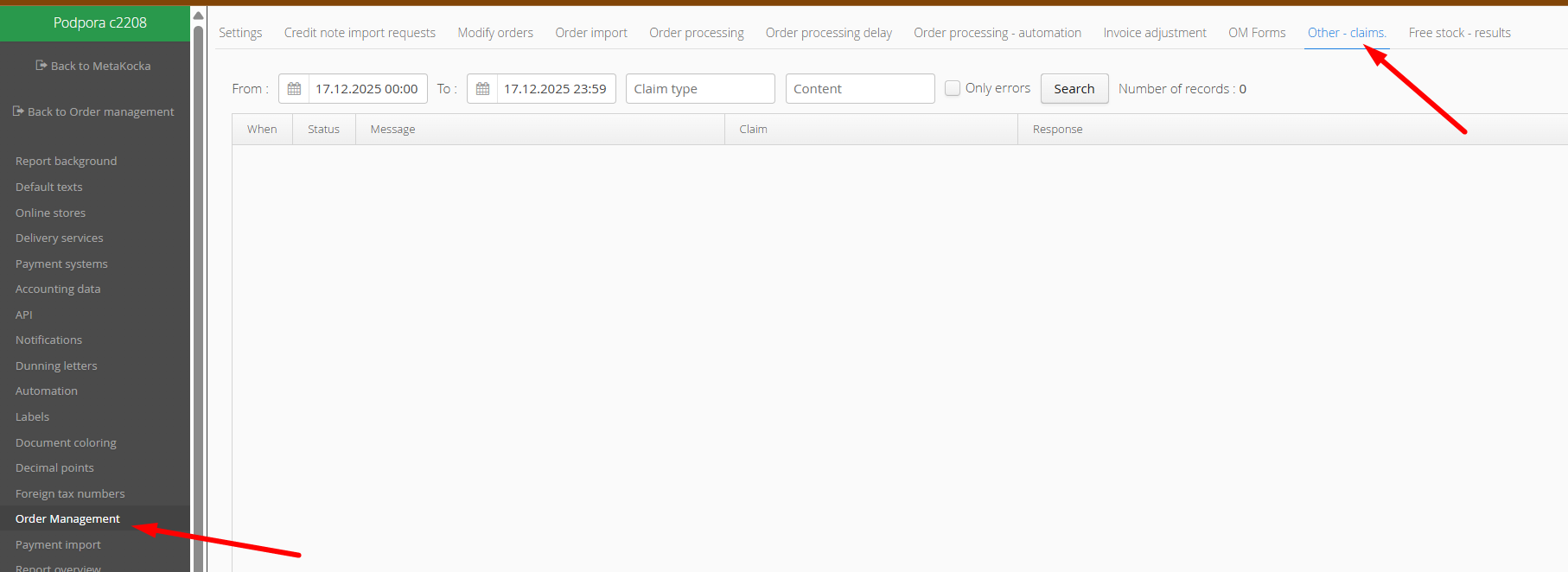
Through “Additional Settings”, you can also check the status of previous imports and review the import contents. By clicking U, you can download the Excel file of a past import.

Checking Order Numbers for Combined Orders
If you have combined orders, each order is checked individually. In the example below, the system will check whether orders with the numbers PP-26531 and PP-26532 exist. Since this is a single combined order, the cash-on-delivery payment will be recorded only once.
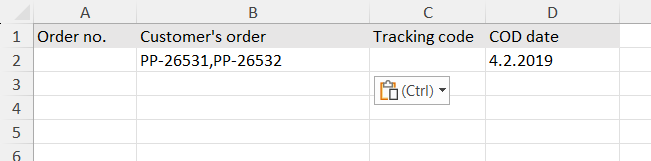
If you have an order in OM labeled "PP-26531,PP-26532", you can enter the following values in Excel:
PP-26531
PP-26532
PP-26531,PP-265 (truncated)
The program will still find the corresponding order in OM. However, if an order PP-265 already exists in the system, you will get an error:
"Order with Customer Order = PP-26531,PP-265 has more than one order in Order Management."
Re-importing Orders
If there are errors in the import file and you want to correct them directly in the Excel file, you can re-import the entire file. If an order already has a payment recorded, the re-import will not add an additional payment; instead, an error will be displayed.
Was this article helpful?
That’s Great!
Thank you for your feedback
Sorry! We couldn't be helpful
Thank you for your feedback
Feedback sent
We appreciate your effort and will try to fix the article