
Manual order entry - Order management 2
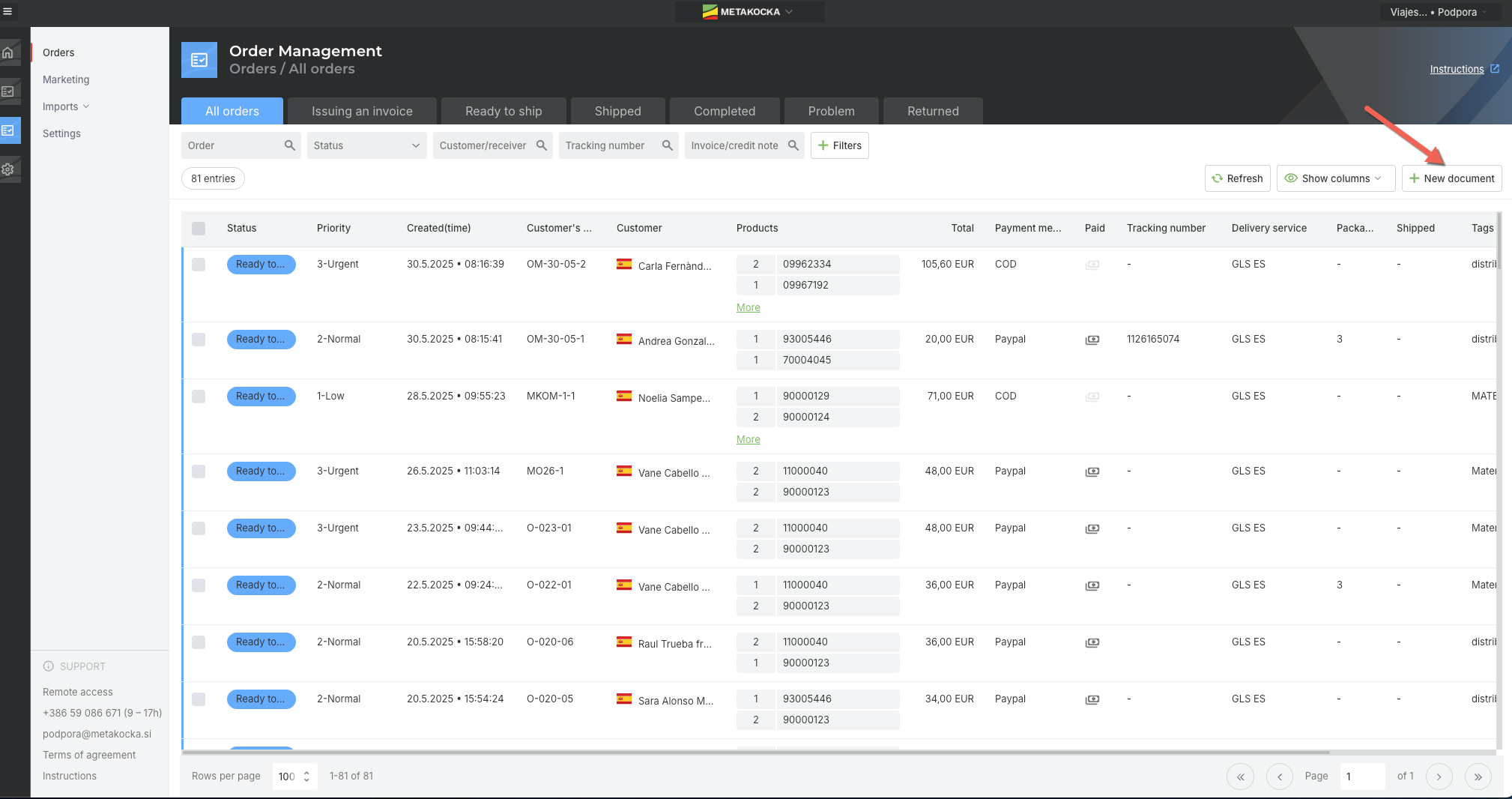
After login Order management app will open - you will see list of orders
Click on " + New document" on right side of screen to add new order
Enter customer data, address, order number ( customer order number) and for start choose Payment method "COD" -
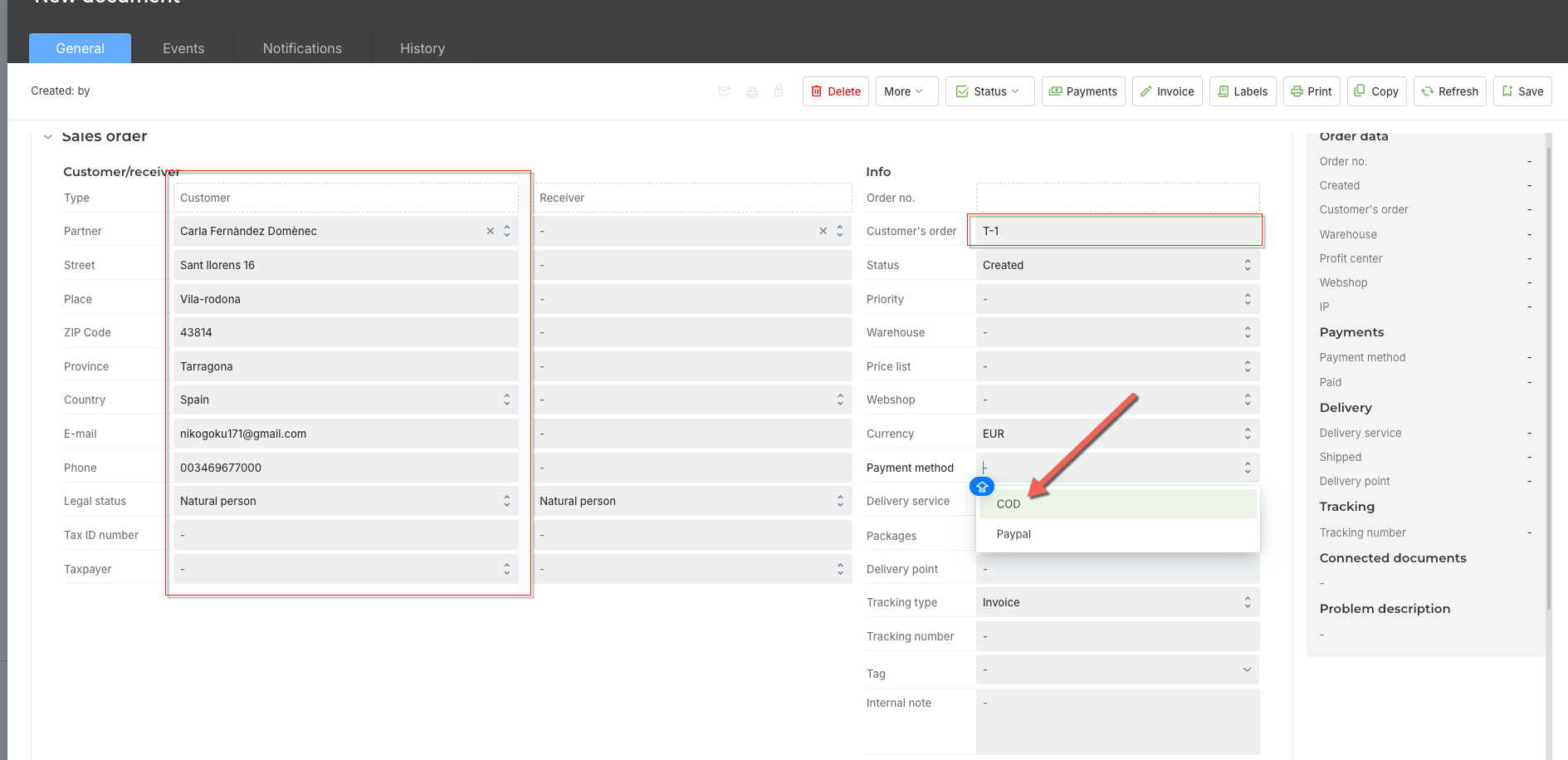
Save order ( CTRL + S) or click right upper corner
Next step is to add items to order - click "+ Add a product"
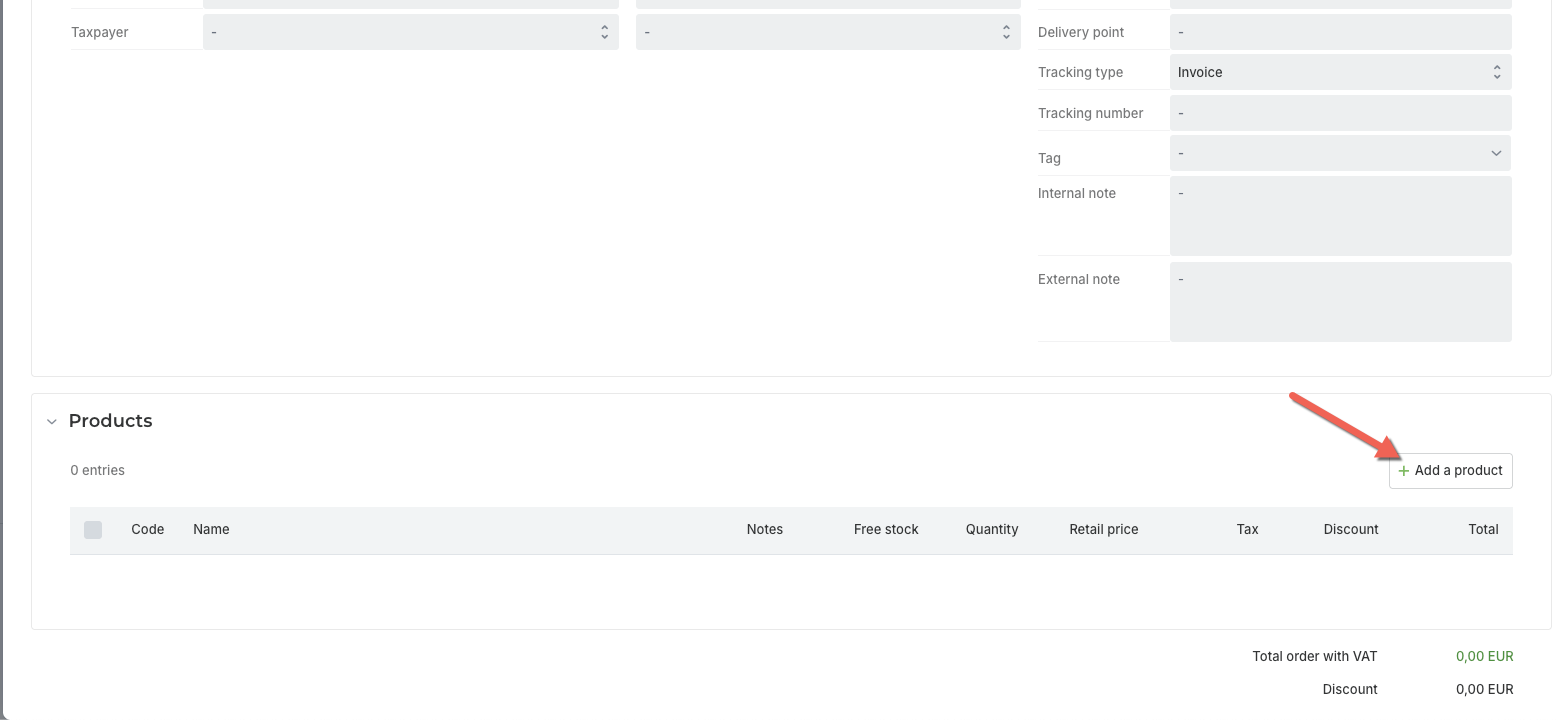
new window will open, where you can enter sku / search by name to find item
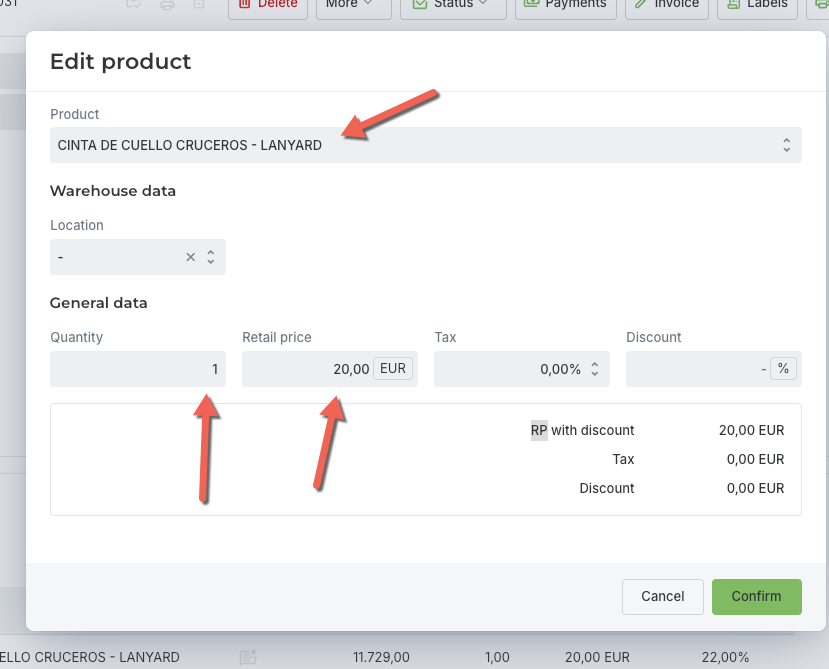
enter quantity, price and Confirm (you can leave tax 0% for testing I will enter tax for Spain 21% in next days)
After you finish adding items, Save order.
You can also enter / set additonal data to Order:
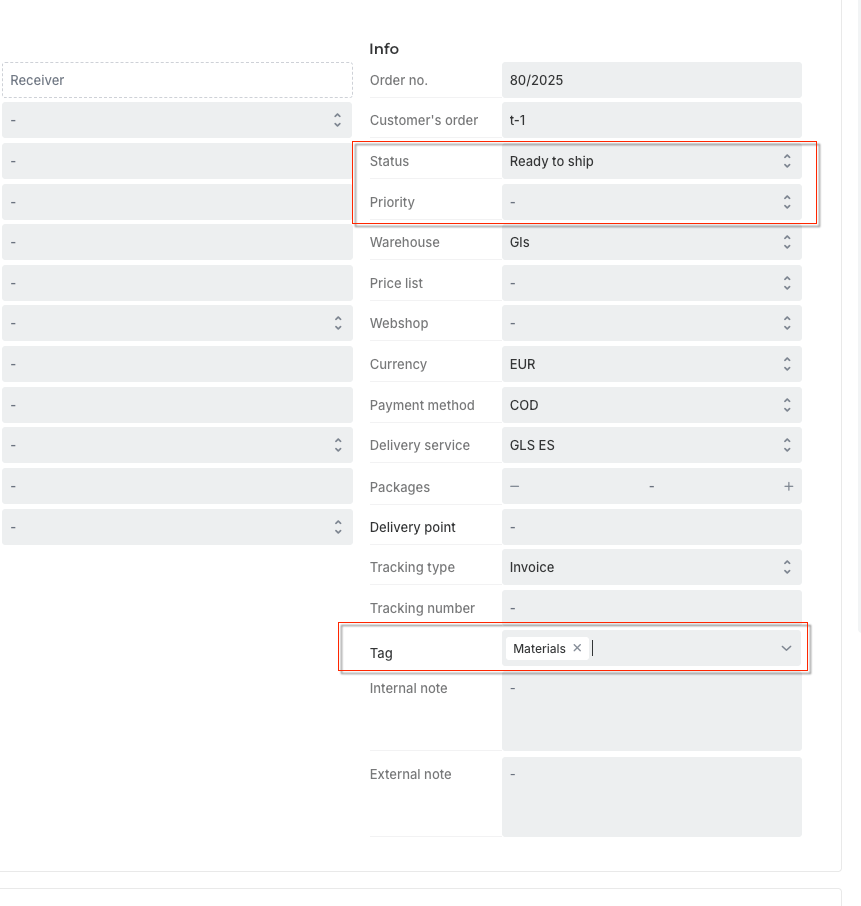
Status - you can manually set it to "Ready to ship" - this is otherwise set automatically by job once per hour. When order gets this status you will see it in Gls account / Fulfillment app.
Priority - You can set priority as needed - this will be seen in Fulfillment app
Tag - You can set, Materials / Distribution - this will also be visible in Fulfillment app.
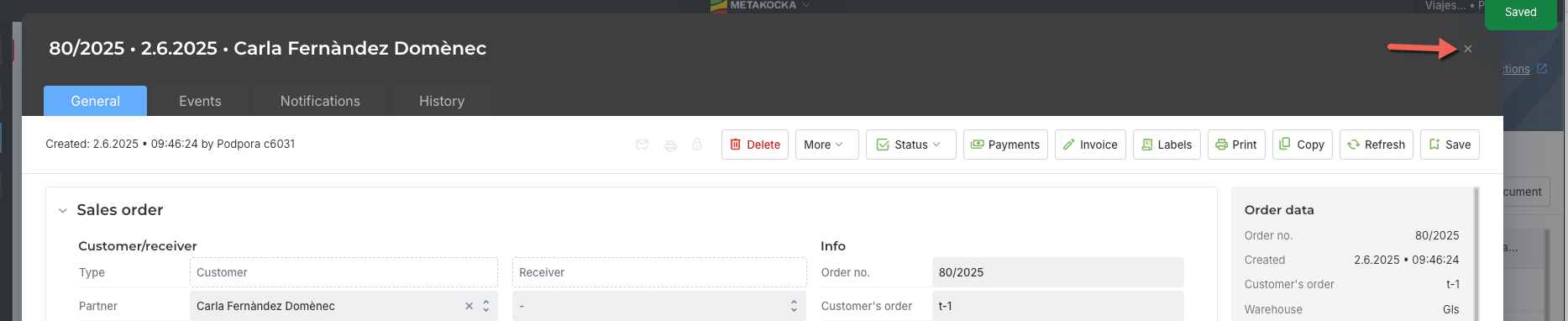
After finishing adding new order ( Save) and close window and add additonal orders
Was this article helpful?
That’s Great!
Thank you for your feedback
Sorry! We couldn't be helpful
Thank you for your feedback
Feedback sent
We appreciate your effort and will try to fix the article