
Enable and add BAR/EAN codes to items
1. Settings/Your company
Enable - the BAR/EAN code function must first be activated.
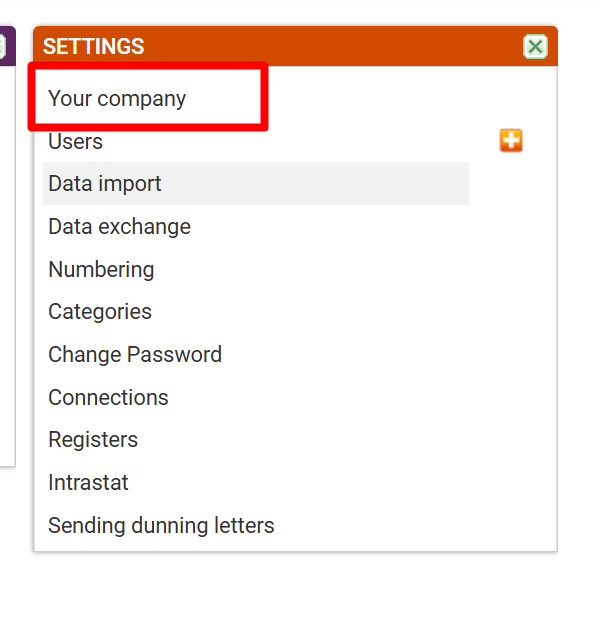
Click on Settings/your company

Under additional fields for items, check "Bar codes support" and save the changes.
2. Assigning a BAR/EAN code to the item
You can now assign an EAN code to existing items by searching for it in Sales/Items (or Purchase/Items) and entering the code in the additional field that is available.
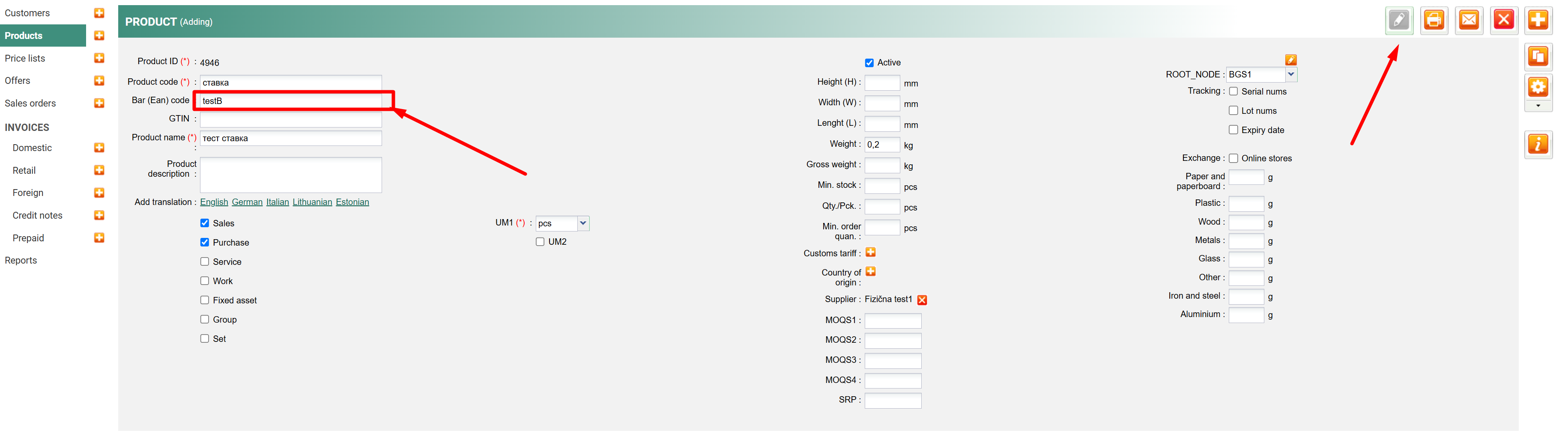
Save the entered changes.
For new items, you can enter the BAR/EAN code when adding a new item or during import via an XLS file, simply enter it in the appropriate column.
The BAR/EAN code allows for faster and more accurate data capture from printed documents, various labels, packaging, etc.
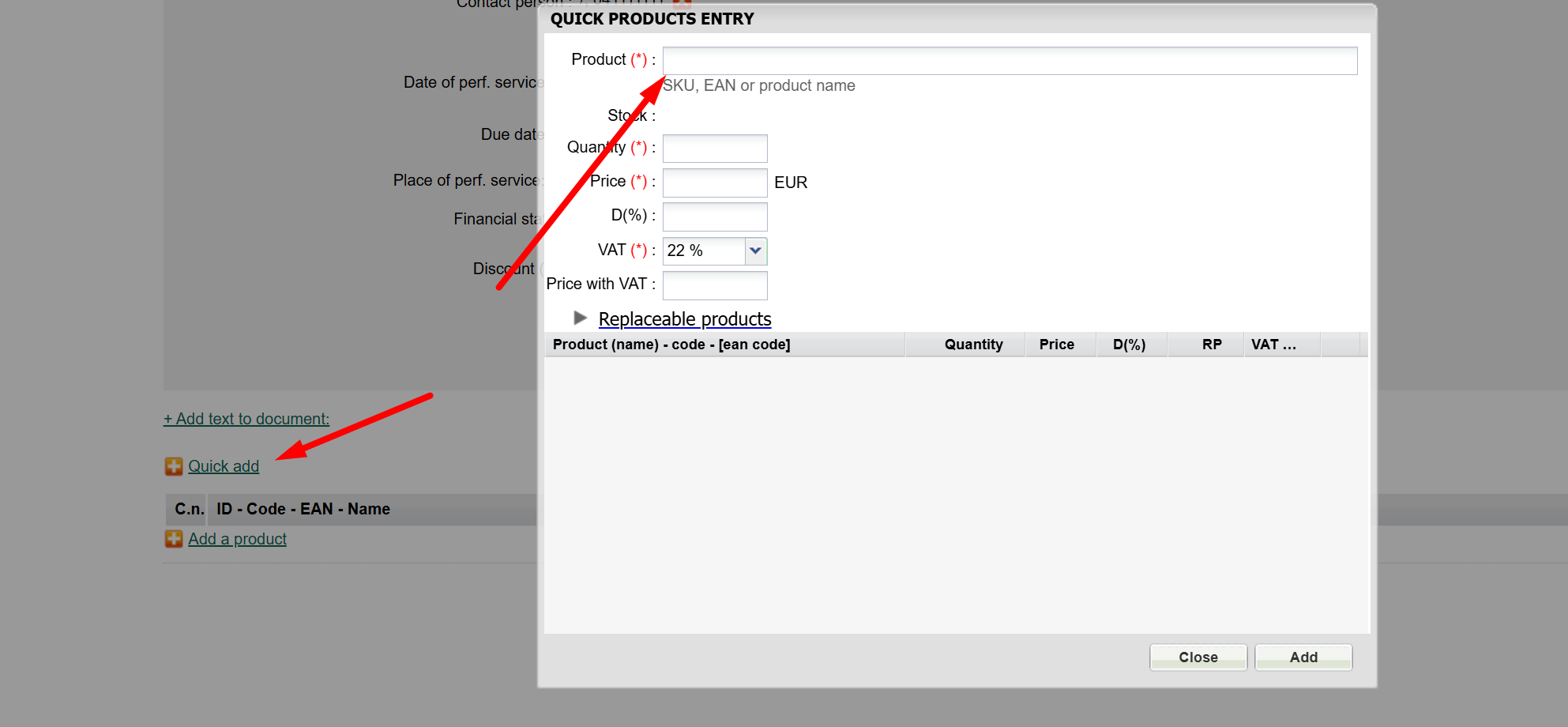
To work with the scanner, also enable "Quick Item Selection" in Settings/Your Company (save the selection).

In documents, when adding items, a "Quick Add" link appears, which opens a dialog that allows for quick entry using a scanner.
Scanners - Requirements
The scanner must be connected to a USB port on the computer where you are logged into MetaKocka. It is recommended that the scanner has a red laser for reliable and fast reading.
Was this article helpful?
That’s Great!
Thank you for your feedback
Sorry! We couldn't be helpful
Thank you for your feedback
Feedback sent
We appreciate your effort and will try to fix the article