
Labels, shipping and settings
DPD CSV EXPORT
This article is not available in Polish, view it in Slovenian
1. Settings - Your Company
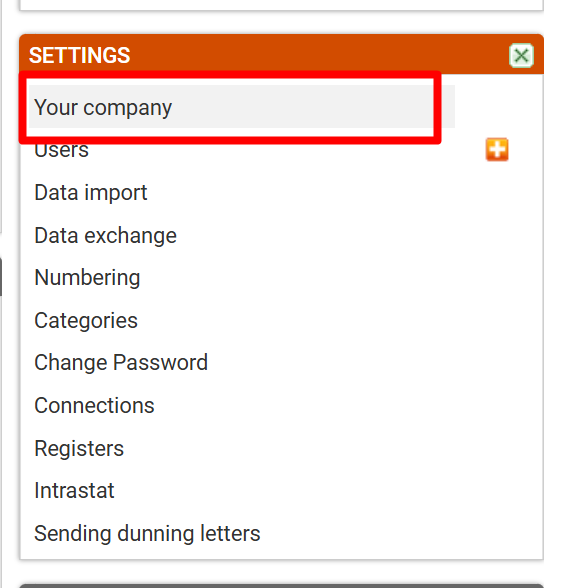
Click on "Your company"
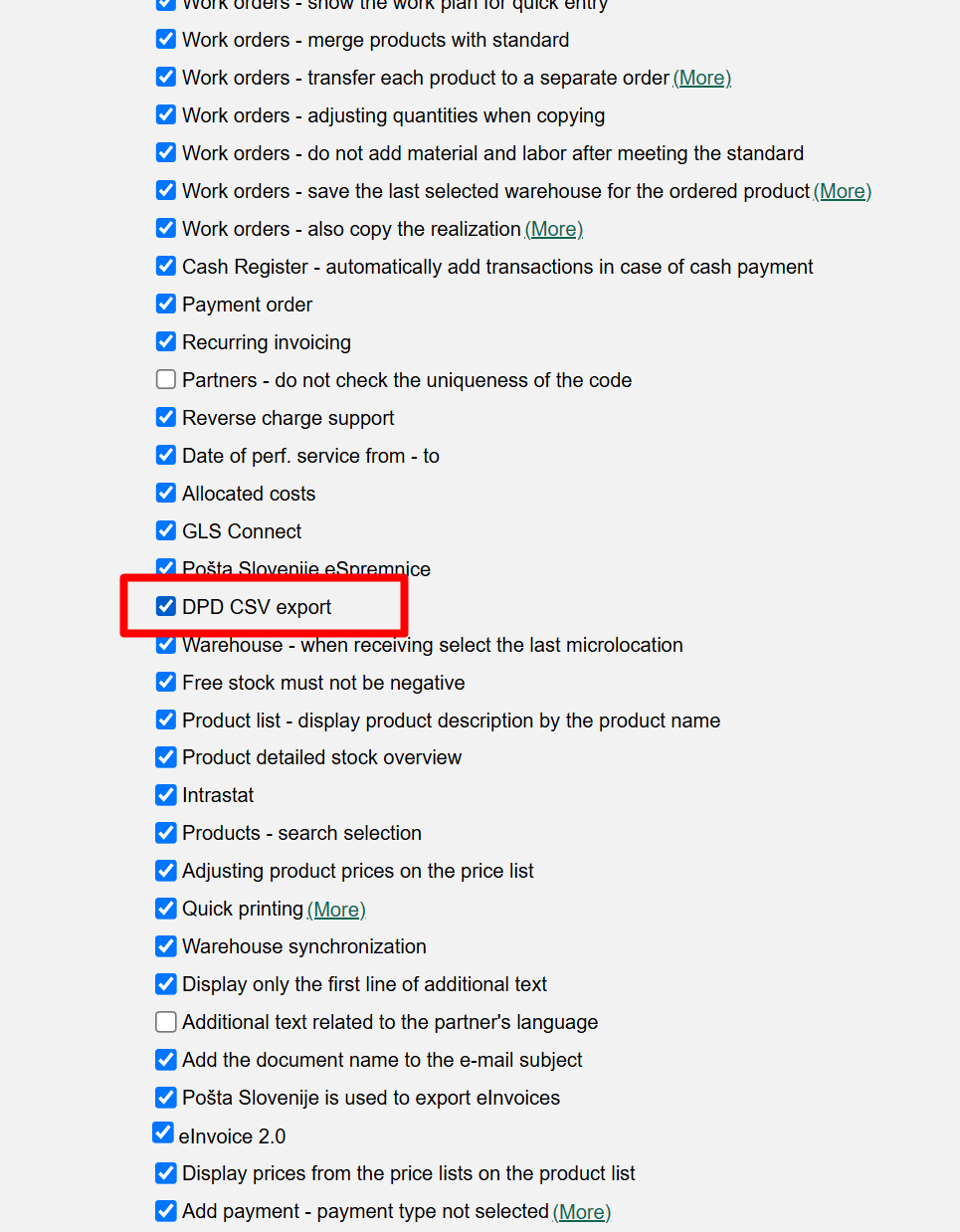
2. DPD CSV EXPORT
To enable the functionality, tick the "DPD CSV EXPORT" feature
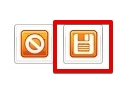
Save changes, by clicking on "Save".
3. Sales - Domestic invoices/Foreign invoices, select value in "Delivery type"
Functionality can be used when adding a new invoice.
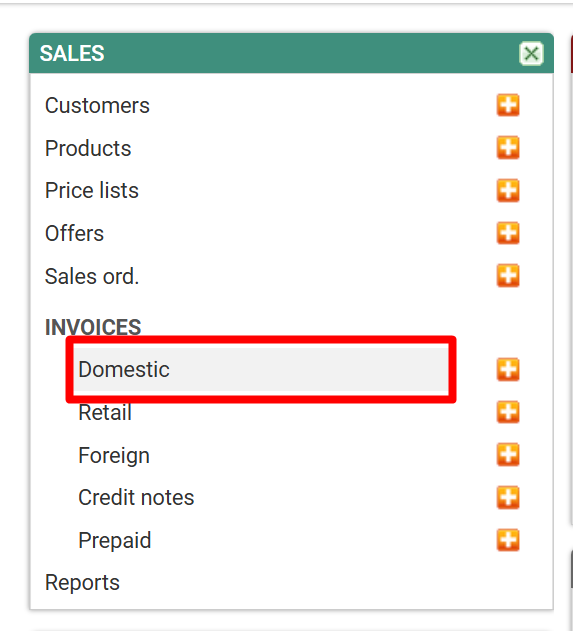
Select "Domestic Invoices"
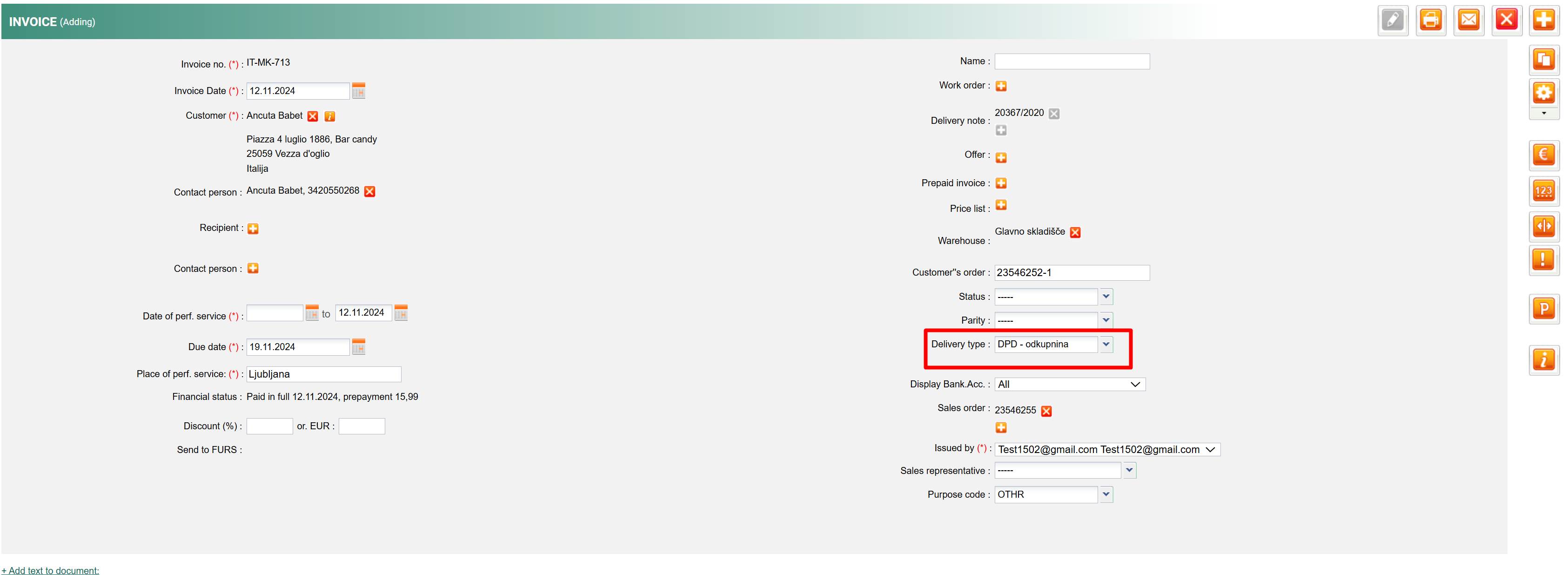
In the invoice, for the Delivery type, select DPD with COD or without COD
4. Creating and printing a .csv file
When labels or .csv file should be created, click on Sales/Reports
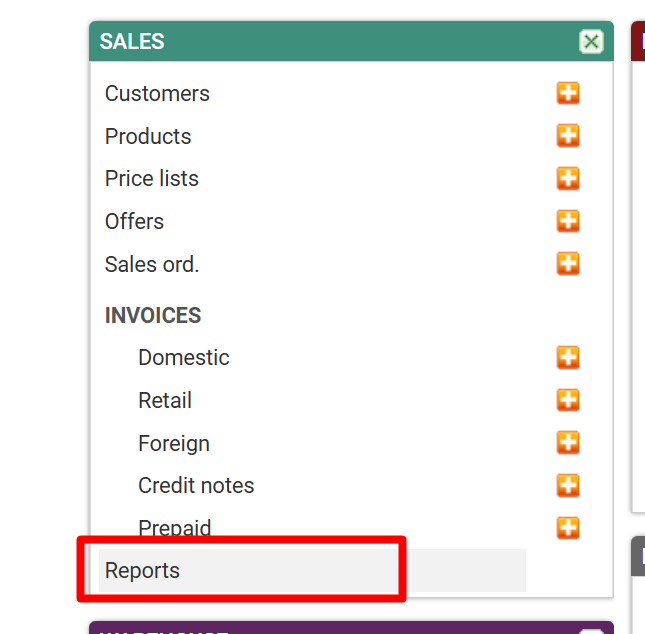
Click on Reports.
Select the DPD CSV export report. Select the date range and print the report.
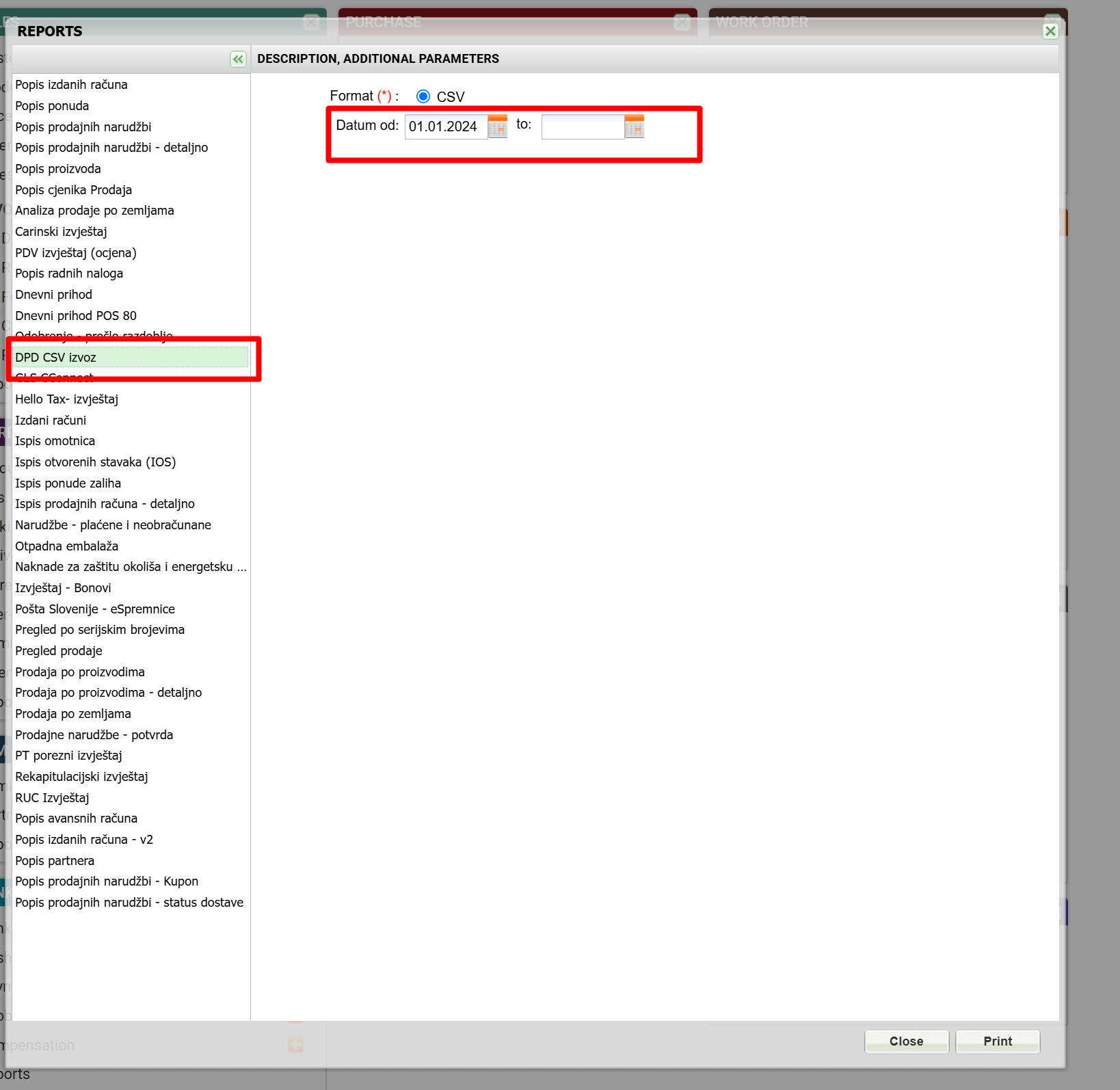
A .csv file will be created, which should be imported into the DPD system for printing labels.
Was this article helpful?
That’s Great!
Thank you for your feedback
Sorry! We couldn't be helpful
Thank you for your feedback
Feedback sent
We appreciate your effort and will try to fix the article