
Issuing and sending E-invoices
The steps required for issuing E-invoices:
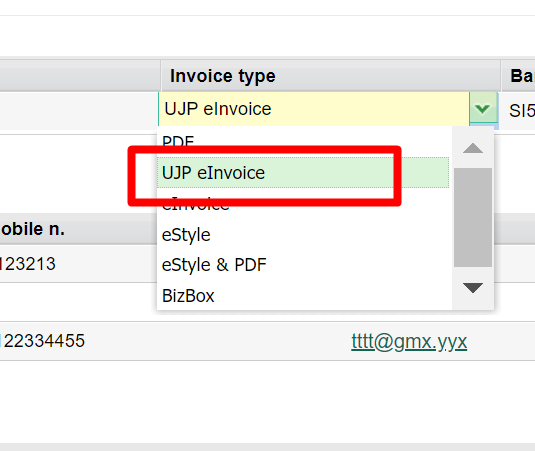
1. Customers – Business info tab – specify invoice type as either ''eInvoice'' or ''UJP eInvoice'' and enter the bank account to which the customer receives eInvoices.

If it is a budget user, select "eInvoice UJP"; otherwise, select "eInvoice"
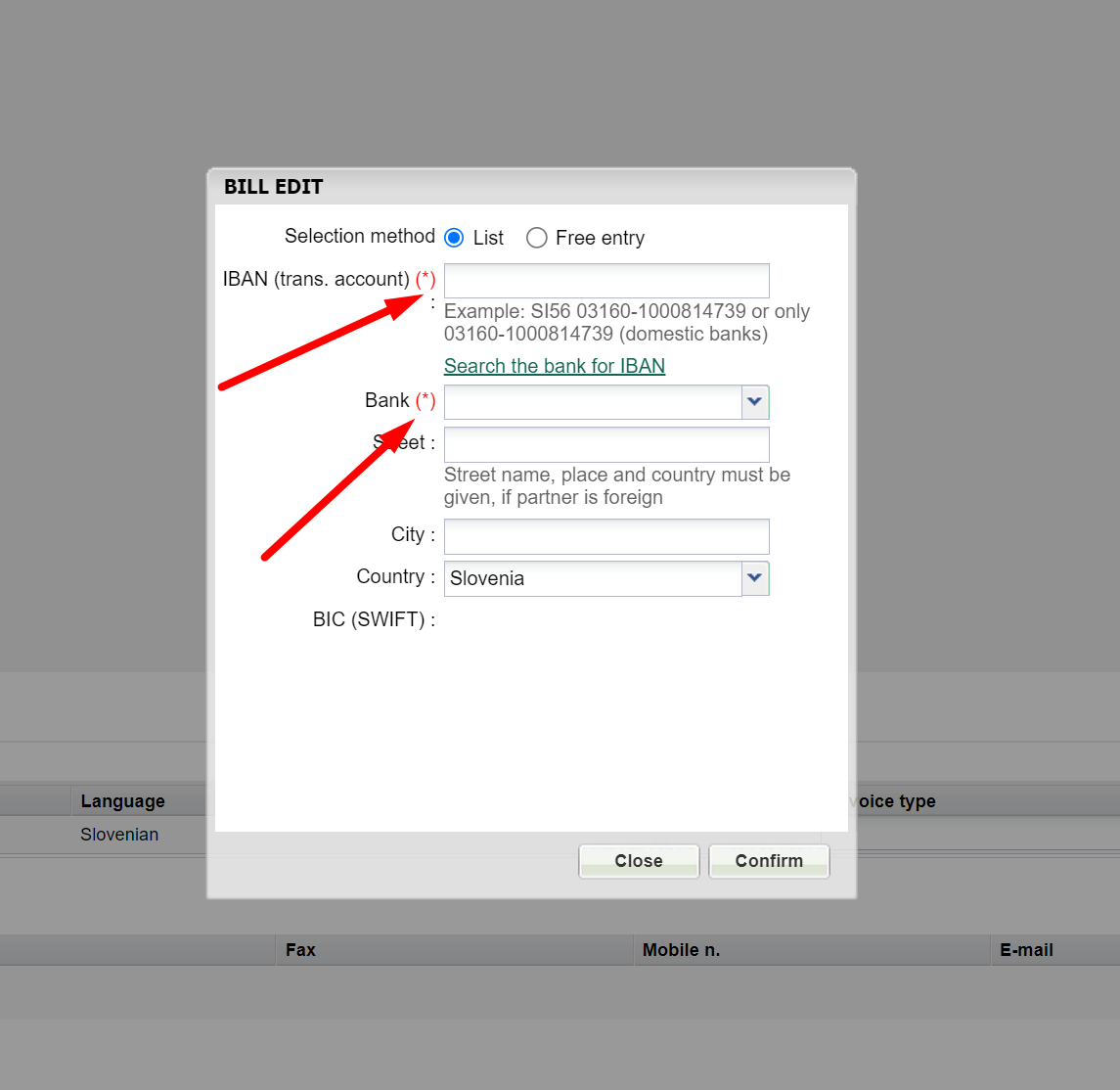
If it is a budget user (public entities such as primary schools, ministries, etc.), the bank account number (TRR) must be entered as a free input:
- Select Free Input
- Enter the IBAN
- Enter the bank's name: UJP
- For BIC, enter: UJPLSI2DICL
- If you are sending via BizBox, the BIC is: BSLJSI2XXXX
 A file will be created containing the eEnvelope, eInvoice, and a PDF invoice as an attachment.
You will need to upload this file to your online banking system when sending an invoice to a customer from the public sector (you must agree with the bank in advance that you will be issuing eInvoices). There, you will sign and send it, thus exchanging eInvoices with your customers. If you rarely conduct business with the public sector and issue only a few invoices, you can enter and submit the eInvoice for the public sector through the UJP portal (a free option).
In the case of issuing a standard eInvoice, you can also send the eInvoice to the customer via email along with the PDF printout.
Was this article helpful?
That’s Great!
Thank you for your feedback
Sorry! We couldn't be helpful
Thank you for your feedback
Feedback sent
We appreciate your effort and will try to fix the article