
Establishing a connection for exchange / synchronization
The year 2026 brings a major change for new Shopify connections, as Shopify no longer supports the old Custom Apps method. Instead, they have recently decided to move the creation of new integrations/apps to the Developer Portal.
As of 2026, Shopify therefore offers two different integration methods:
Shopify public app
Redesigned Shopify Custom App
* Existing/working connections with online stores will continue to operate without issues. The instructions below apply only to new connections with Shopify online stores.
Shopify public app
At MetaKocka, we have prepared a MetaKocka Public App for connecting with Shopify over the past month, which is currently still in the review phase. Due to Shopify’s extremely late notification of partners about changes in the integration area, we are currently in the approval queue. These instructions for easier connection will be updated as soon as the MetaKocka public app becomes available.
At the moment, only the redesigned Shopify Custom App described below is available for establishing a connection.
Redesigned Shopify Custom App
Connecting MetaKocka and Shopify via the Shopify Developer Portal is similar to how it was done previously, but due to Shopify’s policies, several steps must now be configured manually.
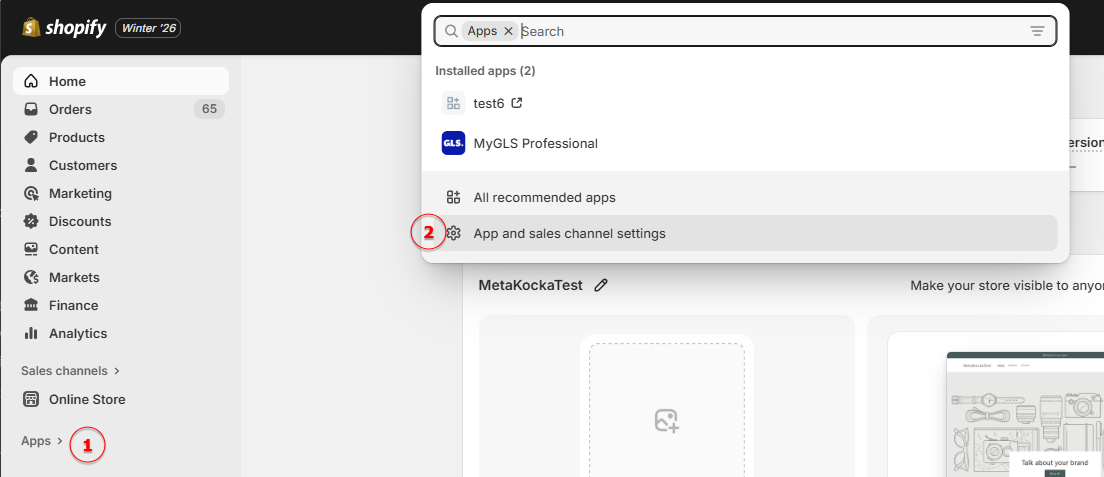
When connecting a new store to MetaKocka, we first start with preparation in the store’s admin dashboard – in the left menu, select Apps, then click App and sales channel settings from the list.
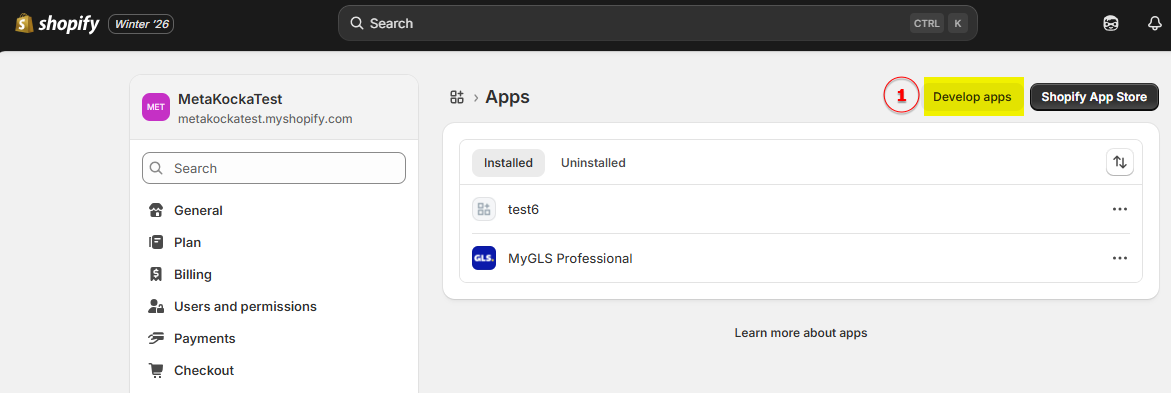
Then select the Develop apps option:
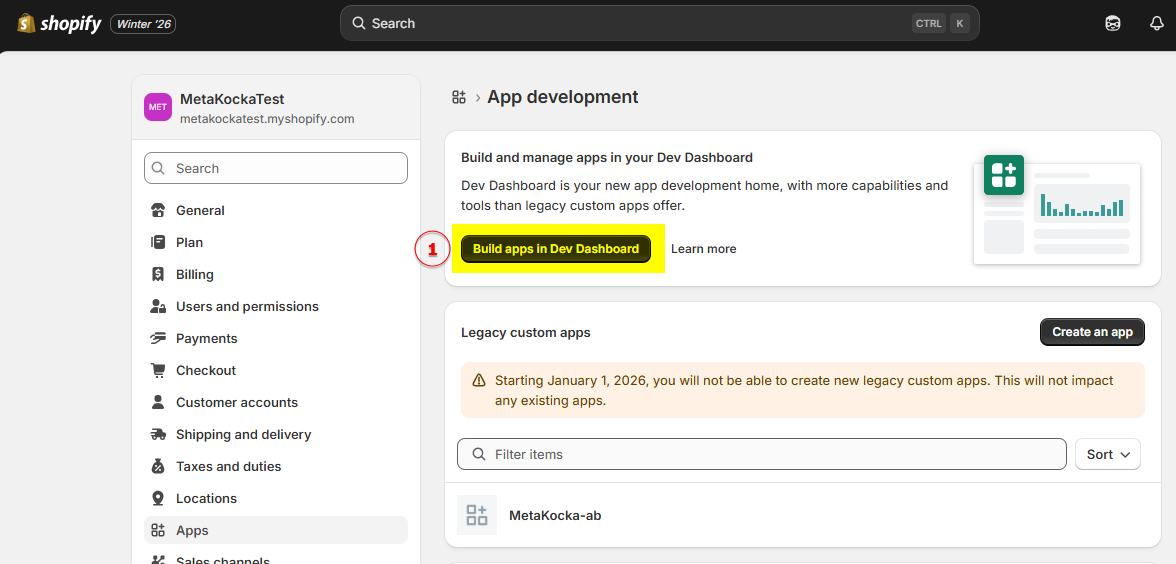
When the App development page opens, select Build apps and Dev Dashboard:
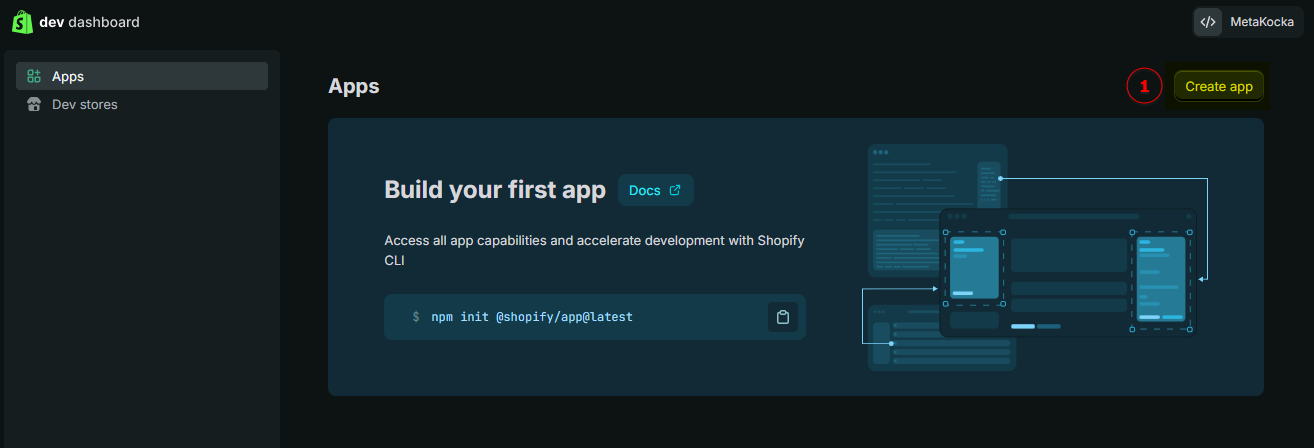
On the new page, enter the desired name of the integration connection and click Create:
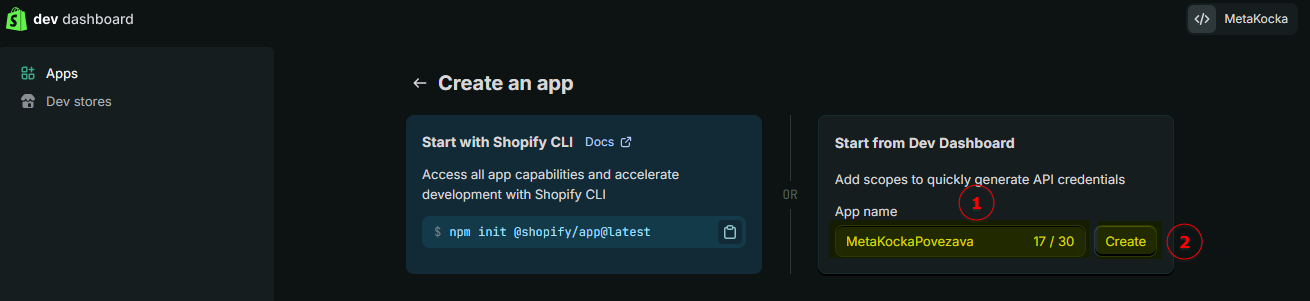
The basic settings for the new application will open, where you need to fill in the following fields (please be careful when copying the data below, as it is important that there are no extra spaces before or after the text!) – see the data below the image for copying:
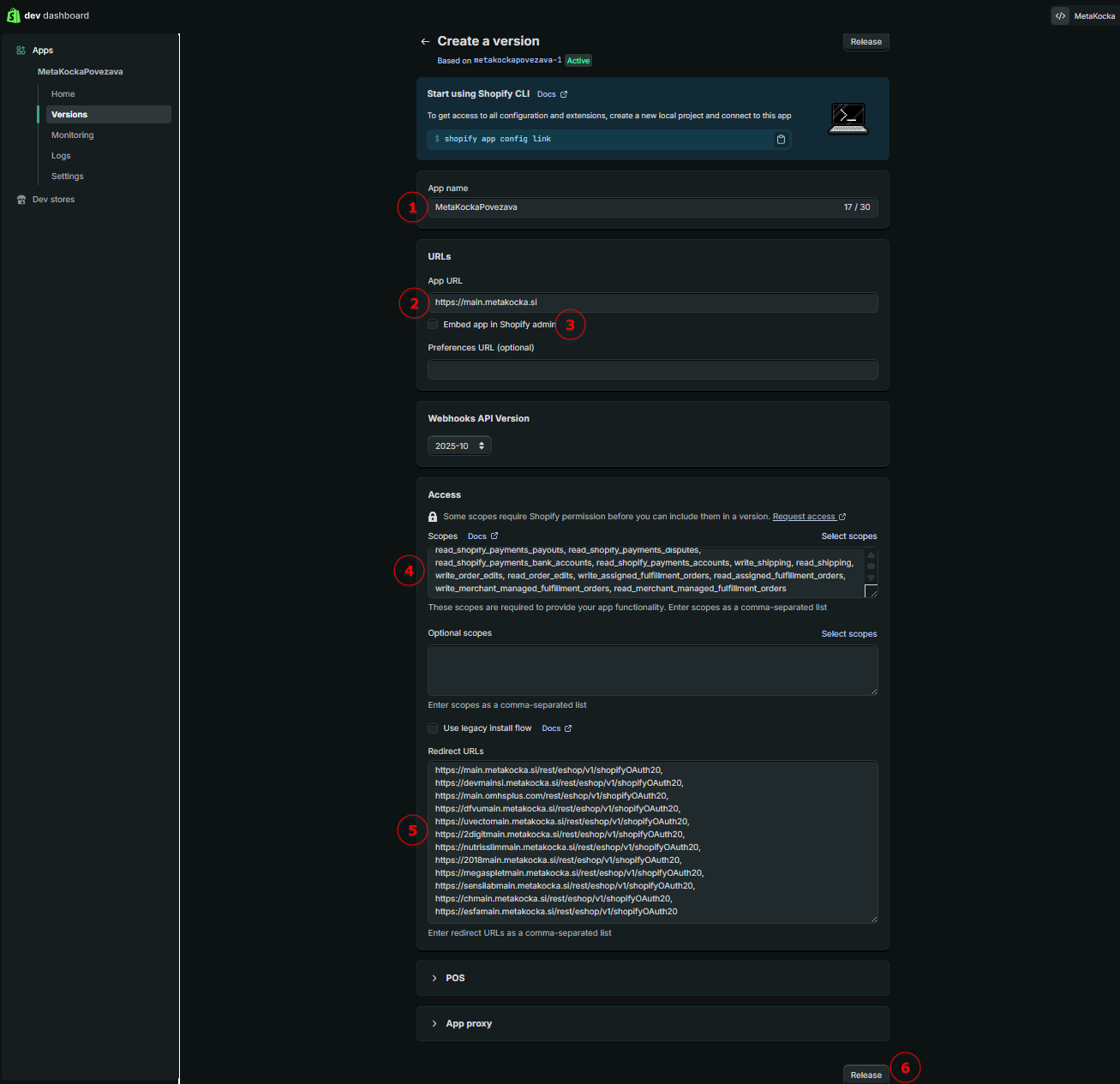
The fields should be filled in as follows:
App Name: already filled in from the previous step
App URL: enter this URL exactly as shown, without any spaces before or after:
In Shopify Admin, uncheck the “Embed app” option.
In the Scopes field, enter the following text exactly as shown:
read_analytics, write_customers, read_customers, write_discounts, read_discounts, write_draft_orders, read_draft_orders, write_files, read_files, write_fulfillments, read_fulfillments, read_inventory, write_inventory, read_locations, write_products, read_products, write_product_listings, read_product_listings, write_price_rules, read_price_rules, read_payment_terms, write_orders, read_orders, read_shopify_payments_payouts, read_shopify_payments_disputes, read_shopify_payments_bank_accounts, read_shopify_payments_accounts, write_shipping, read_shipping, write_order_edits, read_order_edits, write_assigned_fulfillment_orders, read_assigned_fulfillment_orders, write_merchant_managed_fulfillment_orders, read_merchant_managed_fulfillment_orders
In the Redirect URLs field, copy the following text exactly as shown:
https://main.metakocka.si/rest/eshop/v1/shopifyOAuth20, https://devmainsi.metakocka.si/rest/eshop/v1/shopifyOAuth20, https://main.omhsplus.com/rest/eshop/v1/shopifyOAuth20, https://dfvumain.metakocka.si/rest/eshop/v1/shopifyOAuth20, https://uvectomain.metakocka.si/rest/eshop/v1/shopifyOAuth20, https://2digitmain.metakocka.si/rest/eshop/v1/shopifyOAuth20, https://nutrisslimmain.metakocka.si/rest/eshop/v1/shopifyOAuth20, https://2018main.metakocka.si/rest/eshop/v1/shopifyOAuth20, https://megaspletmain.metakocka.si/rest/eshop/v1/shopifyOAuth20, https://sensilabmain.metakocka.si/rest/eshop/v1/shopifyOAuth20, https://chmain.metakocka.com/rest/eshop/v1/shopifyOAuth20, https://esfamain.metakocka.com/rest/eshop/v1/shopifyOAuth20
Next, click the “Release” button, which will save the app with the above settings.
These settings give MetaKocka the appropriate permissions to access data on orders, inventory, and products, while also enabling the redirects required for authorization between Shopify and MetaKocka.
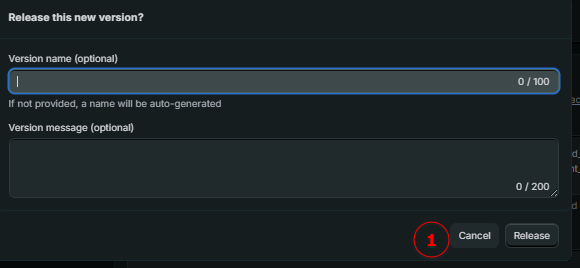
When you click Release, another window with optional information will open, where you can simply click the Release button again.
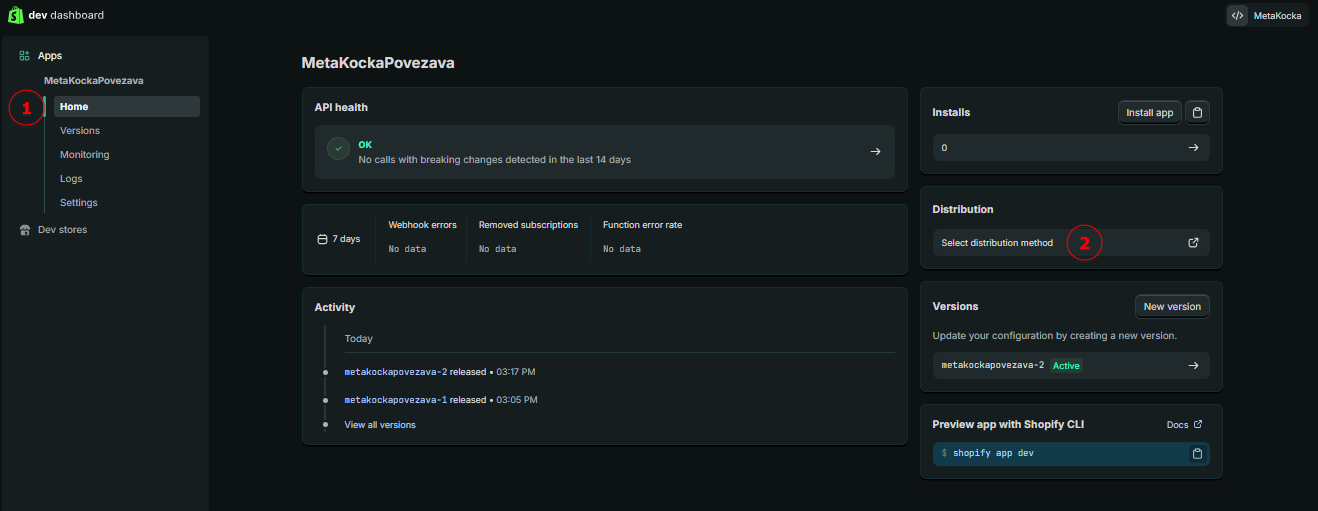
The next step is to check whether we can select a distribution method for the application.
To do this, in the Developer Dashboard, in the newly created application, select Home in the left menu, and then in the right column, look to see if we have the Distribution option. If so, follow the instructions for OPTION 1; if not, follow the instructions for OPTION 2.
OPTION 1
In the Developer Dashboard, open the newly created app and select Home from the left-hand menu. Then, in the right-hand column, click “Select distribution method”:
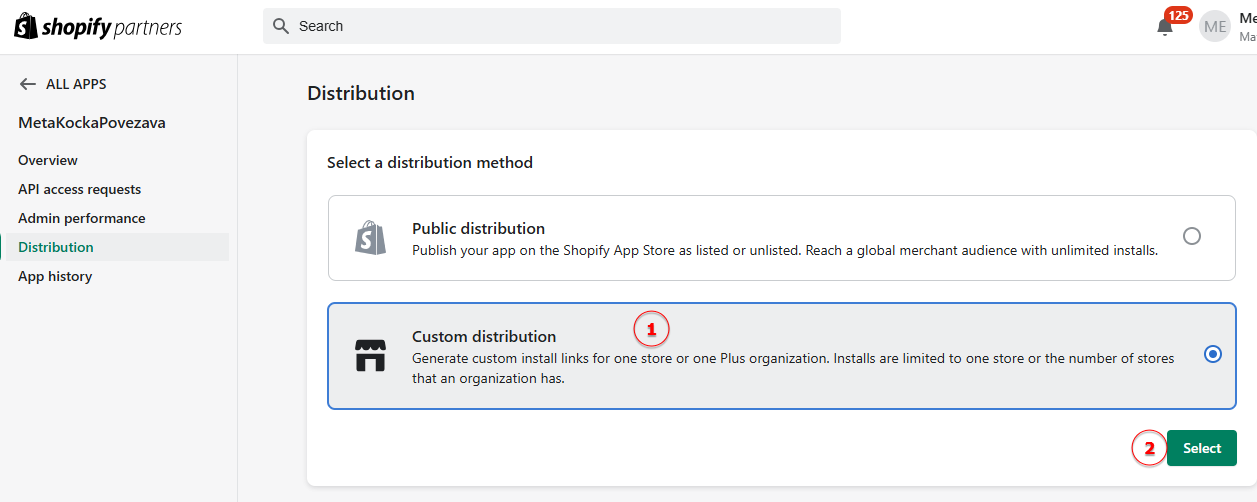
This will then redirect you to the distribution selection, where you need to choose Custom distribution and then click Select:
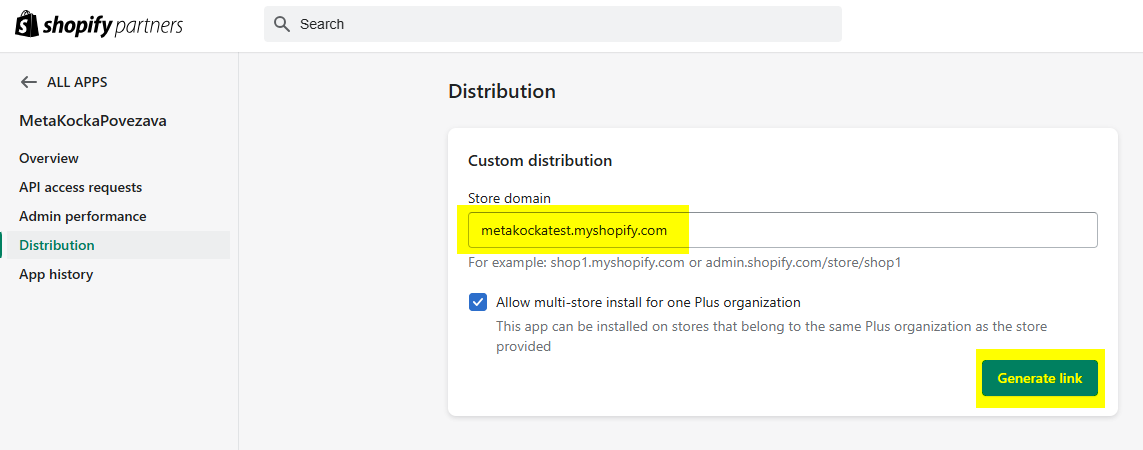
There, enter your Shopify store’s domain in the appropriate myshopify.com format (!):
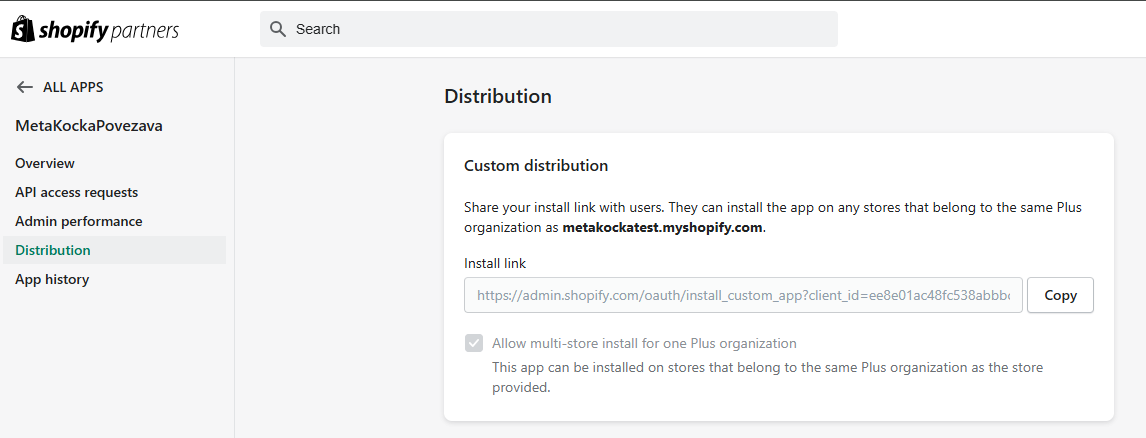
Once this is done, we receive a link that allows us to install the newly created app in our Shopify online store:
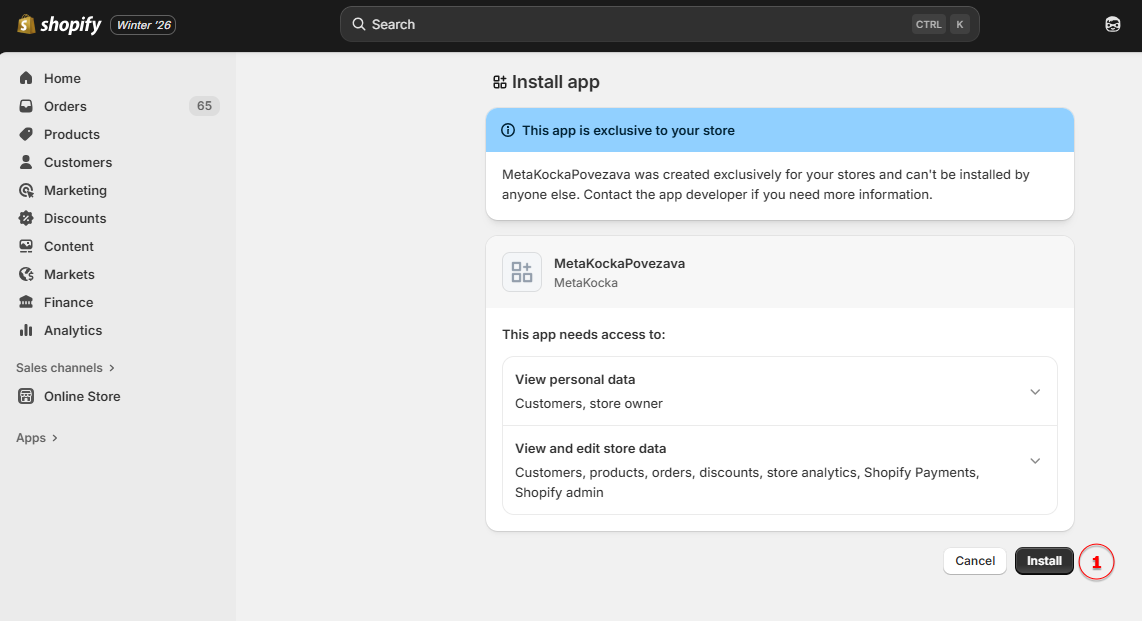
Copy the link and open it in a new window, where Shopify will prompt you to install the newly created app in your online store – confirm by clicking Install:
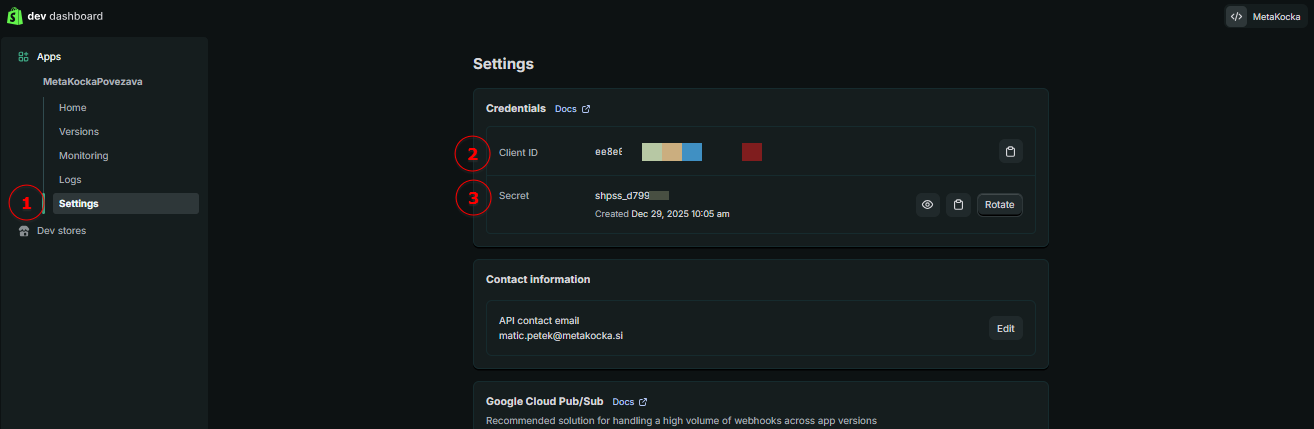
Return to the Shopify Developer Dashboard, and from the app settings, copy the two pieces of information: Client ID and Client Secret:
OPTION 2
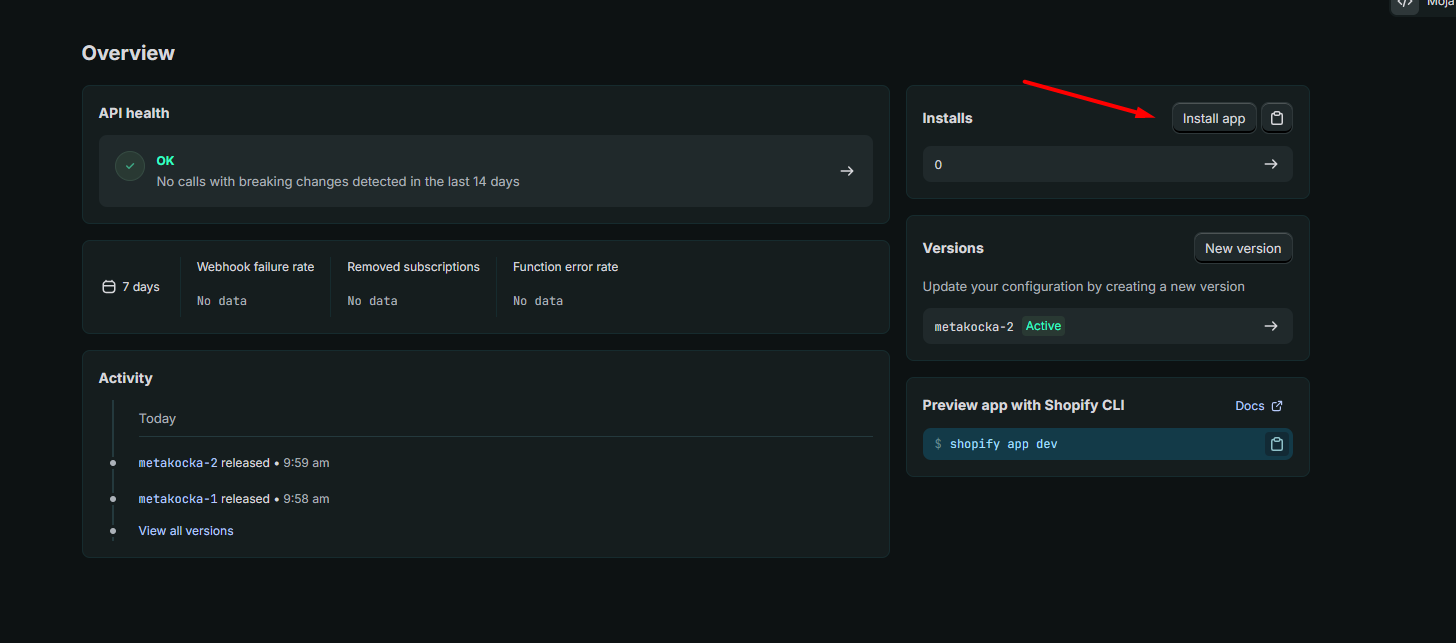
If you don't have the "Select distribution method" option, go to Install app
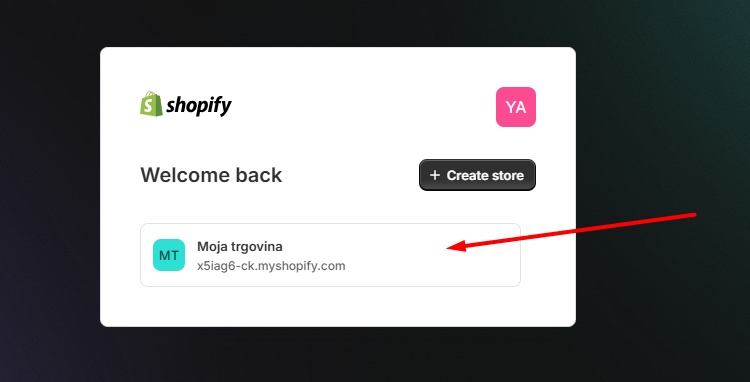
Choose your store
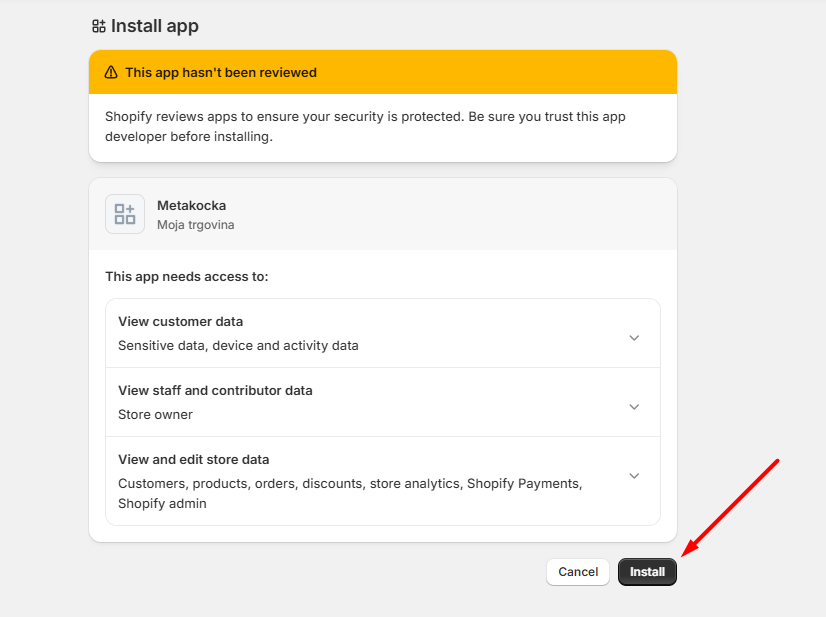
and install the app
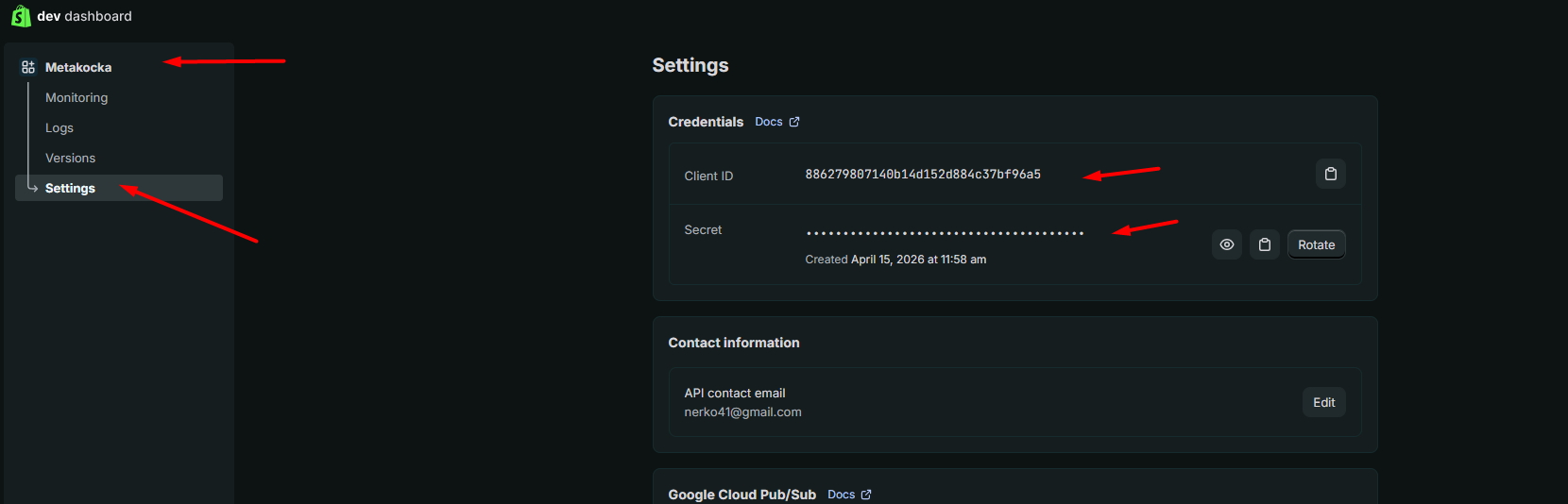
Then go back to Dev dashboard and select Settings, where you will find the keys that you copy to Metakocka.
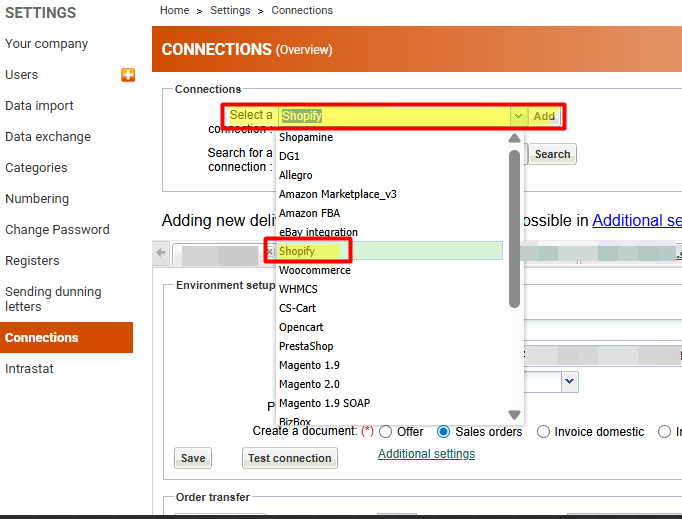
Next, we are automatically redirected to MetaKocka, where we will create a new connection for Shopify:
Once the connection is created, open it and enter the following settings:
Name: any name you prefer
Example URL: your store’s URL, must be in the myshopify.com format!
Client ID: the Client ID from the Shopify Developer Dashboard
Client Secret: the Client Secret from the Shopify Developer Dashboard
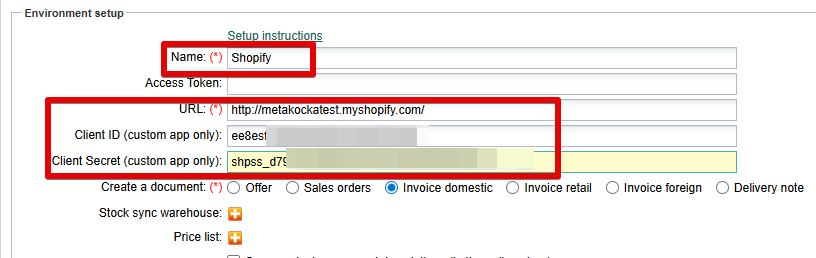
Save the settings.
Next, click the Authorize with MetaKocka button and wait, as the automated process will take you through several redirects and then return you to the MetaKocka settings for the above connection within a few seconds.
Once you are back on the settings page, check whether the previously empty “Access Token” field is now filled in:
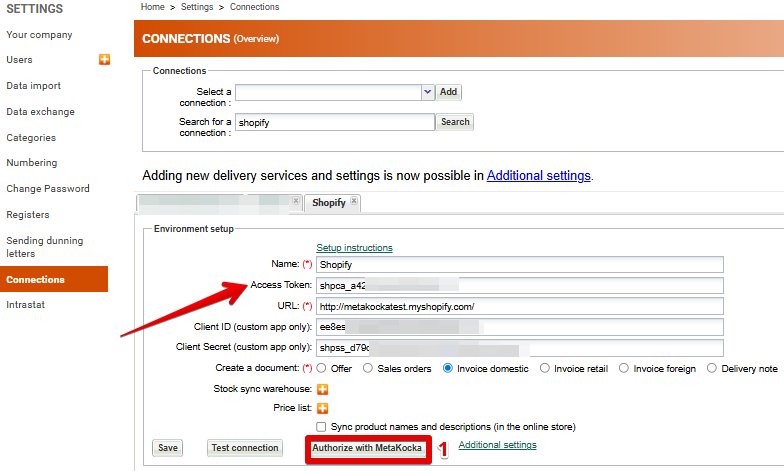
If the field is filled, it means you have successfully established the connection between your Shopify store and MetaKocka.
You can verify the connection by performing a connection test:
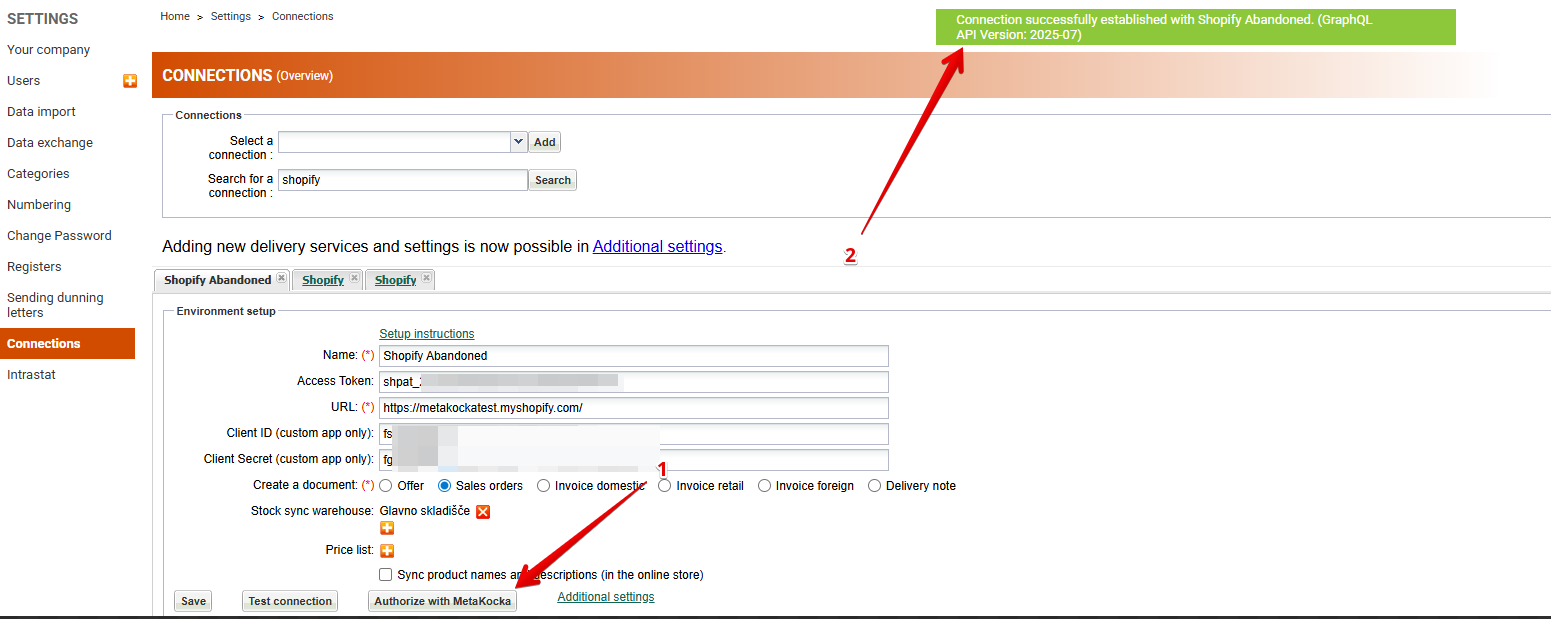
If the connection is successfully established, set up AUTOMATIC ORDERS TRANSFER
Synchronization of products
To transfer a product to MetaKocka, the following settings must be set on the product:
- publish scope must be "global". If web, mobile, etc. is selected, then you will get the error "Product [Name of the product] is not available for sale".
- The product must have a unique name and a unique SKU number.
In Metakocka, product synchronization is triggered in Connection Settings
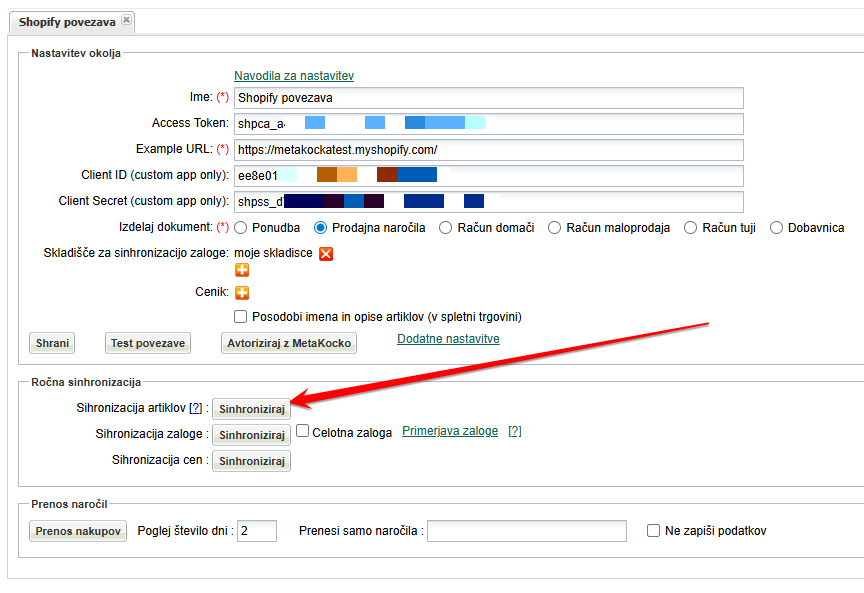
Stock synchronization
If you are having problems with stock synchronization (stock is not syncing), the most important thing is to check whether you have the appropriate permissions enabled on the previously created Shopify custom app. The permissions required for stock synchronization are: write_inventory and read_inventory.
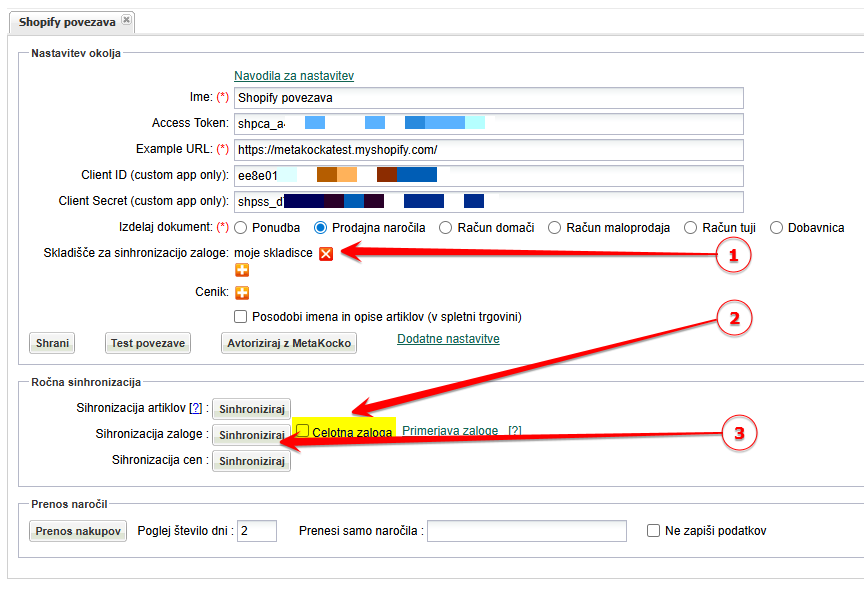
Stock synchronization is one-way from Metakocka to Shopify, triggered in settings / connections.
First, set the warehouse from which you want to synchronize the stock, then trigger synchronization of the entire stock - this is additionally enabled by checking "Total stock":
Mapping of MetaKocka product fields <> Shopify
| MetaKocka | Shopify | Opomba |
| Code | SKU. | |
| Product name | Name | |
| Quantity | Quantity | |
| Price | Price. | Since it already includes tax, it is always recorded in MK as a gross price. Tax data is also sent along with the request. If no tax is configured, the tax for the item is set to 0. |
| Sales, Purchase | Not specified | In MK, it is mandatory to specify whether the product is a sales or a purchase. When a new product is added, it is always set as both a sales and a purchase product. |
| Unit of measure | Not specified | If the user has a default value configured for the unit of measure, that value will be used. Otherwise, "piece" is applied. |
The data in Shopify does not include a tax rate, so the shipping amount from Shopify is considered as the gross amount in MK, and the default tax rate is set by the company.
Price synchronization
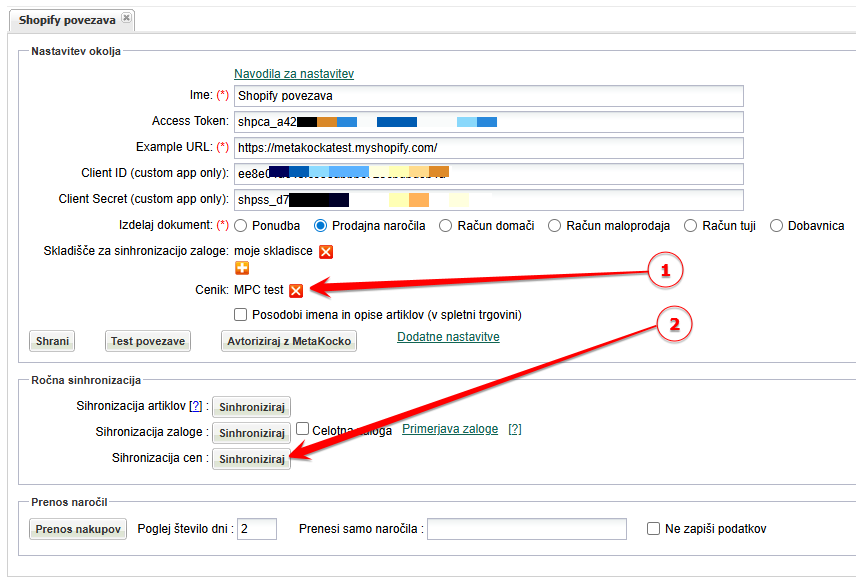
Price synchronization operations transfer gross prices from MetaKocka to Shopify.
Synchronization can be activated in settings -> connections. First, set the price list from which you want prices to be synchronized and then initiate price synchronization in Shopify.
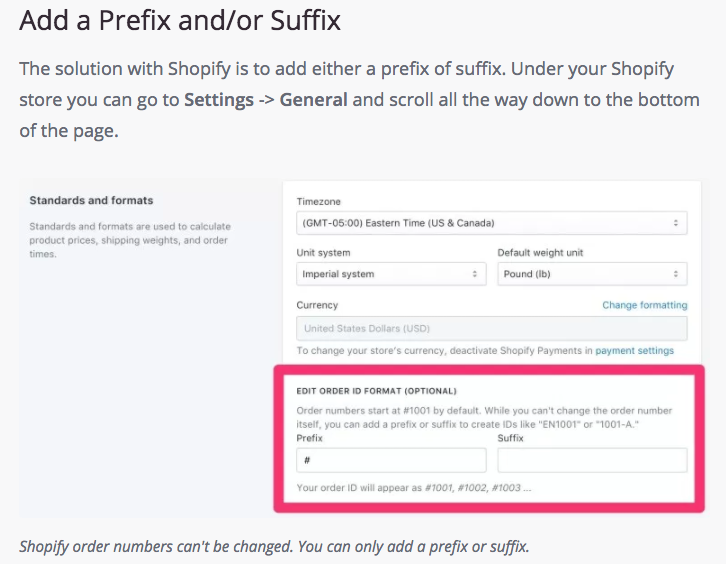
Setting a prefix for orders
If you have multiple online stores, we suggest setting a prefix for individual orders.
Instructions (vir : https://www.speakinginbytes.com/2017/11/shopify-order-numbers/) :
Tax mapping
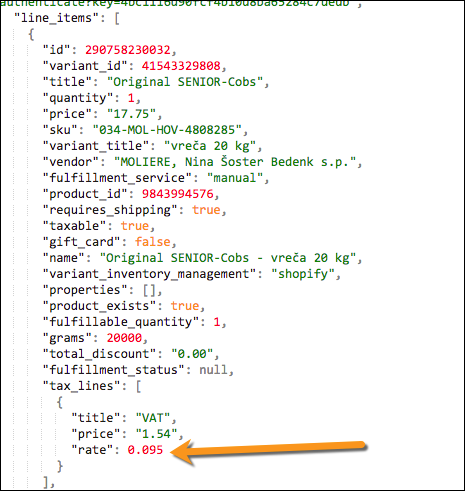
If the online store does not send tax information, the default tax from MetaKocka is used for the order. Alternatively, tax can be set in the online store (both for products and for shipping costs), and this will be mapped to the MK tax codes accordingly. The following tax rates are supported:
| Tag | MK Tax |
| 0.22 | 22% |
| 0.095 | 9,5% |
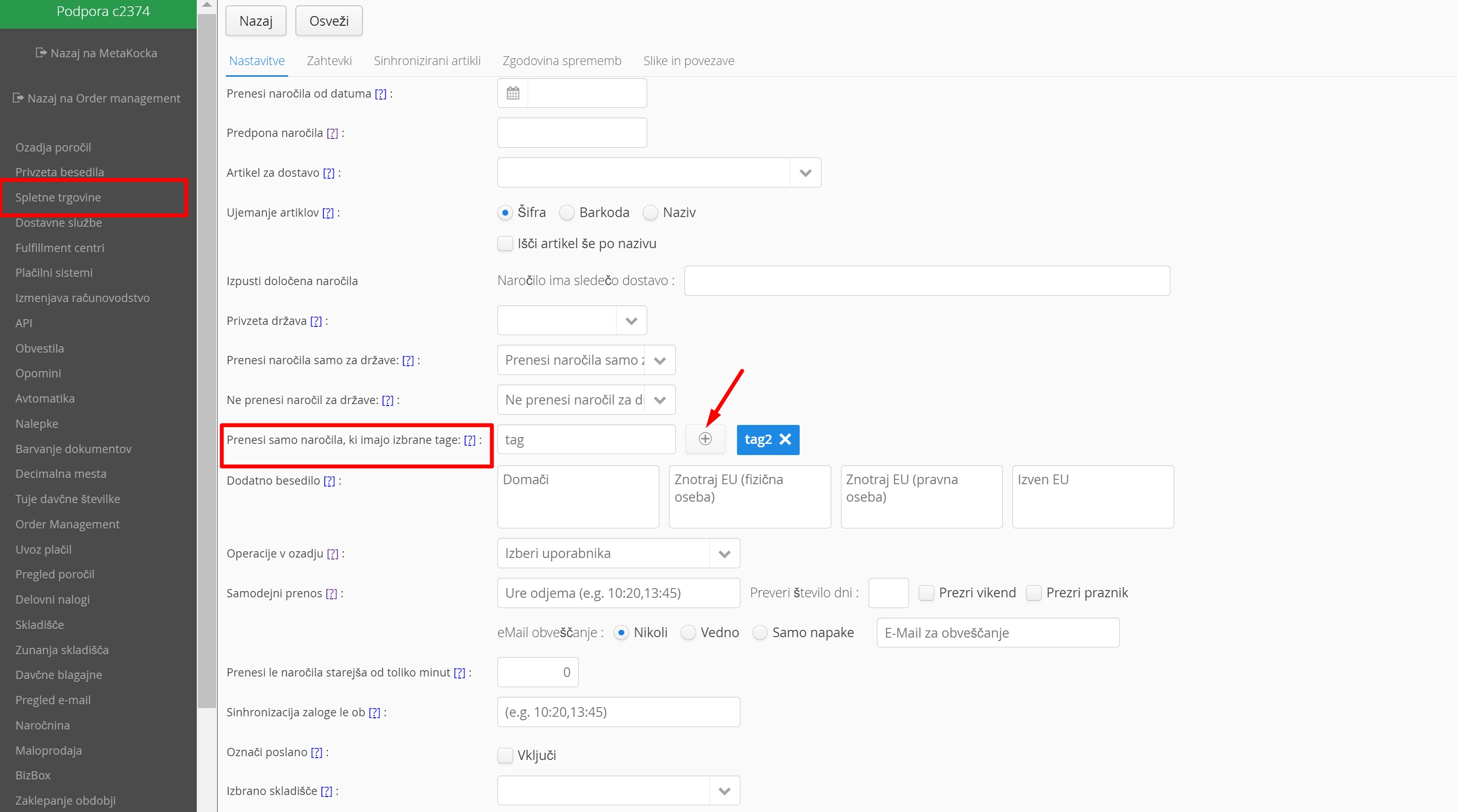
Transfer limit on tags
If the order has certain 'tags', they are transferred to Metakocka. This is set in the additional settings:
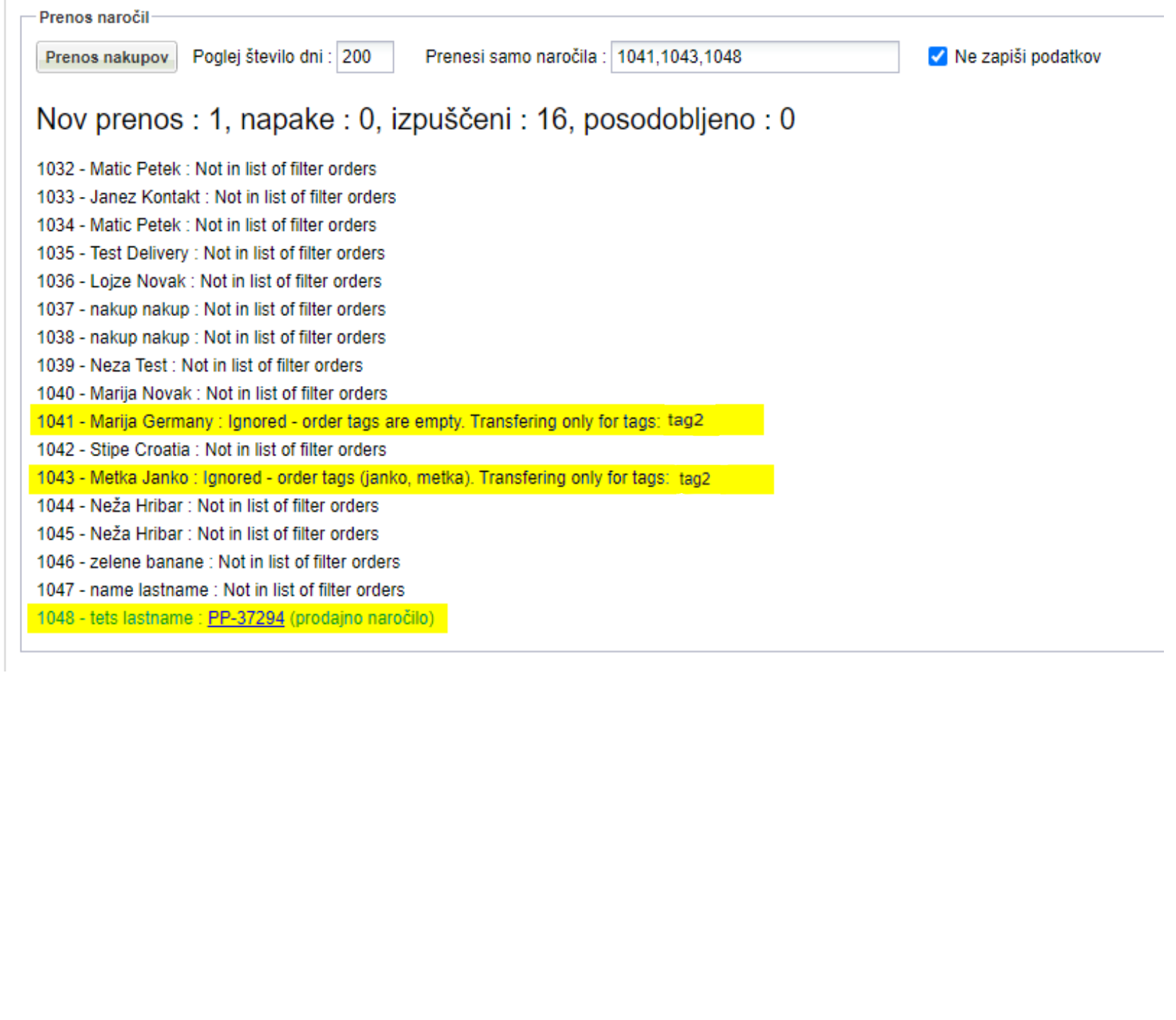
This tag was displayed when transferring orders.
Was this article helpful?
That’s Great!
Thank you for your feedback
Sorry! We couldn't be helpful
Thank you for your feedback
Feedback sent
We appreciate your effort and will try to fix the article
