
MetaKocka mail
MetaKocka mail replaces the Mandrill integration. You can send emails directly from MetaKocka. Before you start, follow the instructions below.
1. Registering domains and email addresses:
Enter the domains and their email addresses in the Control center: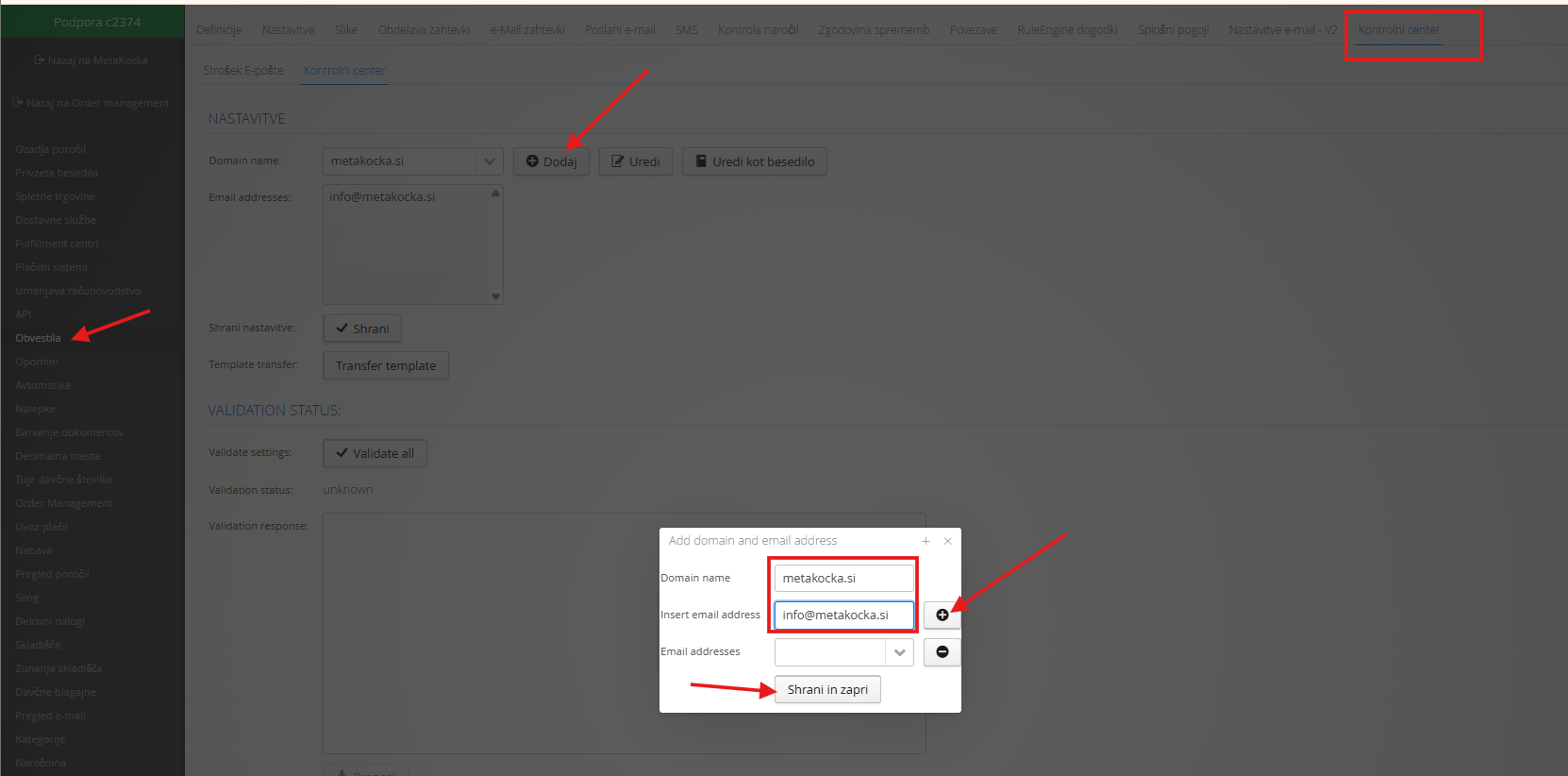
If you have several domains, you can add them in bulk with the Edit as text button. Prepare the values in XLS, copy them into the field and save: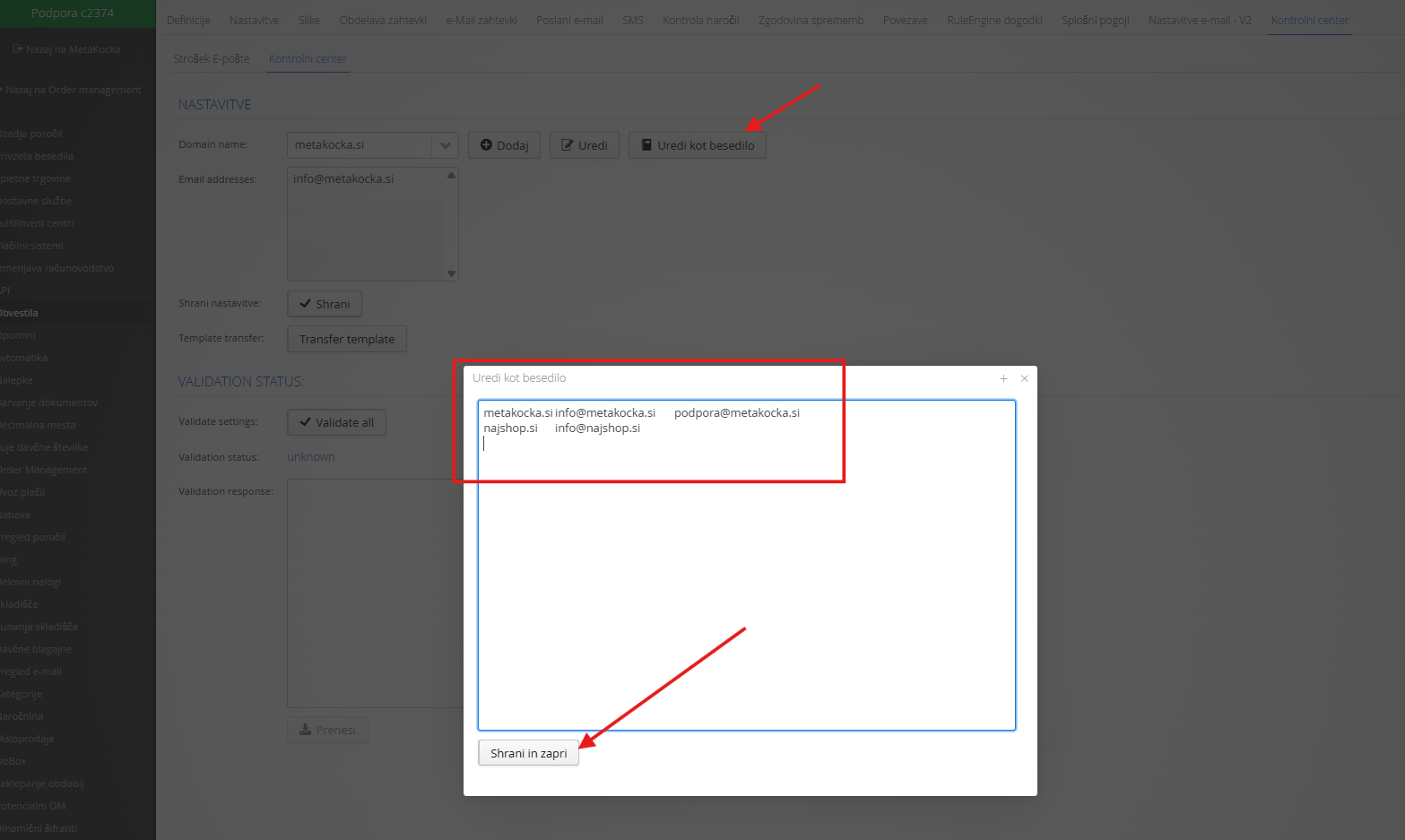
After you enter the domains and their email addresses, you need to validate the records and enter the right DNS values with your domain provider. Clicking the Validate button gives you the SPF, DKIM and DMARC values. INSTRUCTIONS
If the validation is successful and the values have been entered correctly with your domain provider, you will see this dialog: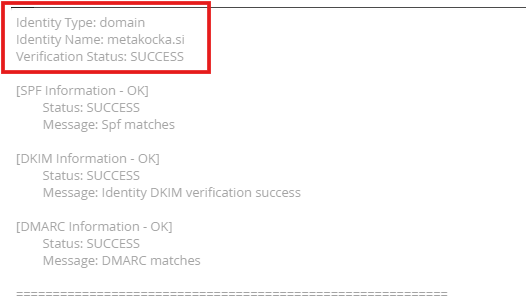
2. Transferring templates from Mandrill to MetaKocka
The Transfer templates button transfers all your active Mandrill templates to MetaKocka, so you do not need to create all the templates again: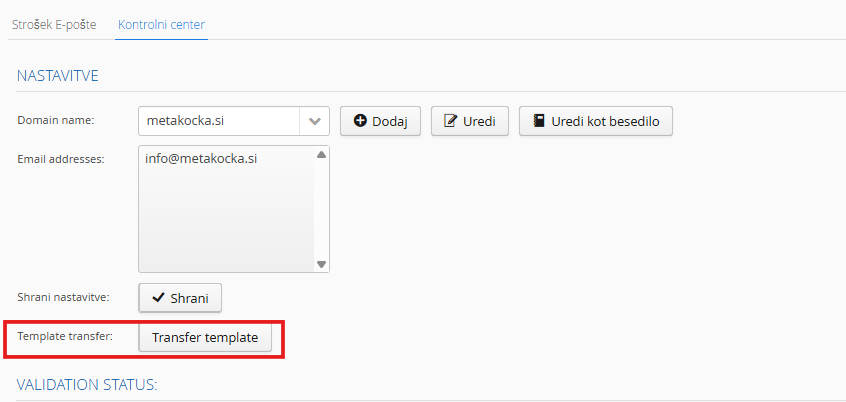
The transferred templates are saved in Settings email V2, where you can edit them and add new ones: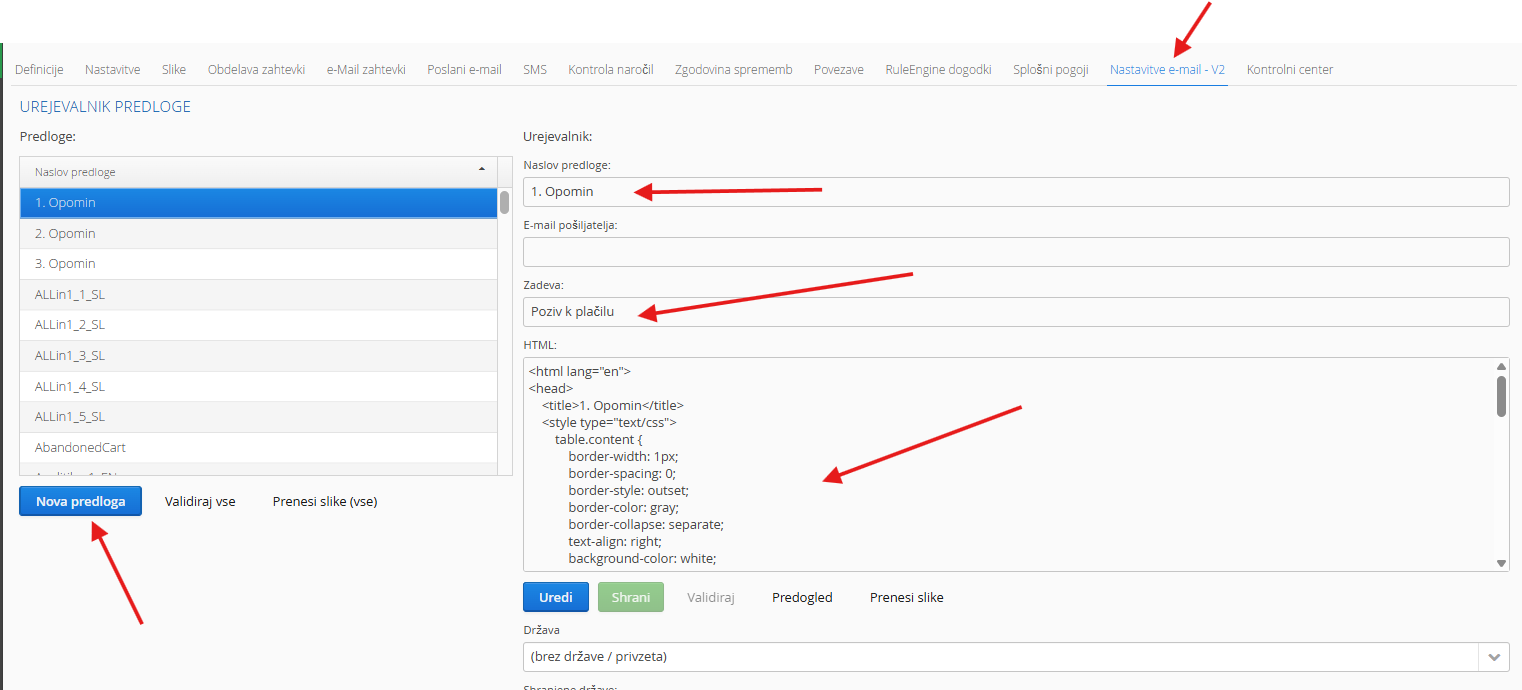
You can also create templates by language. This means you can have one template with several languages, so you do not need to create a new template for each language or open new definitions for each language.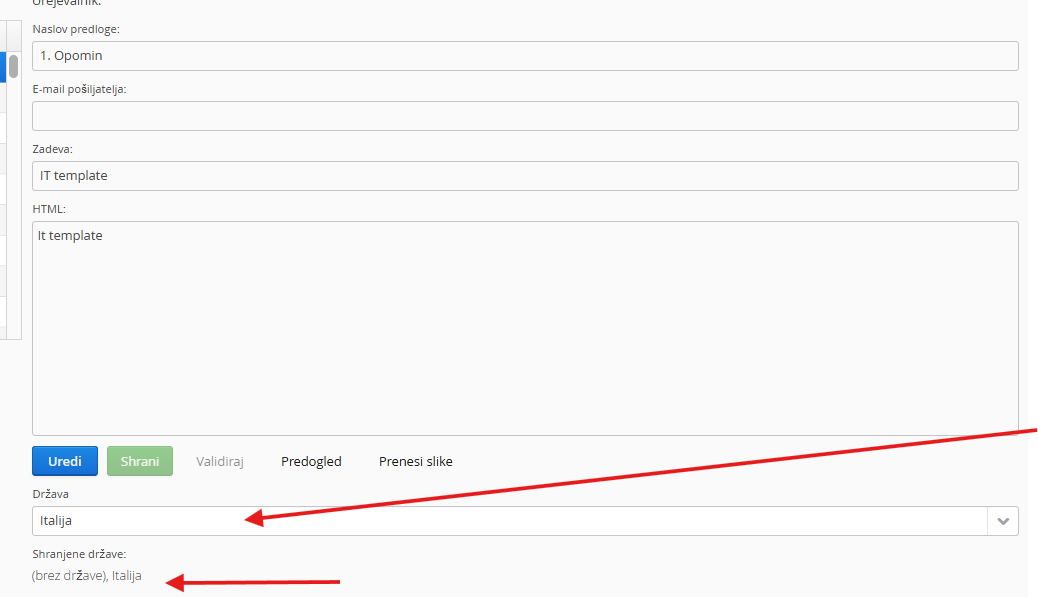
If you create a multilingual template, select the template from By country in the definitions. MetaKocka will then choose the language when sending based on the country of the sales order. If there is no language version for the selected country, the Default template is used: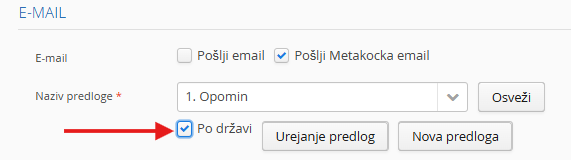
3. Preview and test sending
After you enter the template, click Preview to check what the email will look like.
Click Preview and a window with the layout opens
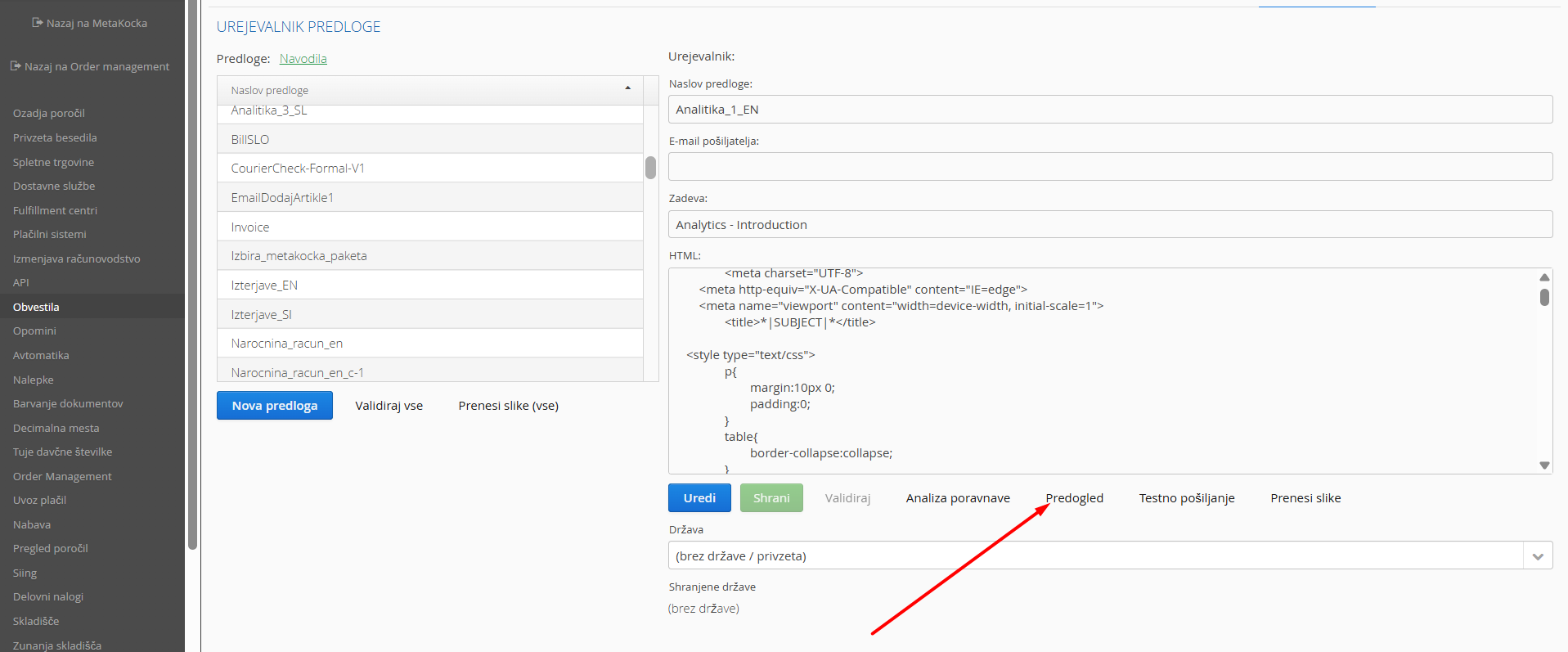
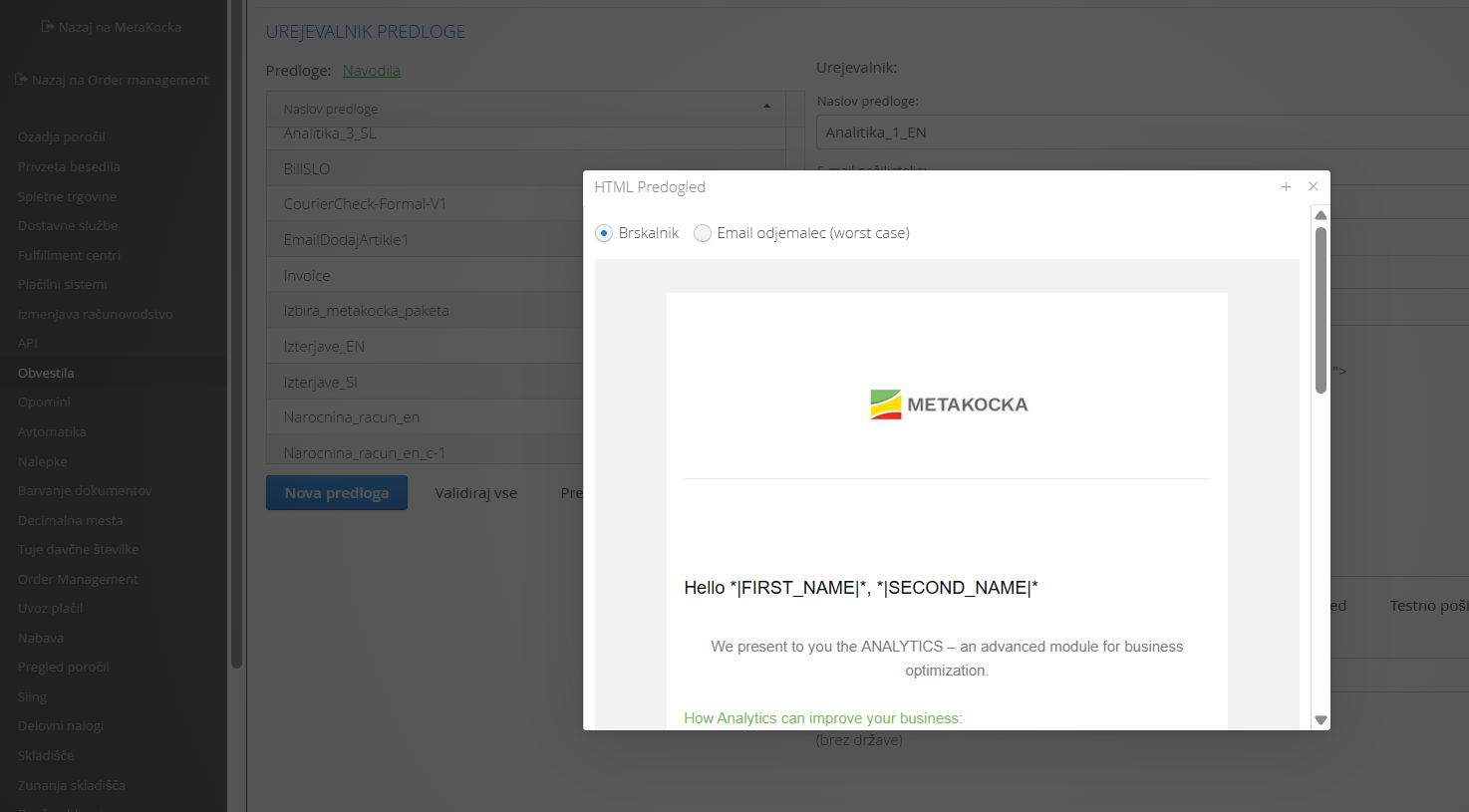
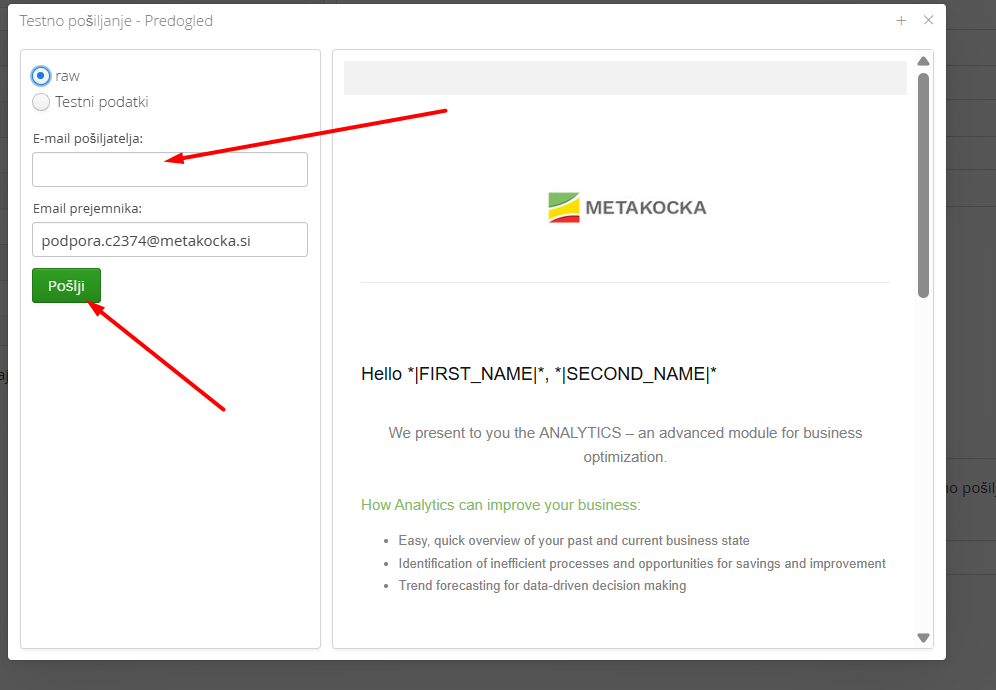
You can also send yourself a test email. This shows you even more precisely what the email will look like for the recipient.
When you click Test sending, a window opens where you enter the email address where you want to receive the test message. Then click Send to receive the test message
4. Definitions
In the definitions, set the triggers your emails will be based on: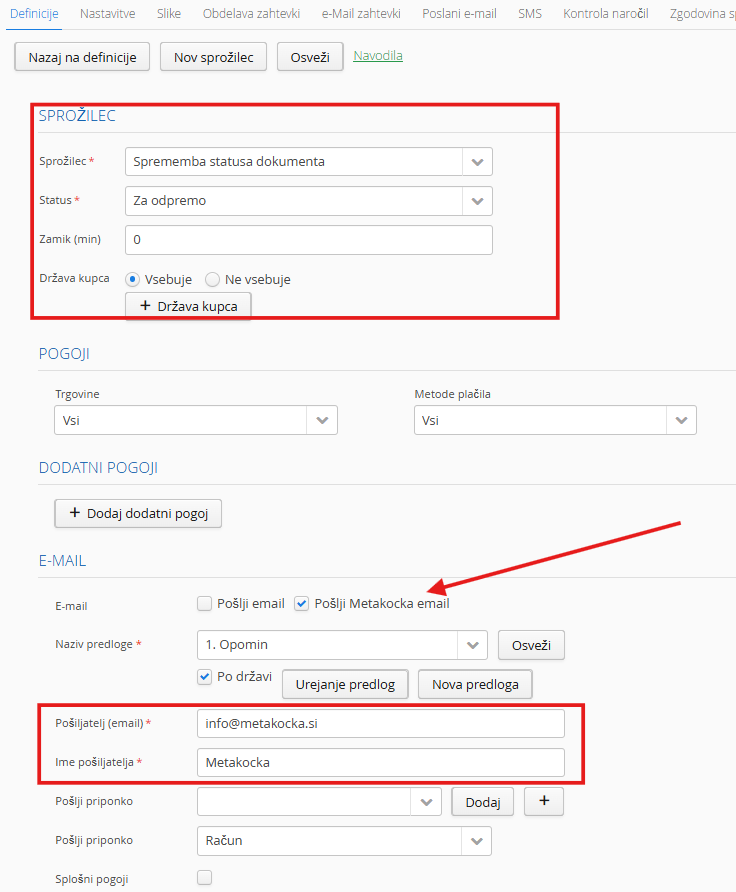
5. Images
In the Images section, you can upload images to use in the template
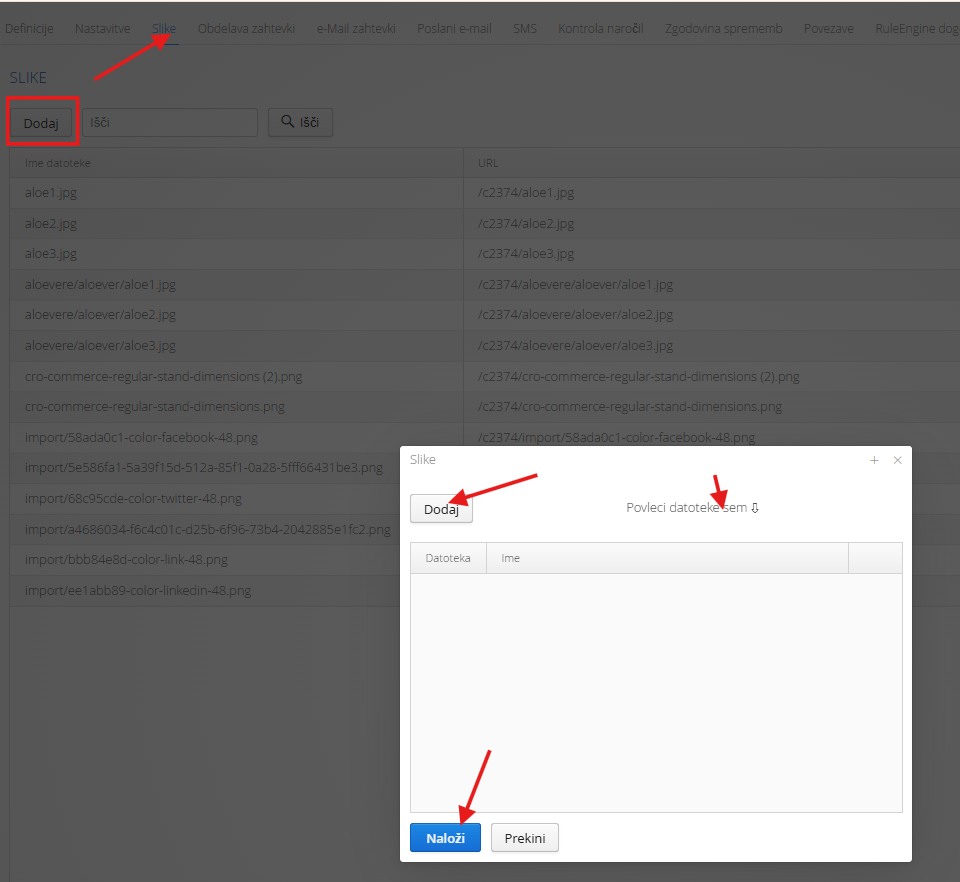
When the image is saved, you can use the image name as a dynamic code in the email.
Example:

<h1>*|CUSTOMER_NAME*</h1>
YOUR IMAGE *|aloe1.jpg|*!<br/>
<br/>
6. Email cost
The cost of a sent email is €0.0008. You can monitor usage here: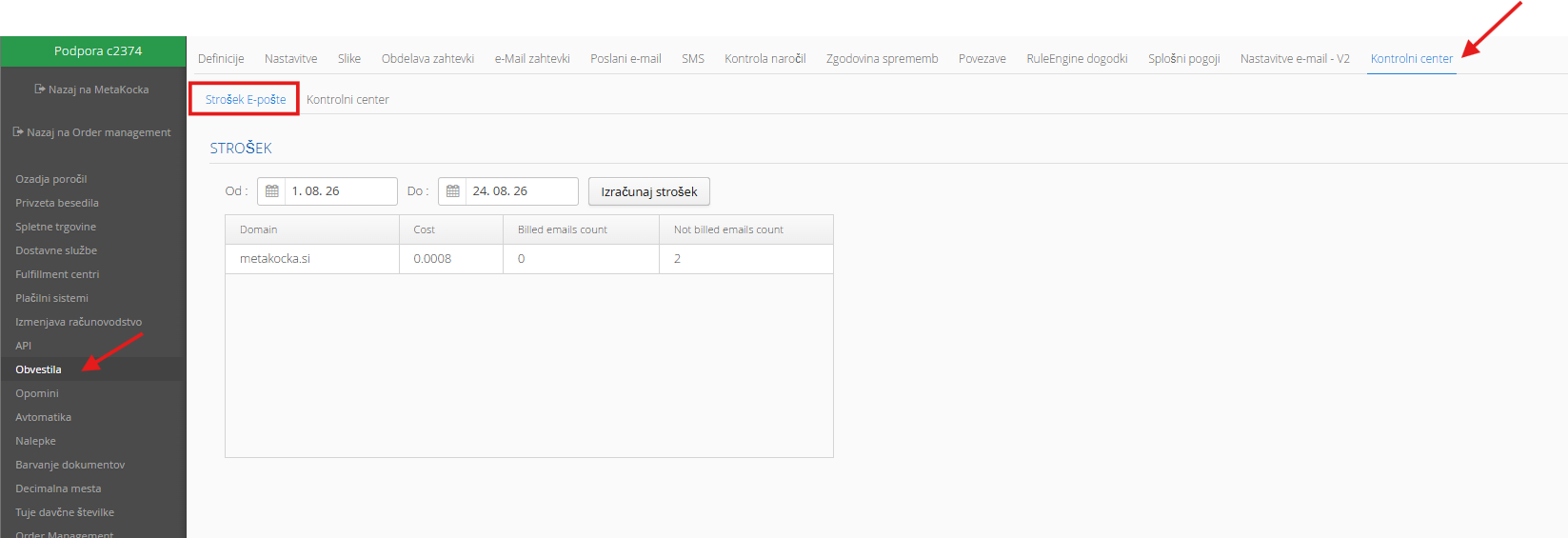
Was this article helpful?
That’s Great!
Thank you for your feedback
Sorry! We couldn't be helpful
Thank you for your feedback
Feedback sent
We appreciate your effort and will try to fix the article