
Tracking Page - user guide
Purpose:
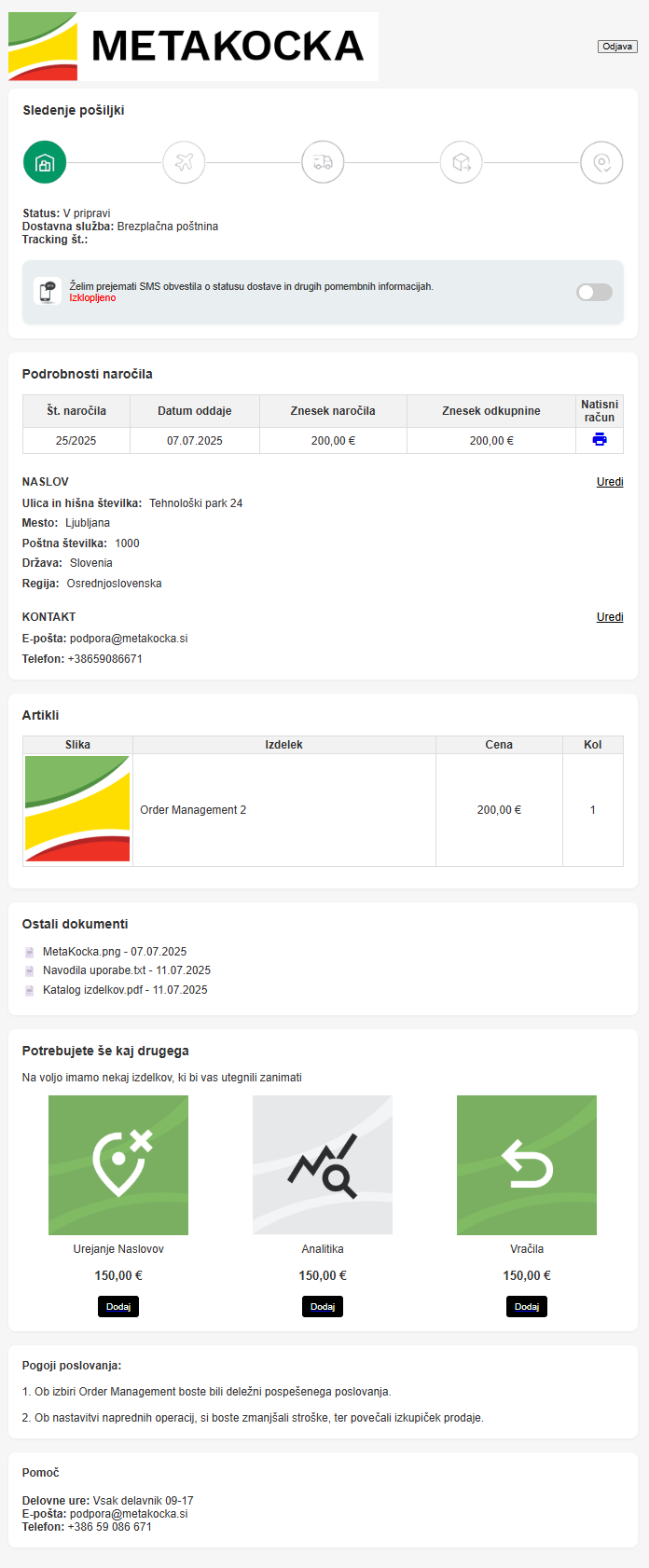
Instead of the customer clicking a tracking link and leaving for an external website (e.g. a courier such as Pošta Slovenije, DPD, GLS, etc.), we keep them on your website with your own "Tracking page", where they get all the key information about the shipment and you get an opportunity to increase sales:
Keep the customer on your site - add your logo to strengthen your brand and create opportunities for additional sales or interaction.
Better user experience - all order information in one place
Less work for support - with the option to automatically edit or correct wrong contact and delivery details
Additional custom content– Links to complaint forms
Promotion - New recommended products, discount codes
Where to use the Tracking page link:
- Order confirmation email- Insert a link in the email that generates the Tracking page of the individual order.
Example: https://main.metakocka.si/rest/trackingpage/IDPODJETJA/login?order_number=123456&contact=031111111
If you do not generate the link yourself, you can offer the customer a link to the login form:
https://main.metakocka.si/rest/trackingpage/IDPODJETJA/login?lang=pl
If you want to get the Tracking page URL via the API , you can do so with the get document call and the parameter tracking_page_url - All emails you use to notify customers that are tied to a selected status: Out of stock, Cancelled, Awaiting payment...
Use the dynamic field in the email: *|tracking_page_url|* - Shipping email
Use the dynamic field in the email: *|tracking_page_url|* - Invoice email
Use the dynamic field in the email: *|tracking_page_url|* - SMS about an address problem
Use the setting within Tracking page (described below) , or use the dynamic field in the SMS *|tracking_page_url_short|* - SMS messages during delivery
Use the setting within Tracking page (described below), or use the dynamic field in the SMS *|tracking_page_url_short|*
What it includes:
- Translation into 25 languages
- Automatic mapping of the statuses of different delivery services to statuses your customers understand
- option to match your visual identity - adding your online store logo
- localized names of delivery services
- Order details
- Invoice display
- Editing of delivery and contact details by the customer
- Automatic transfer of product images
- Recommended products for upselling
- Automated SMS notifications
An example Tracking page is available at this LINK
Settings
Tracking page settings are available in Additional settings/Tracking page: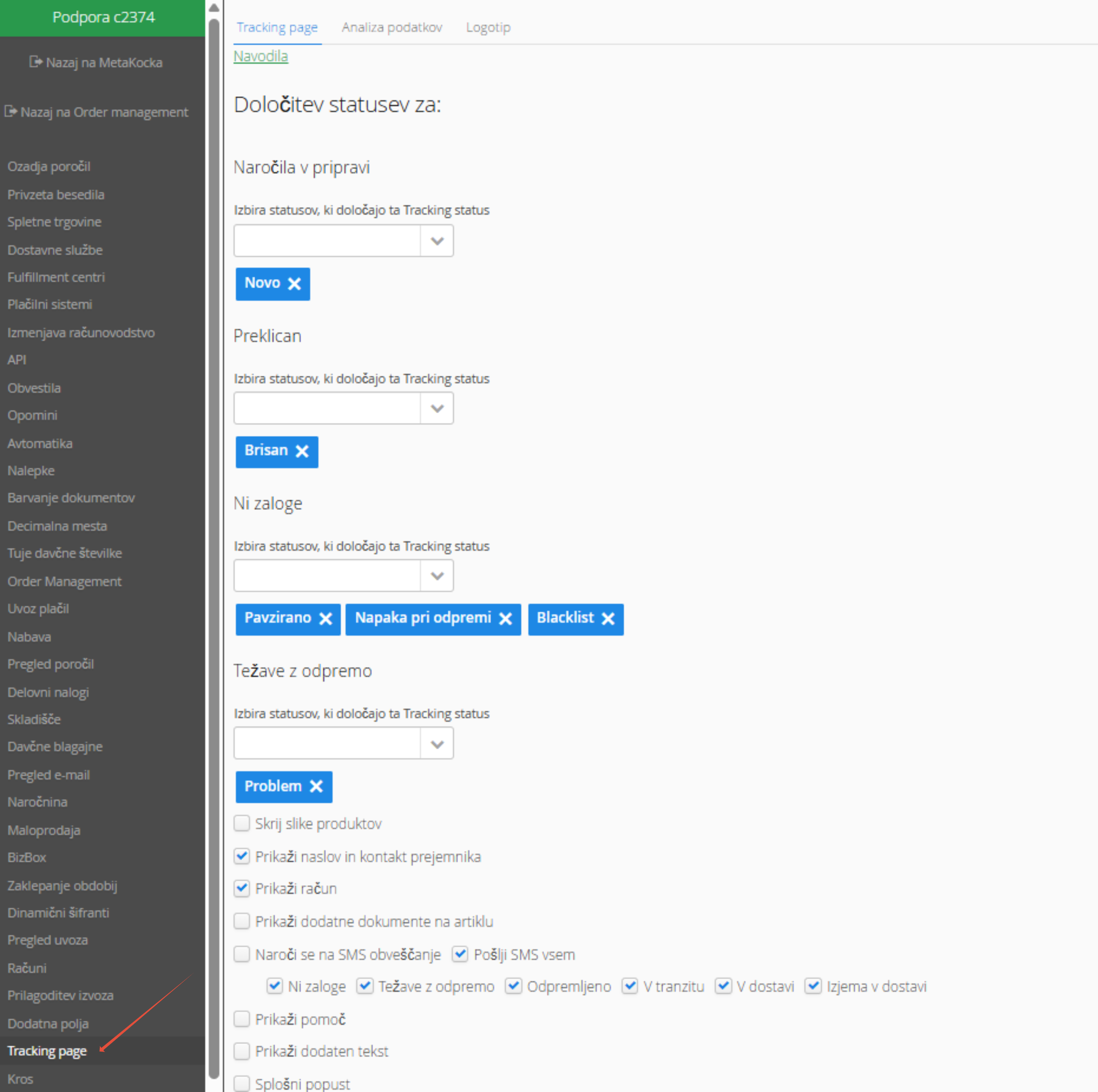
1. Shipment tracking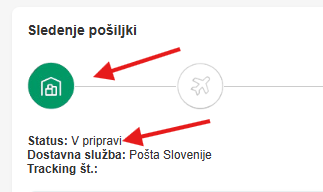
Define the statuses that count as the first order status in your case, namely: order In preparation, Cancelled, Out of stock, Shipping problems.
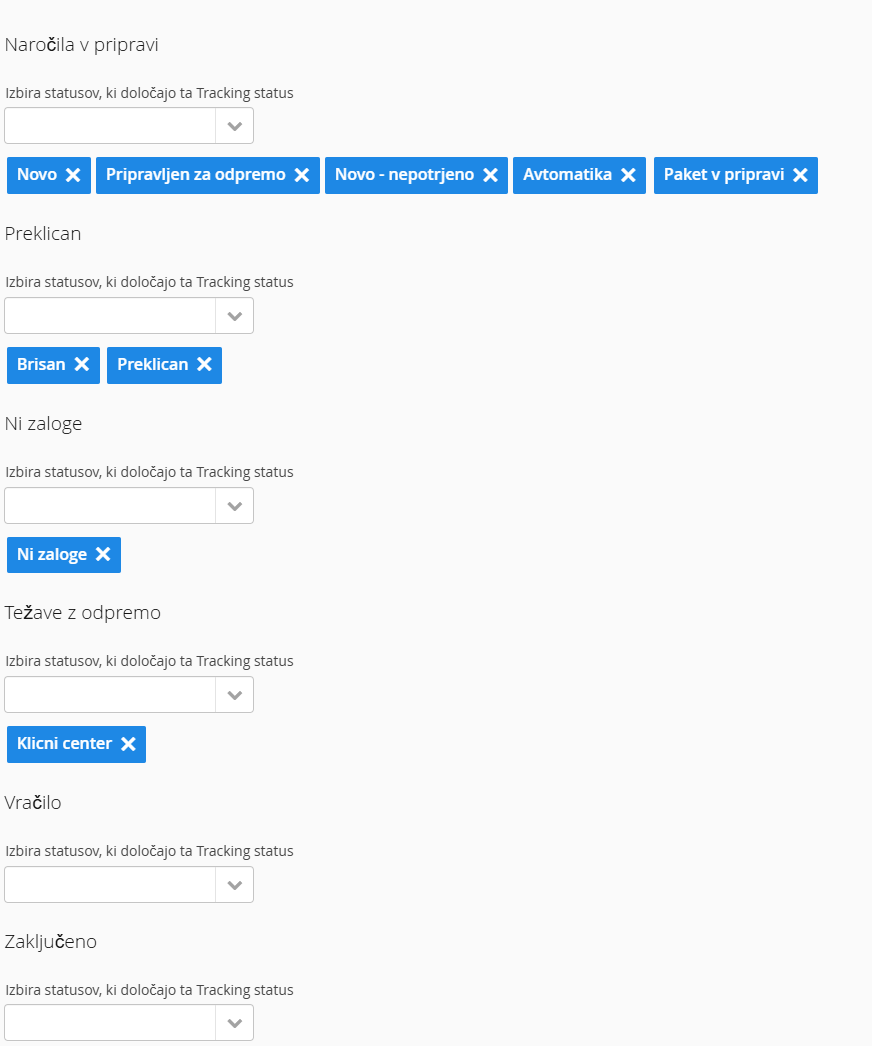
Order statuses on the Tracking page are divided into categories:

Initial status before shipping: In preparation, Cancelled, Out of stock, Shipping problems
Shipped: when the order has been dispatched (status Shipped and shipping date)
In transit: Parcel accepted by the courier
Out for delivery: The courier has picked up the parcel and is delivering it
Delivered or Returned: Final status of the parcel, delivered to the recipient or on its way back to the sender
Delivery problems: Additional status shown if: the delivery failed, the address is invalid, the order is waiting at a pickup point
2. SMS
Tracking page offers automated sending of SMS messages with ready-made texts and translations. SMS messages are charged according to the current price list, available in Additional settings/Notifications/Usage.
When sending SMS messages, you can choose between two options:
- Subscribe to SMS notifications:
 If you select Subscribe to SMS, the customer can choose on the Tracking page to be notified about the parcel status. There are 6 different notifications the customer can subscribe to:
Out of stock: the SMS is sent when the order changes to the status you defined in the setting Set status for Out of stock
Shipping problems: the SMS is sent when the order changes to the status you defined in the setting Set status for Shipping problems
Shipped: the SMS is sent when the order gets a shipping date and the status Shipped
In transit: the SMS is sent when the parcel is accepted at the courier's hub
Out for delivery: the SMS is sent when the parcel is handed over for delivery
Delivery exception: the SMS is sent if the delivery fails, the address is invalid or the parcel is waiting at a pickup point for collection
Shipping delay: the SMS is sent if the date is past the Expected shipping date recorded on the order and the order has not been shipped yet. Or if the order has not been shipped yet and is among the 10% slowest orders within that delivery service.
Delivery delay:the SMS is sent if a shipping date exists, the order is not in an exception status (parcel locker, failed delivery, wrong address) and the order has not been delivered or returned. Or if it is among the 10% slowest orders within that delivery service.
Order overview: the SMS is sent when the order is entered into MetaKocka. It tells the customer the link where they can follow the order.
- Send SMS to everyone:
This setting differs from Subscribe to SMS notifications in that the SMS is sent to the customer regardless of whether the customer chooses to receive messages. The SMS is sent only for the events you select. The setting is suitable above all if you want to keep customers better informed about the parcel status, reduce the number of uncollected parcels and help your support team.
4. E-mail
Clicking Replace existing tracking links with Tracking page automatically replaces the tracking URLs you currently use in shipping emails with the Tracking page URL
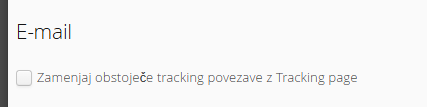
Clicking Use when sending to the online store sends the Tracking page URL instead of the courier's URL to the online store when orders are shipped.

3. Order details
- Show invoice:
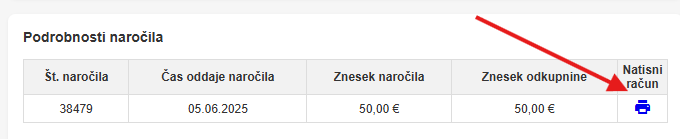
If you select the Show invoice setting, the customer can print the invoice from the Tracking page once it has been created
- Show recipient address and contact:

If you select to show the recipient address and contact, these details are displayed on the Tracking page of the sales order.
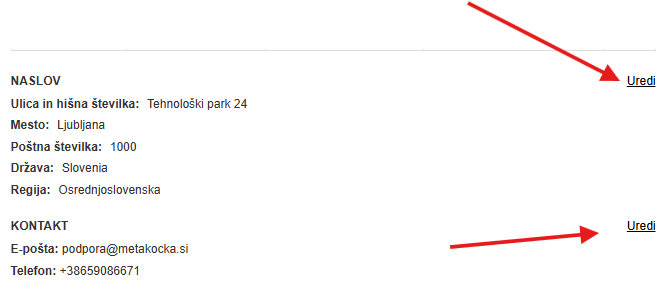
- Allow order editing: Edit address and contact:
When selected, customers can edit delivery and contact details until the order has a tracking code
- Allow change to a pickup point
This feature lets the customer change delivery to a selected pickup point. Supported delivery services: MyGLS Slovenia, Czech Post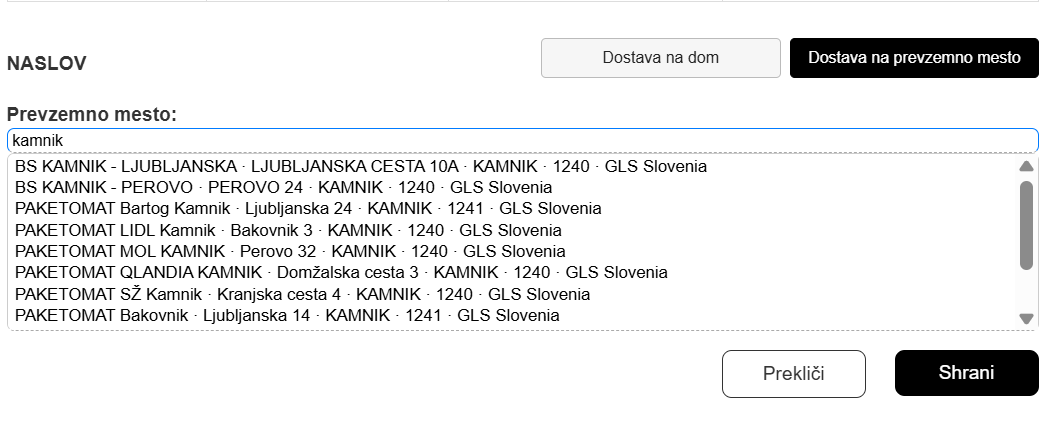
- Edit street length rules
If you want to limit the number of characters the customer can enter in the street field, you can do so with this setting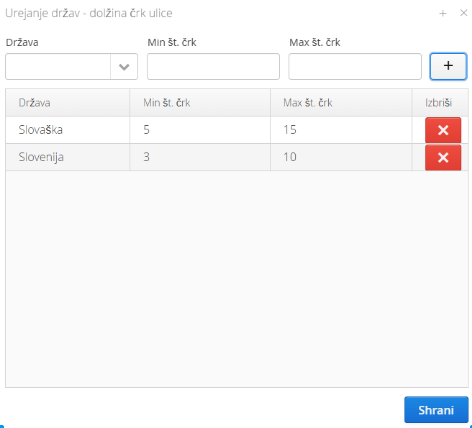 If the entry exceeds the allowed number of characters, an error is shown: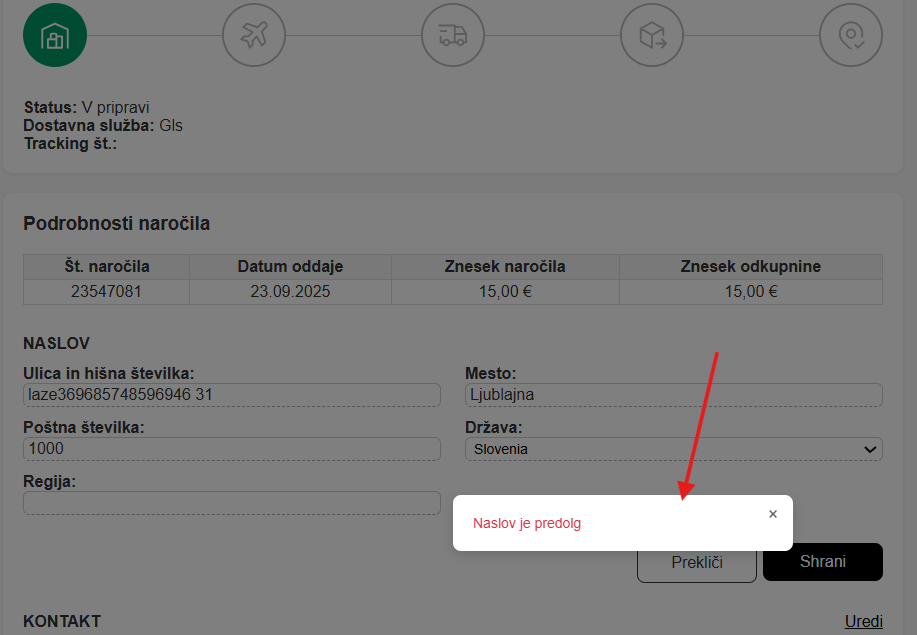
- Do not change the status after an address change
If you use the Address Editor module and the customer changes the address, the order status changes to New - unconfirmed and the address is validated again. If this feature is selected, the status does not change.
4. Products
- Hide product images:
Product images are shown automatically if we successfully get this information from the online store. If no image is retrieved, none is shown. Images are captured when you enable the feature: Capturing images and links from the onlinestore. If you write orders via the API and there is no direct connection between the online store and MetaKocka, you need to add these parameters to the API call:"web_shop_URL": "Webshop.com/product-name-test", "first_image_URL": "webshop.com/product-name-test/image.png" } ], "webshop_eshop_sync_id": "1600353213" }
Full documentation is available at this link
- Hide product price
If selected, the price shown for each product is hidden:

- Hide product quantity
If selected, the ordered quantity of each product is hidden in the product list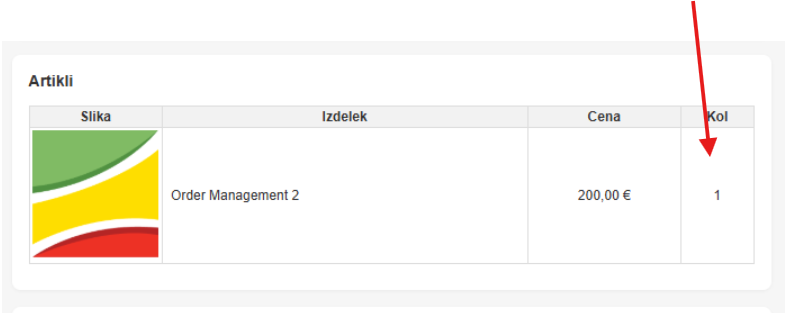
- Hide services
If selected, the product list on the sales order shows only products, without services (e.g. Cash on delivery payment, GLS delivery...) - Hide products
In the input field, list the products you do not want to show in the product list. You can also enter only the beginning of the SKU if you have several products that start with the same numbering and you do not want to show them. Example: 01011,01012 hides all products that start with 01011 and 01012: (01011abcd,01011efgh,01012abcd,01012efgh)...)
Useful if you include flyers or promotional material in the product list, or if you already split bundles in the online store...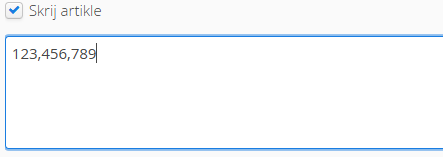
5. Additional documents

- Show additional documents on the product:
This feature shows additional documents if they exist on the product. Example: warranty card, user manual.
6. Product recommendations
- Product recommendations:
When enabled, the Tracking page shows a list of recommended products suggested by an algorithm. Based on the products in the order, the algorithm suggests the products that most often appeared in other orders. Example: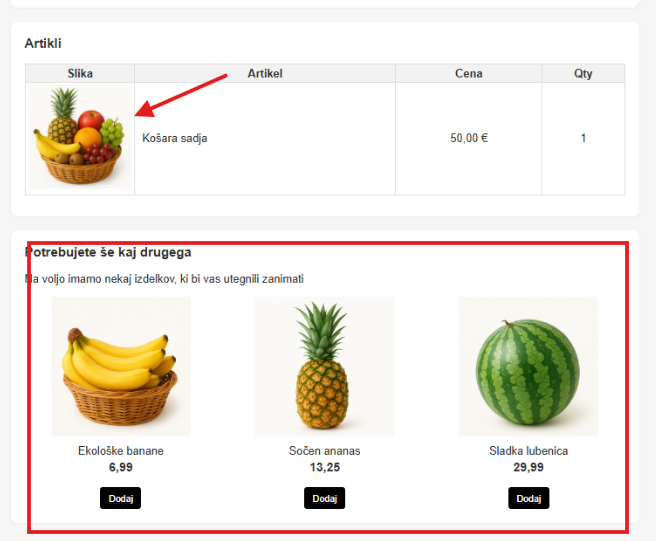
- Enable aggregation:
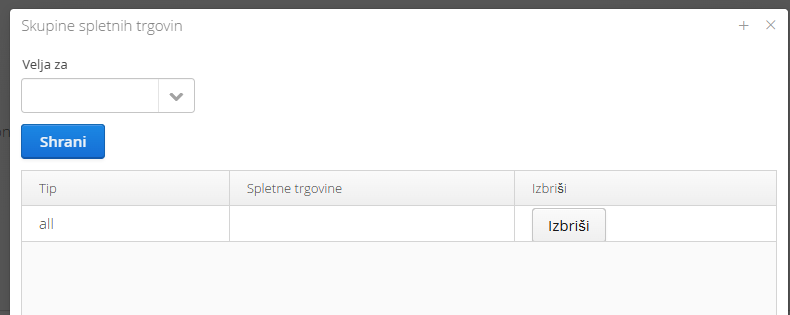
This setting lets you choose which stores are compared with each other for showing recommended products.
The default setting is as marked in the image and takes all stores into account.
If you have several different stores and do not want them to be compared with each other, mark which stores you want to group together.
- Ignore stock:
Recommended products are generated based on stock. If stock is not kept up to date or is not managed in MetaKocka, you can choose to ignore stock for recommendations
- Boost selected product:
If you want to show exactly 3 selected products in the list of recommended products, enter them separated by commas:

- Use default products:
If the product recommendation algorithm finds no match, it recommends 3 random products. If you have Use default products enabled, the selected products are used whenever the algorithm finds no match
- Hidden product codes:
Among the suggested products, certain products can come up often as the best match. E.g.: surprise product, gift...
If you do not want these products to be shown in the list of suggested products, enter them separated by commas: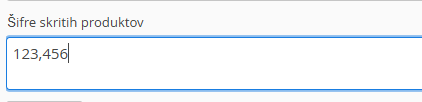
- Add product to existing order
When selected, the customer can add a product from the recommended products to the existing order if no invoice has been created for that order yet. Once the invoice has been created, adding to the existing order is no longer possible, and clicking Add product takes the customer to the online store, where they can make an additional purchase.
The settings for adding products let you set rules for which stores and countries this is allowed, and you can also choose the payment method for which adding products to an existing order is allowed. - Use discount
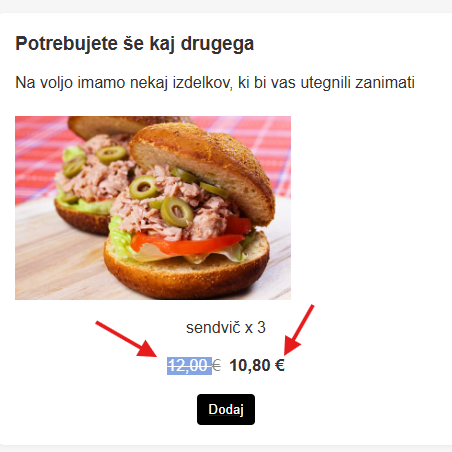
If the user can add a product to an order that does not have an invoice yet, you can offer them a discount. Enter the discount value in %. The feature recalculates the price by the discount value: 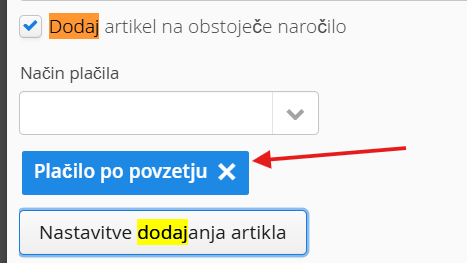
- SMS Upsell coupon
This feature lets you send discounted offers in SMS upsell messages, with a link to the Tracking page and product recommendations.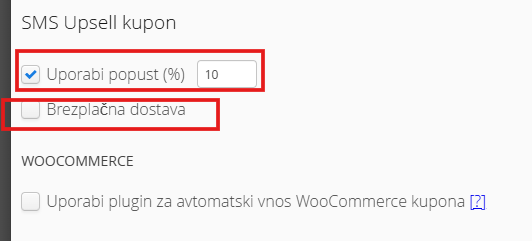 You can choose between a discount value or free delivery. For Shopify, the coupon is created automatically and is valid for a short time, after which it is deleted/deactivated. For WooCommerce you need to enable: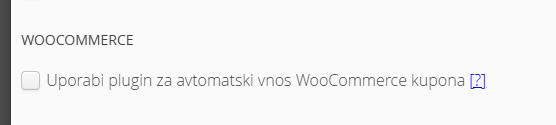
You need to install a plugin. Installation instructions are available at this LINK
7. Discount
- General discount:
If selected, an additional dialog opens where you can enter sales text and a discount code that your customers can copy and use in the online store: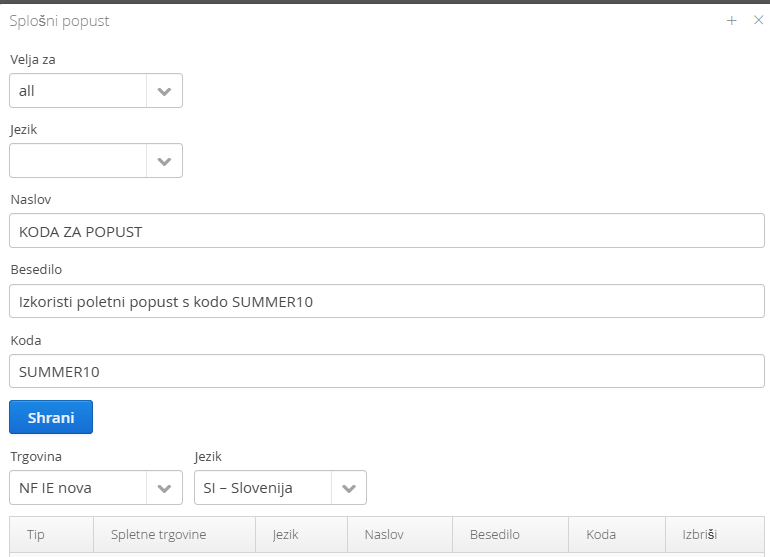

8. Additional text

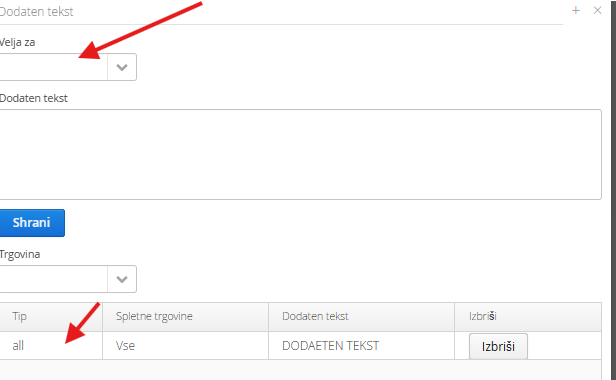
- Show additional text:
If you want to show any message to customers on the Tracking page, enter it in this setting, where you can define different texts depending on the language of the online store.
9. Help

- Show help:
Shows contact details your customers can turn to. In the settings, you can choose which online stores the entry applies to, so you can add support details for different online stores.
Choose whether the setting applies to all stores or only to selected ones. Enter the contact details and save

10. Returns
For users of the Returnsmodule, a form for submitting a complaint request can be placed on the Tracking page:
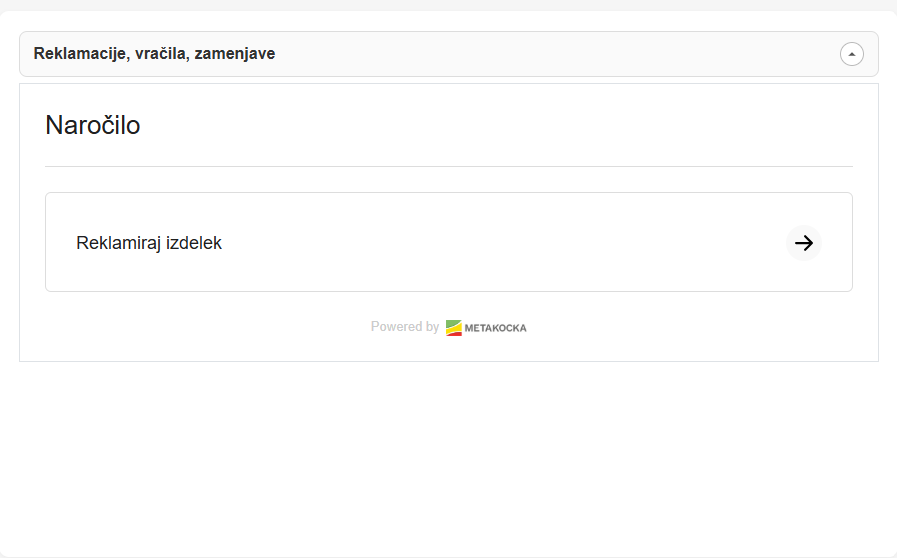
The form lets customers submit a request, which is recorded in the module for processing complaints. This makes the Tracking page the place for all information, including the option to submit a complaint request.
Allowed statuses:
choose the statuses in which the customer is allowed to submit a request: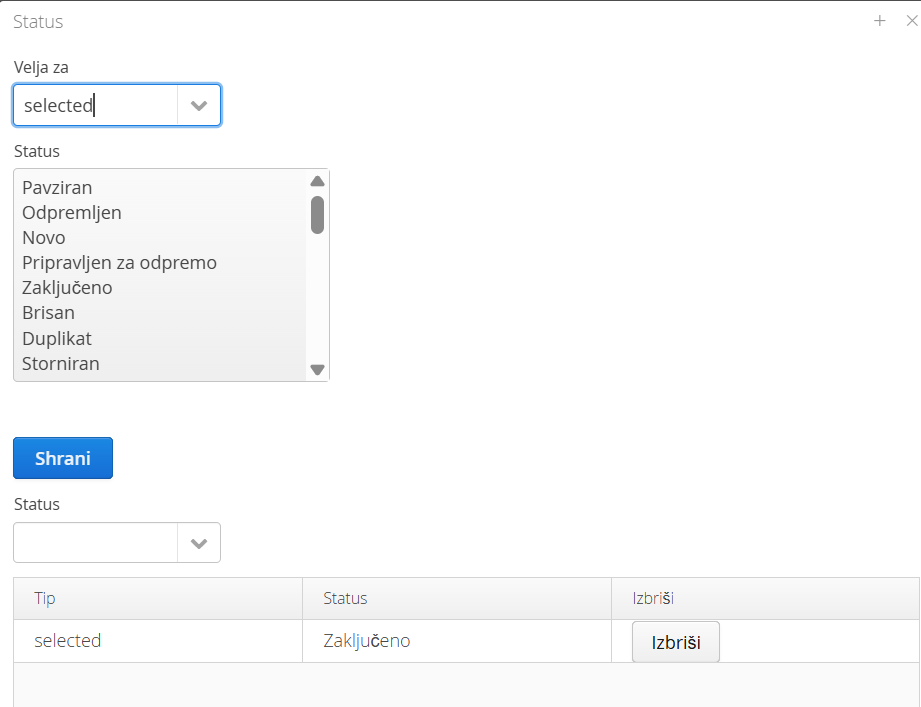
Edit settings:
In the settings, choose which request types you allow: Return, Exchange, Complaint
Choose additional parameters for complaint requests: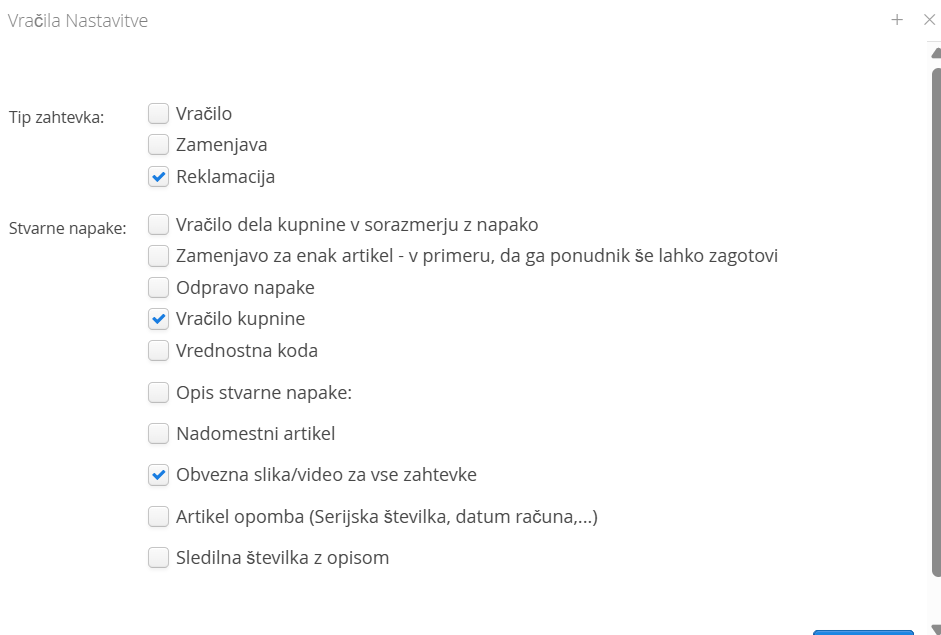
11. Order cancellation
If you want to let your customers cancel an order, enable Allow order cancellation
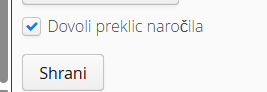
When enabled, a cancel button appears on the Tracking page. Cancellation is possible as long as the order has no tracking code; once cancellation is no longer possible, the cancel button is not shown:
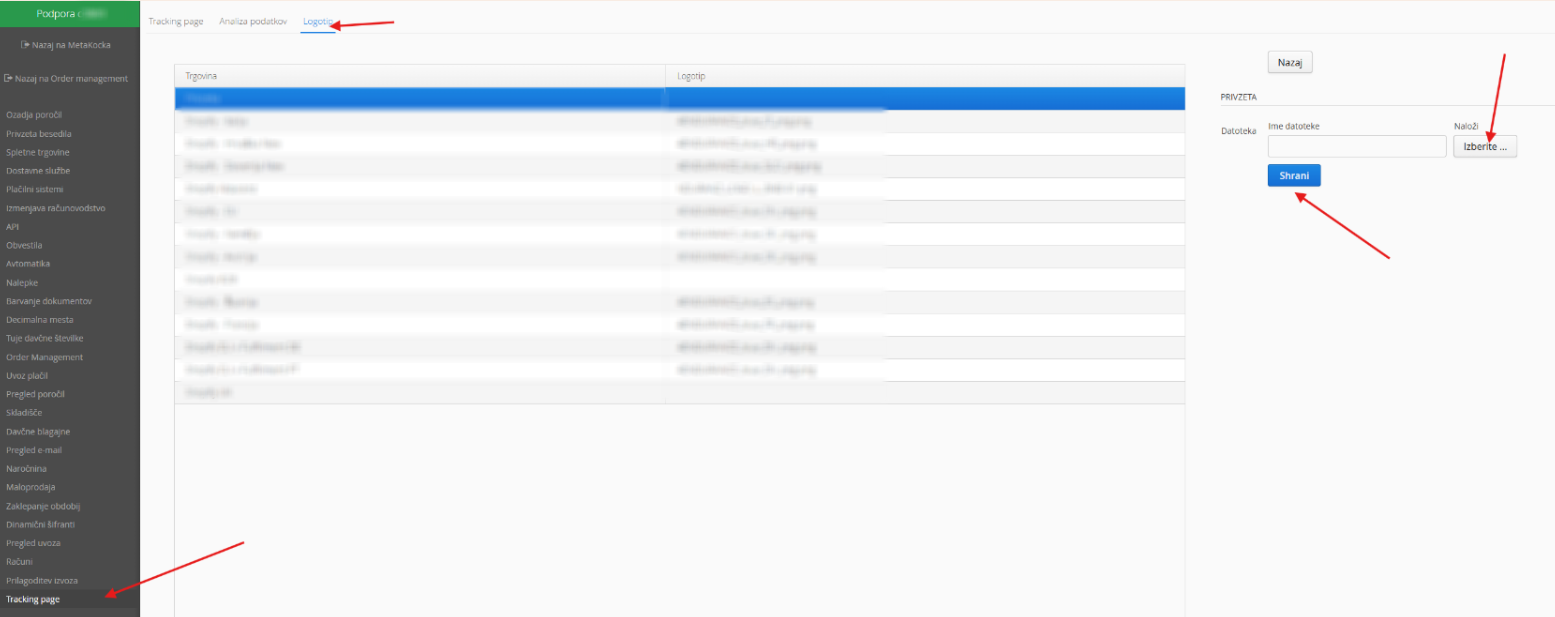
Logo settings
Under Logo settings, define the logo of each online store. Upload the logo and save.
Was this article helpful?
That’s Great!
Thank you for your feedback
Sorry! We couldn't be helpful
Thank you for your feedback
Feedback sent
We appreciate your effort and will try to fix the article