
Example of processing a request
1. The customer submits a return/complaint/exchange request through the form
2. You now have two options:
- Process the request in the returns module, without waiting for the physical return to arrive at your warehouse
- Wait until the physical return arrives at the warehouse, receive it with the scanner and process it further.
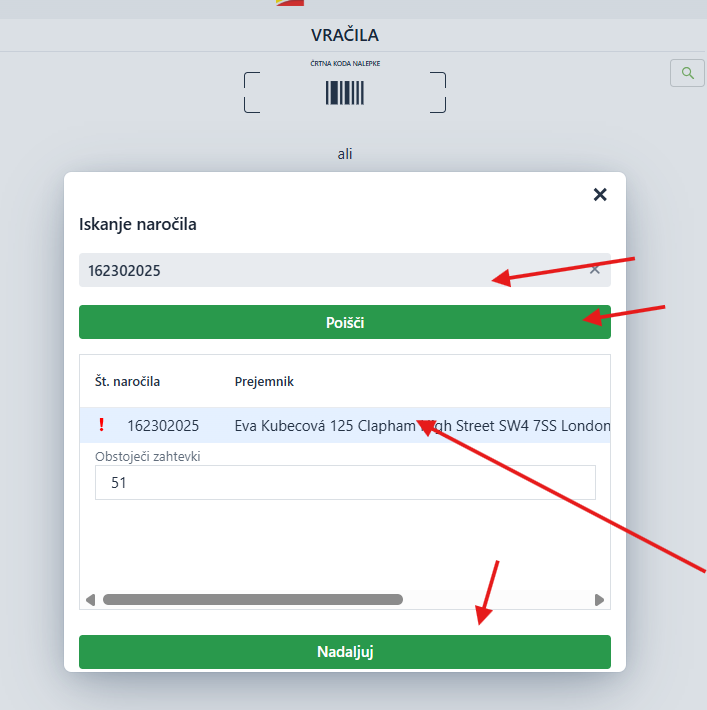
3. Processing the request with the scanner:
Here you can only receive it - click SAVE - or create the request right away - click CONFIRM: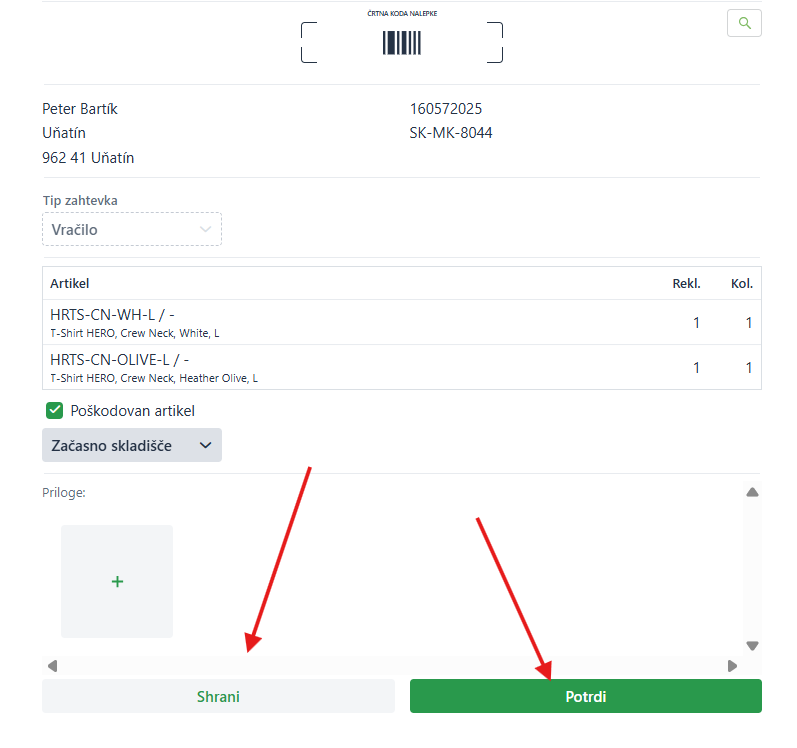
Clicking SAVE only changes the status to Received. Clicking Create request creates the request and moves it to the Completed status. No further processing in the module is needed.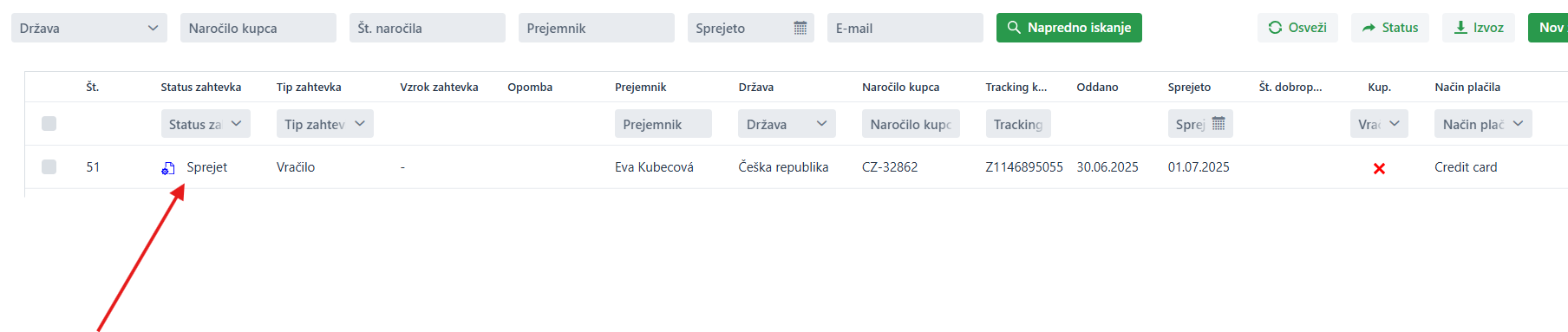
If Damaged product is ticked, all products in the request go to the selected warehouse. You cannot pick and choose which products go to the separate warehouse and which do not.
4. Processing the request in the module
Open the request, mark any damaged products and then select the warehouse for damaged products: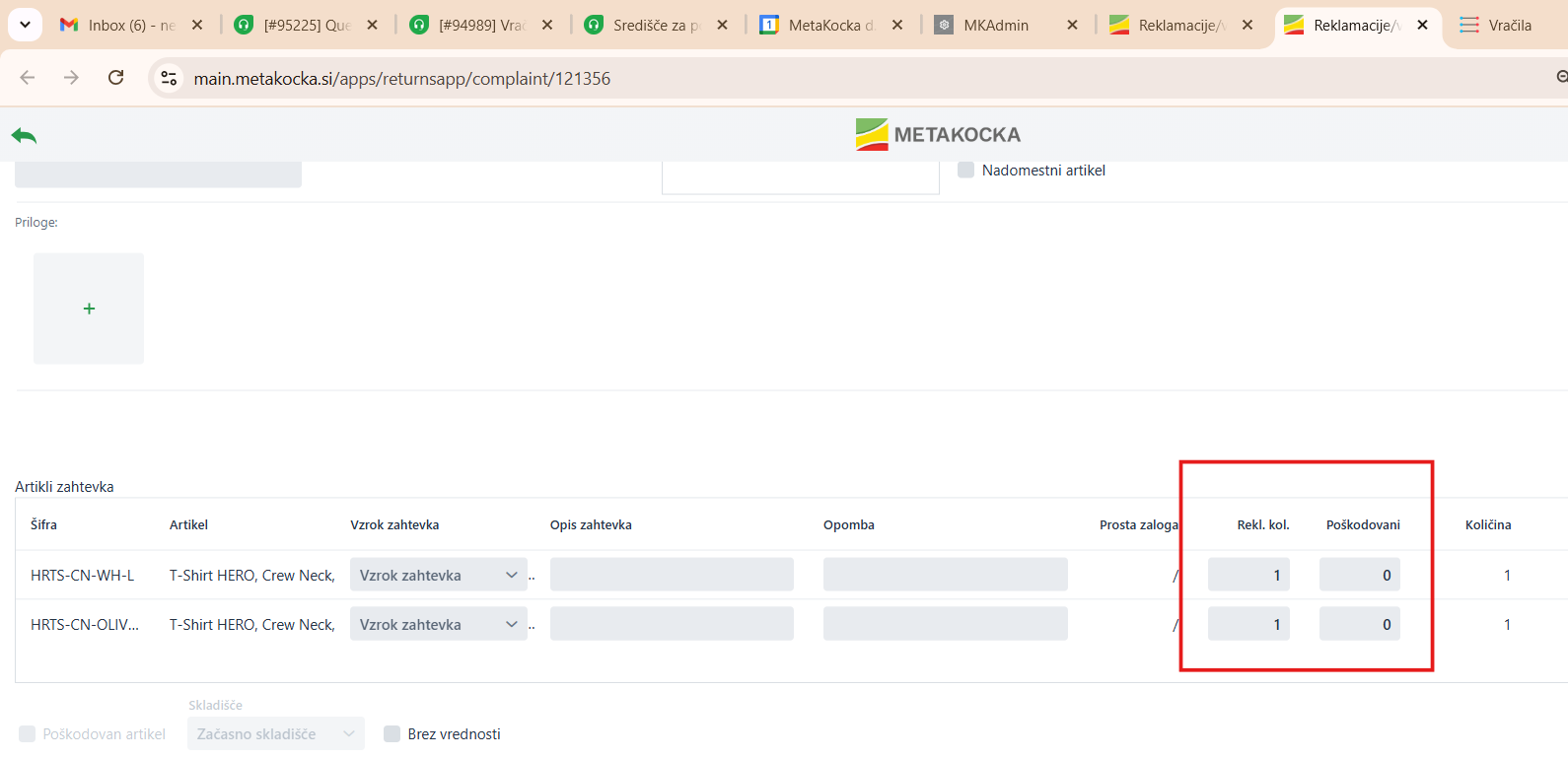
The request can be of type:
RETURN: edit the request, check the products, assign damaged and complaint quantities. Click Create request. A credit note is created on the original order.
COMPLAINT: edit the request, check the products, assigndamaged and complaint quantities. Click Create request. A credit note is created on the original order, and a new order is created with the complaint products.
EXCHANGE: edit the request, check the products,assign damaged and complaint quantities. Select the replacement products and enter the price. Then click Create request. A credit note is created for the original order, and a new order is created with the products you selected for the exchange.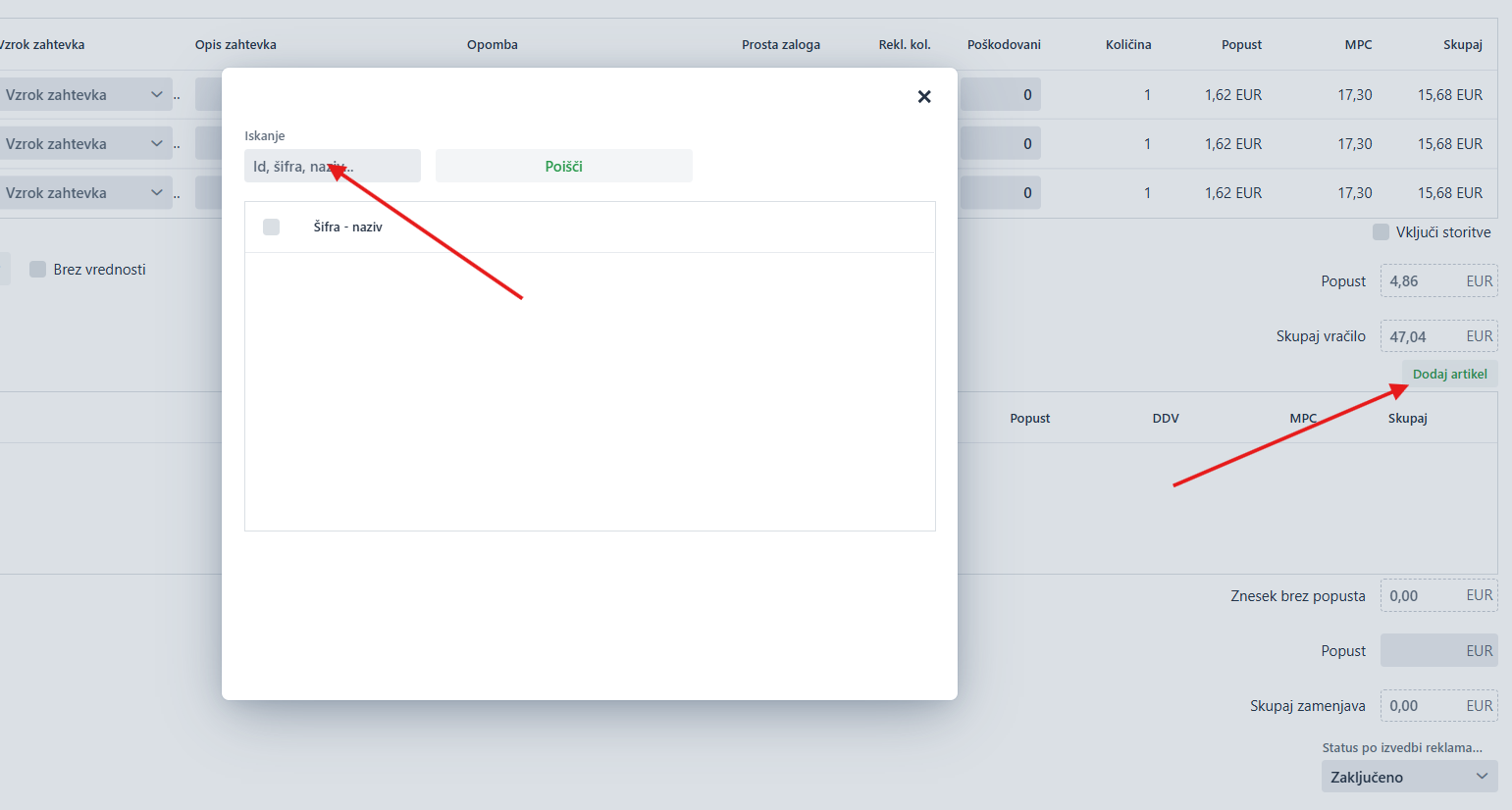
The REFUND tick box is for information only; tick it or not as you like. It can be an additional filter if you need one: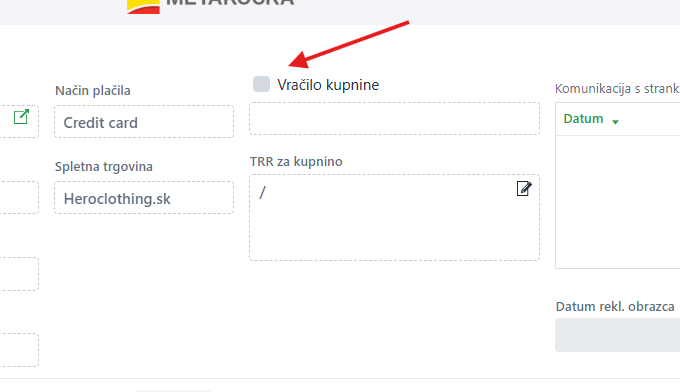
5. Refund
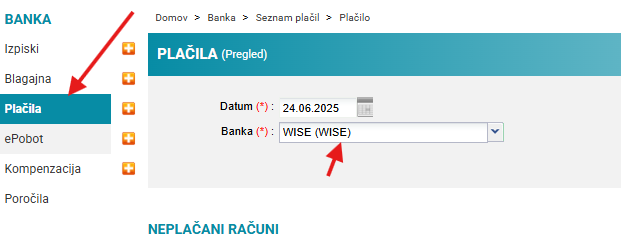
A refund is only possible for the Return type and for requests with the Completed status. When you enter the filters, the Transfer to Bank/Payments button appears. Select the orders and click the button; the payments are transferred to the Bank. The requests then get the status Money refunded, which means the money was refunded / the payments were imported
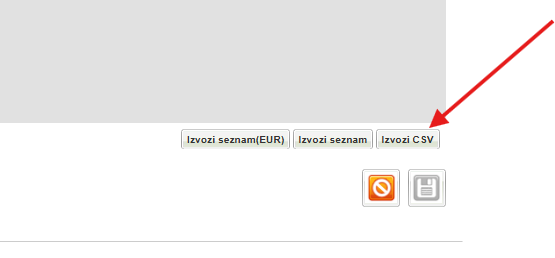
Then, in Bank/Payments, export the Wise payments:
Was this article helpful?
That’s Great!
Thank you for your feedback
Sorry! We couldn't be helpful
Thank you for your feedback
Feedback sent
We appreciate your effort and will try to fix the article