
SMS UPSELL
Adding SMS upsell is simple and takes one click. Activate it by selecting the SMS Upsell trigger in Additional settings/ Notifications - Notifications / select a new trigger and SMS Upsell.
1. Settings:
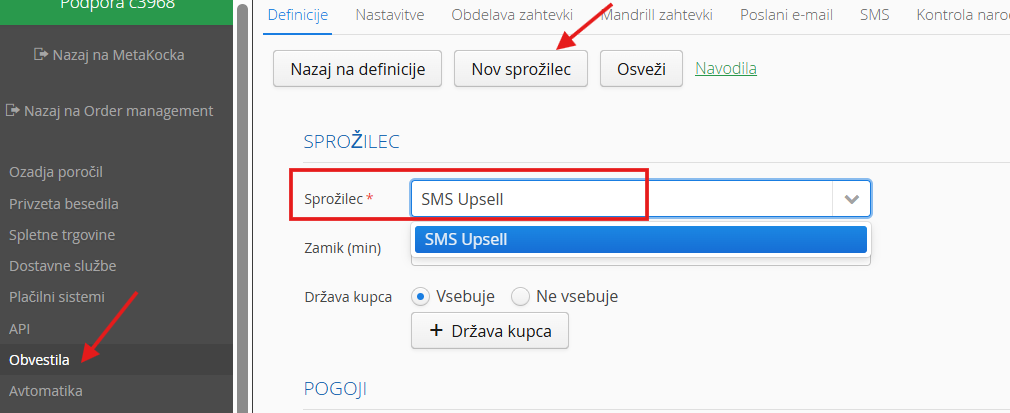
If you save the setting now, your SMS Upsell is ready to send.
When sending, the message suggests buying an additional product, found with a product recommendation algorithm that finds the best match for what the customer bought. A link to the online store product page is included as well:
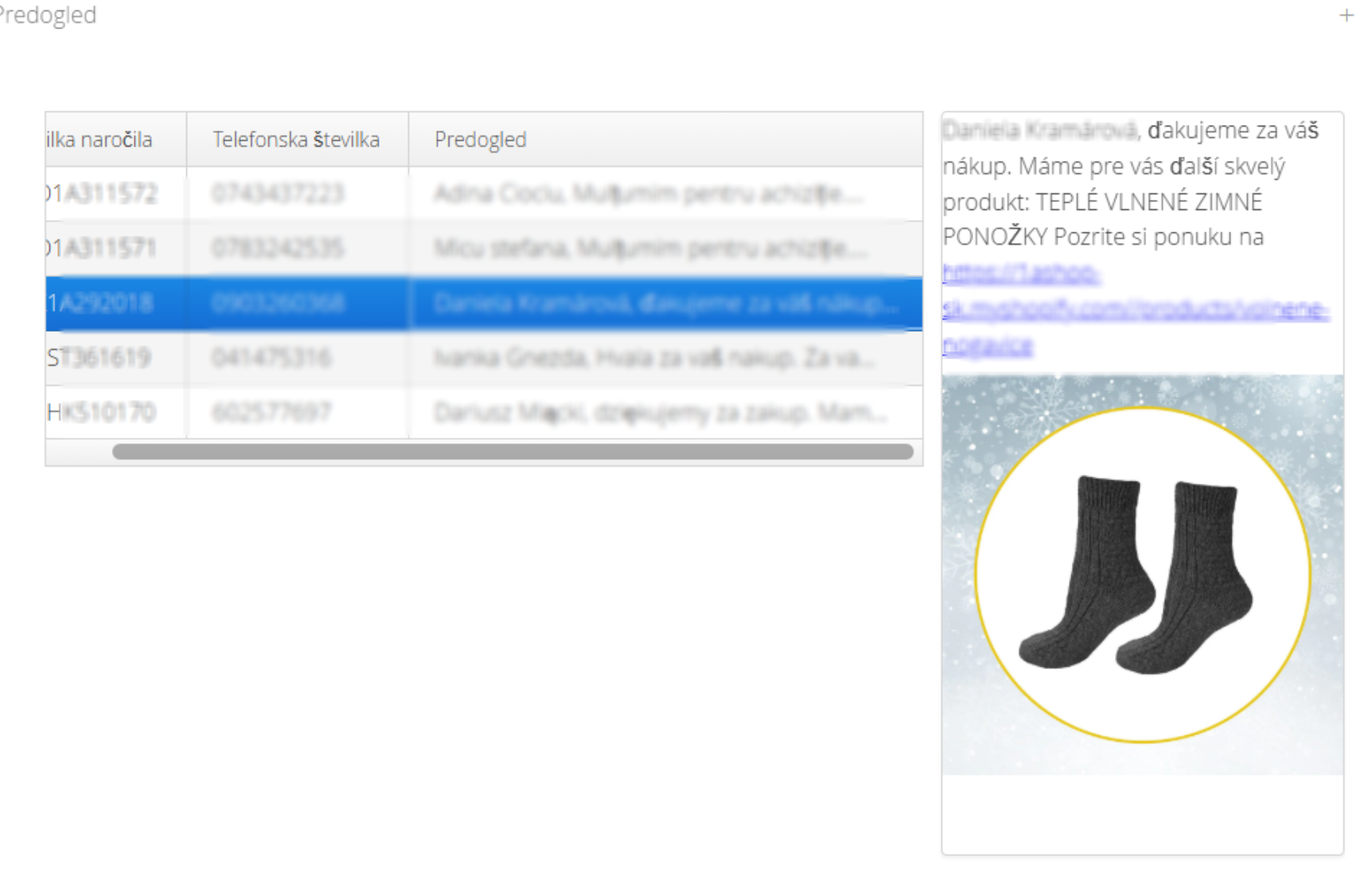
John, thank you for your purchase. We have another great product for you: Winter socks. See the offer at StoreURL
2. How it works and customizing the text
When you select the SMS Upsell definition, an SMS template with all the required data is created automatically and the text that will be sent is shown.
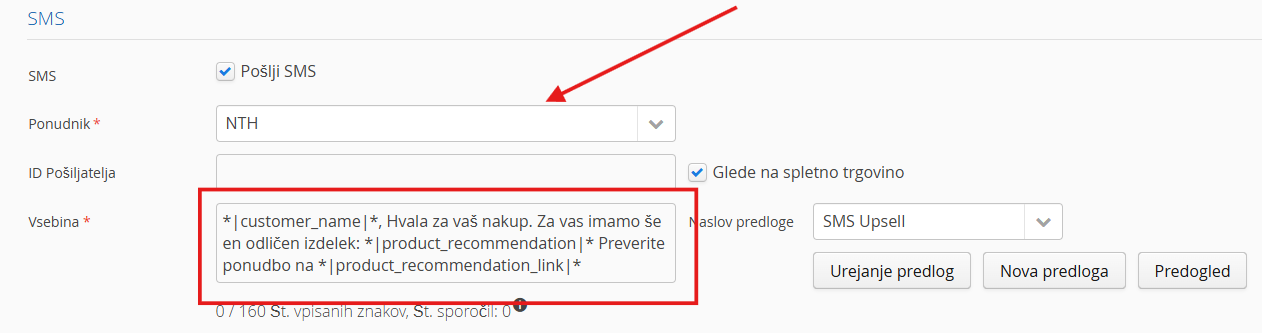
The text is translated into the following languages:
SI, IT, HR, FR, HU, DE, GB, BG, CZ, DK, EE, FI, GR, LV, NL, PL, PT, RO, SK, SE, LT, ES
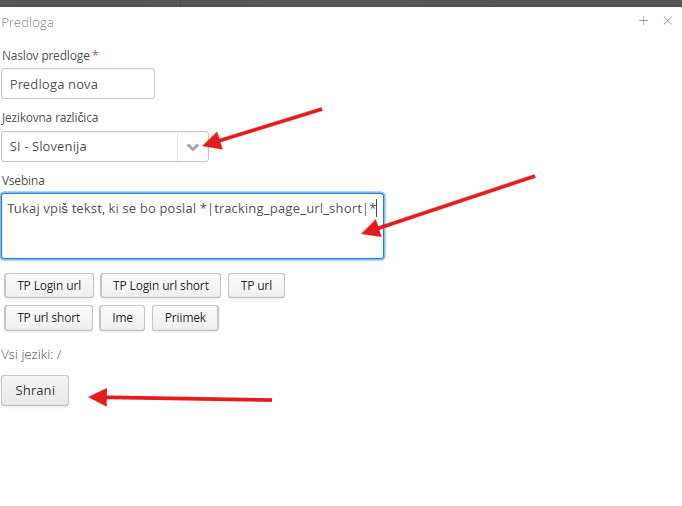
If you want to write your own text, click New template, fill in the template title, select the language and create the SMS content. In this case, you need to take care of the translations into the selected languages yourself.
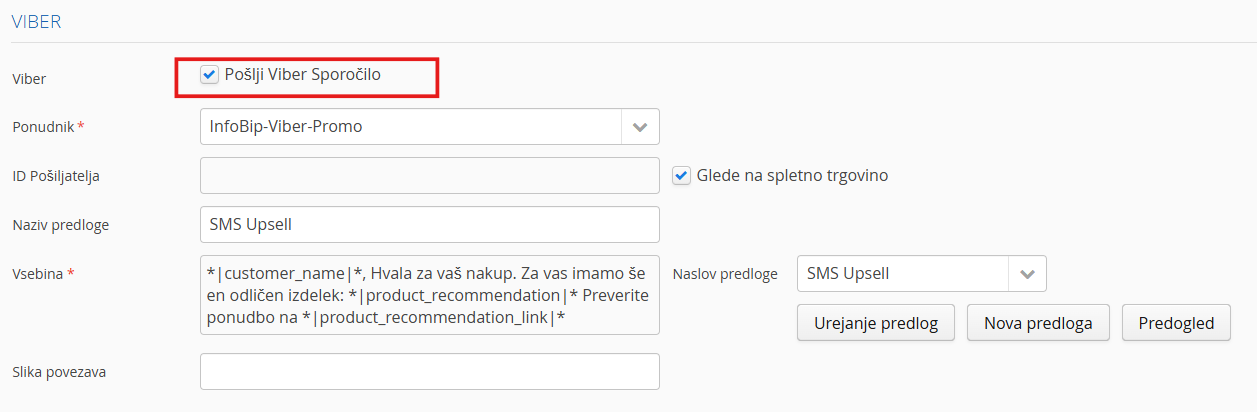
SMS upsell can also be sent through Viber. Clicking Send Viber message creates the content for Viber. Before using Viber messages, you need to register a Viber sender.
Click the Preview button to check what your messages will look like:
Was this article helpful?
That’s Great!
Thank you for your feedback
Sorry! We couldn't be helpful
Thank you for your feedback
Feedback sent
We appreciate your effort and will try to fix the article