Integration - Corlan Post Express
MetaKocka - setting up the connection
1. go to Additional settings/Delivery services/New
2. Select the delivery service Corlan Post Express
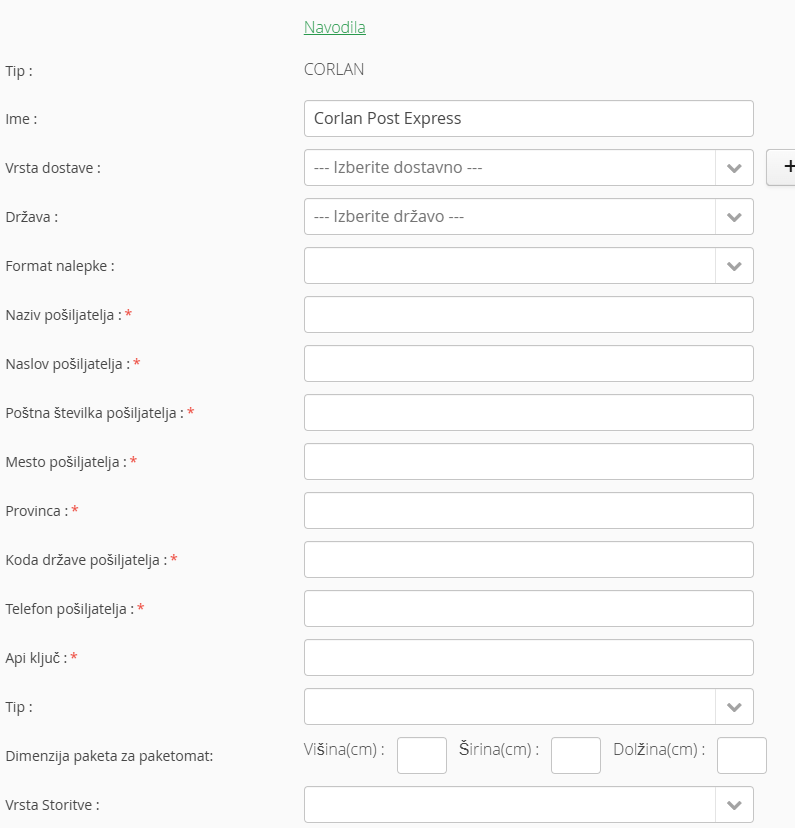
3. enter the data you received from Corlan Post Express
4. Save and test
1. Adding the delivery service in Additional settings: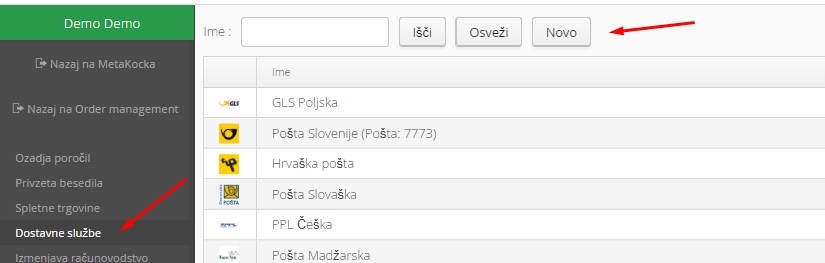
2. Select the Corlan Post Express delivery service and confirm: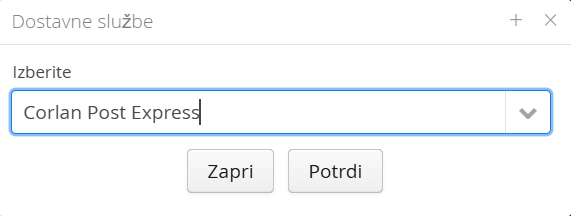
3. Enter the data and the API key you received from Corlan Post Express
Set up a new delivery type that you will use for the delivery service. You can add a new one by clicking (+)
Warning!! Select the A6 label format, otherwise you will get the label twice
4. Save and test:
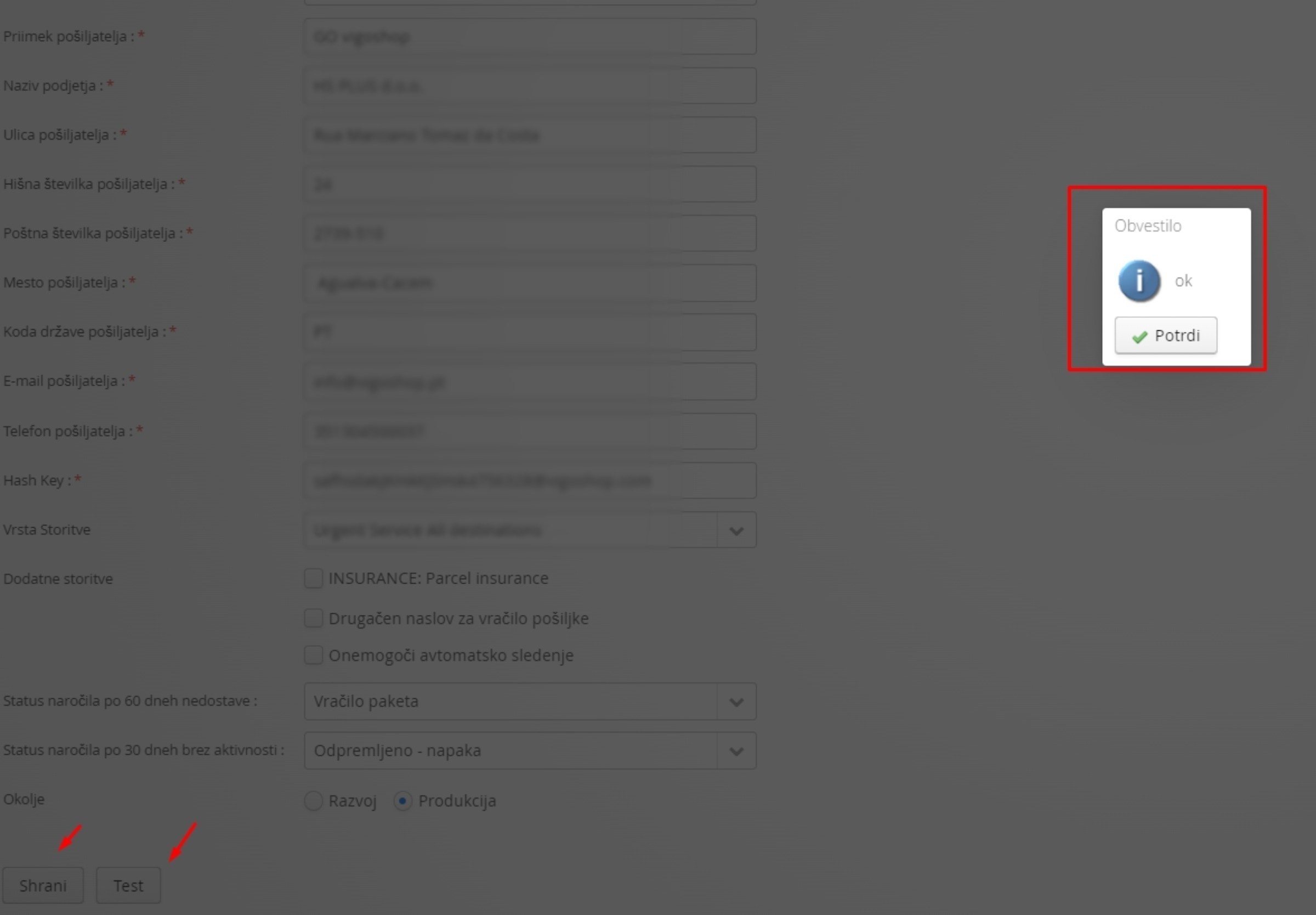
Save the data and click "Test connection" to check that the data is correct.
If you will use delivery to parcel lockers, you need to fill in their dimensions in the settings:

Was this article helpful?
That’s Great!
Thank you for your feedback
Sorry! We couldn't be helpful
Thank you for your feedback
Feedback sent
We appreciate your effort and will try to fix the article