
Setting up data exchange with accounting programs
TABLE OF CONTENTS
- First steps
- Setting up independent access to data exchange for your accountant
- Questions for the accounting service
- Wrong accounts on imported invoices
- Other
First steps
1. Settings/ Your company - select the accounting program used for data exchange
SelectSettings/ Your company and in the middle of the page, under Exchange with program, select Adjusted.
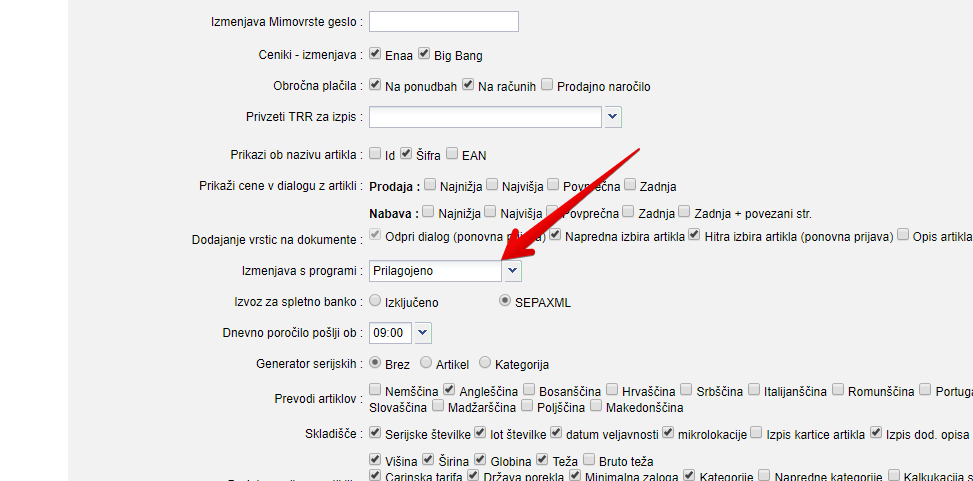
Save the setting and log in to MetaKocka again. After you log back in, you will find an additional menu item in Settings: "Data exchange"
Some accounting programs, such as Vasco, Pantheon, Opal and Hermes, use partner codes that need to be aligned with your accountant before the exchange starts, otherwise partners will be duplicated in the accounting program after the import.(See the instructions here)
2. Settings/ Data exchange
In Settings, open Data exchange
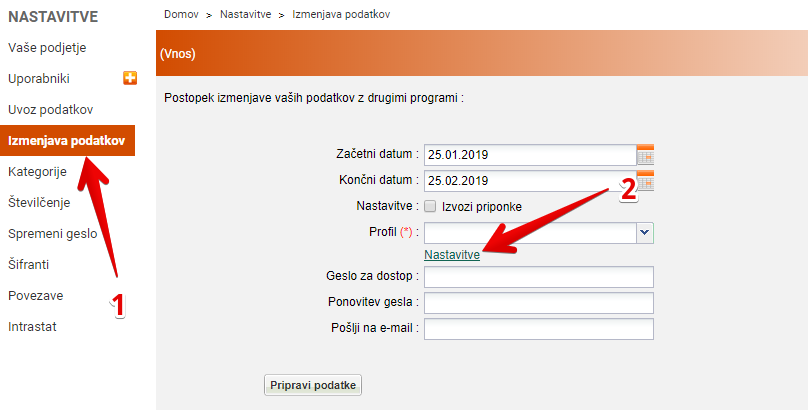
1.Select Settings/Data exchange
2. click Settings
3. Additional settings - exchange program and accounts
In Additional settings, set the accounting program you want to exchange data with
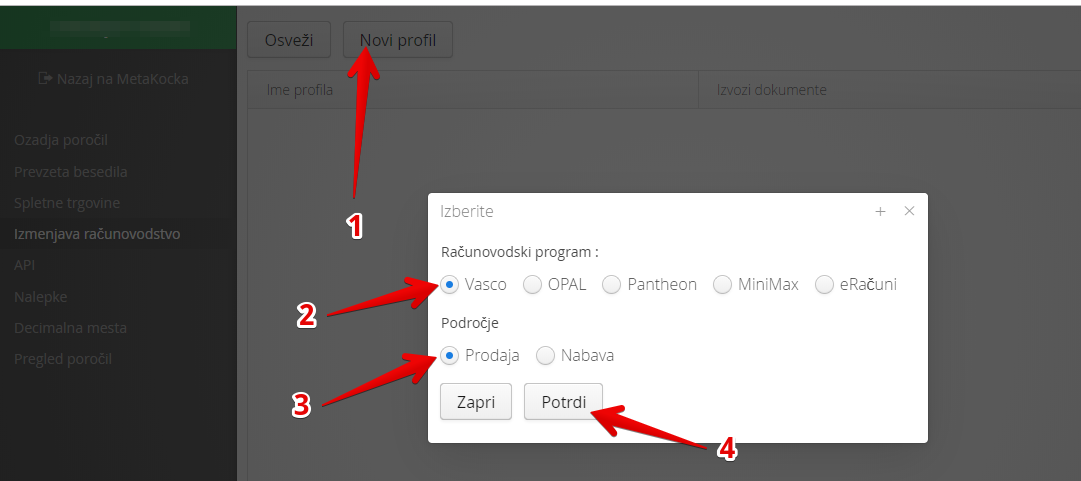
1. click New profile
2. select the accounting program you want to exchange data with
3. select the invoices (sales or purchase) you want to set accounts for
The account settings open
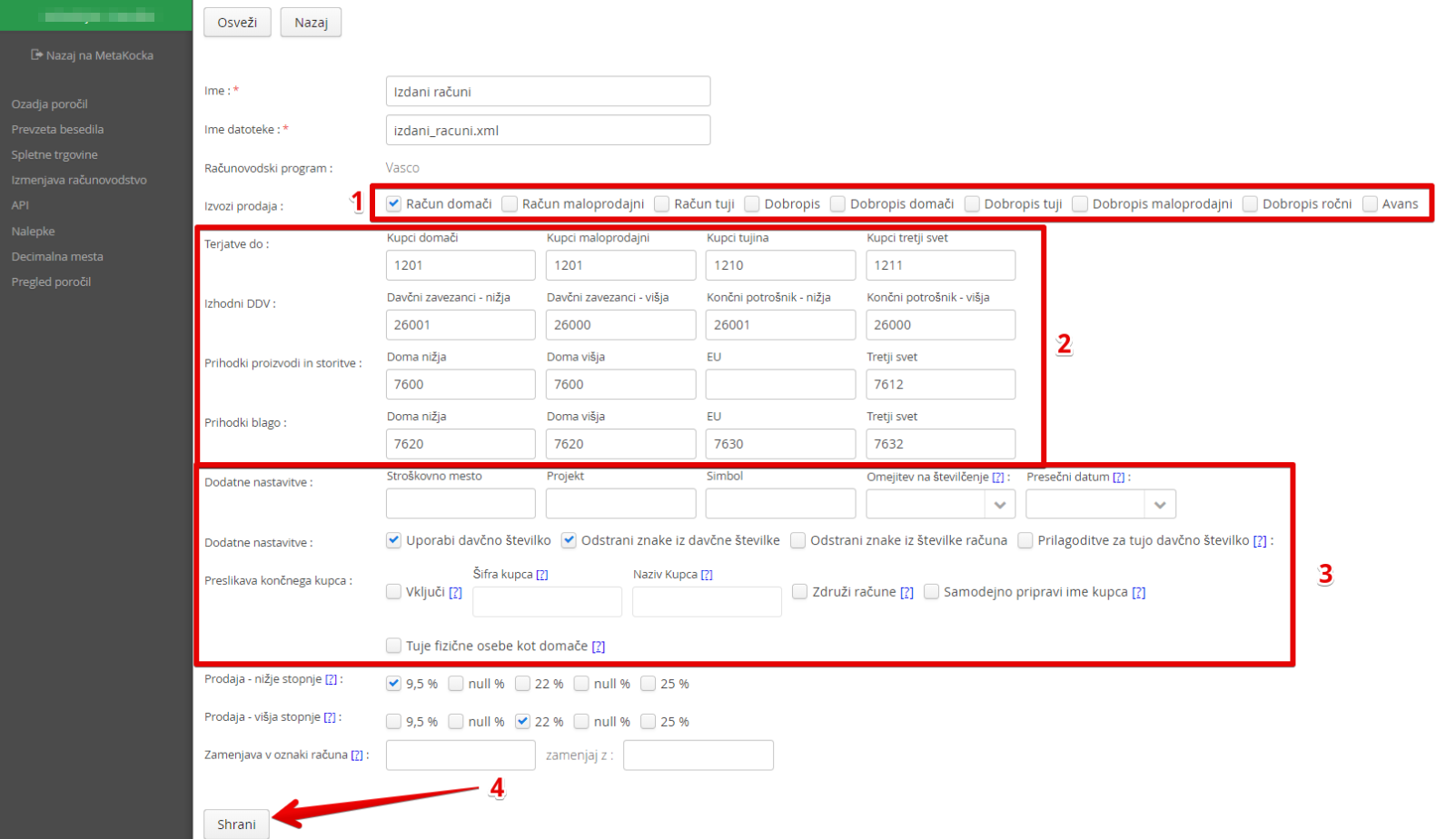
1. select what you want the accounts to be exported for (only domestic invoices, or also credit notes, foreign invoices, ...)
2. set the accounts
3. adjust other settings if needed
4. save the changes
Repeat the procedure for received (purchase) invoices: click New profile and select Purchasing as the area.
4. Data exchange
When you are done, go back to MetaKocka
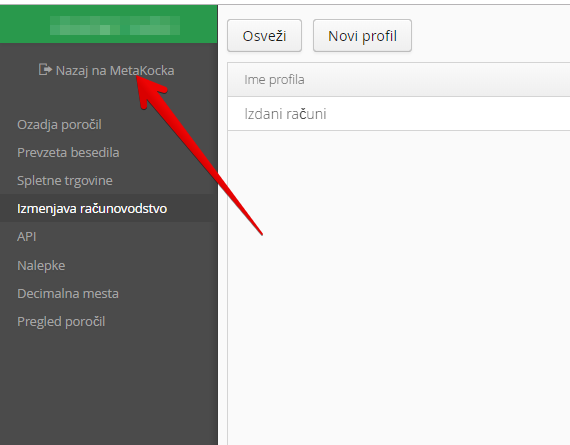
Go to Settings/ Data exchange and enter the data for the export
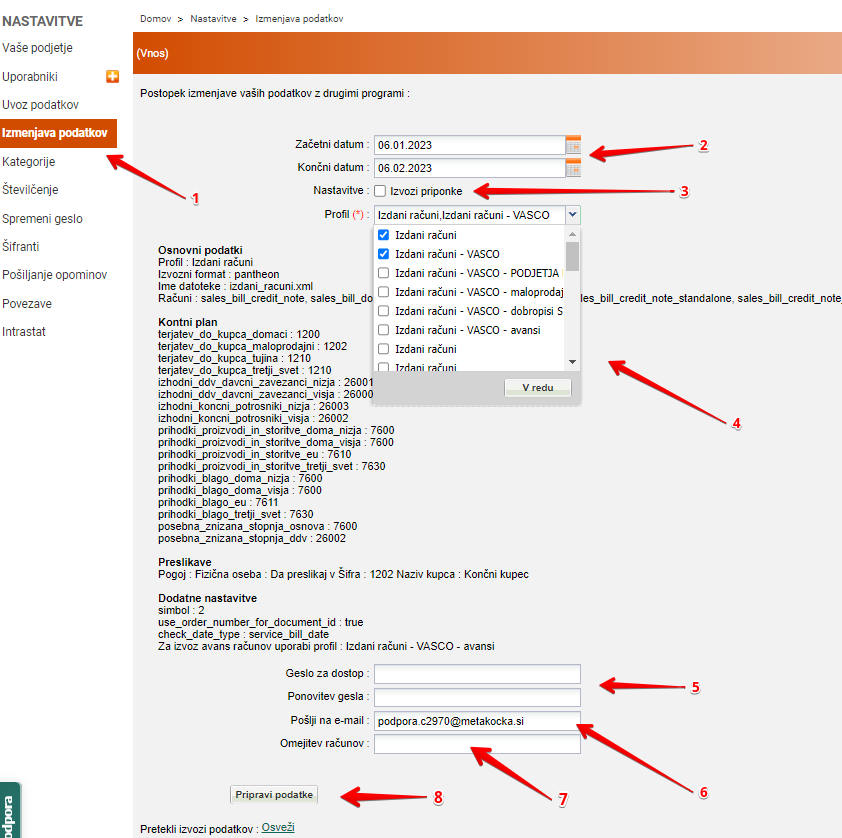
The options and fields depend on the selected program
1.Select Settings/Data exchange
2. Select the date range you want the data to be prepared for
3. Choose whether attachments are exported as well (issued - PDFs of issued invoices, received - scanned invoices)
4. Select the data type (issued or received invoices)
5. Enter the password twice; your accountant will use it to access the exchange data they receive
6. Enter the email address of your accountant, where they will receive the exchange data
7. Here you can limit the export to a specific invoice
8. and click "Prepare data"
Repeat this for each data type.
The bottom part of the screen shows the progress of the data preparation. When the file is ready, a notification with a link to the download form is sent to the email address you entered.
5. Notification the recipient receives by email
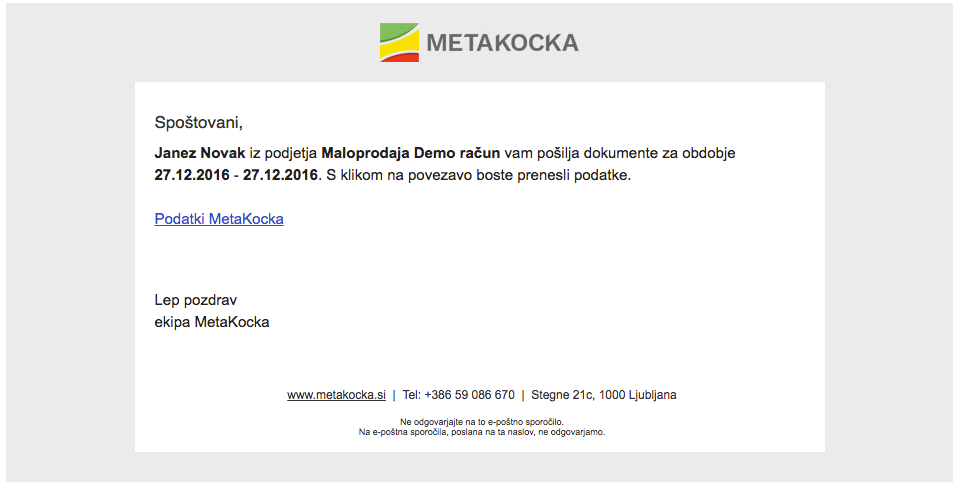
Clicking "Podatki MetaKocka" takes you to the download form, where you enter the password set earlier.
Note - the link is only active until the time stated in the notification. After that, the files are deleted automatically.
6. Downloading the file
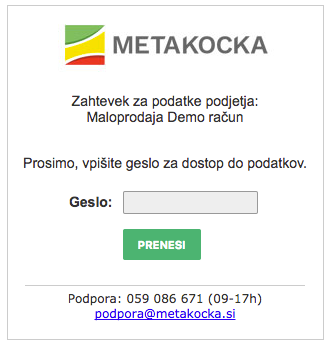
Your accountant enters the agreed password in the password field and clicks Download. The files are downloaded to the accountant's computer, and the accountant imports the content (in the format required by the selected program) into the accounting program.
Setting up independent access to data exchange for your accountant
If you want your accountant to access the data exchange independently, create a user for them and give that user the right access in MetaKocka.
1. Data exchange permissions
- Under "Settings" -> "Users", add a new user,
- The user needs the permission Settings -> Data exchange (see the image below).
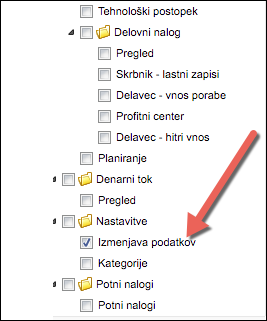
Tick "Data exchange"
2. Save the entry

Click the "Save" icon
With this user, your accountant can now access the data exchange whenever they do your bookkeeping
Questionsfor the accounting service
Before you set up the data exchange, we recommend agreeing on the exchange method and configuration parameters with your accountant. If you have answers to the questions below, it will be easier for us to advise you.
1.1 Basic questions
- Which accounting program do they use? (Vasco, Pantheon, Minimax, OpPIS, eRačuni)
- if it is none of the above - does the program support exchange in the Vasco or VOD format?
- if you use Pantheon - have you imported data with the VOD standard before? Our support can give you the contact of a Pantheon consultant who has carried out the implementation for several customers.
- Will you export the sales part, the purchase part or both? (for the purchase part, only invoice headers can be exported)
- do you want separate exports based on the criteria below (e.g. "all domestic and foreign invoices with credit notes in one file, retail invoices with credit notes in another" or "all SLO invoices in one file, all HR invoices in another").
domestic / foreign / retail / credit notes
profit centers
countries
payment instrument.
numbering
- Would you like individuals to be mapped to something like "Final customer with code 1000"? Or separately for each country, like "Final customer Austria with code 120"?
- Does the export need to include the cost center / project?
- The export always covers a date range (from - to). Should this be the invoice date or the date the service was performed?
- Do you have more than 5000 invoices per month? (for some programs this can cause import problems, so please consult us)
- Would you like payments to be exported to specific accounts? Not yet supported for Minimax.
When you send data to MetaKocka support, please include the contact of your accountant as well.
1.2 Accounts - sales
Notes:
- products and services cannot be split into two separate accounts
- even if you do not sell in a certain area (e.g. the lower tax rate or third countries), enter an account number anyway (it can be an invalid one). This way, the import will at least show an error that the account does not exist, and the solution will be quick to find.
| Enter value | ||
| Receivables from | Customers domestic | |
| Customers retail | ||
| Customers foreign | ||
| Customers third countries | ||
| Output VAT | Taxable persons - lower rate | |
| Taxable persons - higher rate | ||
| Final consumer - lower rate | ||
| Final consumer - higher rate | ||
| Revenue - products and services | Domestic lower | |
| Domestic higher | ||
| EU | ||
| Third countries | ||
| Revenue - goods | Domestic lower | |
| Domestic higher | ||
| EU | ||
| Third countries | ||
| Special tax rate (5%) | Base | |
| VAT |
If payments should be exported to specific accounts, please do the following:
- check with the MetaKocka customer which payment types they actually use in MetaKocka,
- prepare a "Payment - account" list,
- currently supported programs: Vasco, Pantheon
1.3 Accounts - purchasing
MetaKocka does not support detailed posting of purchase invoices. It therefore makes sense to export only the invoice headers (liability to the supplier, input VAT) and do the detailed posting in the accounting program. The advantage of this transfer is that the basic invoice data (numbers, dates, etc., and above all the supplier data) does not need to be retyped.
| Enter value | ||
| Liabilities to | Suppliers domestic | |
| Suppliers retail | ||
| Suppliers foreign | ||
| Suppliers third countries | ||
| Input VAT | Taxable persons - lower rate | |
| Taxable persons - higher rate | ||
| Individual - lower rate | ||
| Individual - higher rate |
Wrong accounts on imported invoices
If your accountant finds that imported invoices have wrong accounts or a missing transaction, and it is not just a matter of correcting an account number, it is best to follow the steps below. This way, MetaKocka support can make the right settings and check that the export matches the required file format.
Do the following:
1. choose one invoice / credit note with wrong accounts and export the data for that day
2. export the data through data exchange (ideally for one day). You can also limit the export to specific invoices in the "Invoice limitation" field (e.g. "P1-MK-100,P1 -MK-101")
3. your accountant imports the data and corrects the invoice to the right values in their system.
4. your accountant exports the corrected invoice to an XML file. For instructions for each program, see https://metakocka.freshdesk.com/en/support/solutions/articles/3000060349
5. send MetaKocka support the exported file from step (2) and the corrected file from step (4).
6. support will set the right accounts, export the data again and check that the figures match for the test invoice.
Other
Possible issues when exchanging OSS invoices
Below are possible issues when exporting OSS invoices. They fall into two groups - something that can happen every month, and issues to watch for at the first export (if everything is set up correctly, they do not occur again).
Every month - added numbering sequences and selected taxes
When you sell to an additional country, a new numbering sequence is created and the tax rates are set automatically. This is not set automatically in the data exchange, however. The numbering sequence and the export tax types have to be set separately.
This is the area shown in the image below.
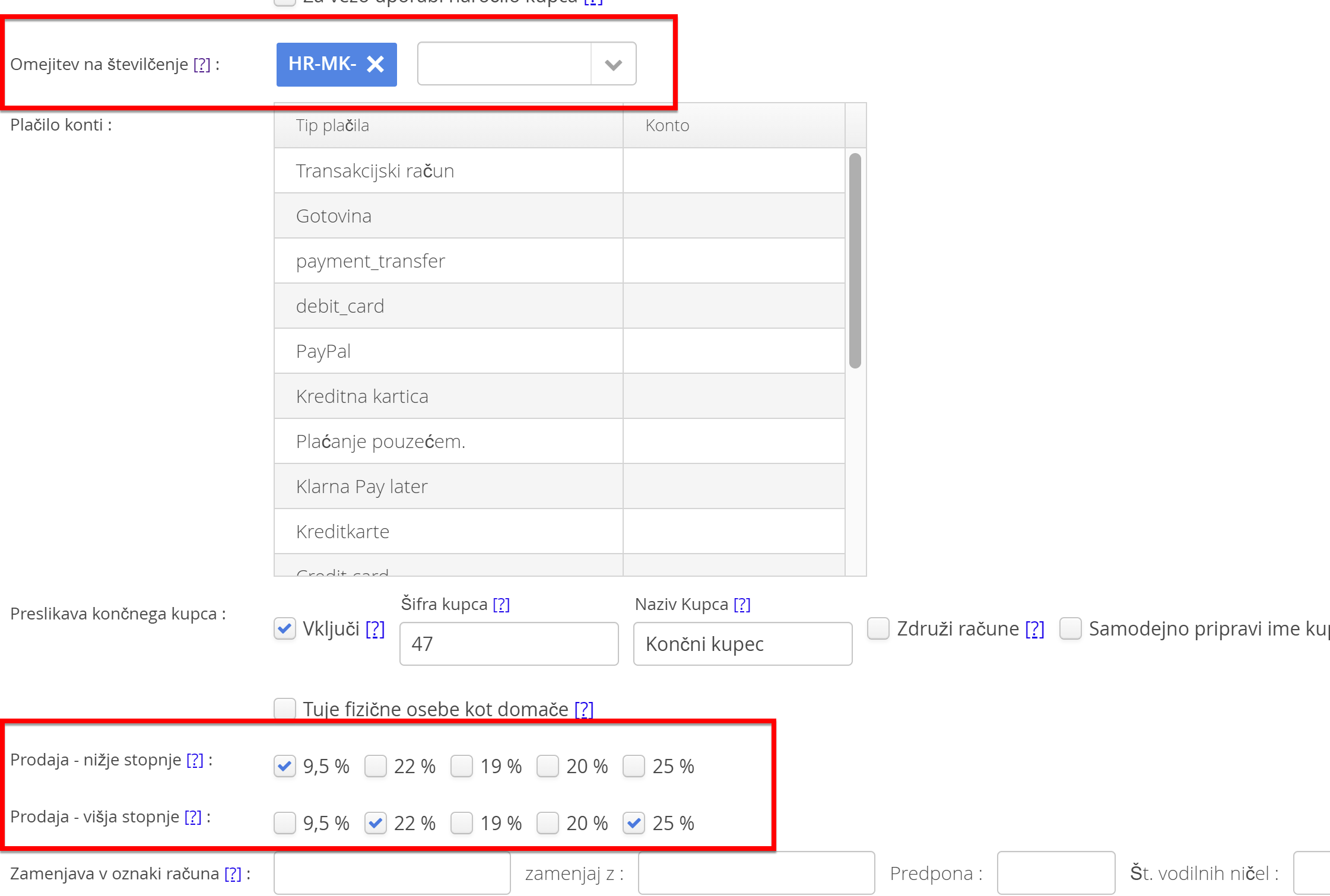
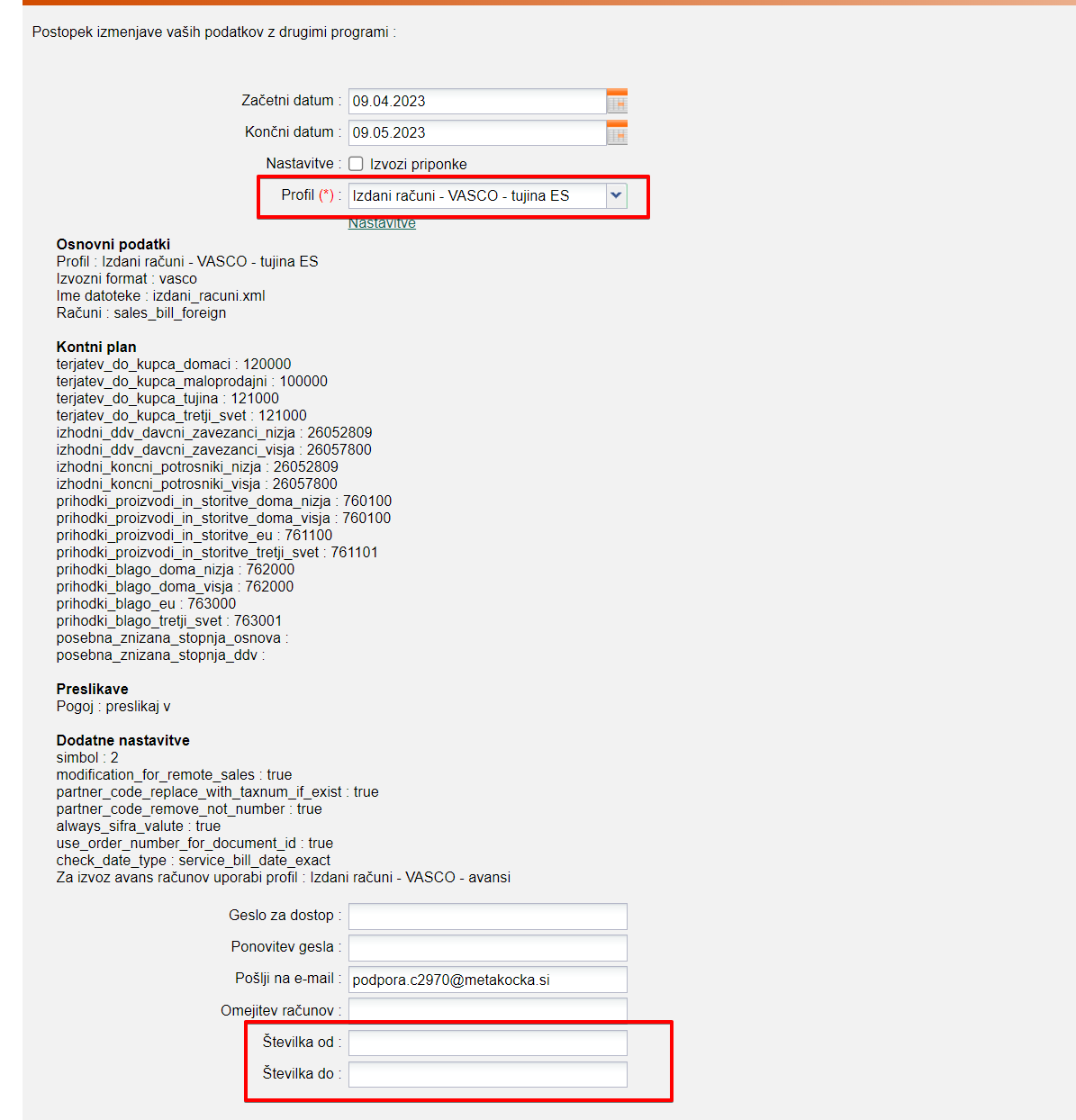
If your exchange is set up by separate numbering sequences, you can limit the export of invoices from - to
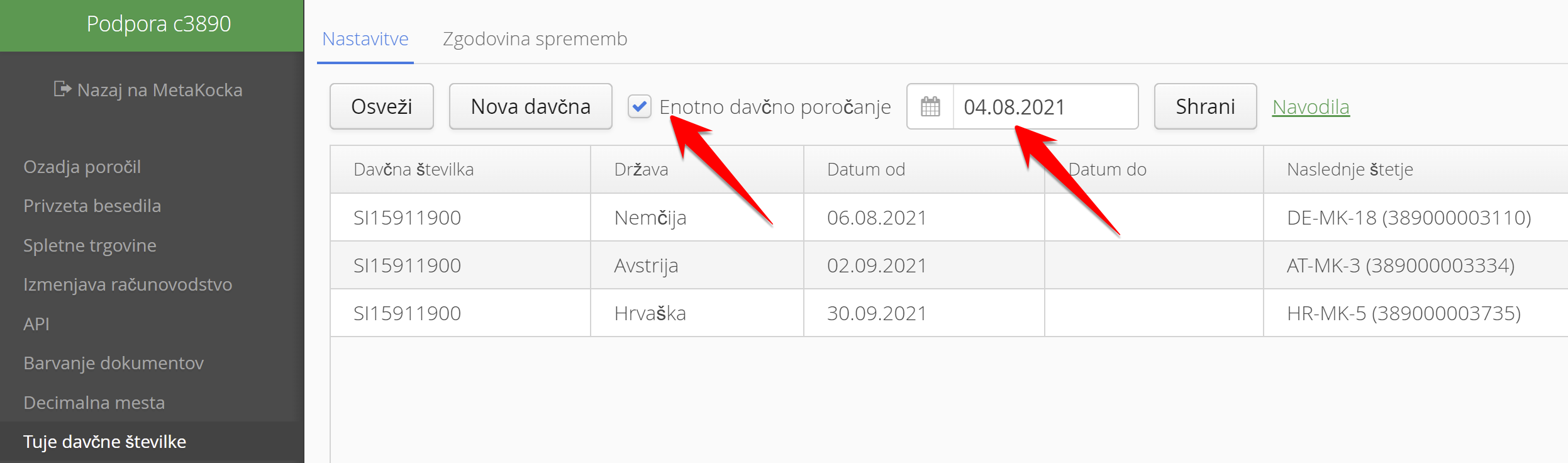
Initial setup - enabling OSS and the date
OSS must be enabled in Additional settings, and the activation date must be the same as or earlier than the date of the first OSS invoice.
OSS, an event in the home country and product sales
Let us look at an example of selling a service in the home country and delivering a product from the local market:
- your company is in SLO and you sell from SLO
- you sell to DE, for example, and since you exceed the turnover threshold, you have OSS enabled and report sales to DE through OSS
- now you decide to organize a local event in DE with a product presentation and an entrance fee. You sell tickets for the event in your online store, and customers can also add your products.
- a customer buys a ticket for your event in DE and at the same time orders some products that you ship from SLO. Everything is on one order and therefore on one invoice.
- this causes a problem: you have to report the value of the products through OSS, while the event tickets have to be reported directly to the DE tax authority.
You can solve this by splitting the invoice into two invoices with a credit note. Example:
- you have invoice R1 with 1x ticket and 2x bottle,
- create credit note D1 for 2x bottle and issue a new invoice R2 for 2x bottle
- now assign profit center P1 to invoice R1 and credit note D1, and profit center P2 to invoice R2
- limit the data export by profit center, so you get two separate exports that you import into the accounting program separately.
Initial setup - the correct date for the business unit
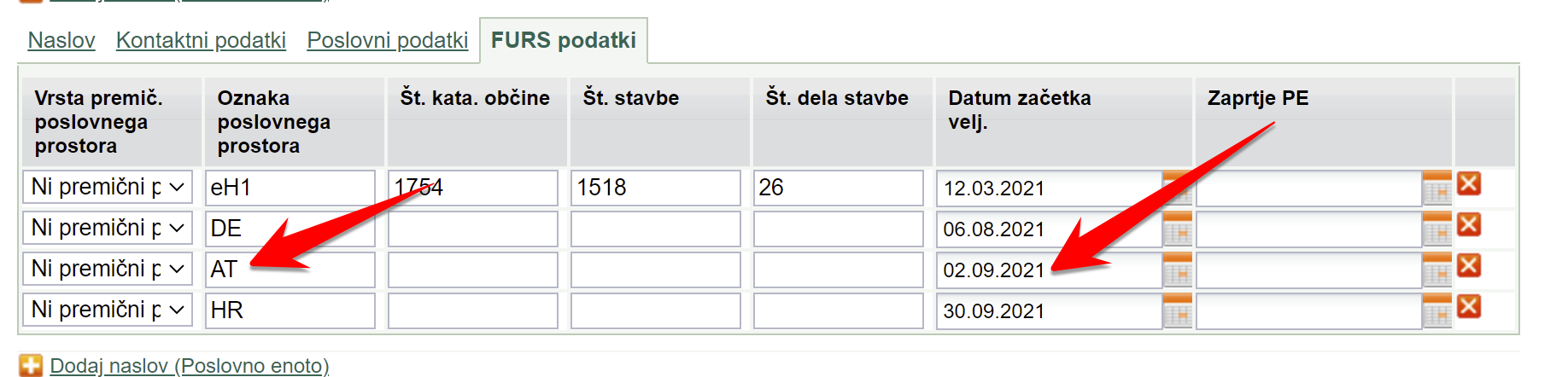
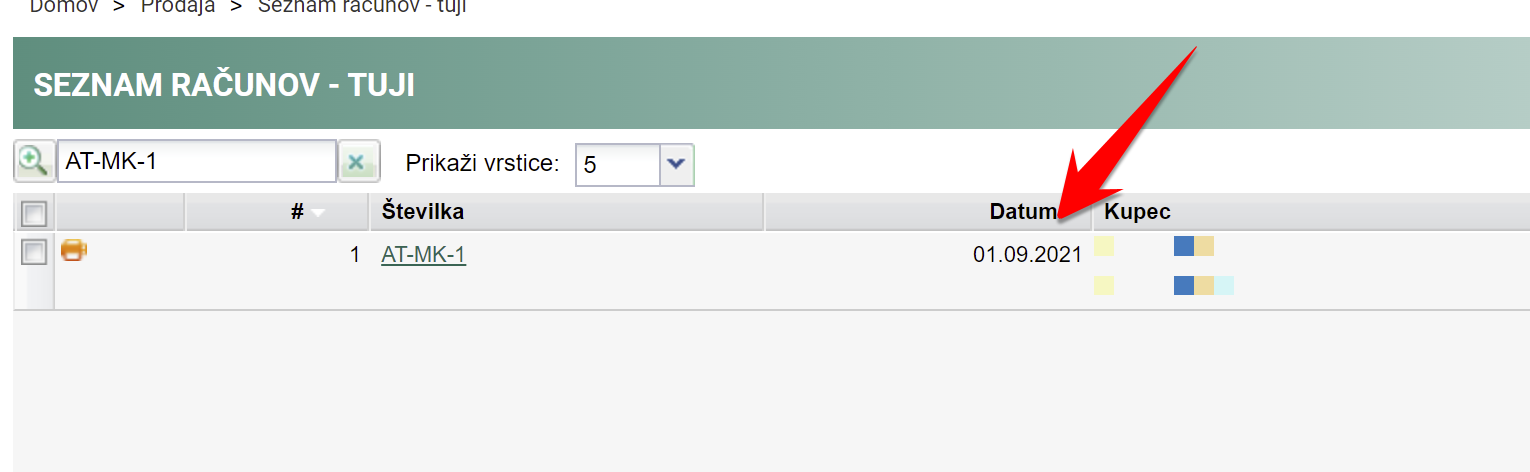
The opening date of the business unit must be the same as or earlier than the date of the first OSS invoice. Otherwise, that invoice will not be treated as an OSS invoice. An example of such a mismatch is shown in the image below.
OSS and services charged with parcel delivery
Online orders usually include an additional service besides the goods - e.g. shipping, a cash on delivery fee, insurance, etc. In an OSS export, such a service is automatically treated as goods. This is because the general position of the Slovenian tax administration (FURS) is to assess whether the service could exist on its own without the goods. In other words, if the goods were not sold, could you charge shipping, a fee, etc.? Probably not. That is why service items share the treatment of the "goods".
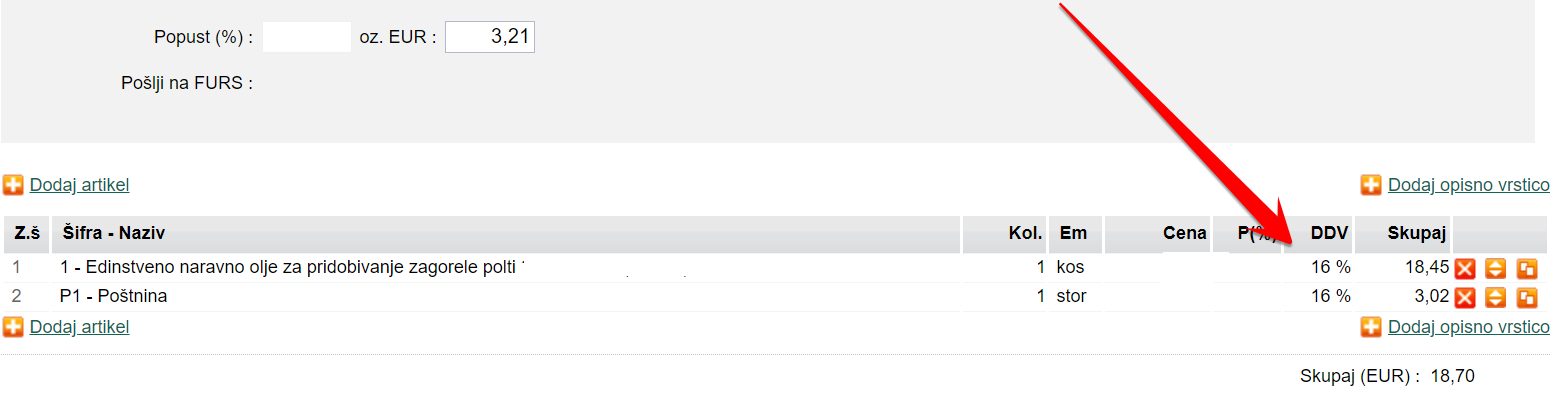
No tax posting on an issued invoice
If an invoice has a tax that is not set in the export settings, the posting for that tax is not exported (see the example below).

Minimax: Analytics is a required field
MetaKocka does not support entering analytics in the exchange file, so in this case you need to set in the Minimax chart of accounts that analytics is not entered
Exporting manufactured products under service accounts
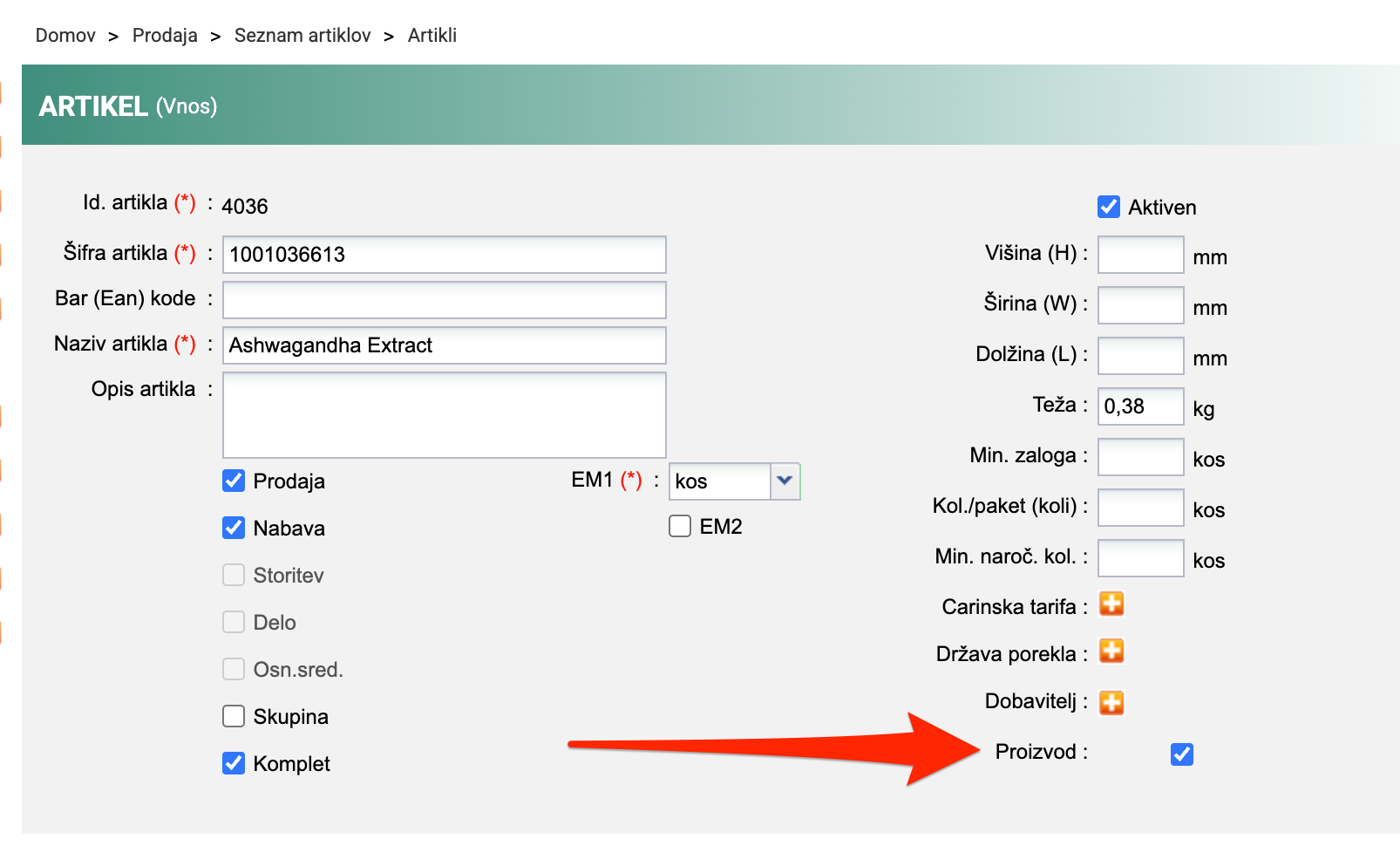
If you want to export your manufactured products under the account "Revenue - products and services", you first need to mark the products that are manufactured products:
- Write to podpora@metakocka.si, and ask them to add an additional option to your products - "Manufactured product" (Proizvod)
- Edit the products and enable the Manufactured product option. If you have many products and want to edit them with an Excel file, do the following:
- export all products with the report Sales -> Reports -> Product list
- prepare an Excel table with only two columns - "Šifra" (product code) and "Proizvod" (manufactured product). In the second column, enter "da" (yes) for each product that is a manufactured product
- import the data under Your company -> Data import -> Products - Update
In the next export for your accountant, products marked as "Manufactured product" will use the service account instead of the goods account.
Was this article helpful?
That’s Great!
Thank you for your feedback
Sorry! We couldn't be helpful
Thank you for your feedback
Feedback sent
We appreciate your effort and will try to fix the article