
Products on Consignment
Consignment Items – Using Categories
If you have items on consignment, you can manage them using categories.
1. Enabling Categories
First, you need to enable the Categories option.
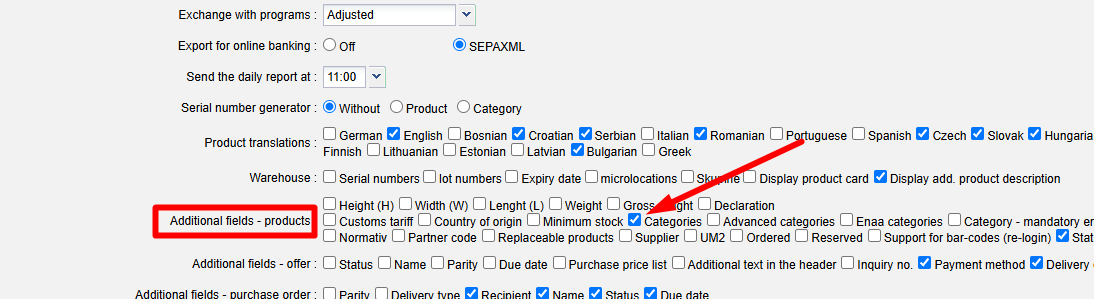
Enable Categories under Settings / Your Company. Under Additional fields - products, check the Categories option and save the changes.
2. Adding a Supplier to Categories
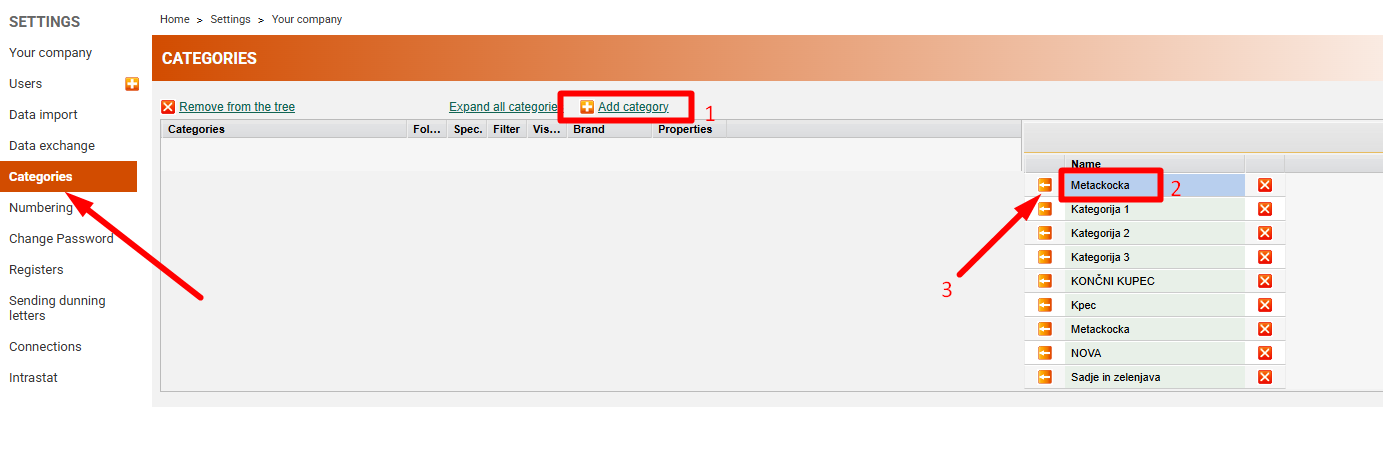
After enabling Categories, a new Categories option will appear under Settings.
In the Categories menu, click Add category.
In the field that opens under the Name column, enter the name of the supplier who provides you with items on consignment.
Then click the left arrow to move the category to the left side.
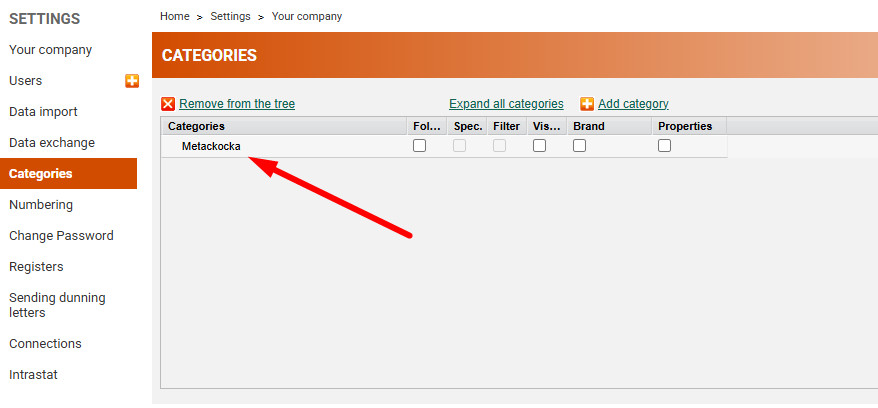
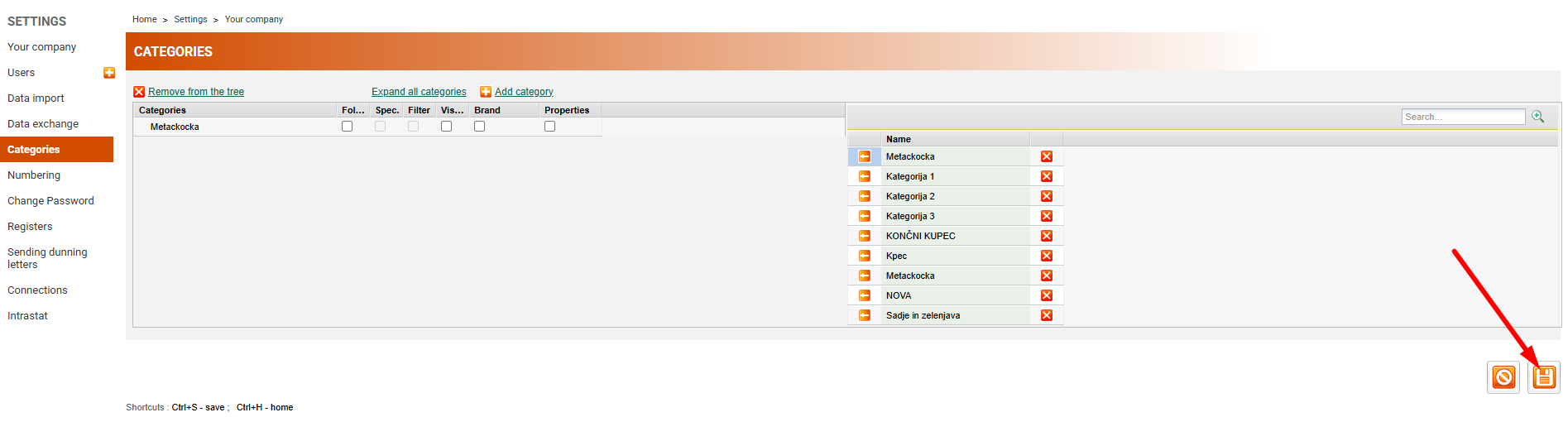
Save the changes.
3.1 Manually Adding a Supplier as a Category to an Item
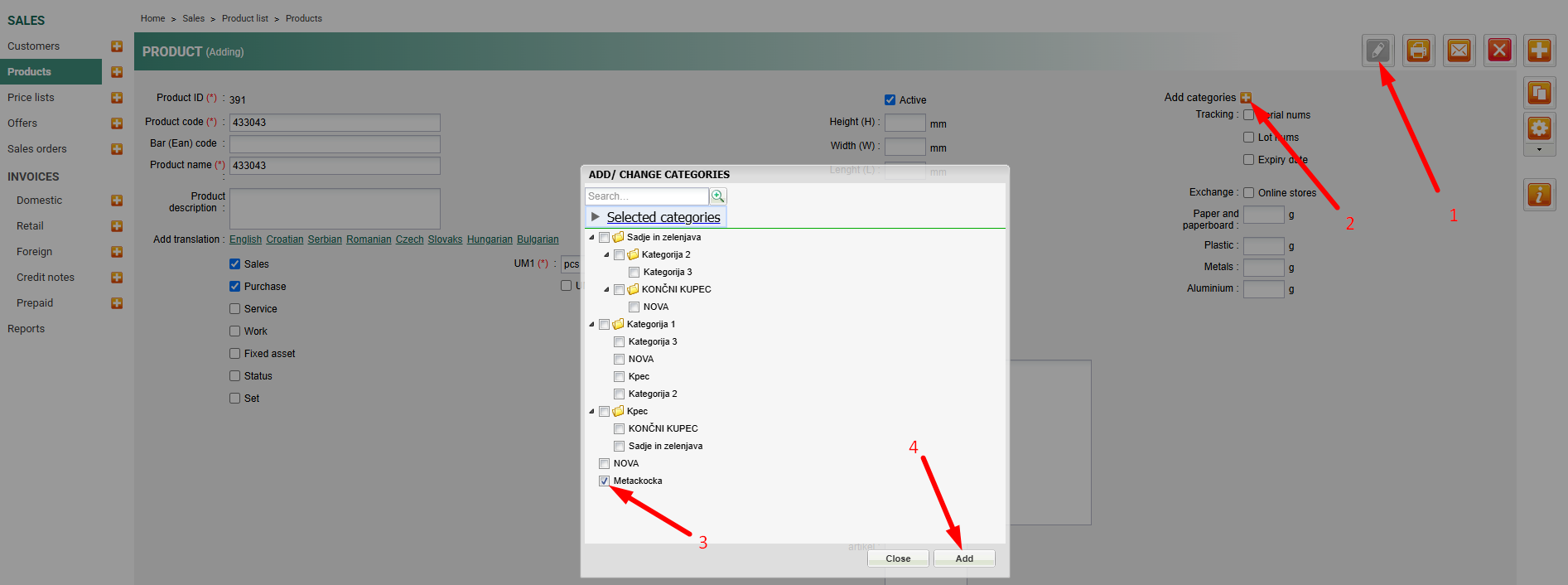
You can add a supplier as a category to an item by following these steps:
- Click Add category.
- Select the supplier.
- Click Add.
Finally, save the changes to the item.
3.2 Importing Categories to an Item
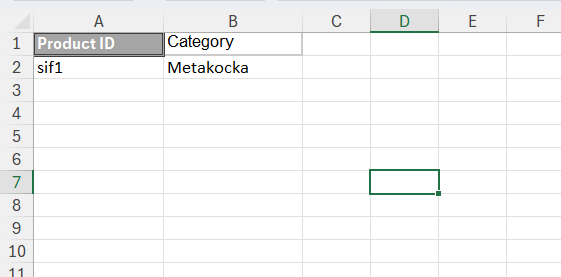
Attached below is a file for importing categories, i.e. suppliers, to items.
In the Code column, enter the item code to which you want to add the supplier category.
In the Category column, enter the supplier's name (for example, Metakocka) and save the table.
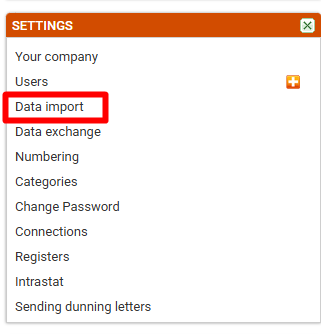
Then import the table by opening Settings / Data Import in MetaKocka and importing the prepared file.
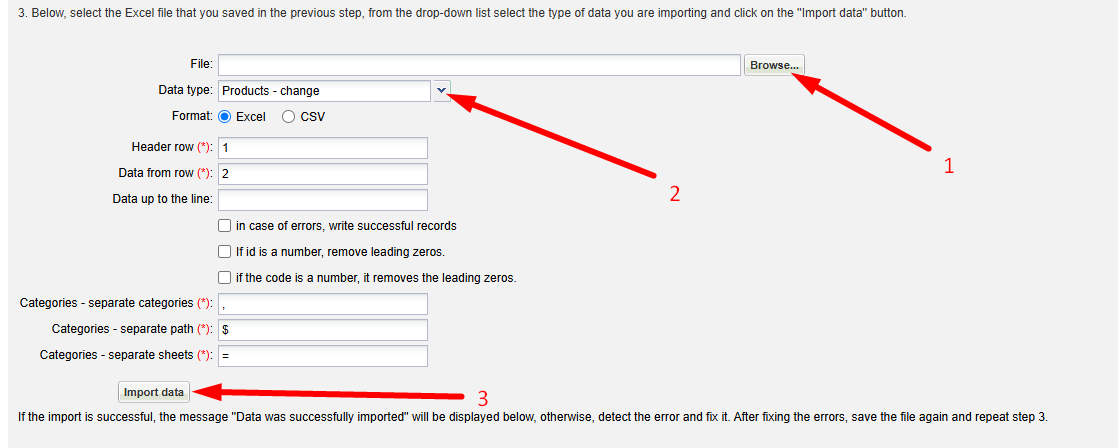
Under 3. Data Import, select the table and import the data:
- Select the table you want to import.
- Under Data type, select Procusts – change.
- Click Import data.
Was this article helpful?
That’s Great!
Thank you for your feedback
Sorry! We couldn't be helpful
Thank you for your feedback
Feedback sent
We appreciate your effort and will try to fix the article