
FulfillmentApp - Warehouse
Stock
In the Warehouse section you can view the stock overview which you can search using the selected filters:
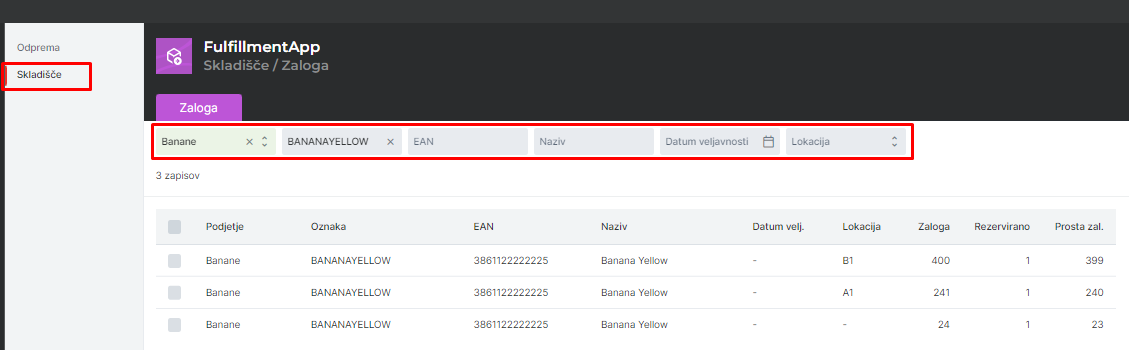
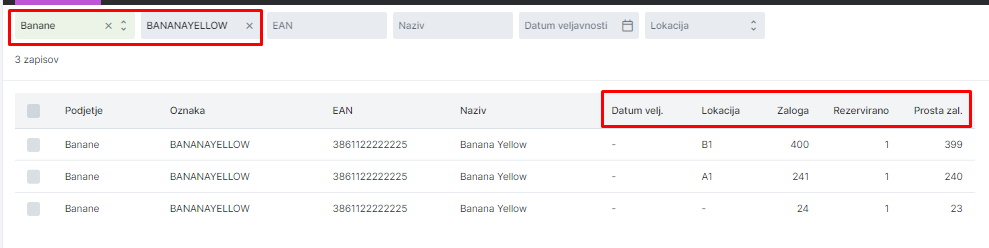
Product data available in the warehouse overview:
Expiry date – if the product contains this information it is shown in the stock overview by expiry date
Location – the location in the warehouse where the product is stored
Stock – physical stock in the warehouse
Reserved – orders on the customer side that include the product and will enter the fulfillment system
Available stock – how many units will remain once all orders that include the product are dispatched
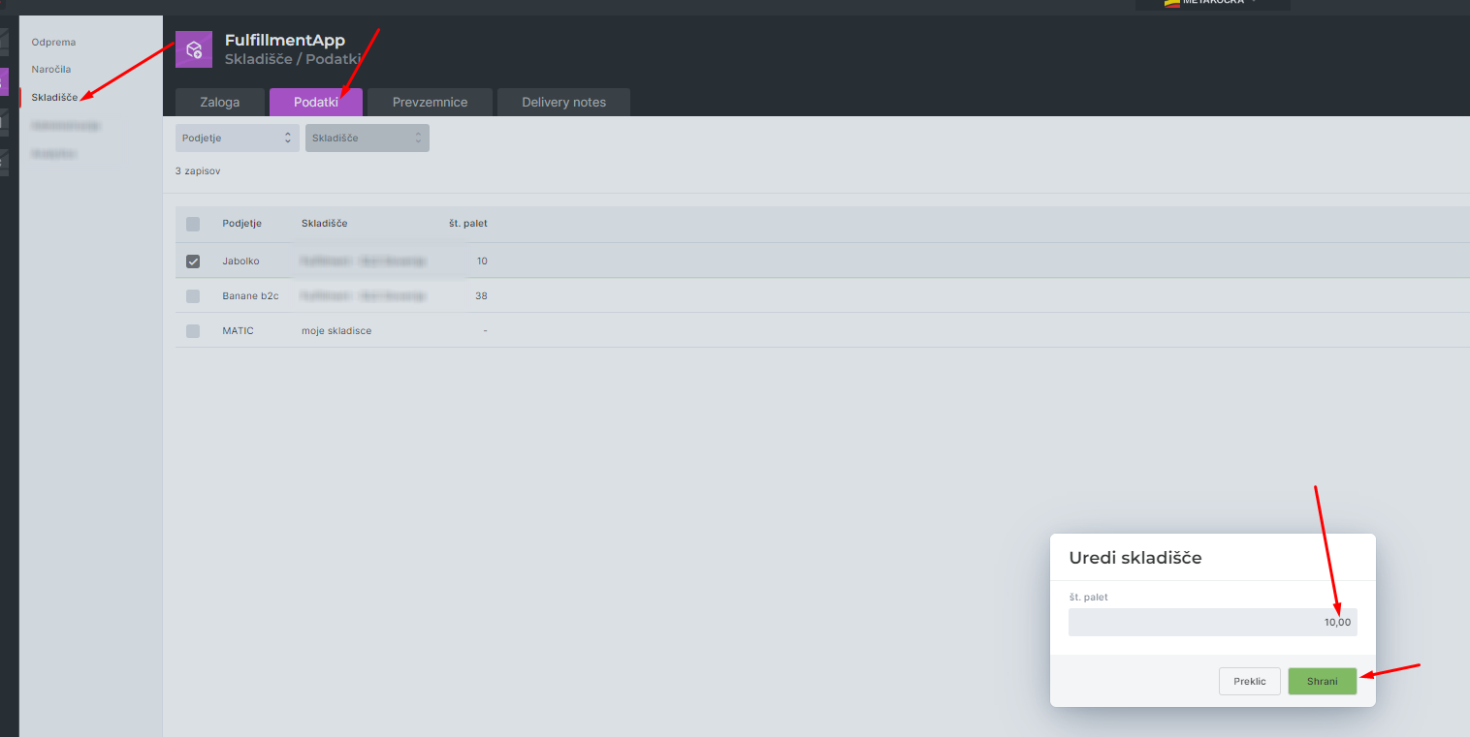
Data
In the Data section you can enter the number of pallets currently occupied by the stock of the selected company:
Procedure for receiving products into stock
1. Receiving stock through an inbound order
If the company creates an inbound order in its profile that lists which products will be delivered:
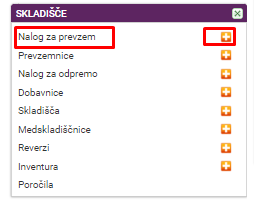
This is then displayed on the scanner under the section:

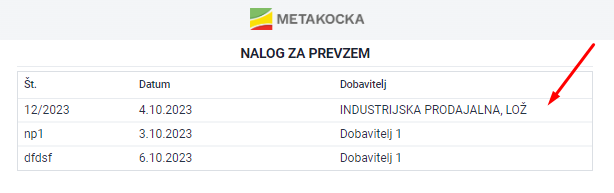
Among the created inbound orders select the one you want to receive:
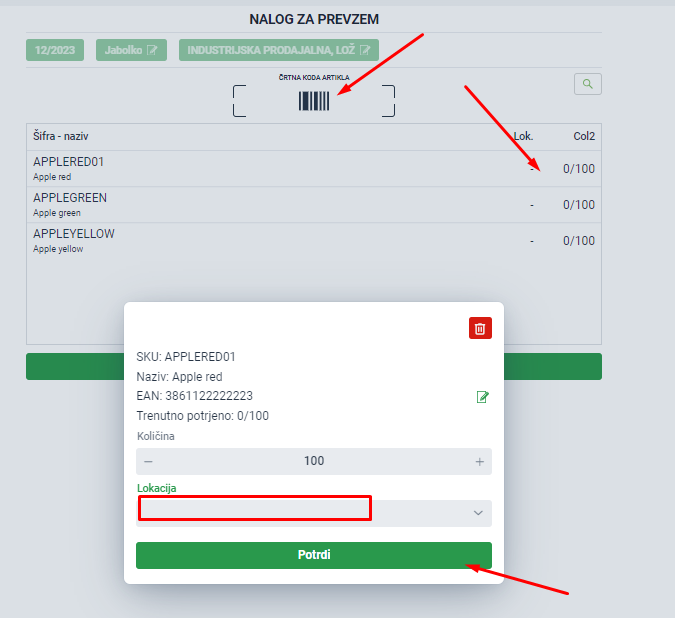
A dialog opens with the products that need to be received. You can receive the products by scanning or by manually confirming the received quantity. Enter the location where you are placing the product and confirm.
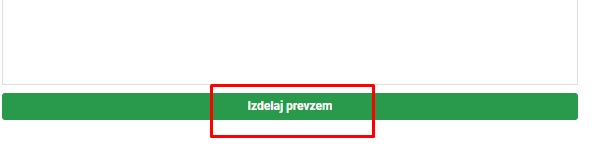
When the receipt is completed click Create a gds. rec. note. and the stock of the received products appears in the warehouse overview.
2. Direct receipt through the goods receipt note
If the stock is received directly through the goods receipt note select Gds. rec. note on the scanner.

Under the warehouse section select the company for which you are receiving the stock.
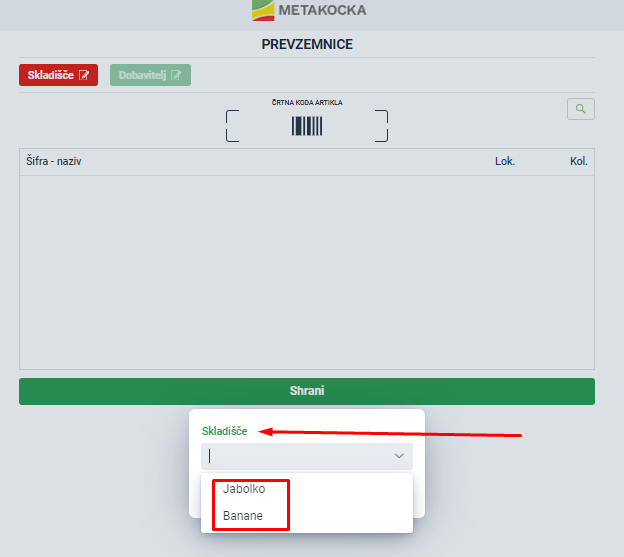
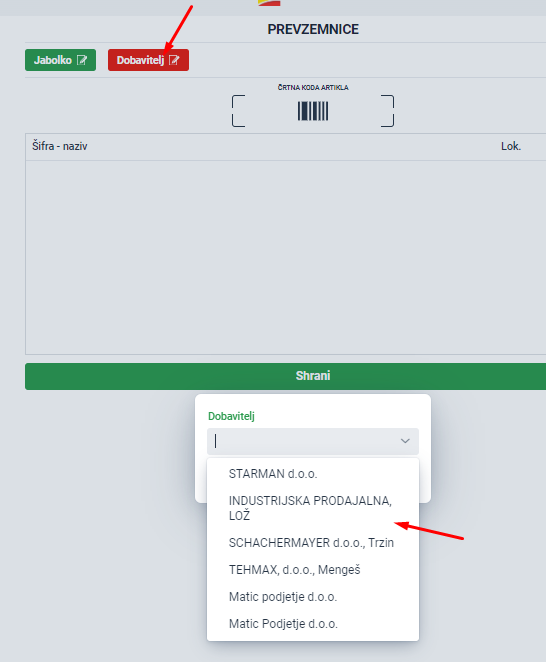
And select the supplier delivering the stock:
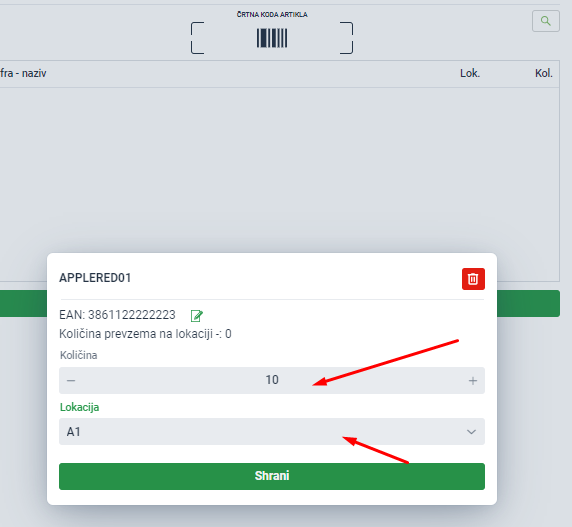
Scan the product or enter it manually and set the quantity you are receiving
After completing the receipt click Save and the stock will be visible in the Warehouse overview.
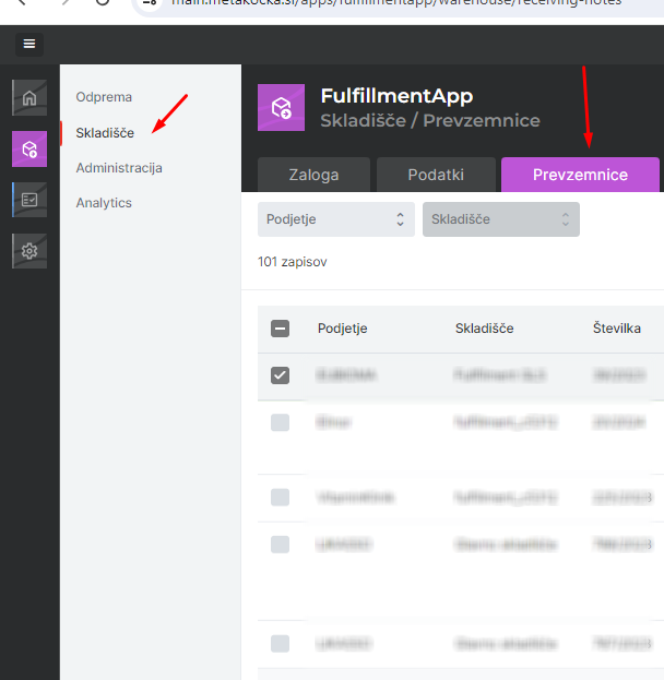
The list of created goods receipt notes is also visible in the app.
Delivery note
A document used when you need to remove a certain quantity of a product from stock for various reasons such as damage.
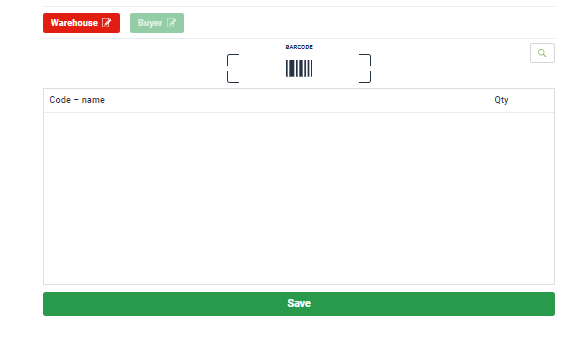
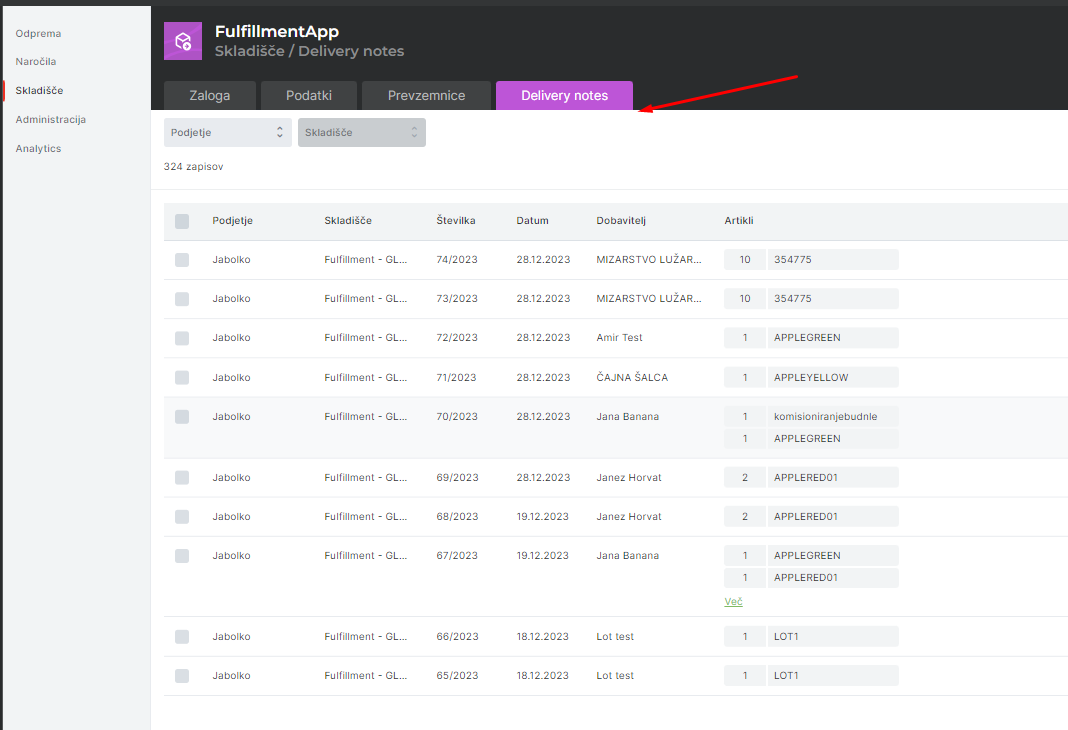
The overview of created delivery notes is also visible in the Fulfillment app:
Was this article helpful?
That’s Great!
Thank you for your feedback
Sorry! We couldn't be helpful
Thank you for your feedback
Feedback sent
We appreciate your effort and will try to fix the article