
Fulfillment App - Partially return parcels
For partially returned orders, the package arriving at the warehouse will be processed as follows.
First of all, Metakocka and scanner setup is required to enable partial returns.
CONFIGURATION
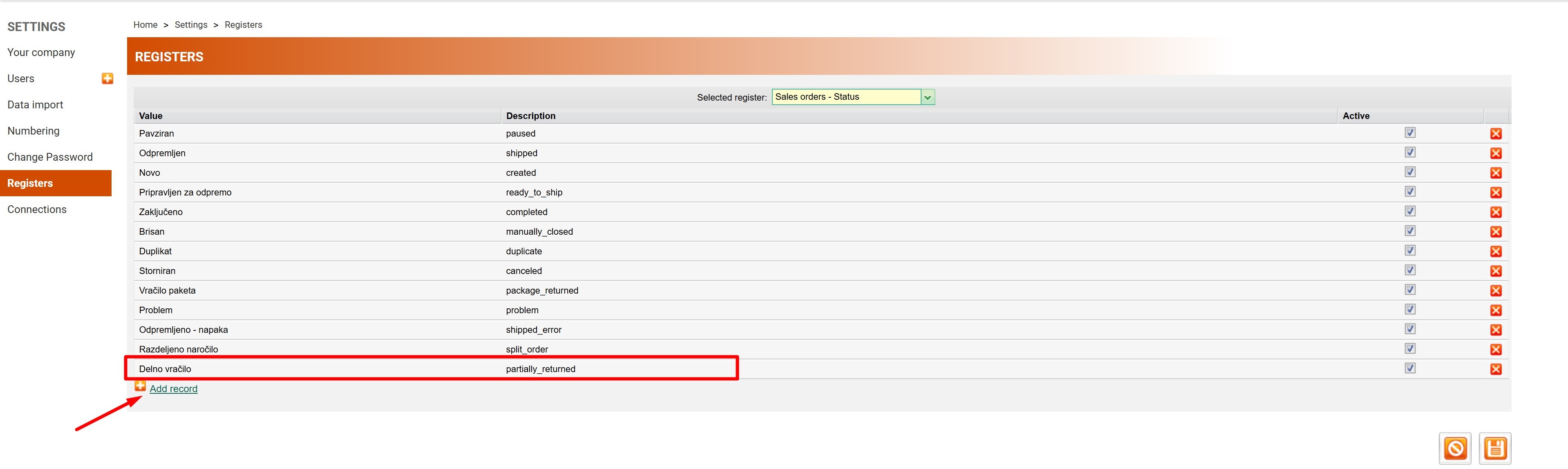
In your Metakocka account, go to Settings-> Registers. From the drop-down menu, select "Sales order - Status", and add a new status by clicking on "Add record". Enter the record using the data provided below:
Value: Delno vračilo
Description: partially_returned
Save the data
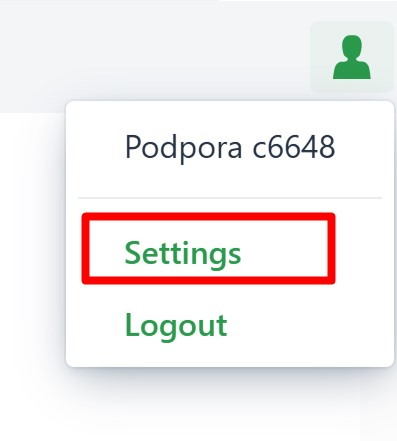
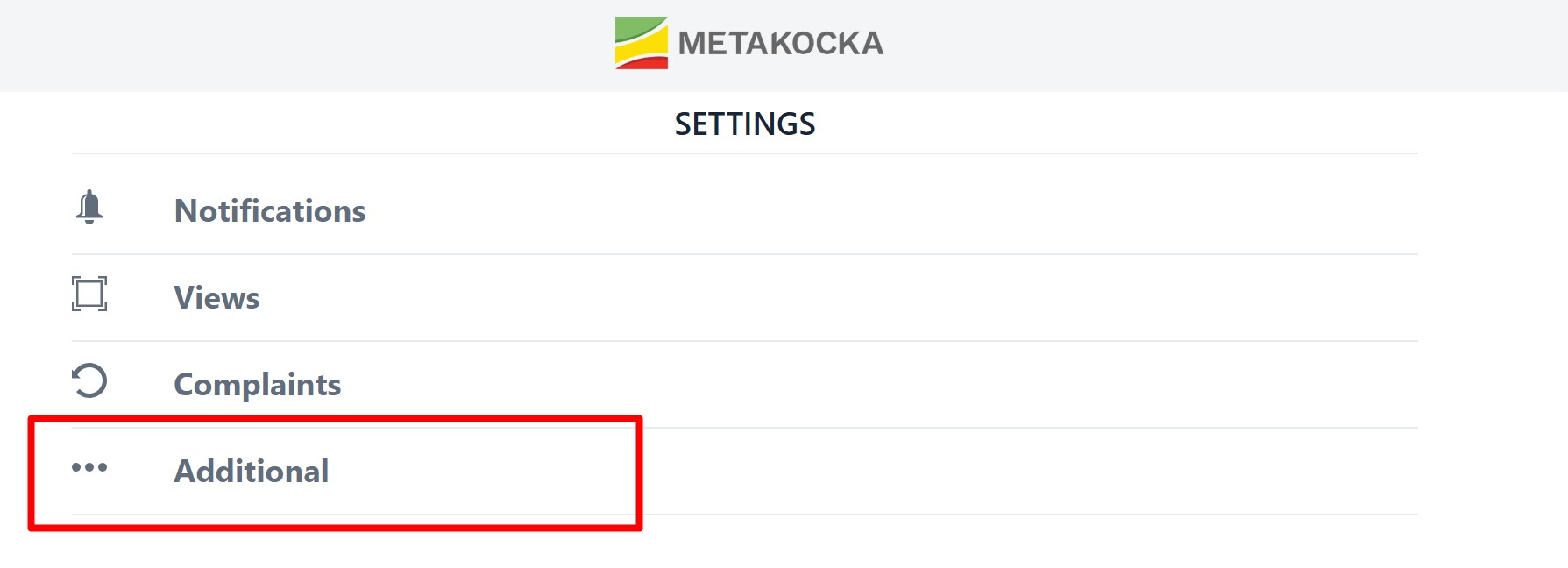
Then, proceed to the scanner and, uner the user menu, go to "Settings-> Additional"
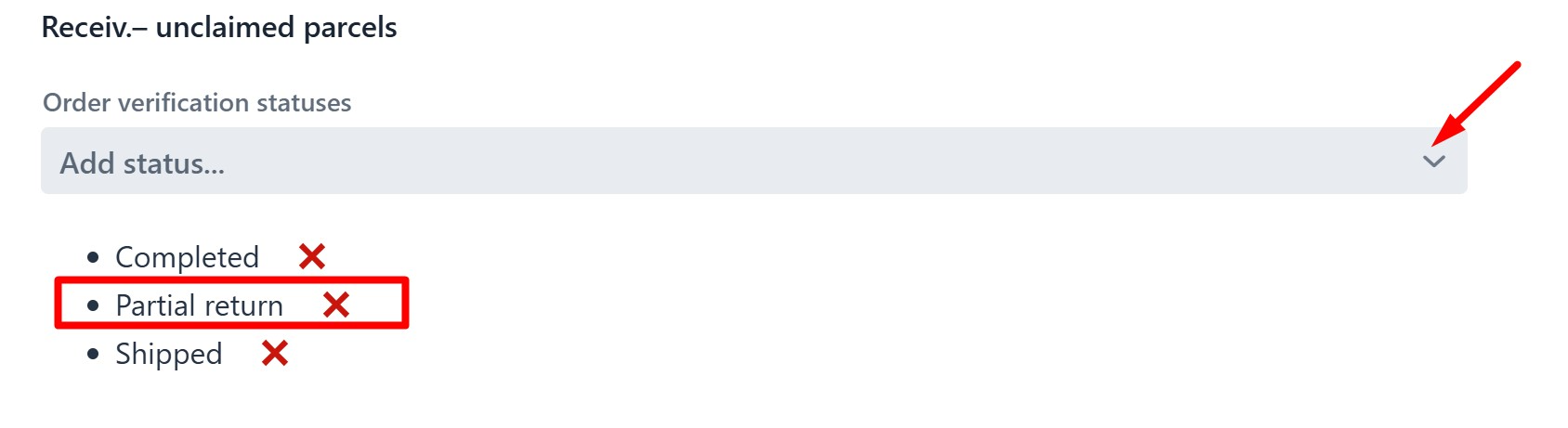
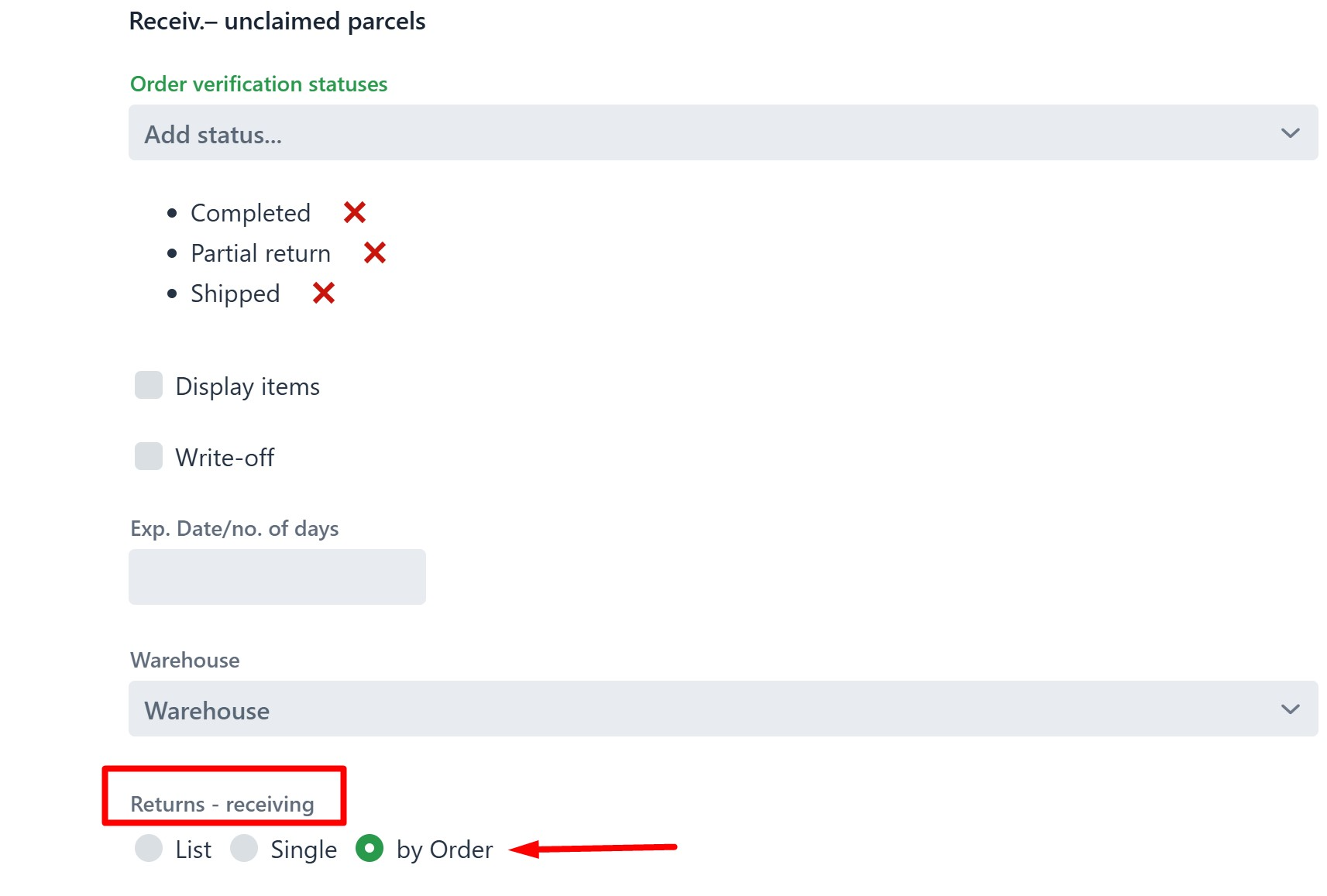
In the "Receiv. unclaimed parcels" section, select the new status registered previously in Metakocka from the drop-down menu.
In the "Returns - receiving" section, make sure the option "by Order" is checked
USAGE EXAMPLE
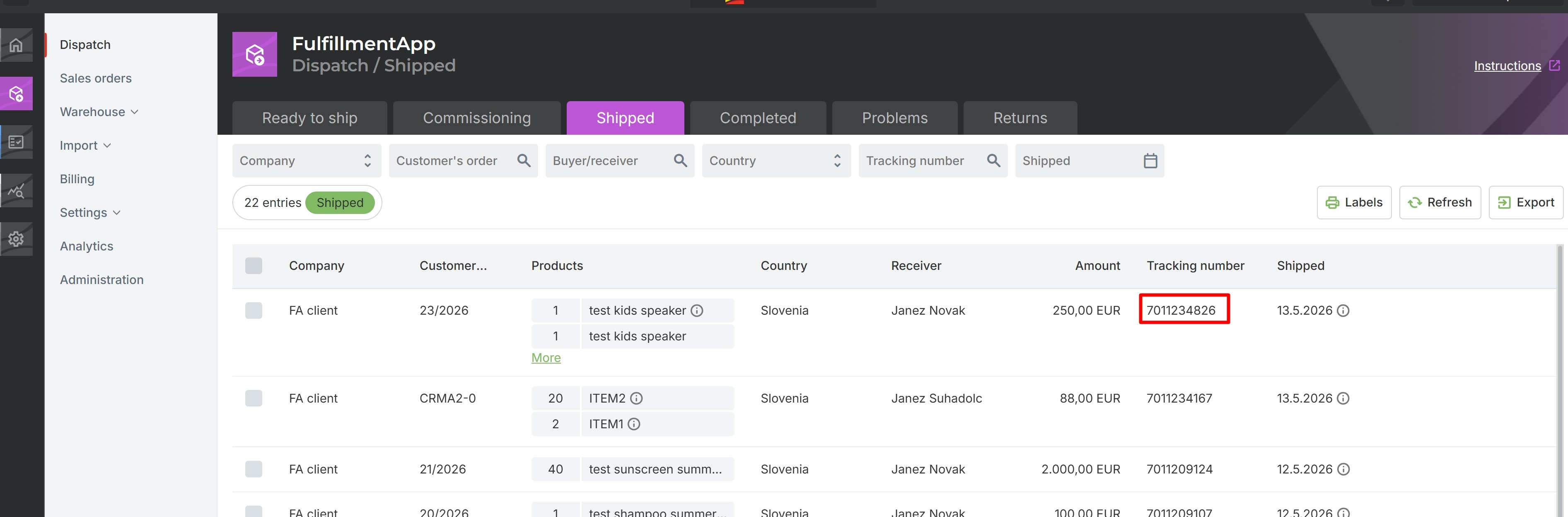
In Fufillment App, copy the order tracking number.
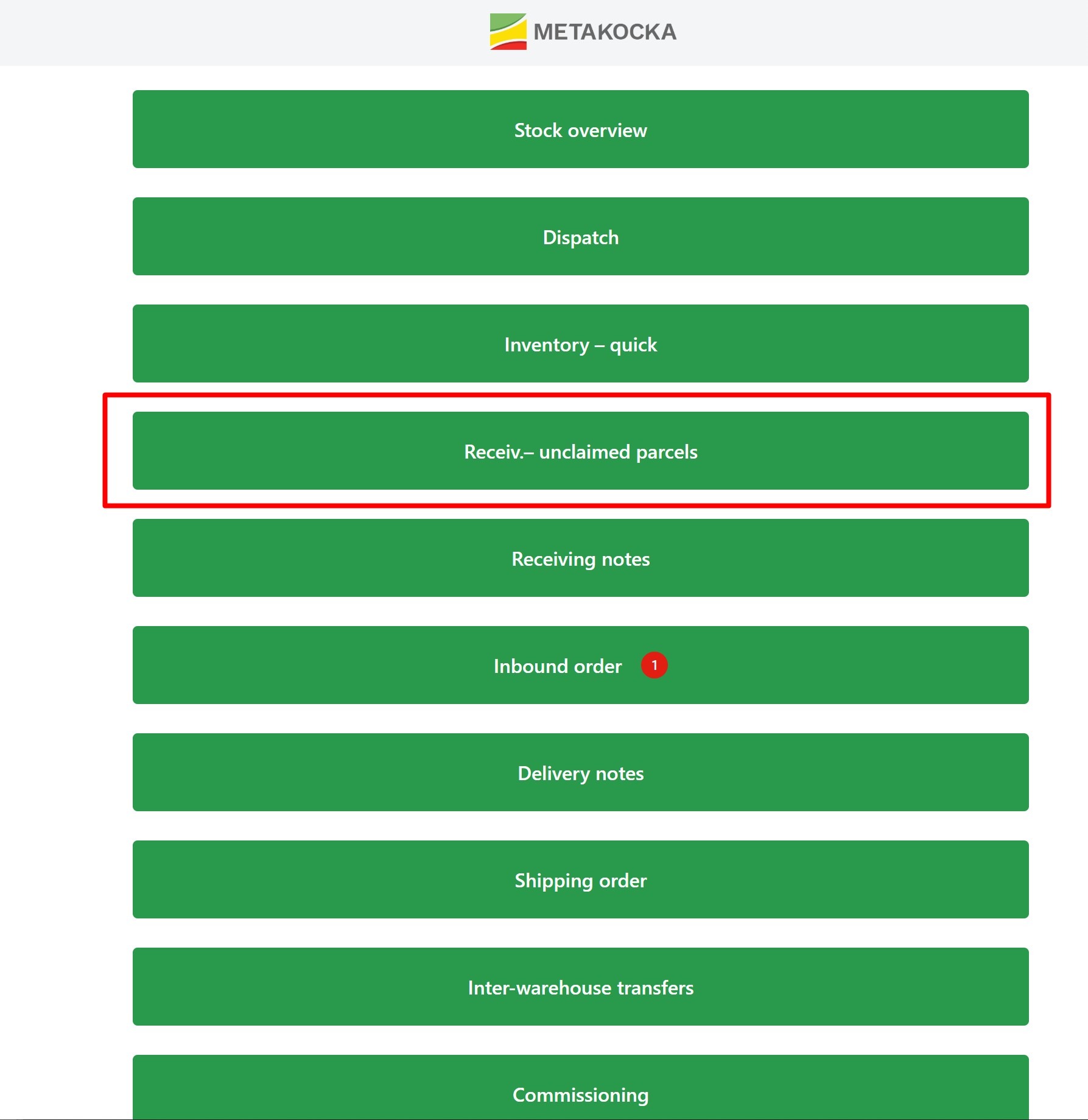
Click on "Receiv - unclaimed parcels"
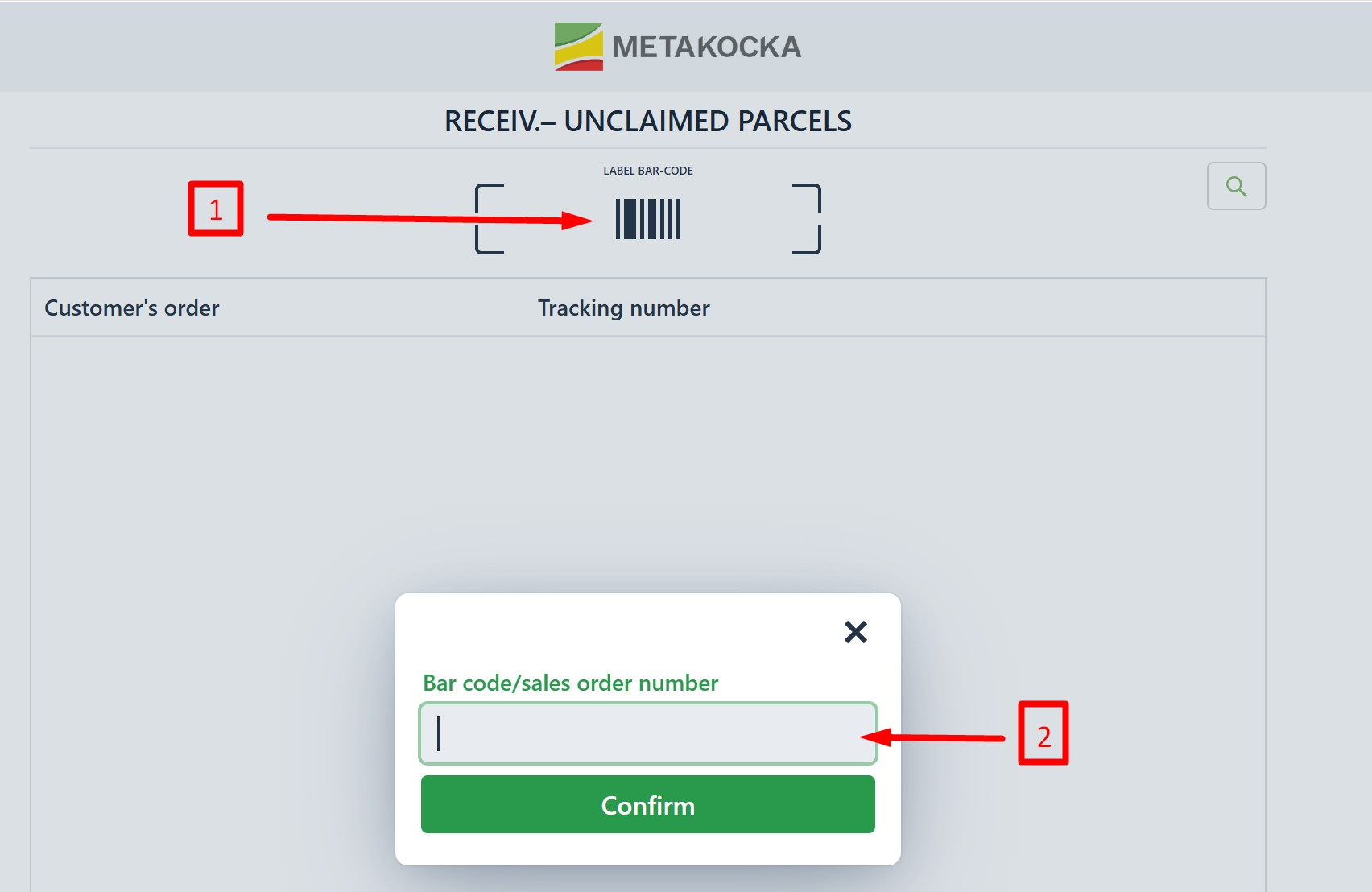
Click on the barcode. A small pop-up window will appear. Paste the tracking number copied in the previous step.
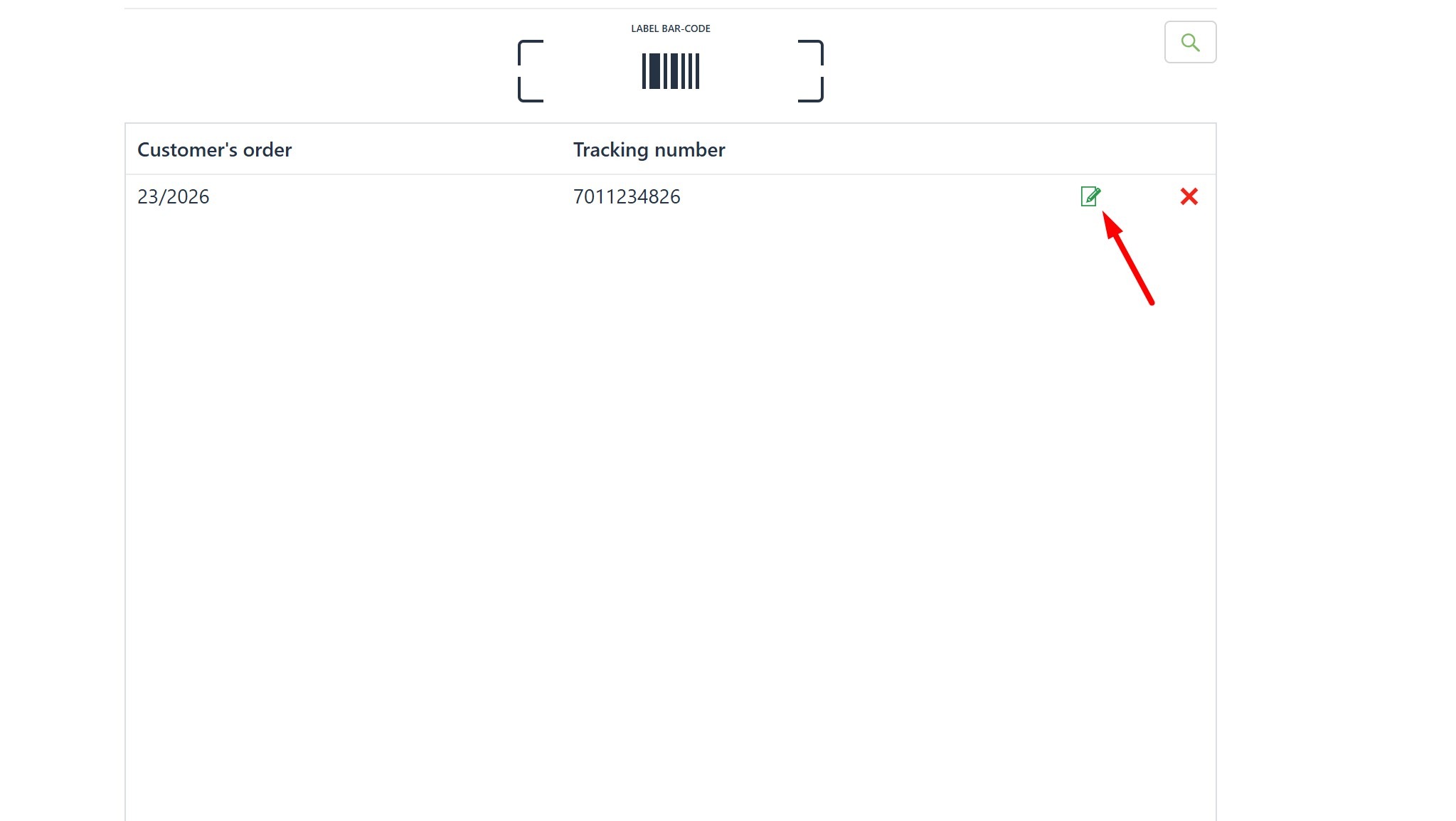
Click on the edit icon, as shown in the picture below
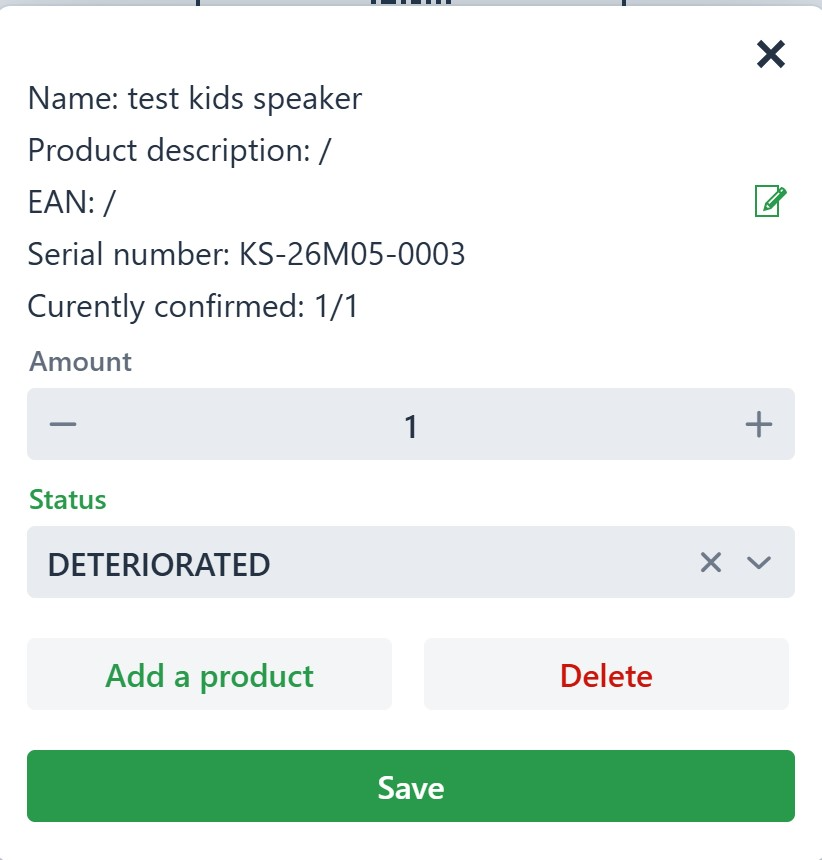
Select the products that will return to the warehouse and assign them the appropriate status
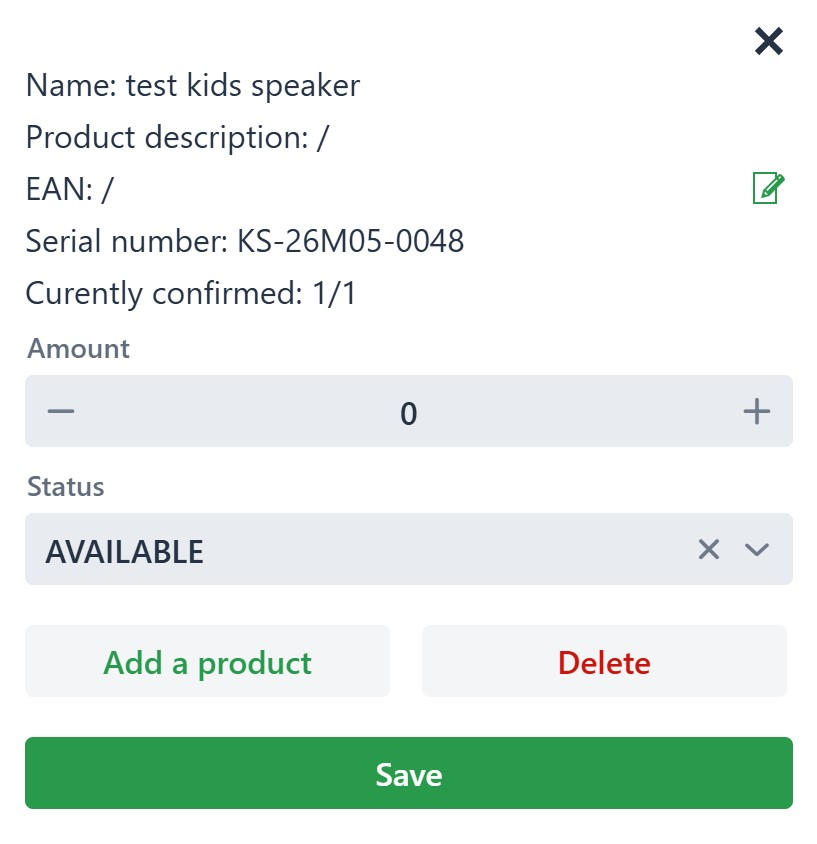
IMPORTANT: For those products that the customer DOES keep, and therefore are not returned, set the quantity to 0 ( see image below)
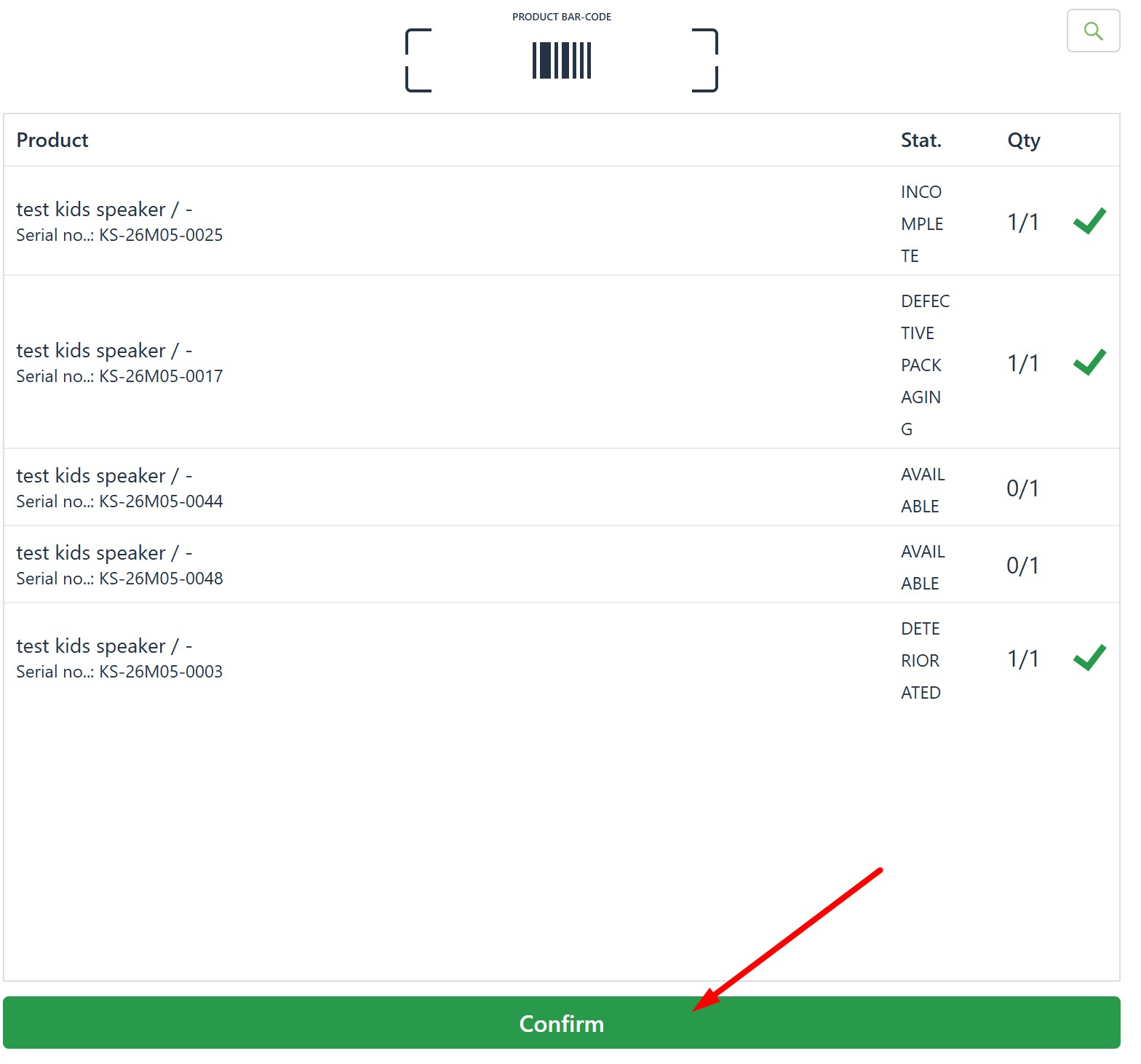
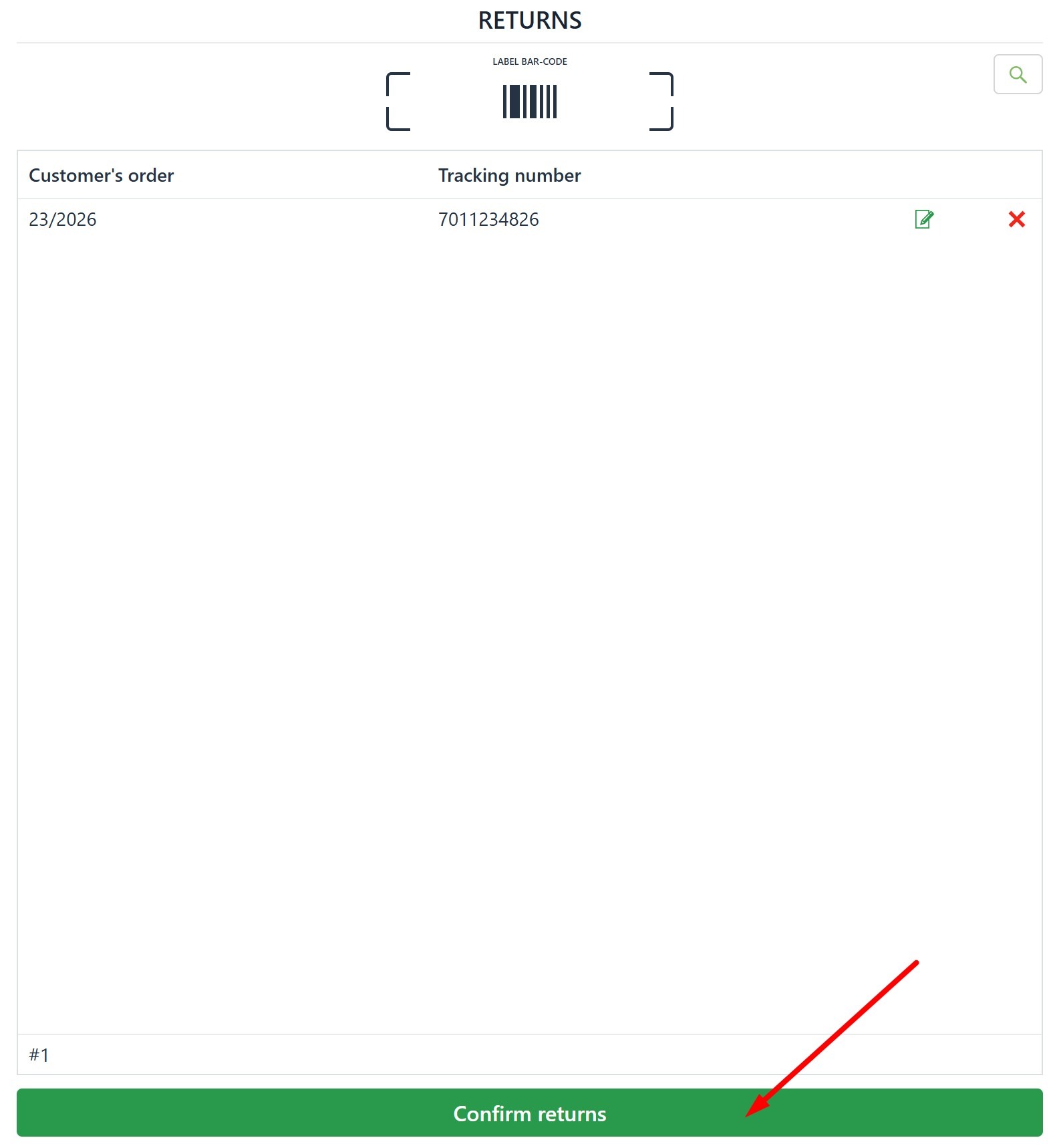
Once all units to be returned have been added, click on "Confirm" , and then on "Confirm returns".
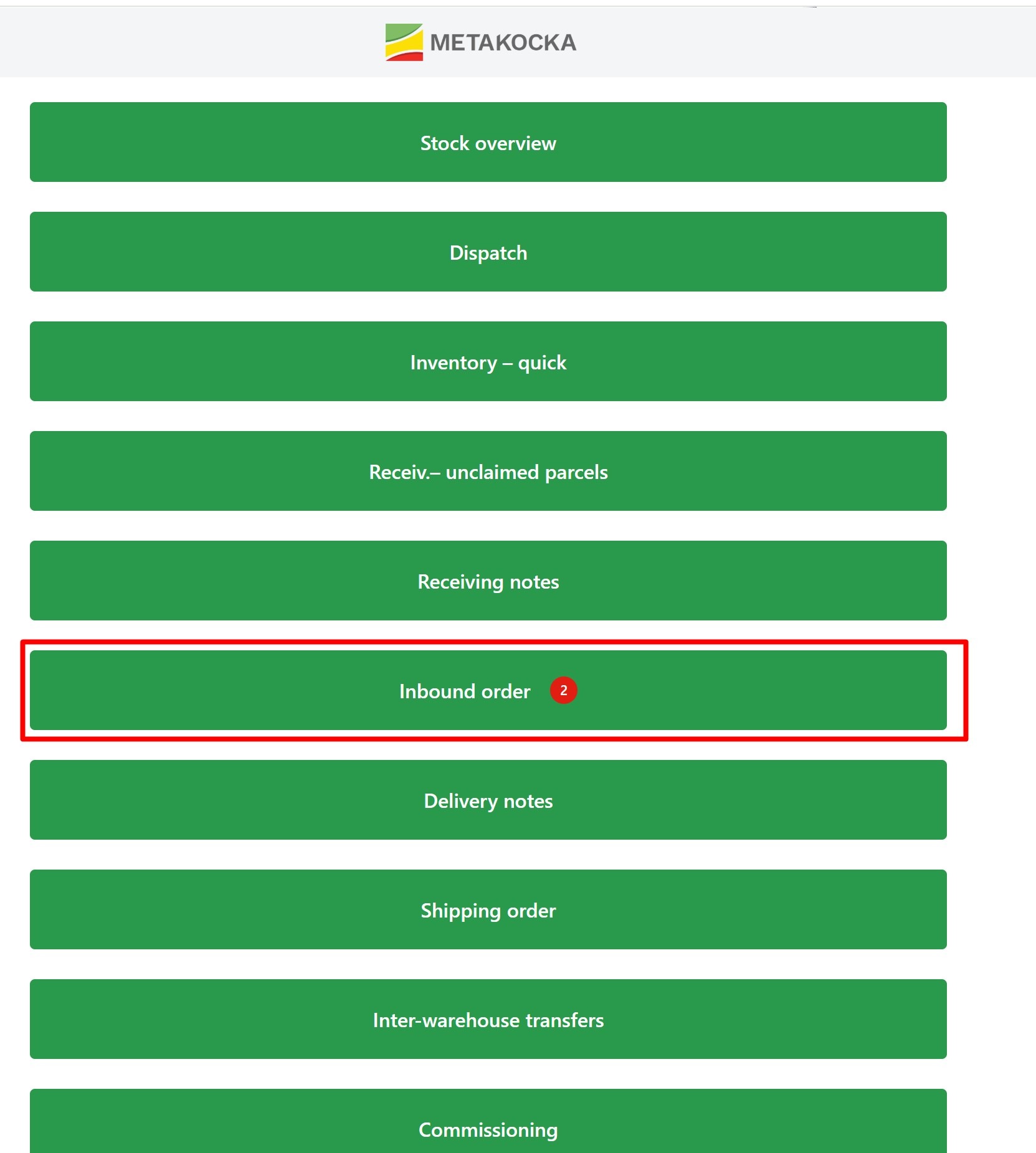
Next, go to "Inbound order"
Select the return order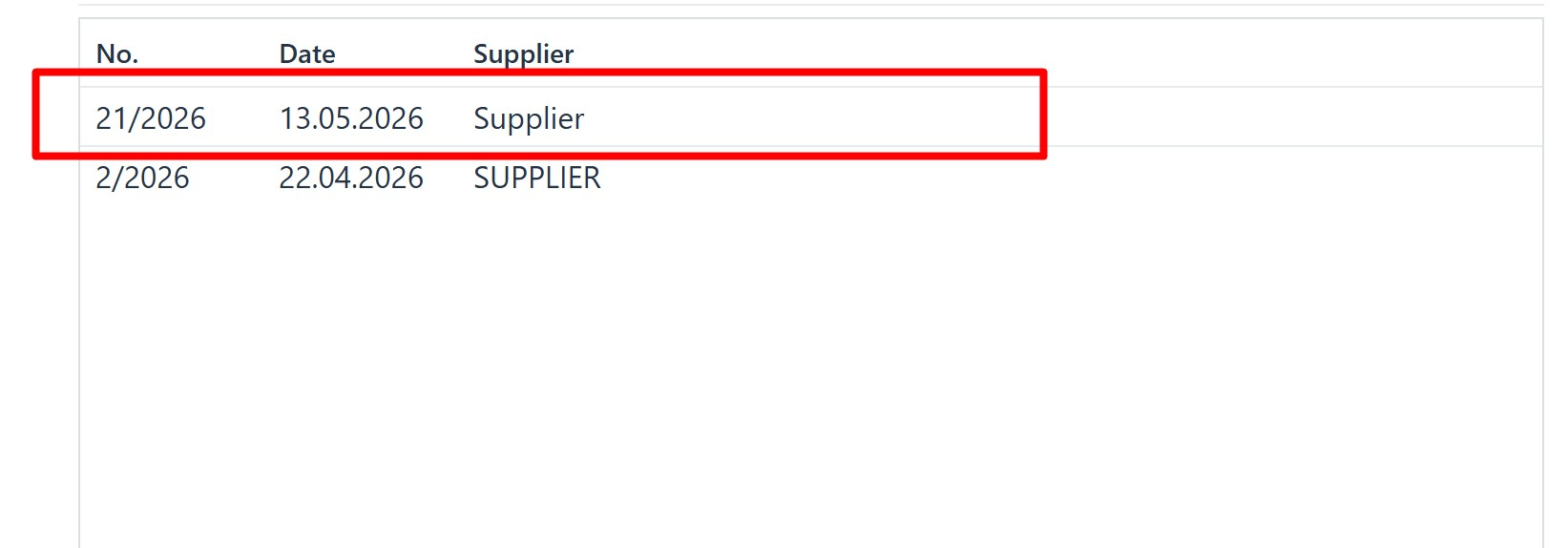
Individually confirm the return of each product
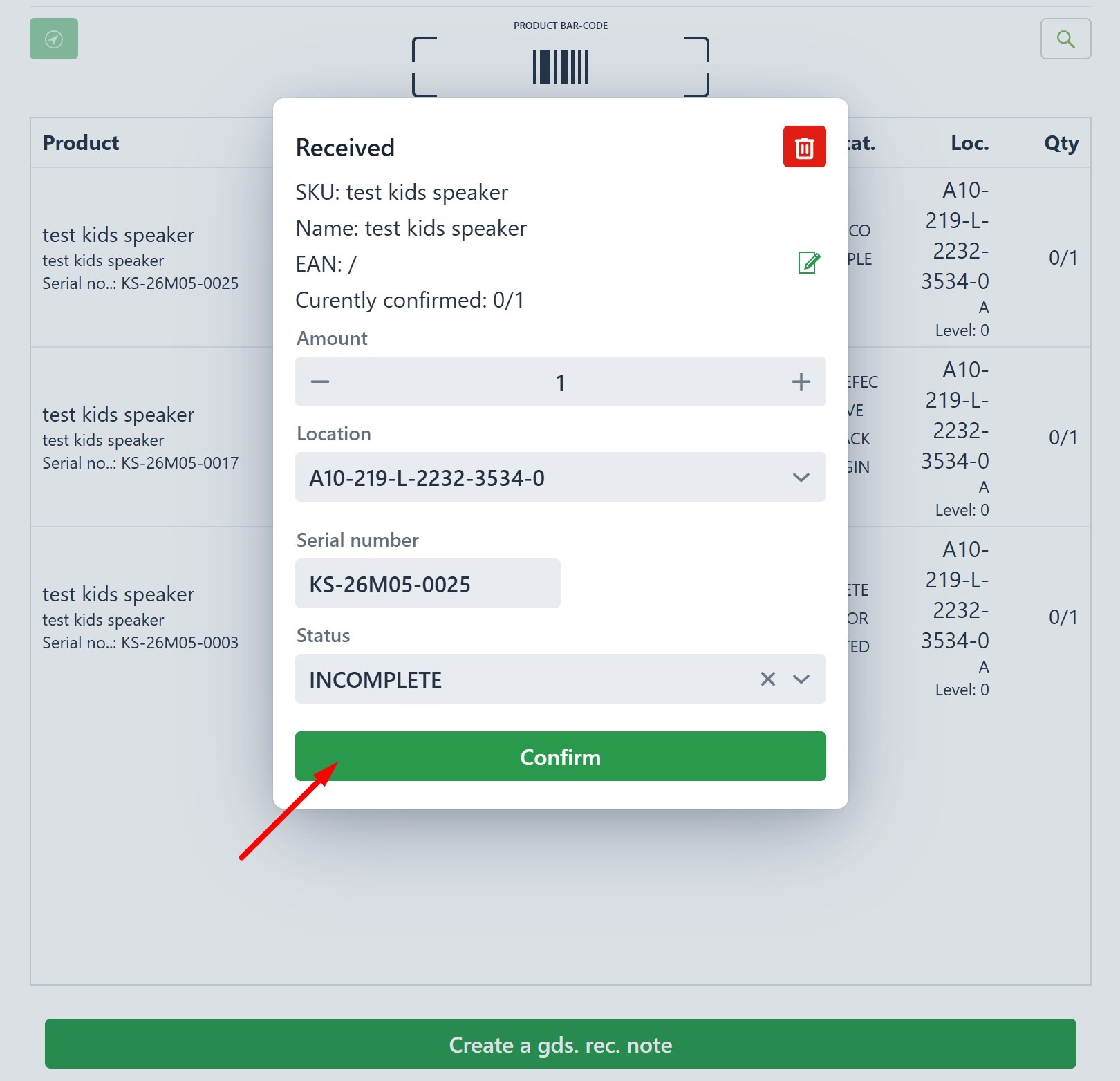
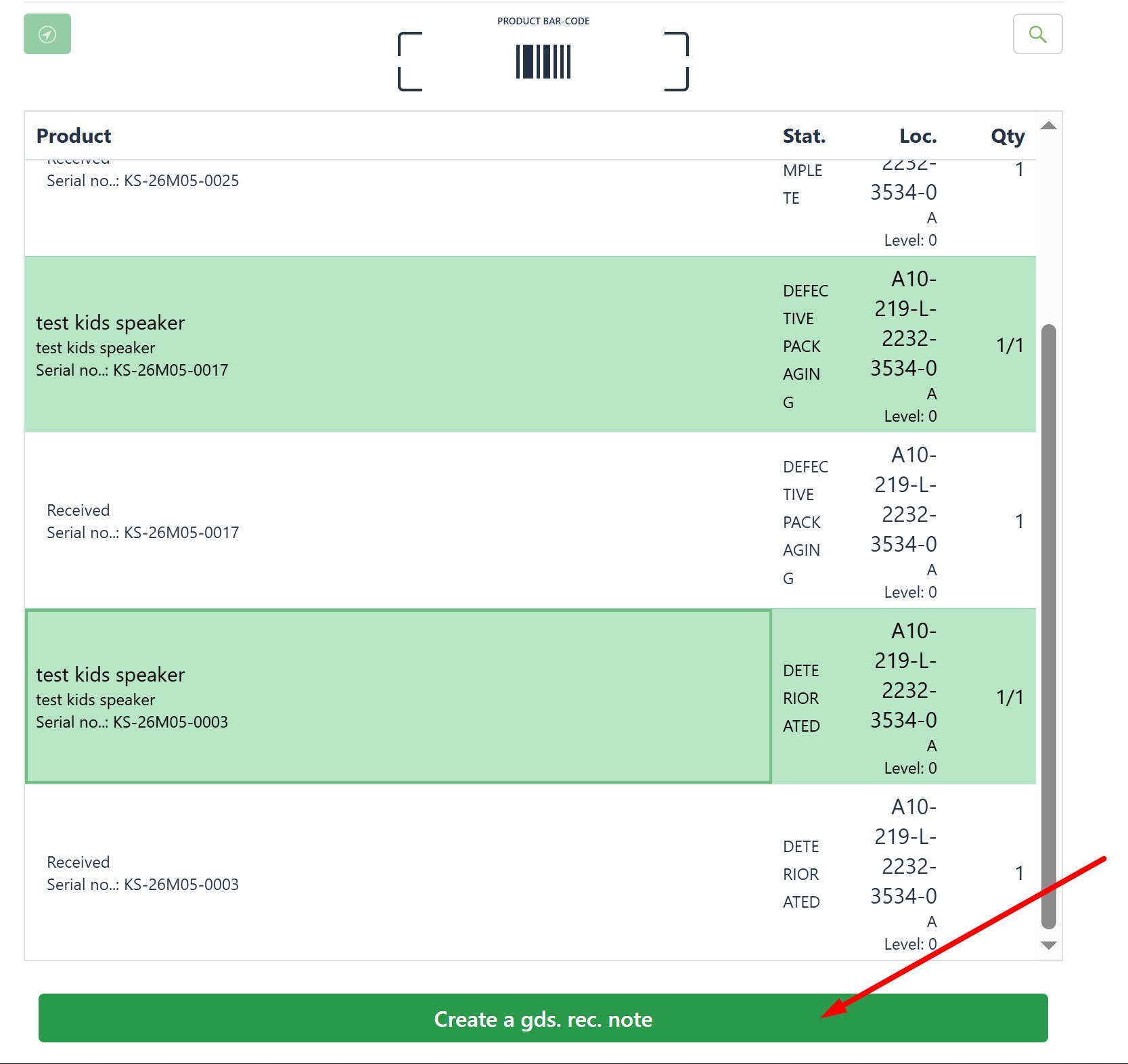
Once all the products are confirmed, click on "Create a gds. rec. note" to create a goods received note and a credit note
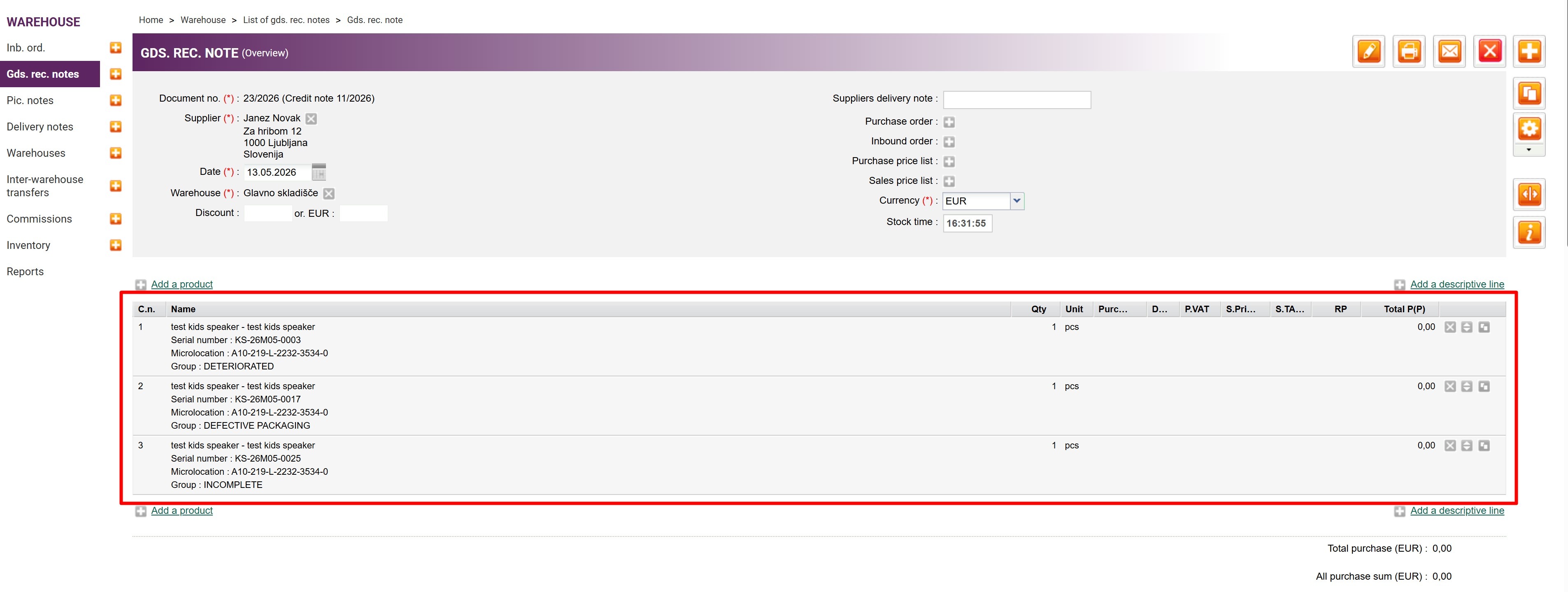
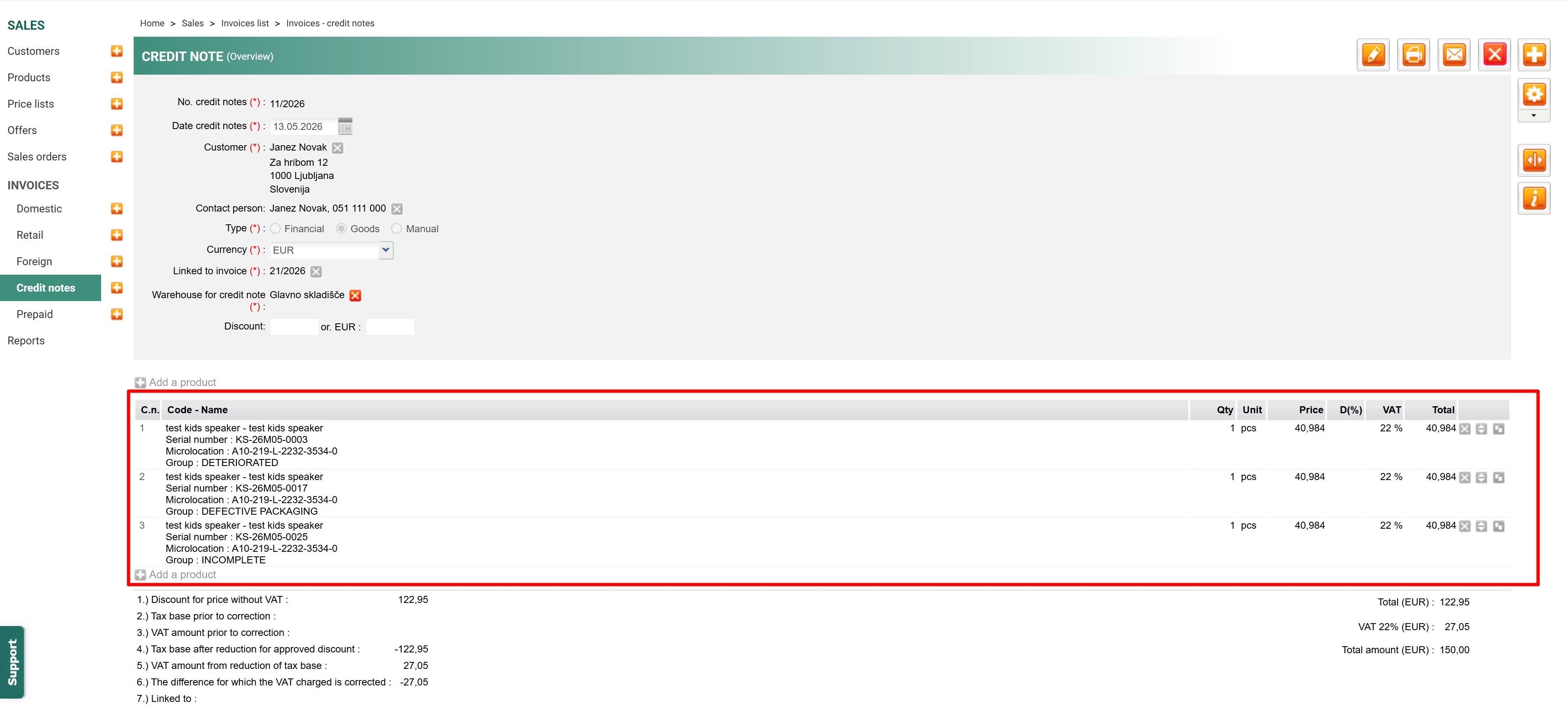
From the customer account in Metakocka, you will see that the goods received note and the credit note have been generated for the returned goods.
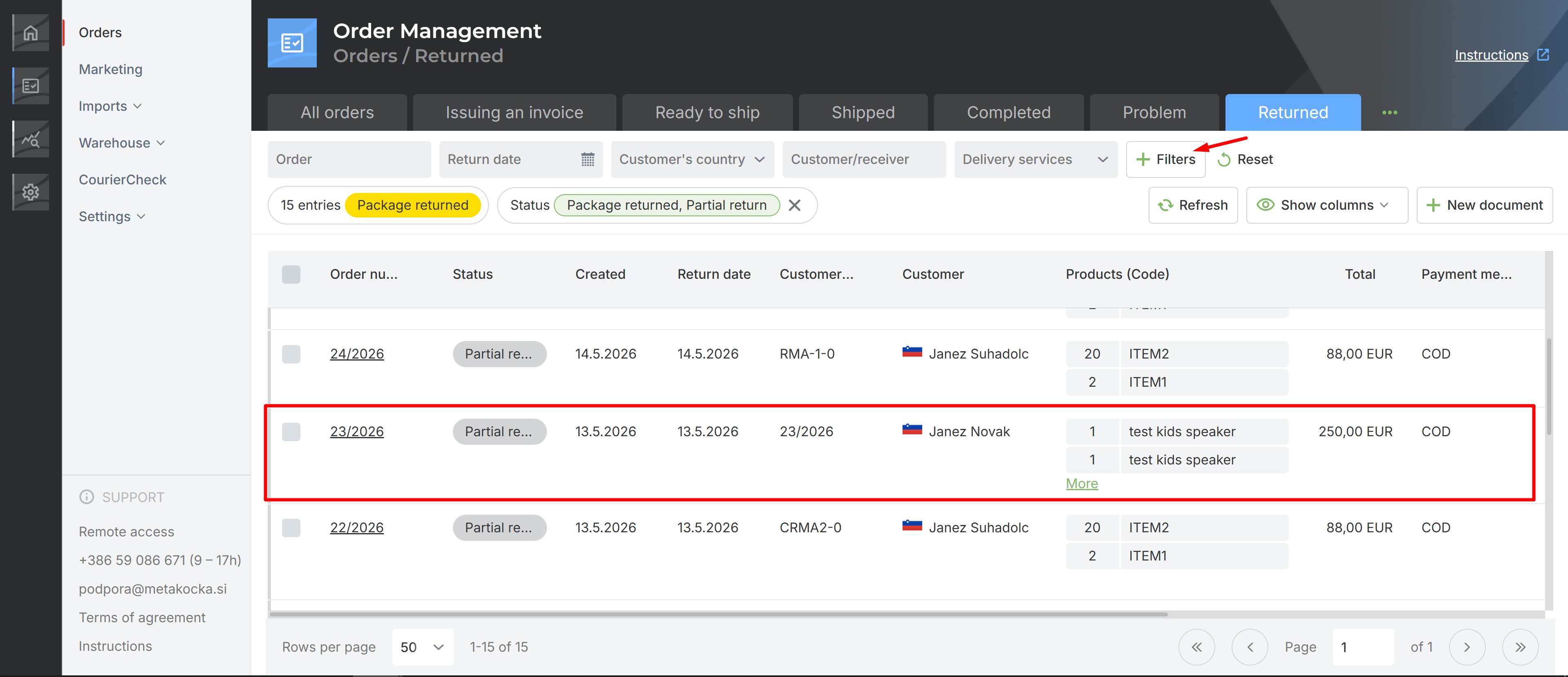
In addition, from the customer's account, under Order Management -> Orders -> on the "Return" tab, you will see that the order status has changed to "Partial return".
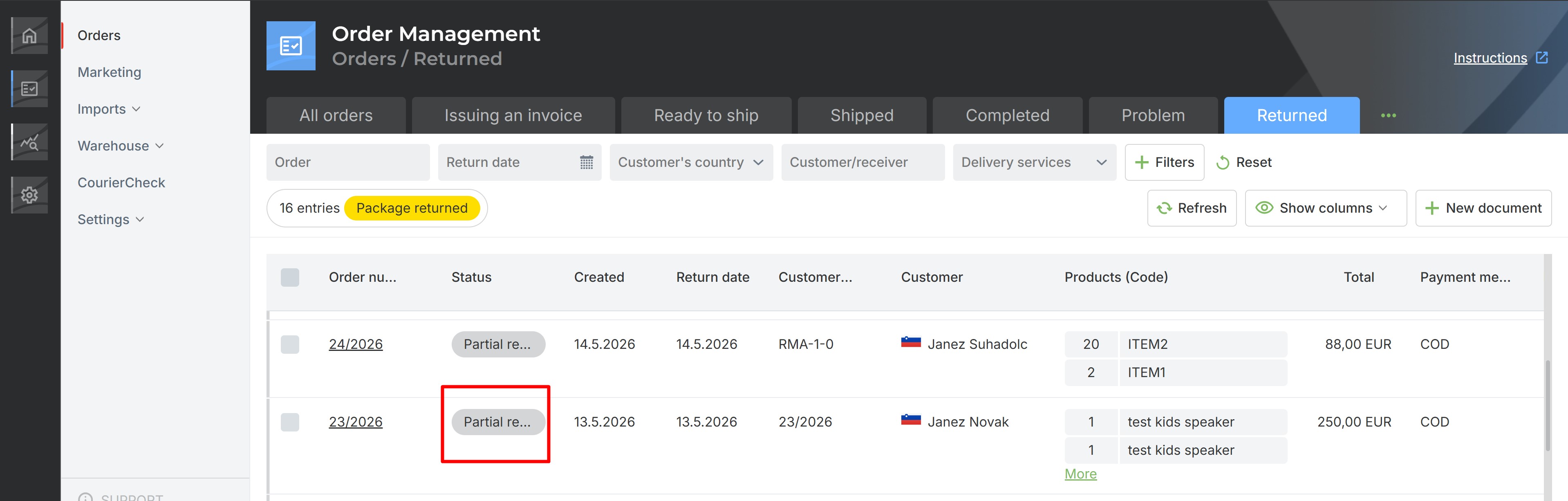
If you add the "Partial return" filter, you will see all orders with a partial return status.
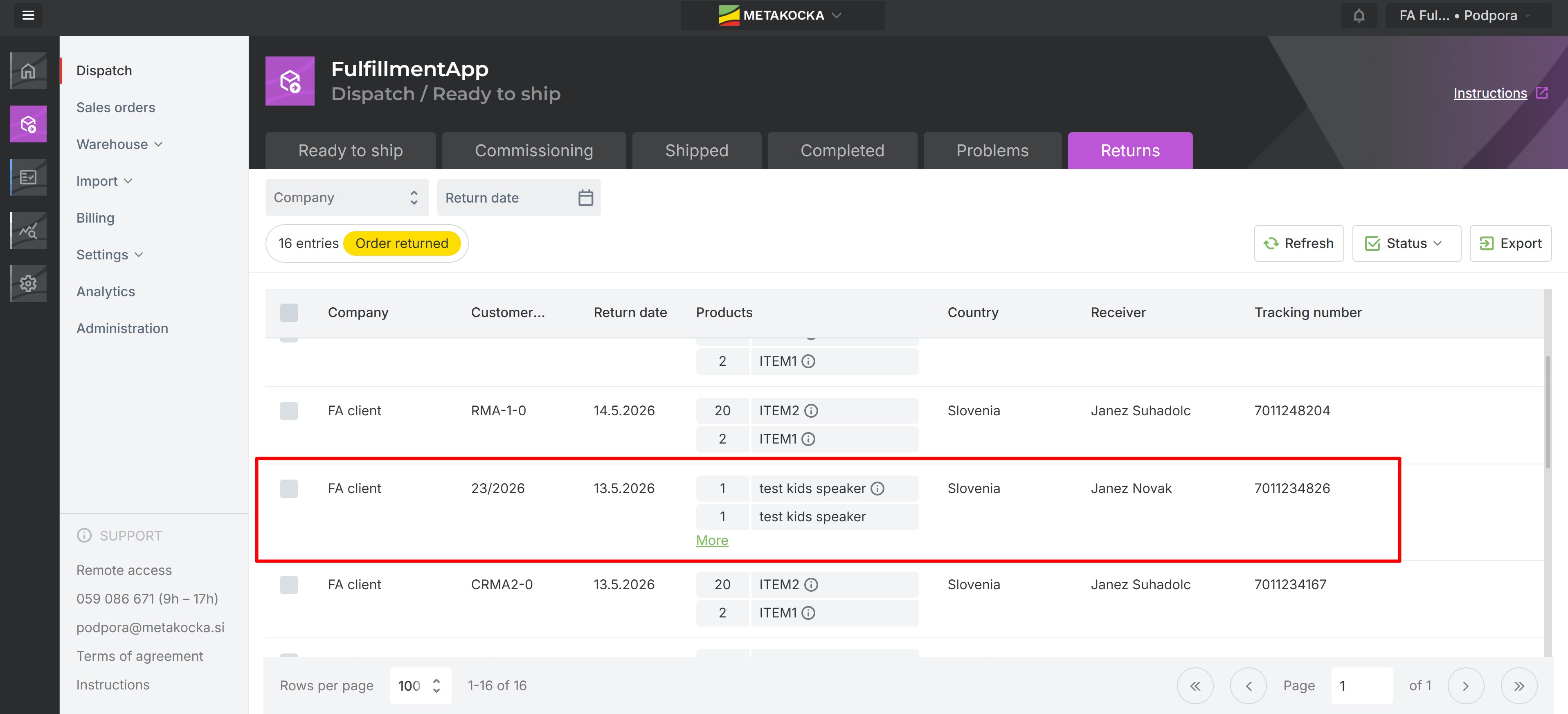
The order will also appear under the "Returns" tab in FulfillmentApp.
USAGE EXAMPLE: Later return processing of an additional product
Continuing with the previous usage example, there is a need to process the return of one more product from the same order (in addition to those already processed). The product will be processed following the previous steps, but keeping the following in mind for the scanner:
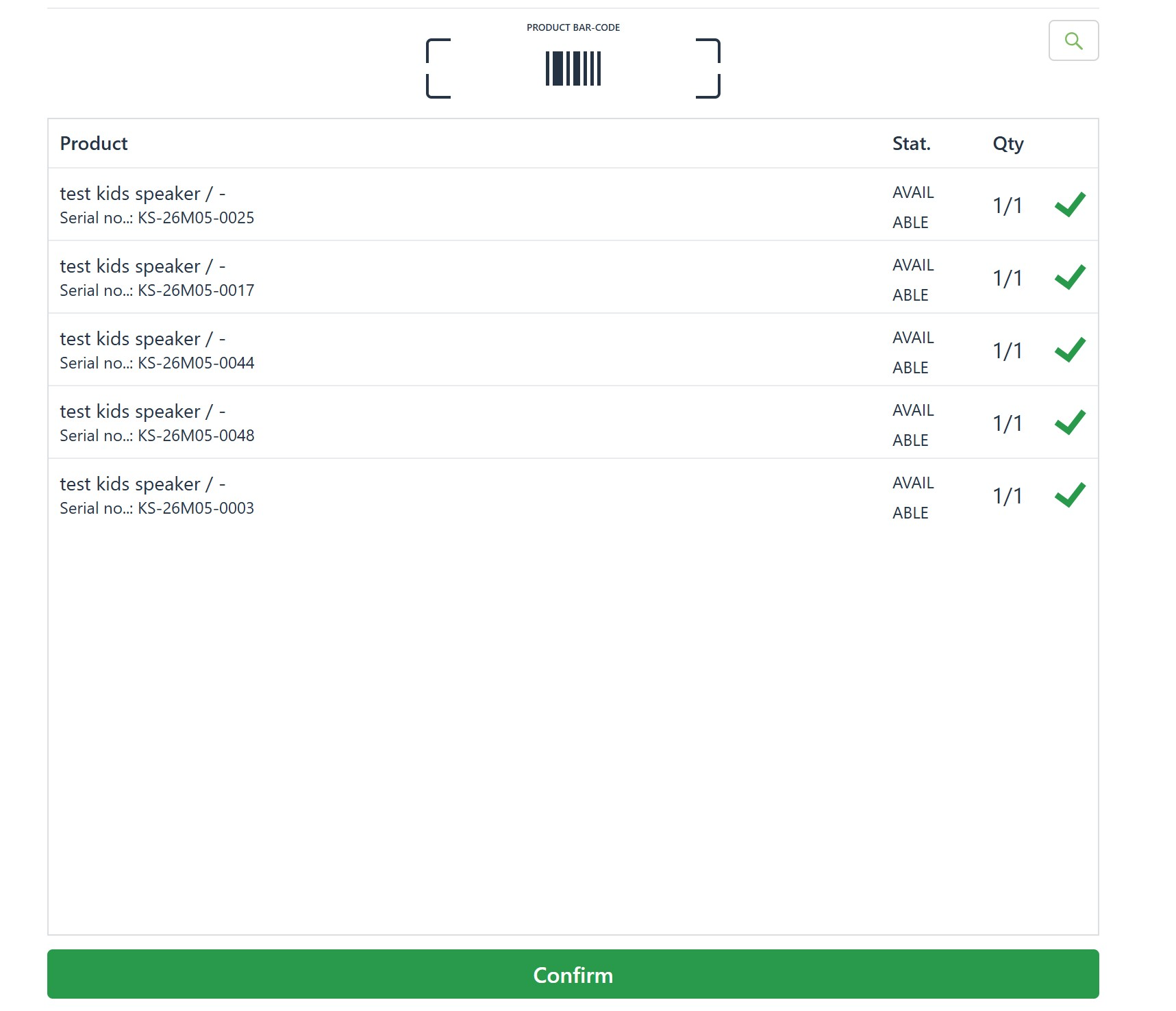
All items will be displayed again, including those whose return was already processed in the previous steps.
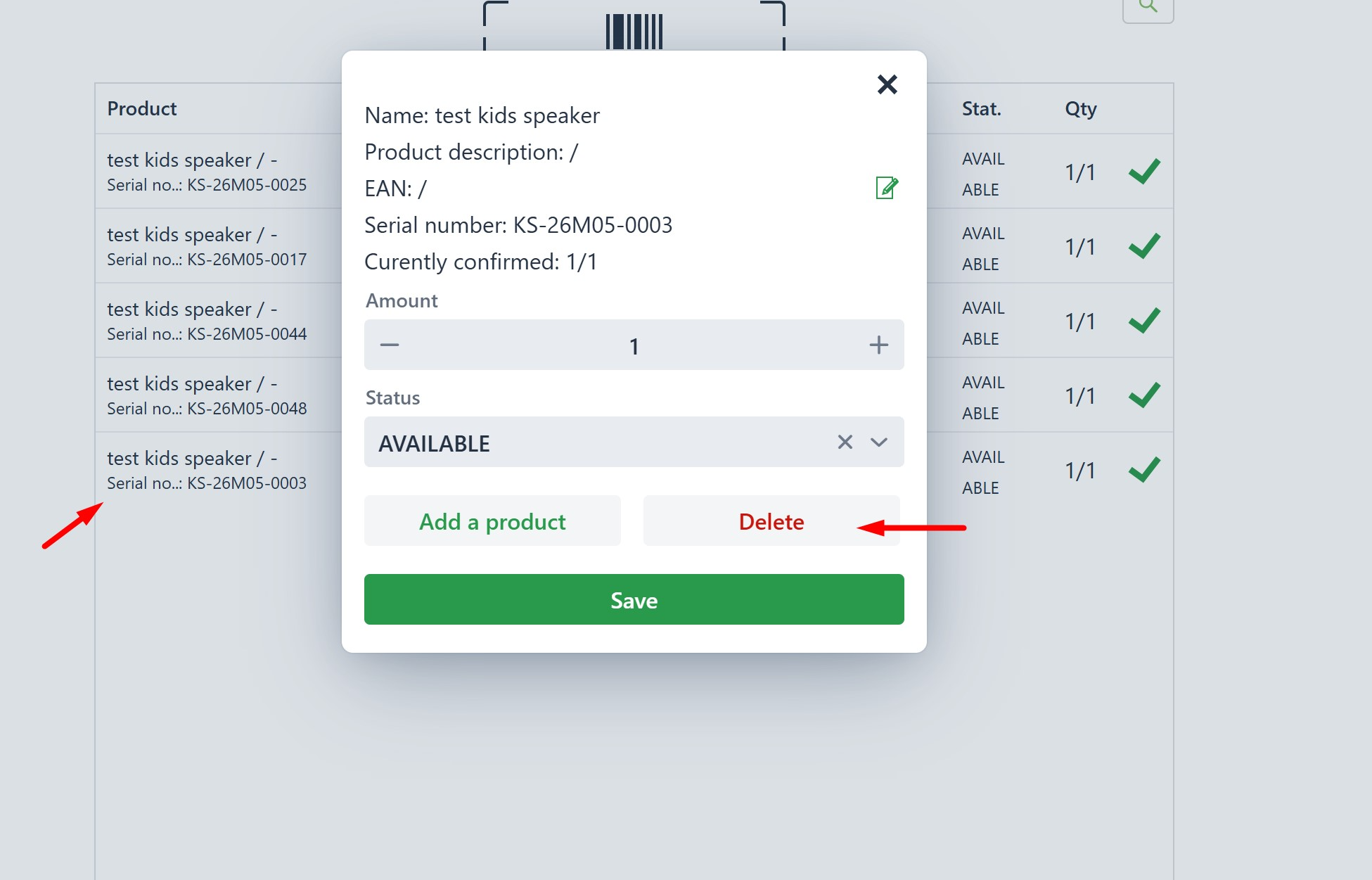
Select and remove the products that have already been processed by clicking on the red button "Delete"
As before, process the product to be returned, and set the quantity to 0 for the product(s) the customer is keeping.
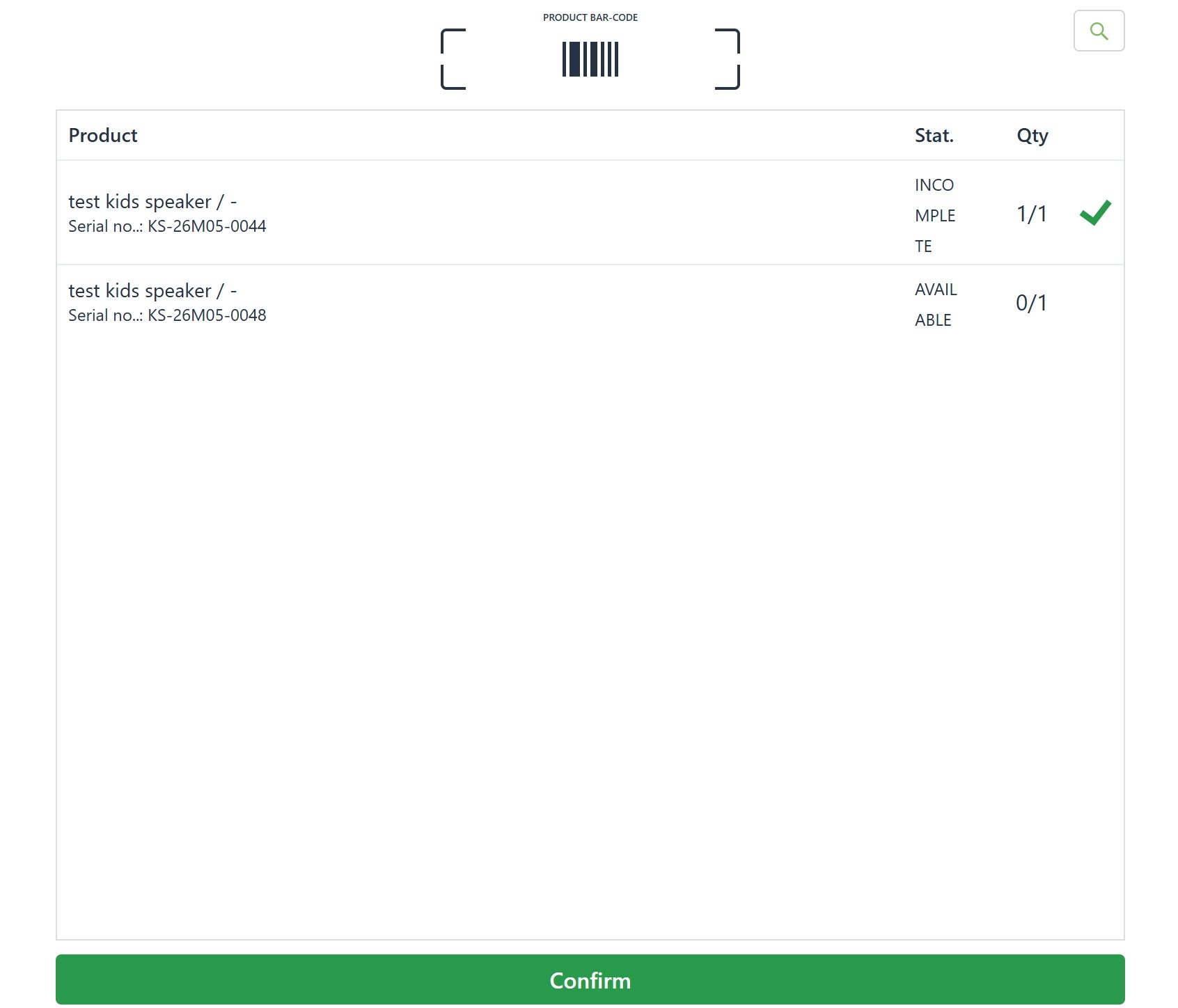
To complete the process, follow the rest of the steps explained above.
Was this article helpful?
That’s Great!
Thank you for your feedback
Sorry! We couldn't be helpful
Thank you for your feedback
Feedback sent
We appreciate your effort and will try to fix the article