
FulfillmentApp - Work Orders
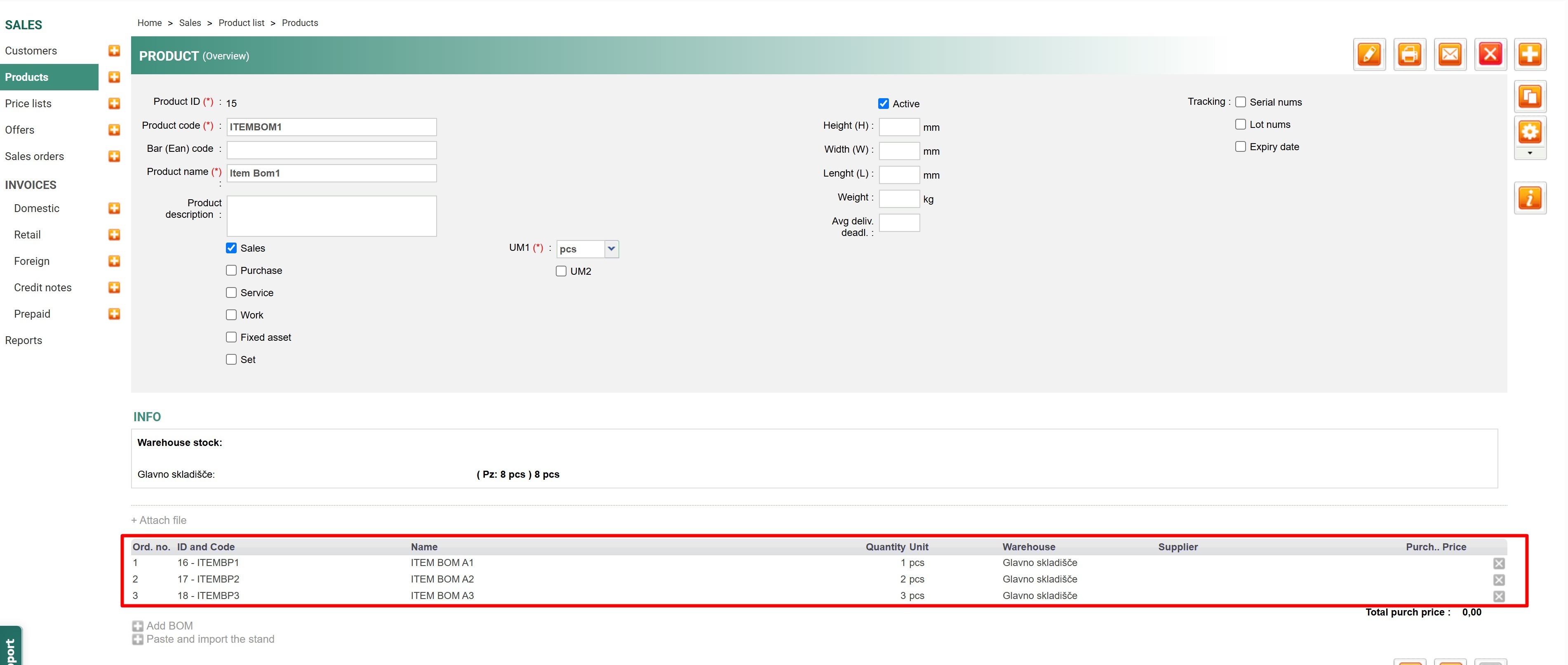
First, make sure the product to be manufactured has been created with BOM, from the client's Metakocka account.
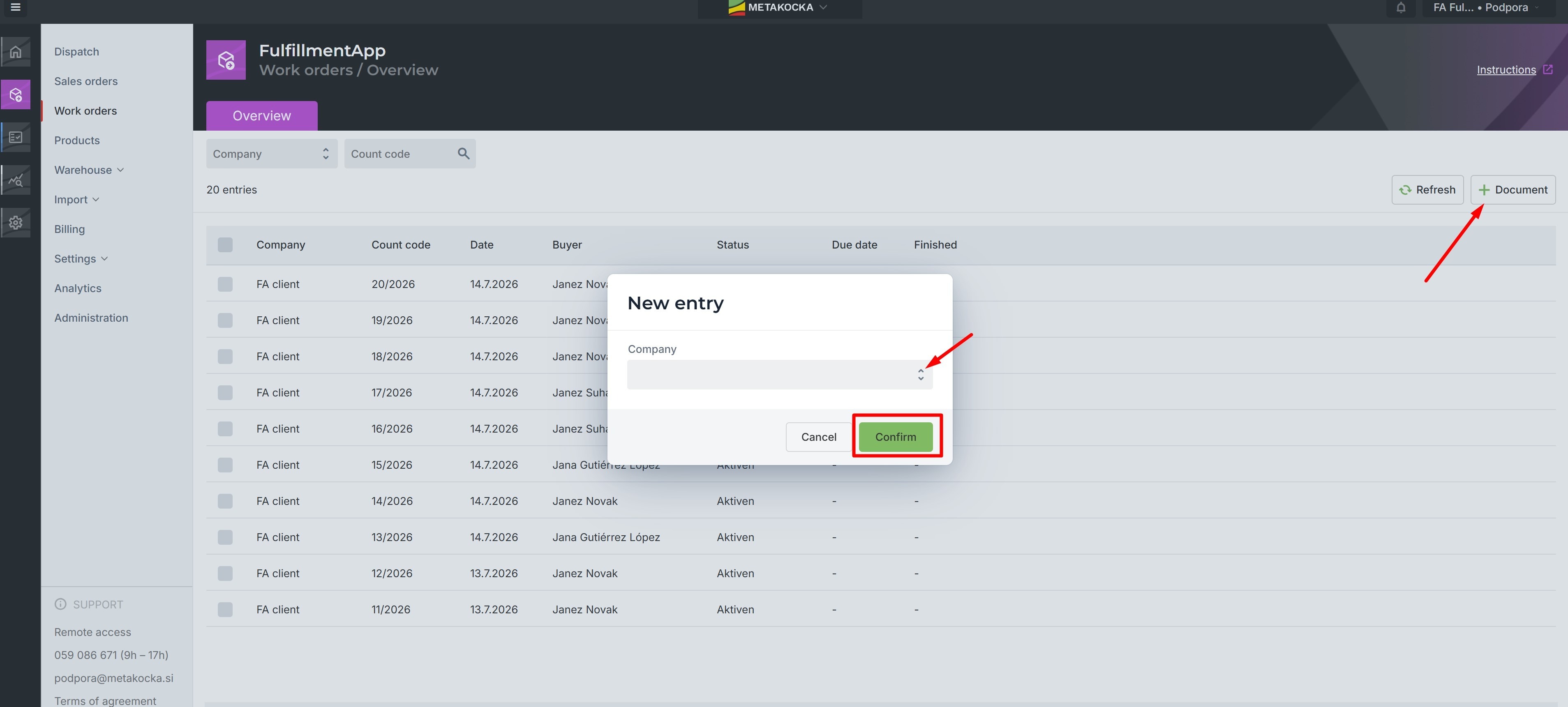
From the Fulfillment account, go to the "Work orders" menu and click on "+ Document".
Select the company and click "Confirm".
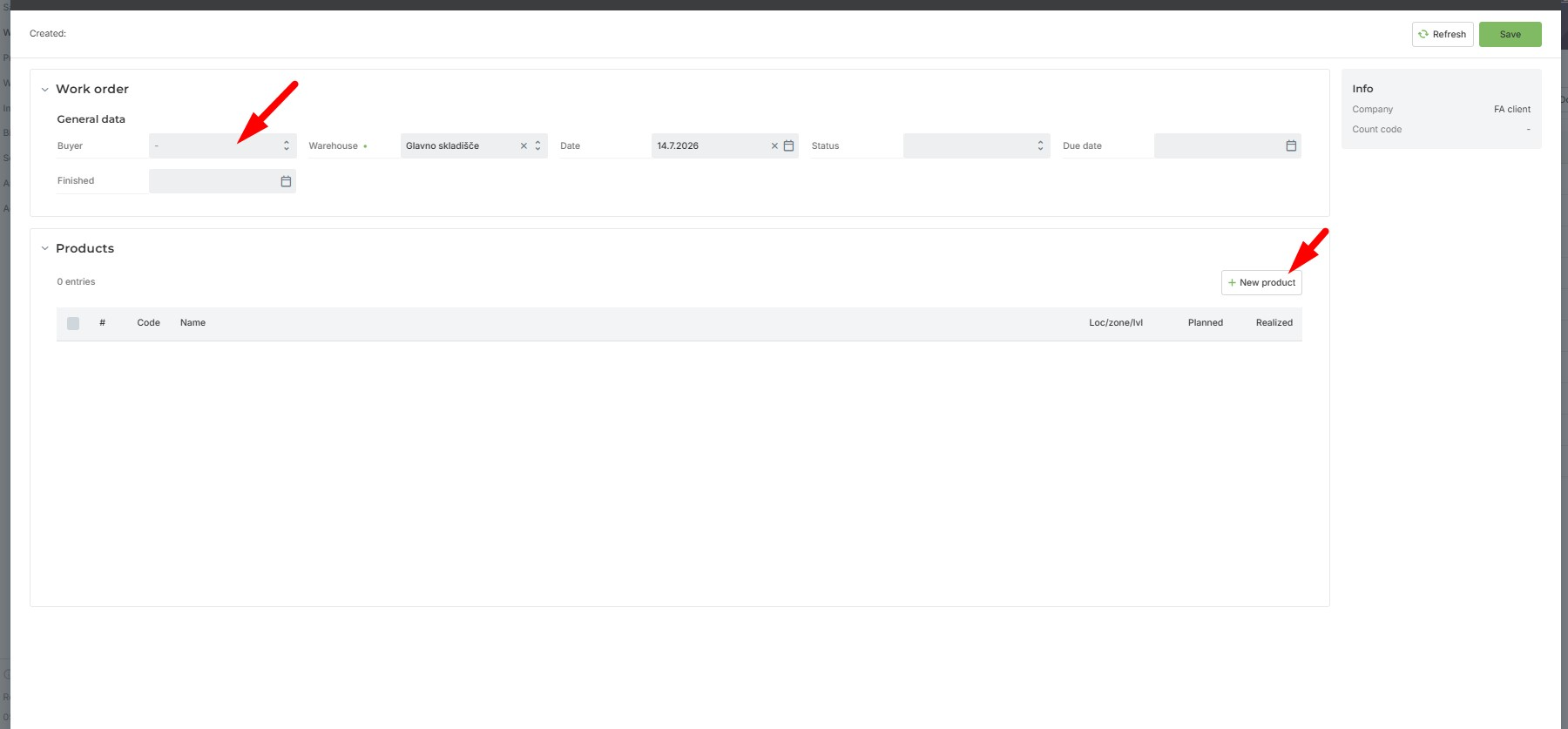
A dialog box with the work order will be displayed. Select the buyer's name and add the product it was previously created in the client's account during the initial step.
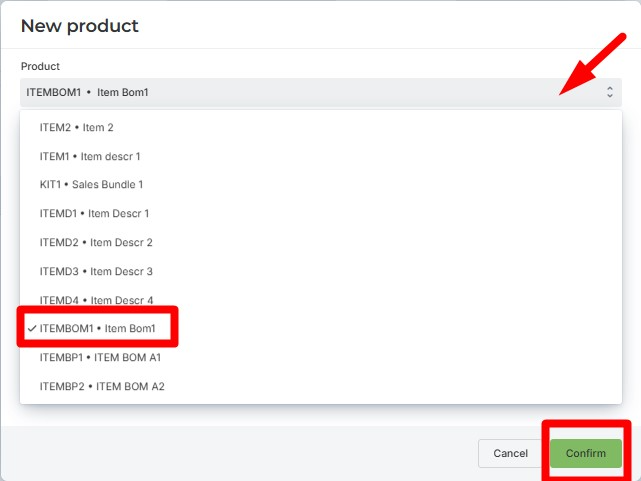
Once the product is selected, click confirm.
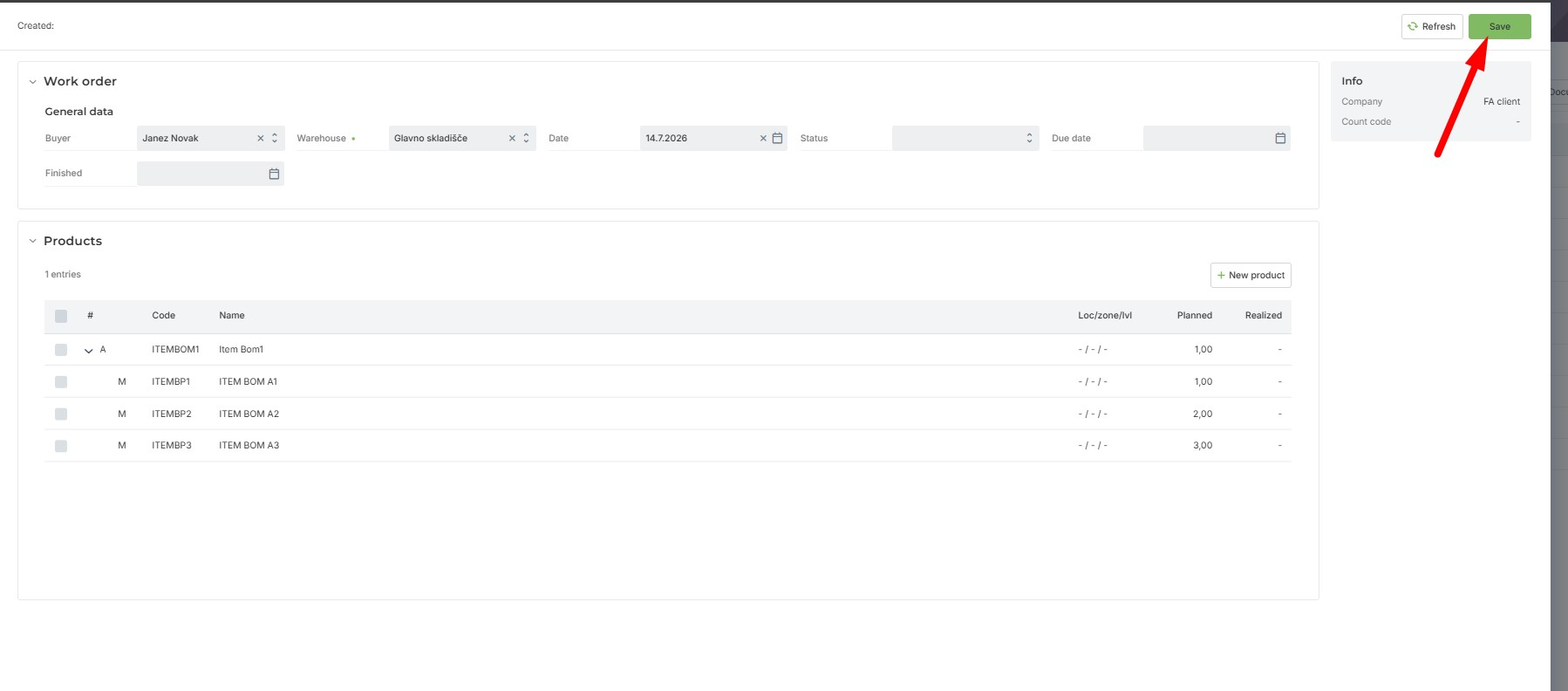
 The main product will be displayed, split into its assembly parts. Click Save.
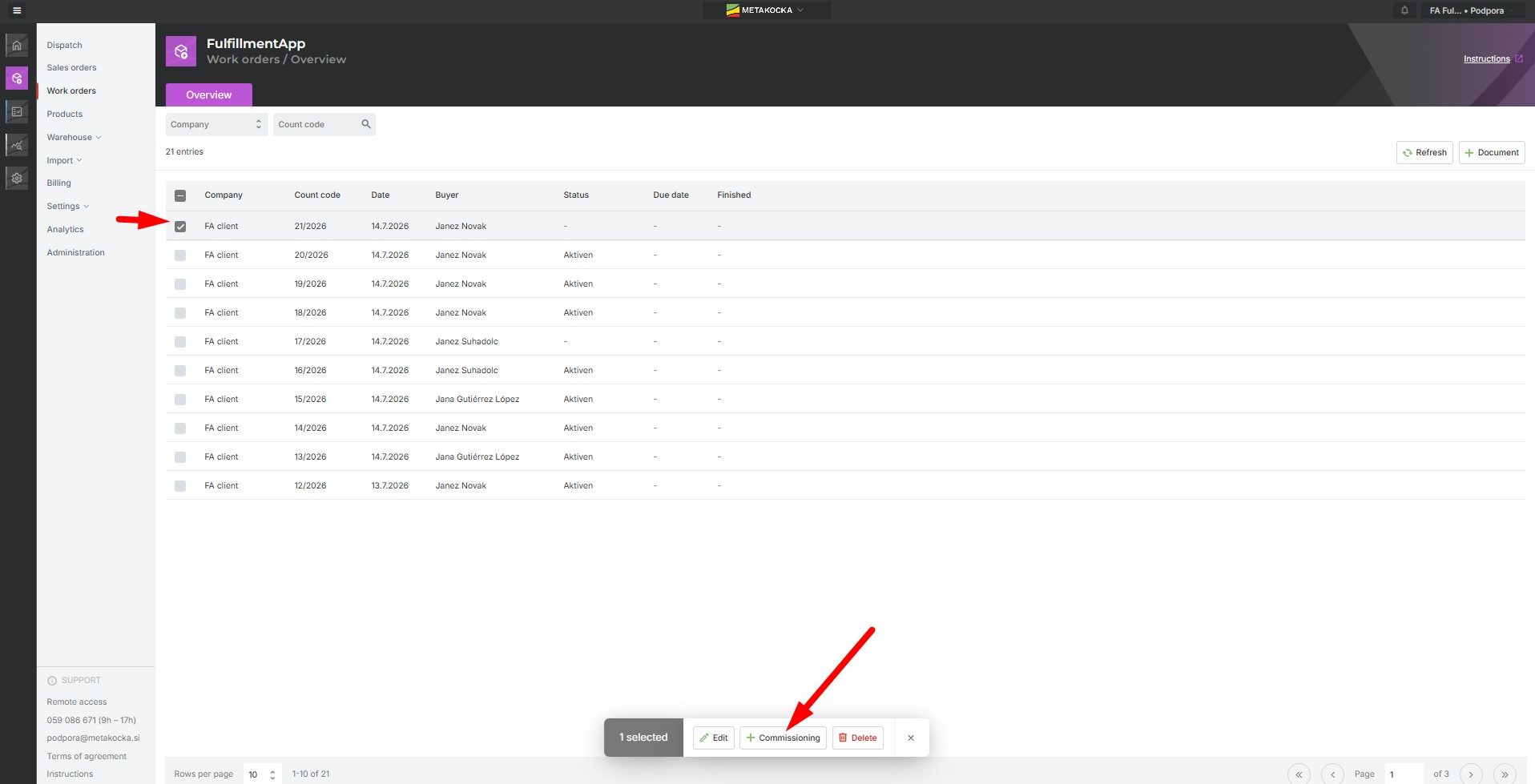
In order to proceed with picking the components, select the work order and click on "Commissioning".
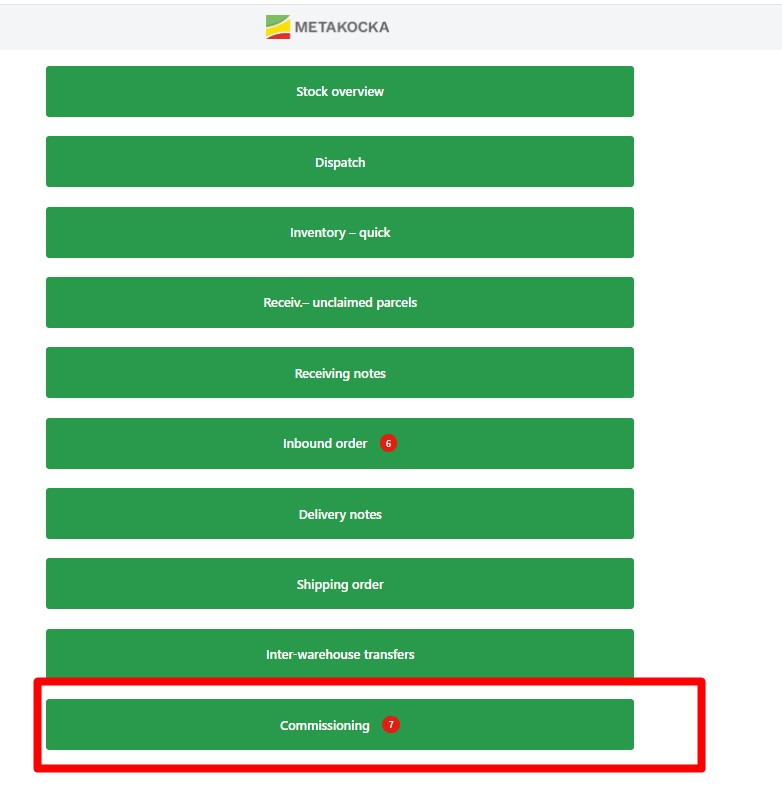
From the Appmobil (scanner) menu, click on "Commissioning", and select the work order.
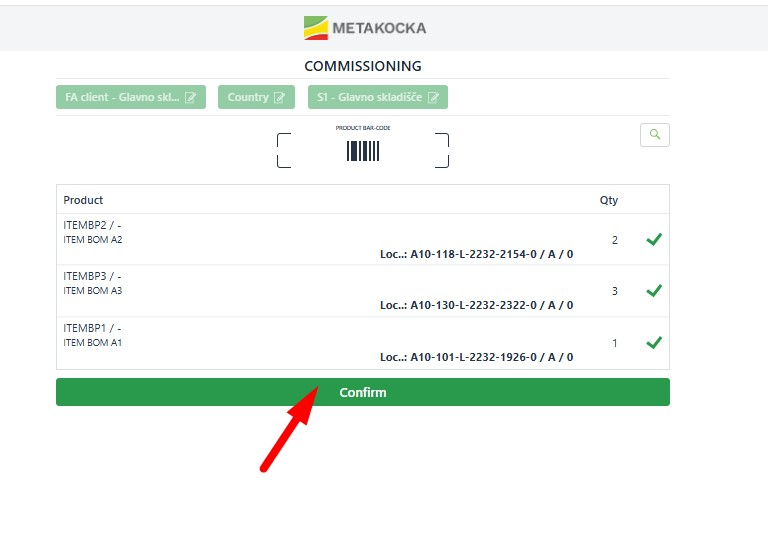
The components that must be scanned for assembling will be displayed in the picking list.
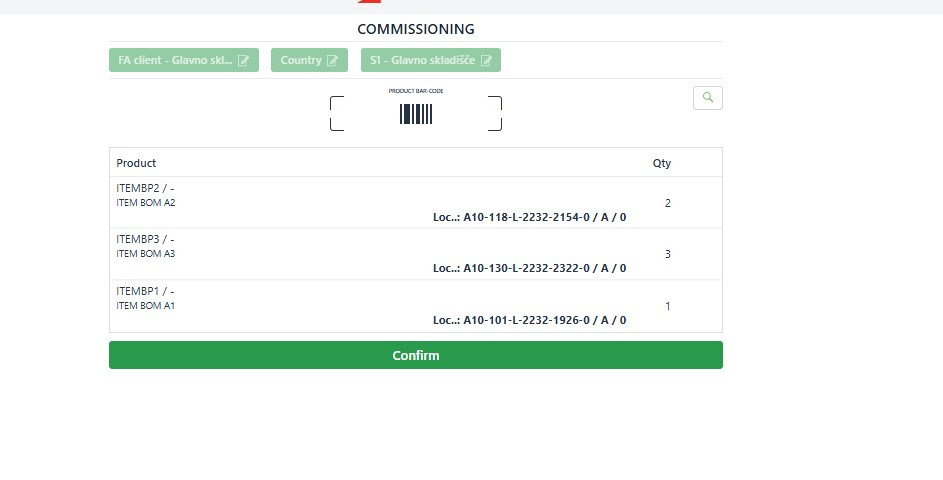
Select and confirm each of the components and its locations.
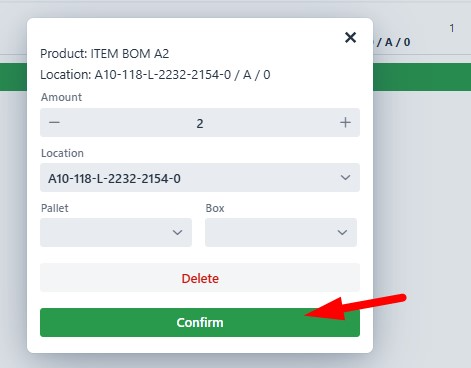
Once all components are confirmed, confirm the commissioning.
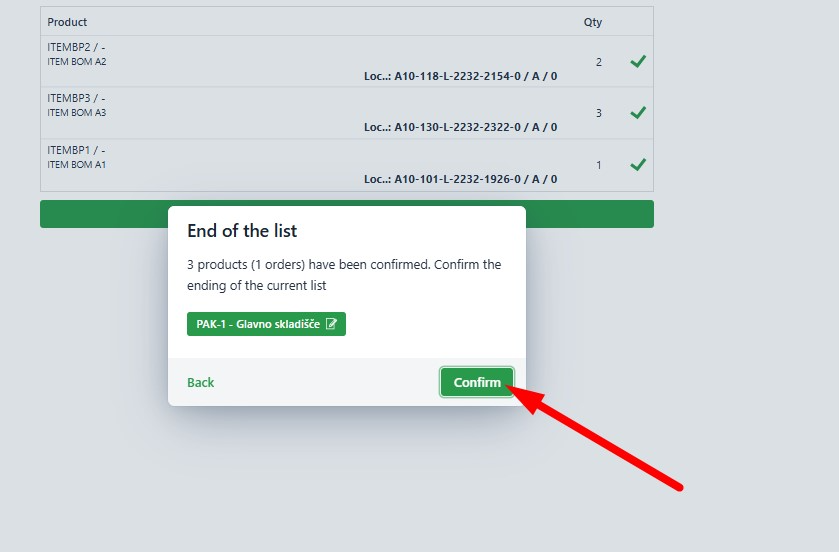
 Confirm once again the new dialog box that will pop up.
You will now be able to see in FulfillmentApp that the components appear with the location assigned during the commissioning process.
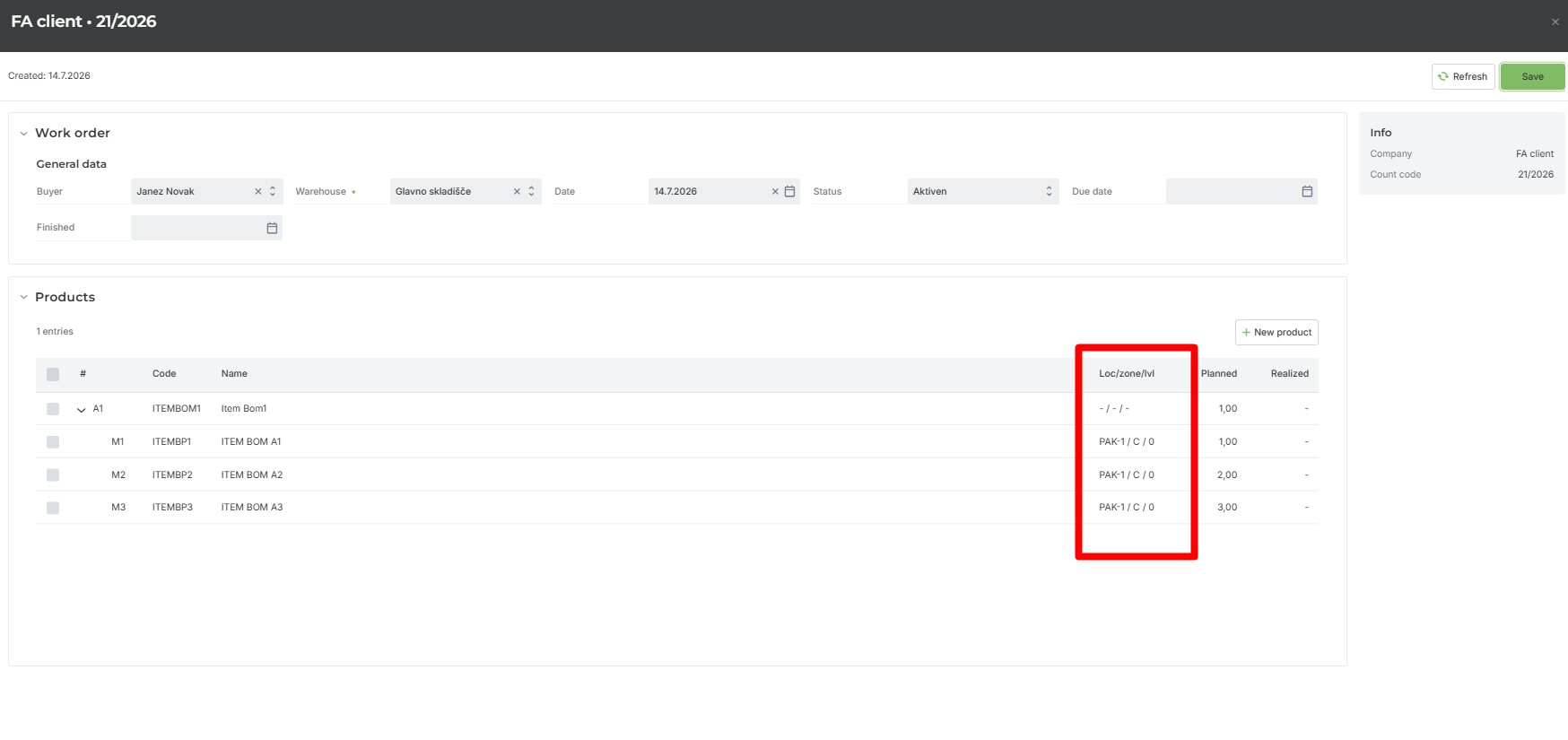
To assign a location to the manufactured product, click on the final product and select the location within the warehouse. Once selected, confirm the data.
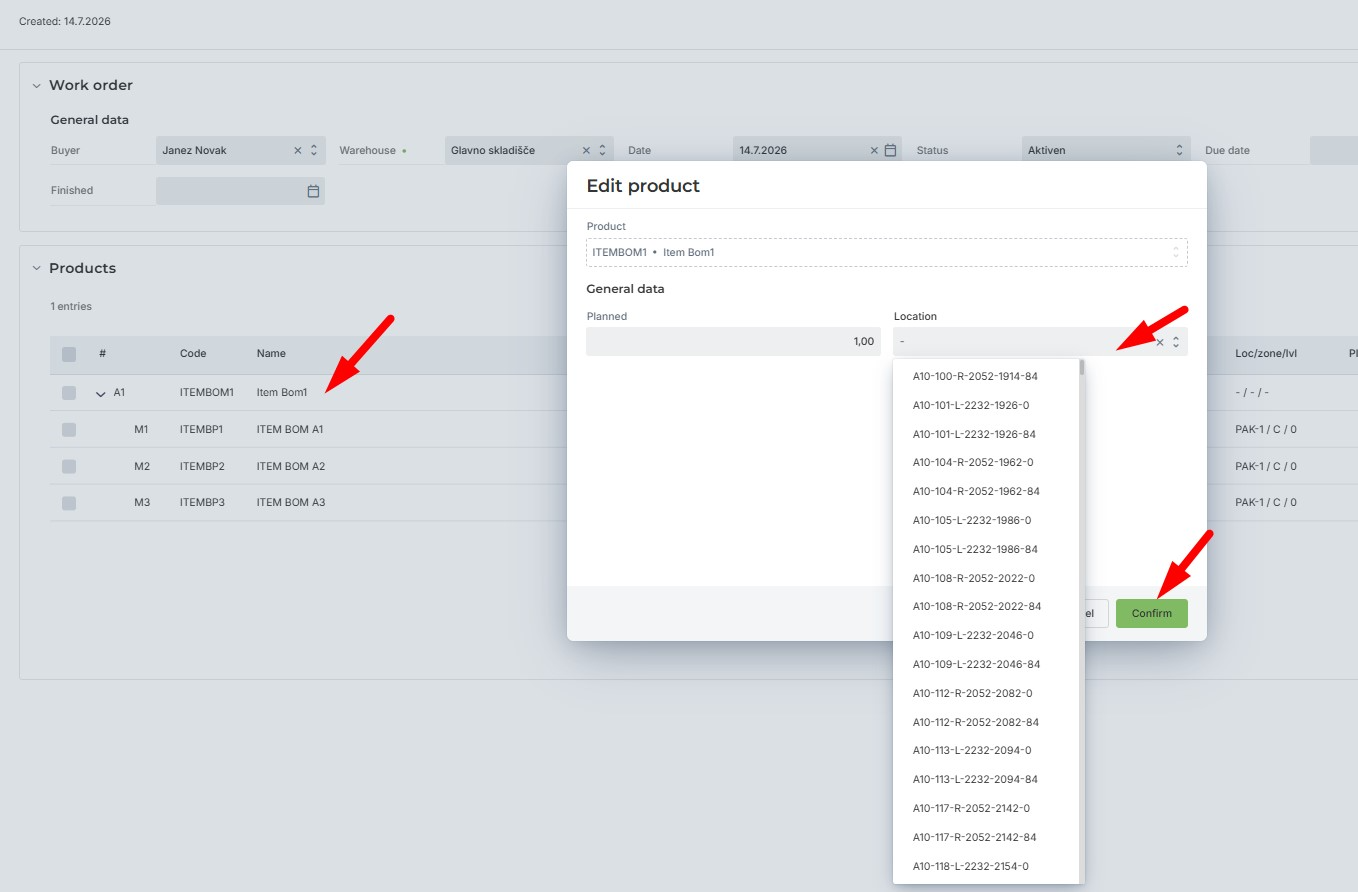
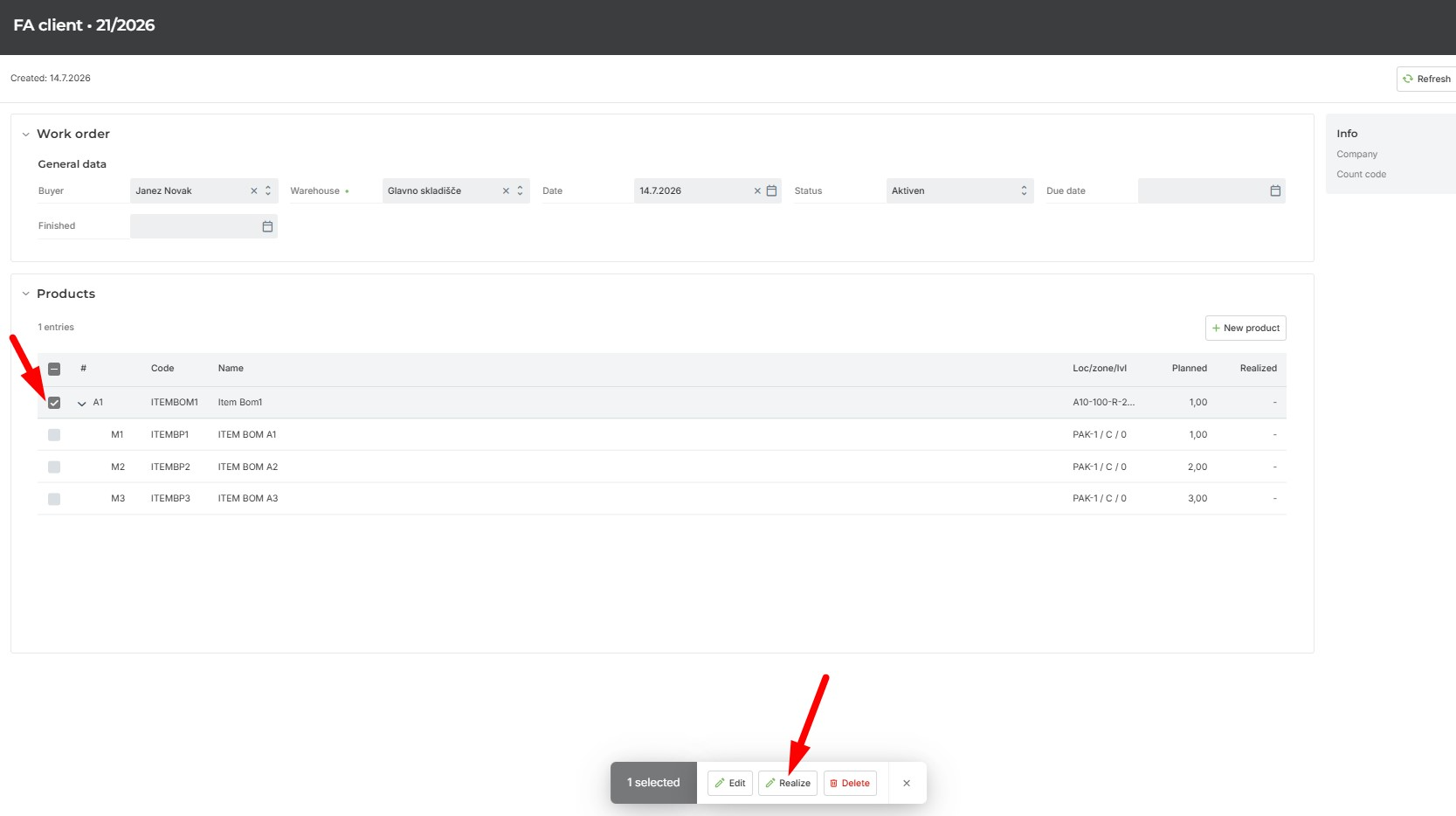
Once the product is finally manufactured, check the box of the final product and click on "Realized".
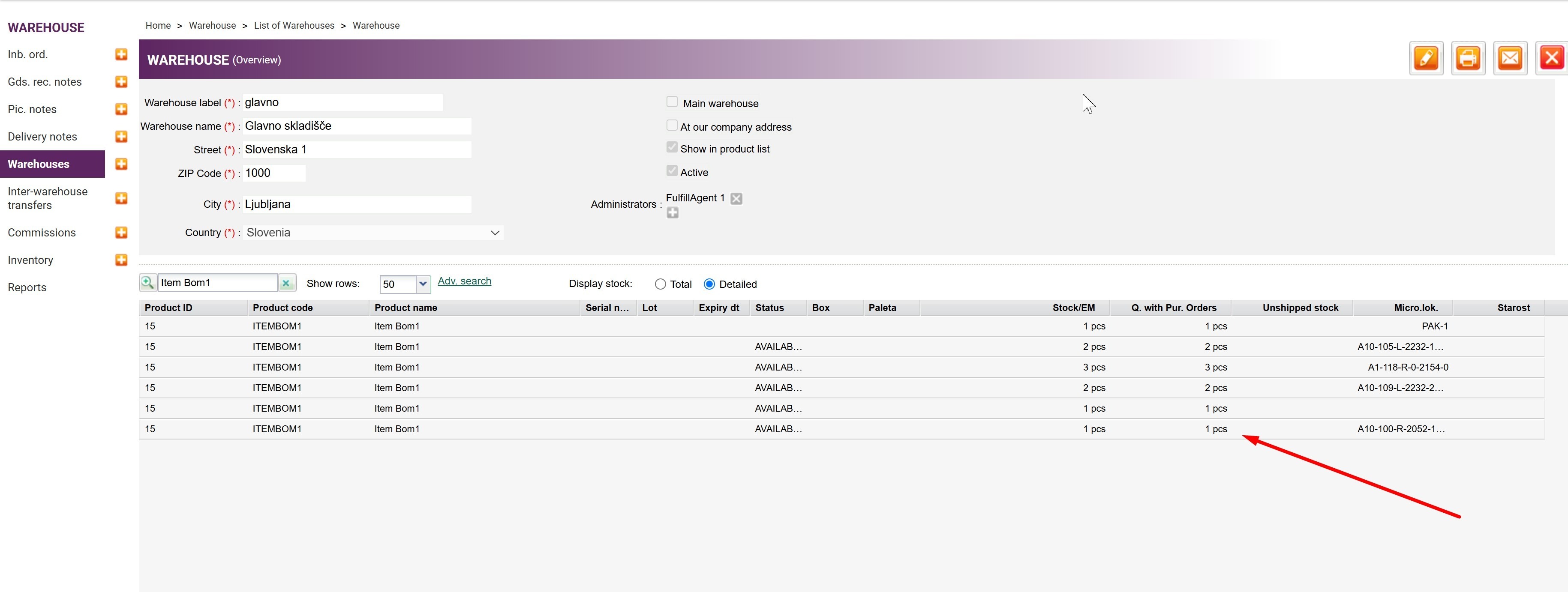
 You will be able to verify that, from the client's account, in the warehouse, the new manufactured product has been added,
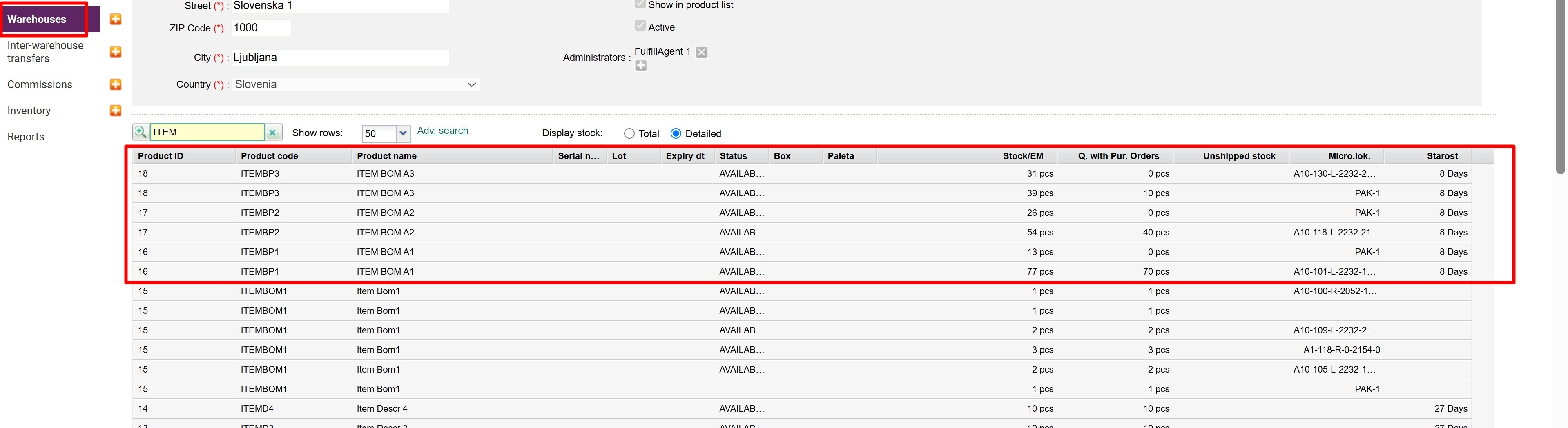
as well as the updated stock of the components used for product manufacture.
Was this article helpful?
That’s Great!
Thank you for your feedback
Sorry! We couldn't be helpful
Thank you for your feedback
Feedback sent
We appreciate your effort and will try to fix the article