
FulfillmentApp - Commissioning. The order of the carts in the scanner is the same as the order of the labels
Go to your FulfillmentApp account and select the orders you want to prepare. Click on the label icon.
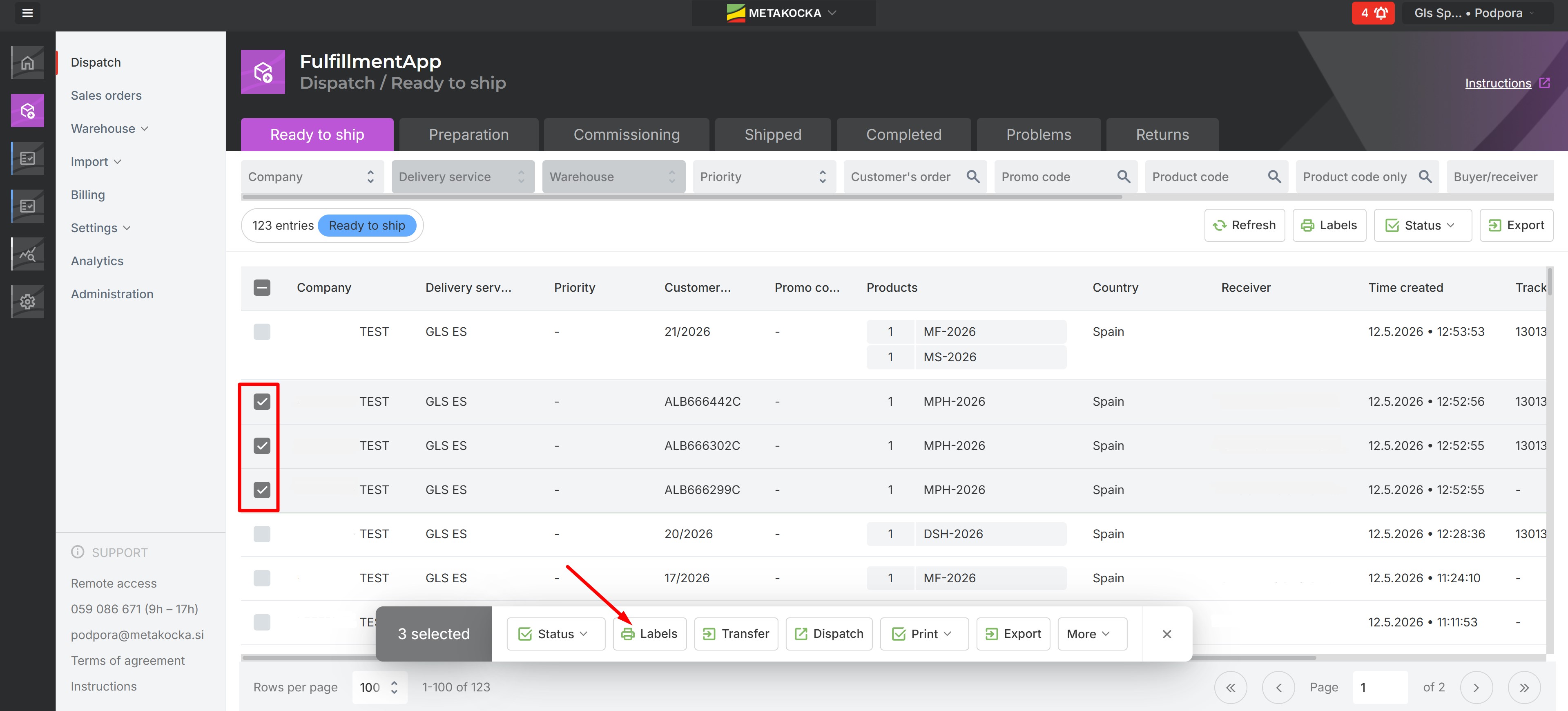
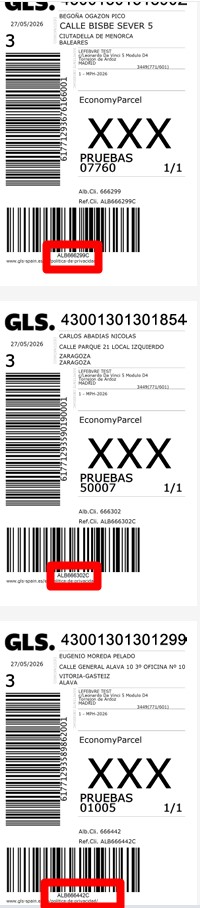
Click to open the label. It is important that you do not close the tab that appears for now, to check that the order of carts and labels match.
In the "Commissioning display" section, select "Sort algo.". This way, the order will follow the logic of the order in which the labels are displayed in the printout (pop-up tab from the previous step).
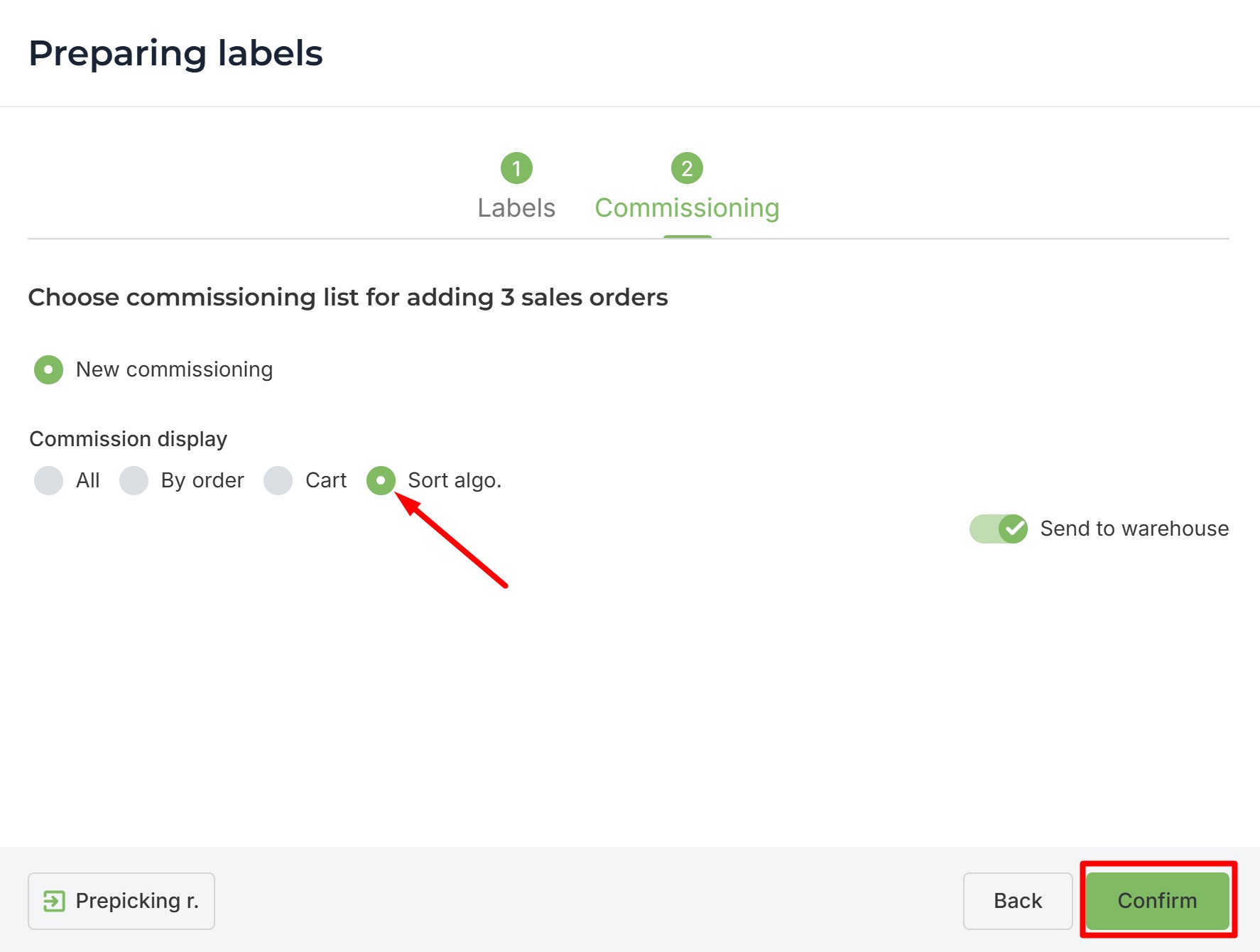
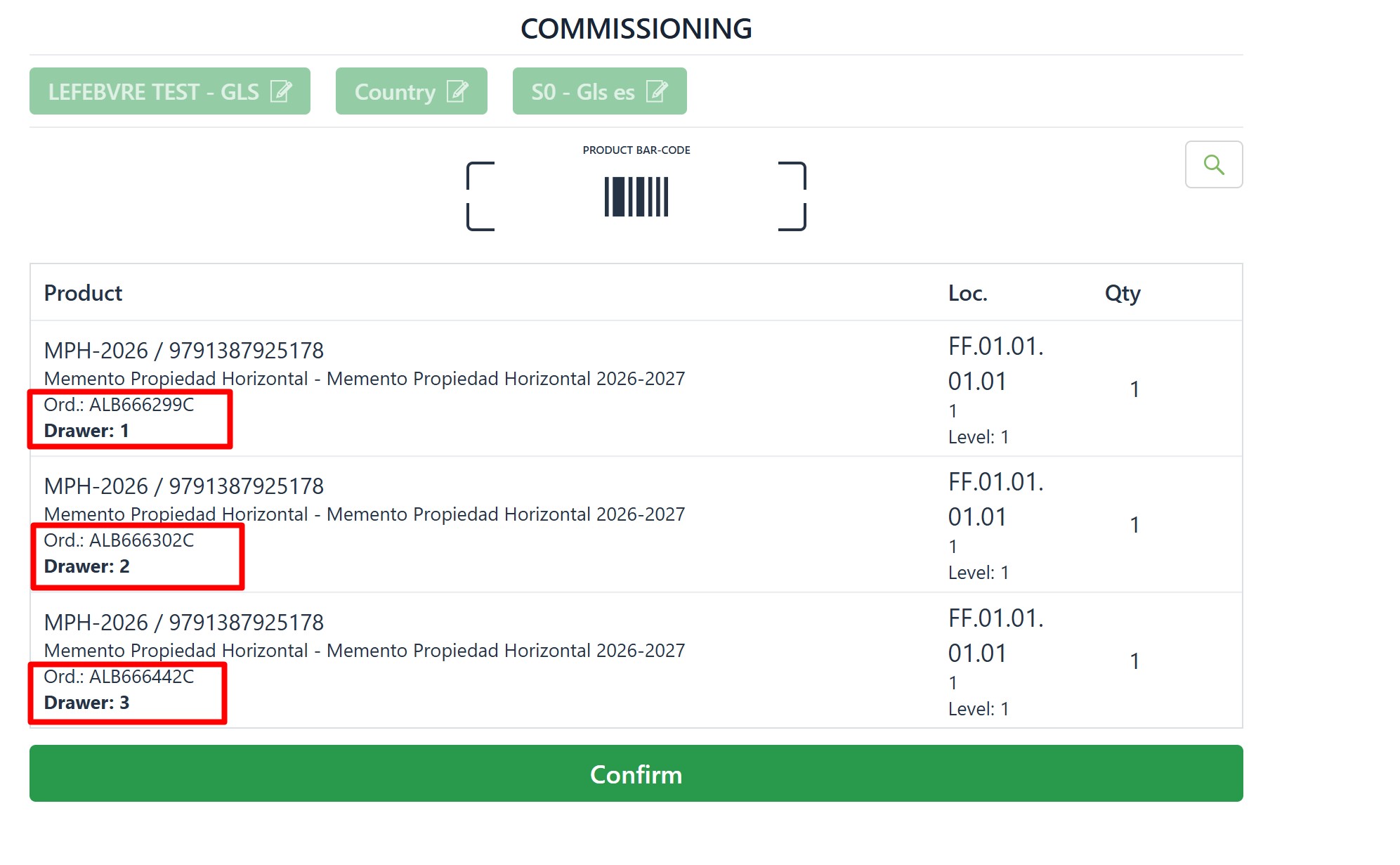
Go to the scanner and choose the Initial location. Select the order. You will notice that the order in which the carts are displayed corresponds to the order of the labels.
As you can see in this example, the order of the labels is:
1º: Order ALB666299C (matches the Drawer: 1)
2º: Order ALB666302C (matches the Drawer: 2)
3º: Order ALB666442C (matches the Drawer: 3)
 You can configure the sorting logic in the client's account -> Additional Settings -> Order Management.
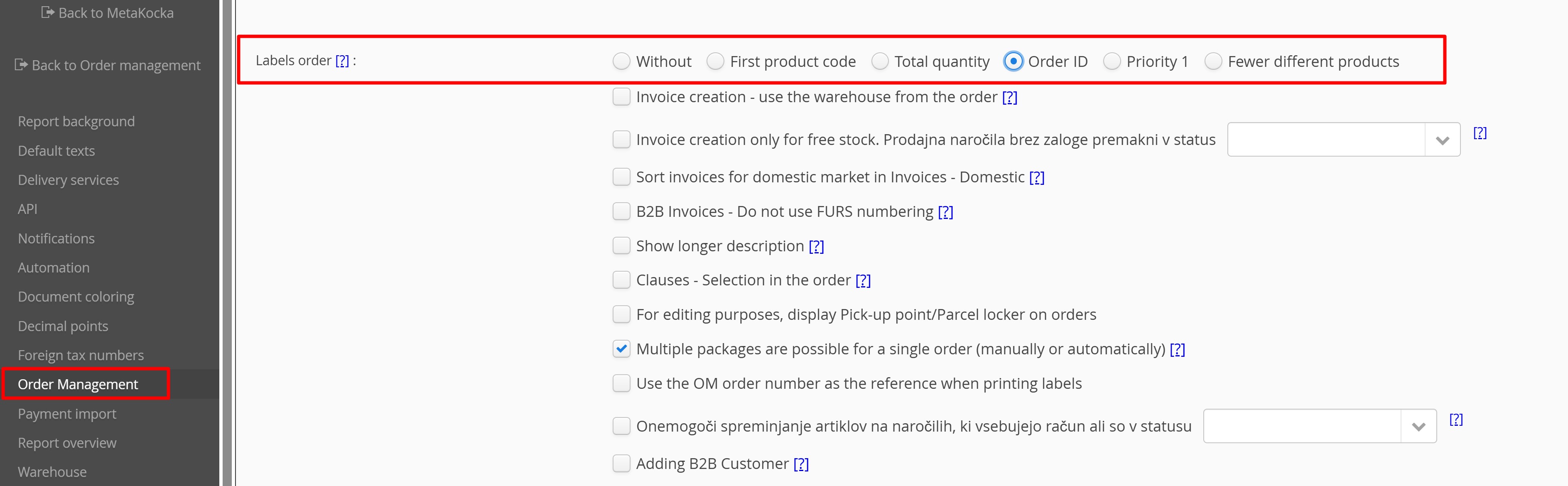
For this manual, we have used the "order ID" option.
Was this article helpful?
That’s Great!
Thank you for your feedback
Sorry! We couldn't be helpful
Thank you for your feedback
Feedback sent
We appreciate your effort and will try to fix the article