
Labels, shipping and settings
Printing labels at dispatch
Enabling this function in Additional settings disables bulk printing of delivery service labels in Order Management and moves this part of the process to the Mobile scanner - Dispatch. Labels for orders are then printed right at the physical packing in the warehouse.
!! Important: device limitation and printing options !!
Direct printing in the mobile scanner only works if you use the app on acomputer, since labels cannot be printed directly from a handheld scanner!
1. Settings needed to enable it
1.1. In Additional settings / Order Management select the function "Print labels at dispatch".
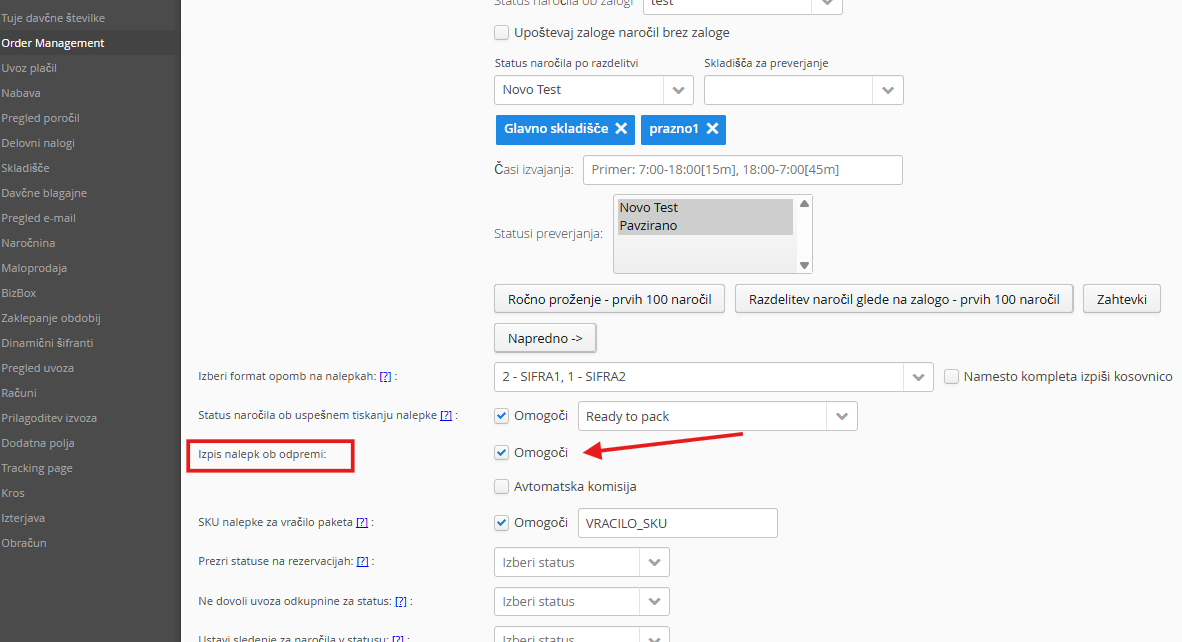
1.2.In Additional settings / Order Management select the order status after labels are printed successfully

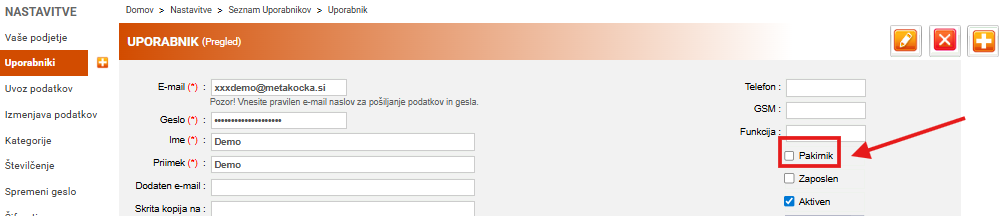
1.3. In the user settings, assign the function "Packer" to the employees who will be responsible for shipping parcels in the warehouse.
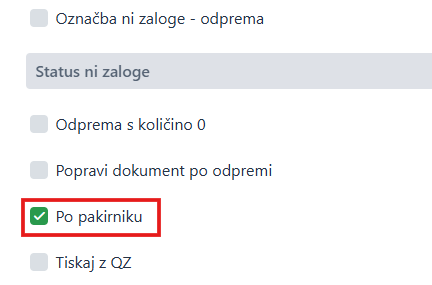
1.4. In Mobile scanner / Settings / Additional select the settingthat lets each user see only the parcels assigned specifically to them in Dispatch.
2. How it works
2.1. Preparing labels in Order Management: Label printing is already disabled, since the label printing step has moved to the Mobile scanner.
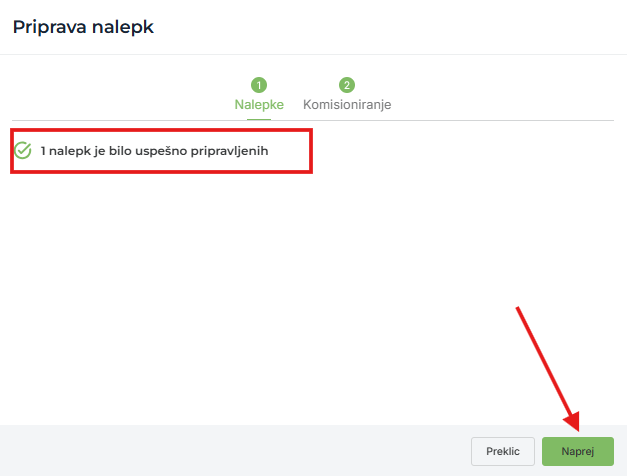
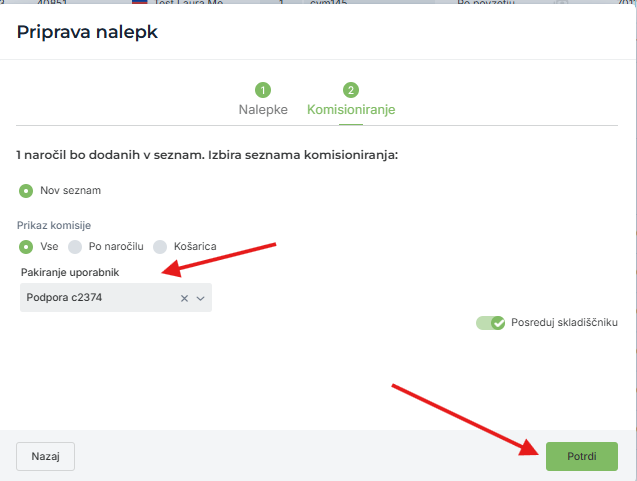
2.2. Assigning the packer (picking list):In the picking list step, choose who will pack the selected orders. In Dispatch in the mobile scanner, these orders will be visible only to the user you selected.
*first assign the function Packerin the user settings to the users who will do the dispatch
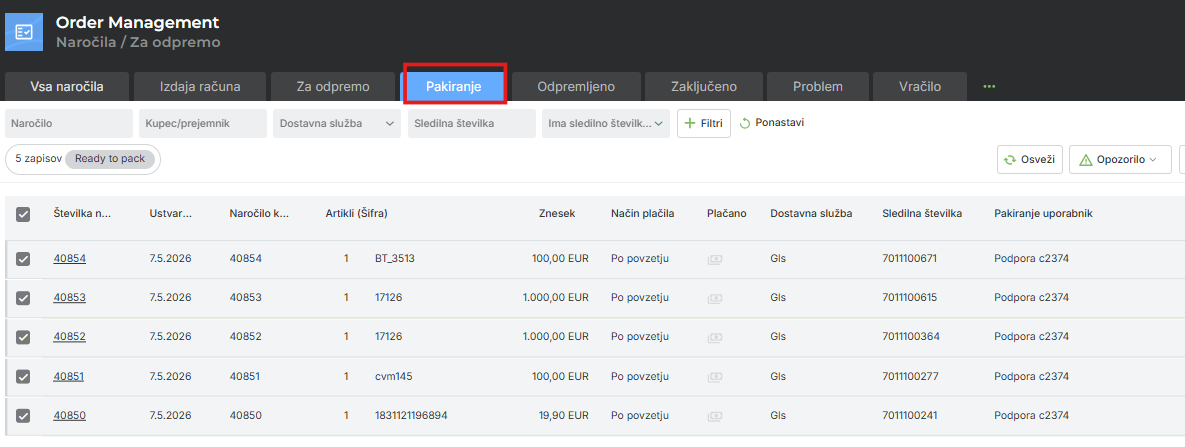
When the action is finished, the orders move to the new tab Packing, which collects the orders sent to Packing/Dispatch:
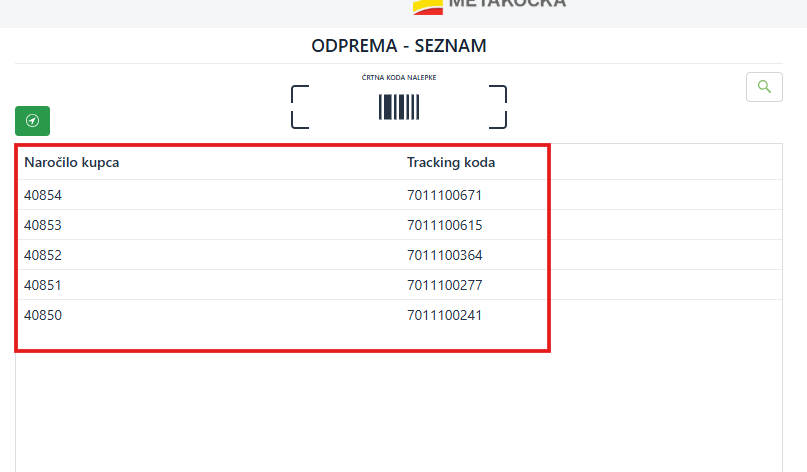
2.3. Dispatch in the Mobile scanner:
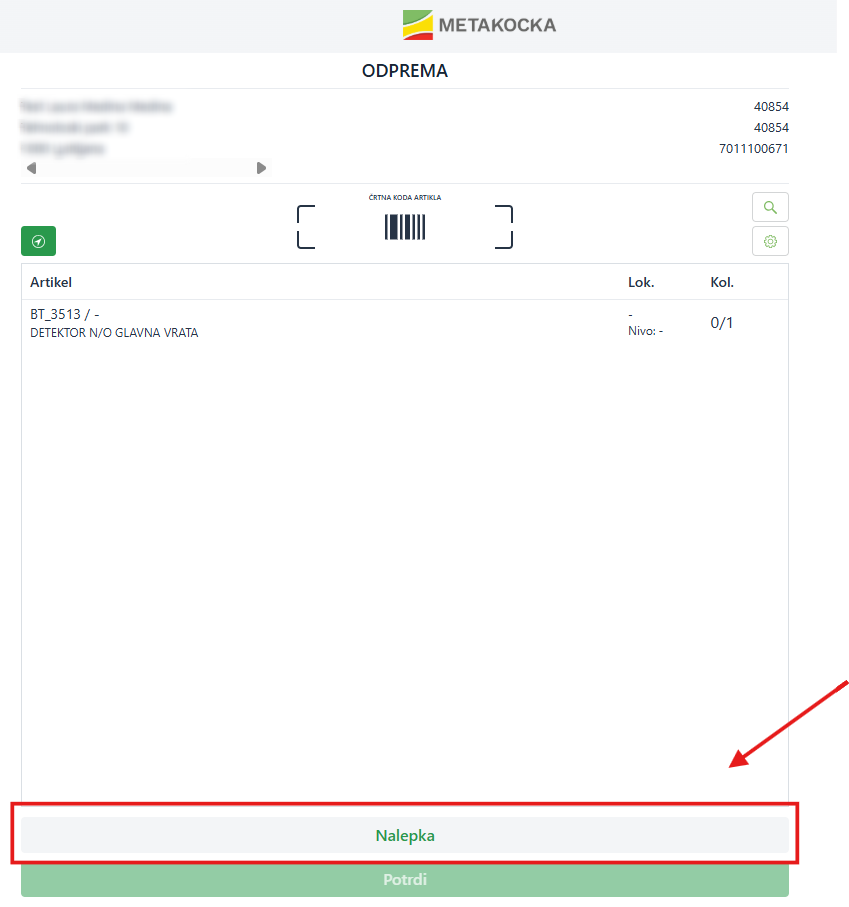
The user opens the order, selects the products the order requires and then clicks "Label", which prints the delivery service label on the printer. When the parcel is packed, the user clicks "Confirm".
The order is then marked as shipped in Order Management, and the user can continue with the next assigned order.
3. Full automation
The function also supports full automation. In this case, invoices, delivery service labels, the picking list and parcel assignments are all done automatically. Everything is ready for packing in the warehouse worker's scanner and the previous steps are not needed.
3.1. Enable automatic invoice creation:MetaKocka prepares the invoices itself.
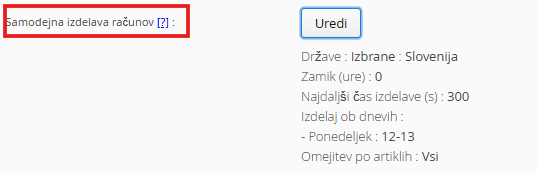
3.2. Enable automatic label printing: MetaKocka prepares the labels on the delivery service side.

3.3. Enable automatic picking list:

If the delivery service labels were prepared successfully (in step 2), MetaKocka creates a picking list and assigns the orders for packing to the first user with the "Packer" function.
In this case, the products are assigned to a picking list that is still available and not active (it becomes active only when the user opens it in the scanner). If all existing picking lists are already active, a new picking list is opened and the products are added to it.
Was this article helpful?
That’s Great!
Thank you for your feedback
Sorry! We couldn't be helpful
Thank you for your feedback
Feedback sent
We appreciate your effort and will try to fix the article