
Integration with the Shoppingfeed online store
Integration with the Shoppingfeed online store enables:
- transfer of orders from the online store to MetaKocka along with all customer data and ordered items,
- item synchronization between Shoppingfeed and MetaKocka,
- stock synchronization, which runs from MetaKocka to online stores,
1. Obtaining Access Token and Shop ID
You must obtain the Access Token and Store ID from Shoppingfeed so that you can enter this data into MetaKocka
1. Obtaining the Access Token
- Log in to Shoppingfeed.
- Open Settings or Developers / API (depending on the interface version).
- Create a new API Access Token or use an existing one.
- Copy the token value. This will be used in MetaKocka for authentication.
2. Obtaining the Store ID
Store ID is your store's identifier in Shoppingfeed. You can obtain it in several ways:
- in Settings → Stores or Store information, where the store ID is displayed,
- or via API using the Access Token, where the response contains the store identifier (Store ID).
Once you obtain this data, enter it into MetaKocka.
2. Entering the connection in MetaKocka
In Settings - Connections, select Shoppingfeed from the connection types and click Add.
A new connection will open, where you then click Additional settings
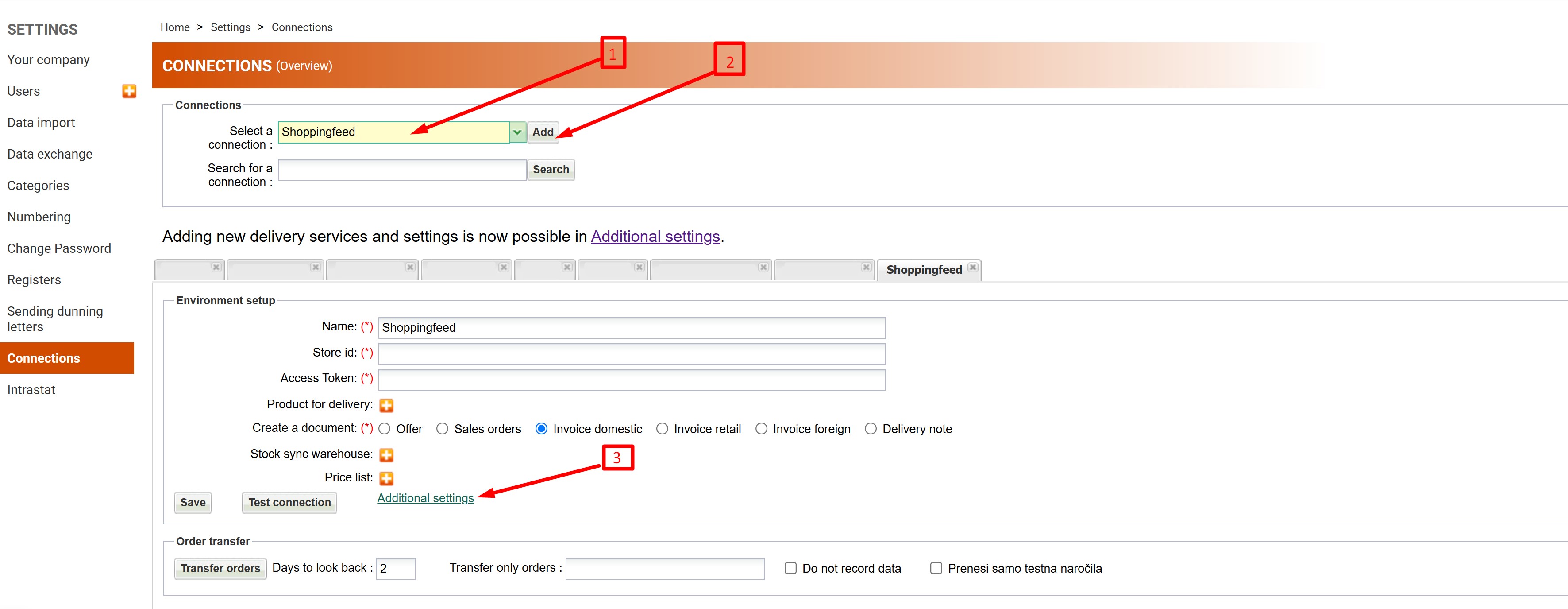
A window opens in which you enter
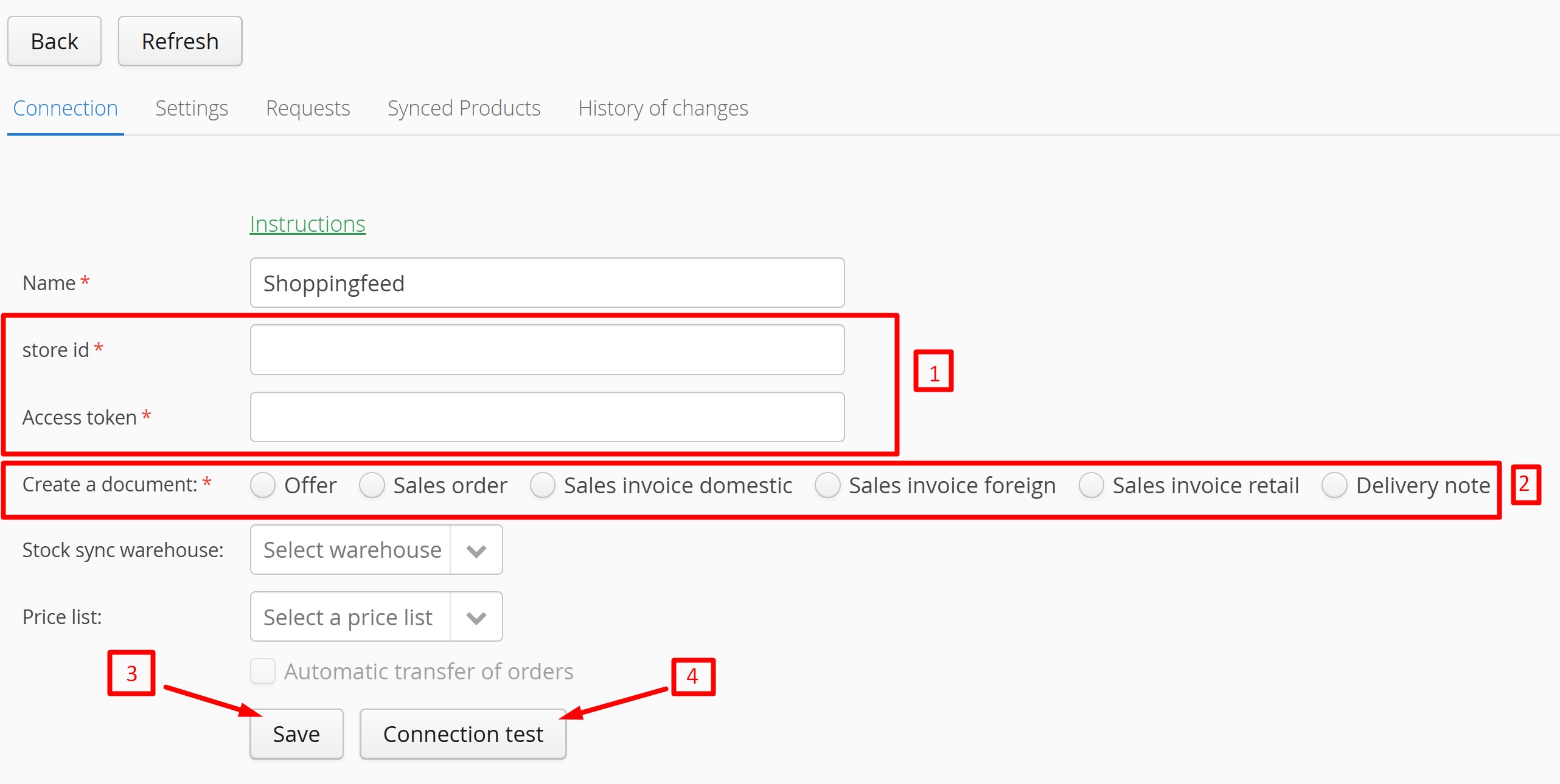
- Enter the Store ID and Access Token and save the settings.
- Select where orders will be transferred:
- domestic account,
- foreign account,
- sales order or
- offer.
- Save the settings again.
- Click Test connection.
If the connection with the store is successfully established, a green notification appears at the top of the window stating that the connection was successfully established.
3. Stock synchronization
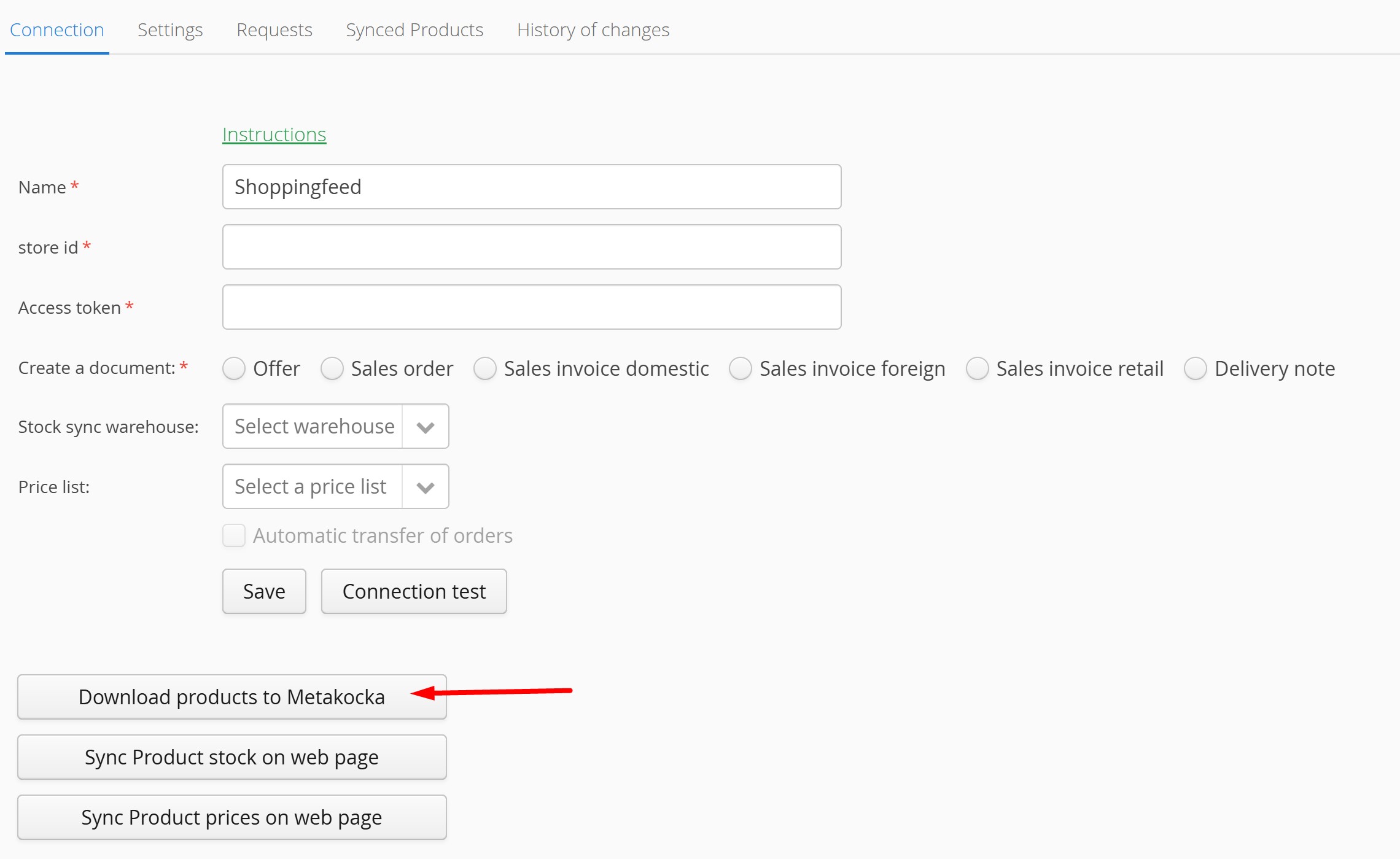
Item synchronization connects items between the online store and MetaKocka.
If an item does not yet exist in MetaKocka, but exists in the online store, it will be transferred from the online store to MetaKocka.
If an item exists in MetaKocka, but not in the online store, the item will not be transferred to the online store.
4. Inventory synchronization
Inventory synchronization takes place from Metakocke to the online store.
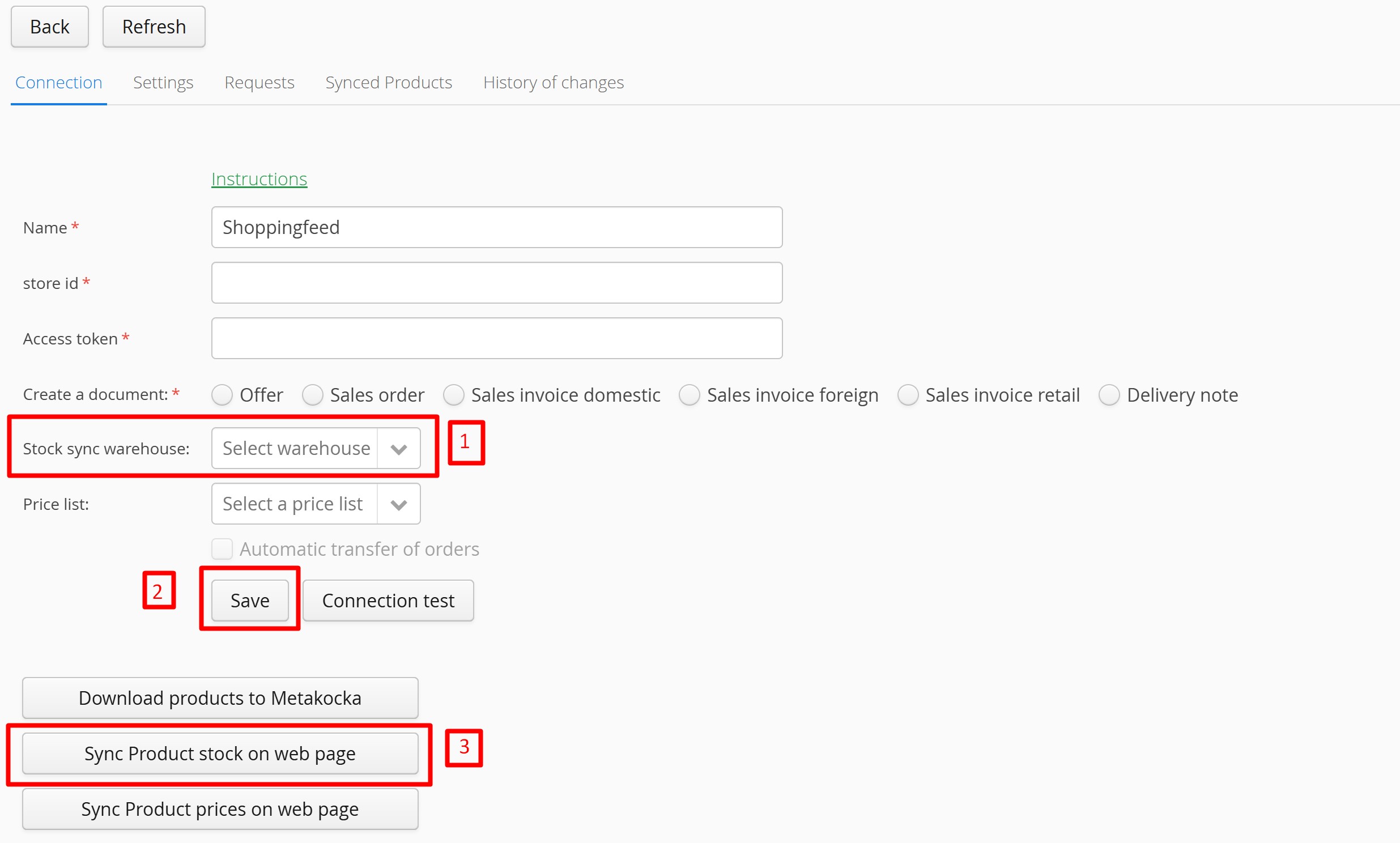
Before enabling synchronization, it is important that inventory in MetaKocka is correctly organized. Otherwise, incorrect inventory data may be transferred to the online store.
Select the warehouse from which you want the inventory to synchronize. If you have multiple warehouses, you can select multiple warehouses and save. And when you want to run the synchronization, click Update item stock on the website
Inventory synchronization takes place from
Was this article helpful?
That’s Great!
Thank you for your feedback
Sorry! We couldn't be helpful
Thank you for your feedback
Feedback sent
We appreciate your effort and will try to fix the article