
Allegro - integration with MetaKocka
To connect the online store with MetaKocka, you first need an Allegro account (in a country supported by Allegro). When you have the account, open/log in to the Developer portal.
To connect to MetaKocka, create a new application in the developer portal with the following settings (make sure the settings are identical - the application name and its capitalization are also very important):
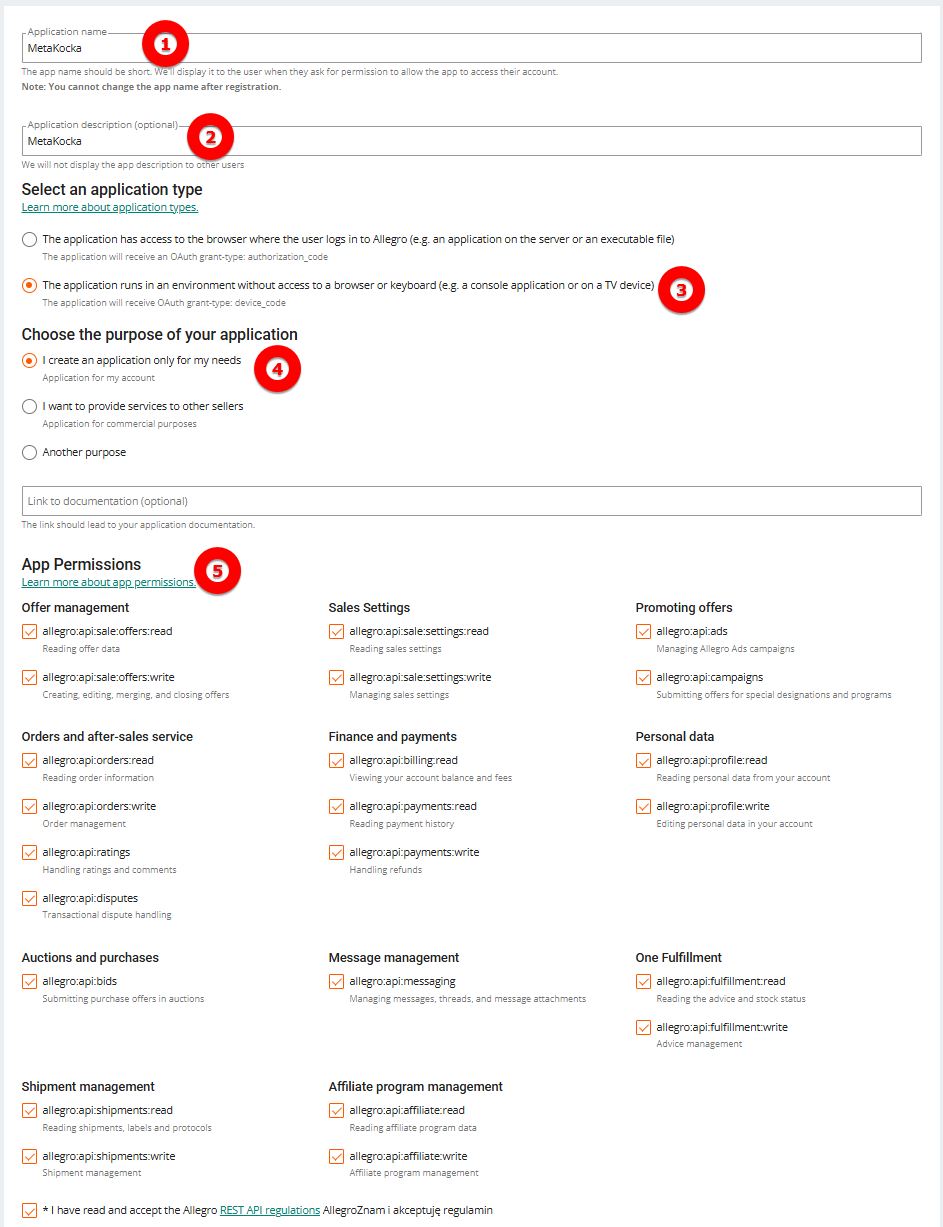
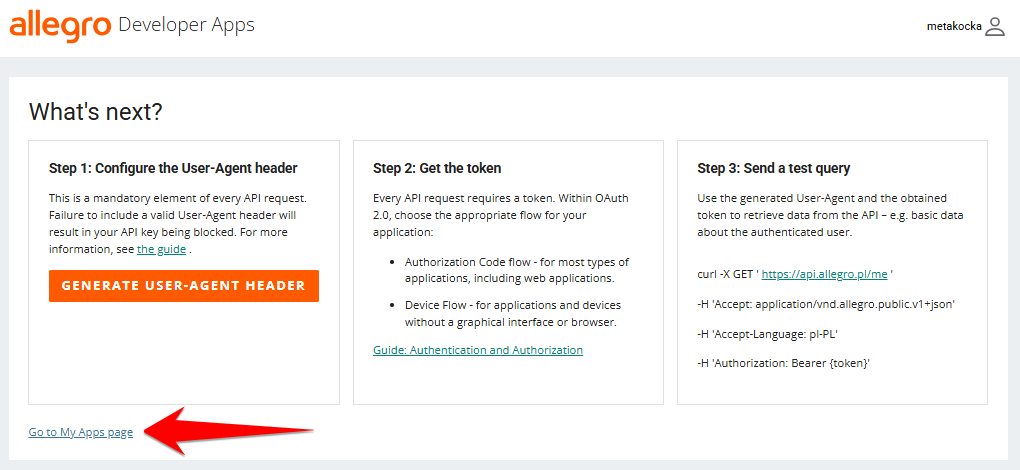
When all the settings are set as shown in the image, confirm. You then land on the next page, where you select the following to go back to your applications.
Back in the list of applications, open the details of the new application, where you will find two values: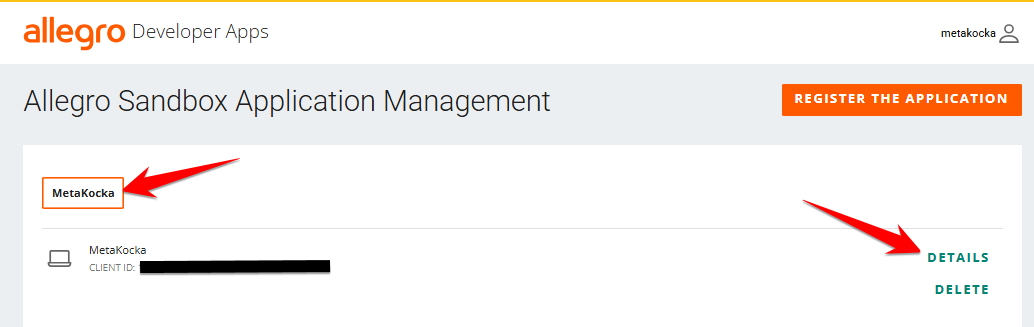
Client ID and Client Secret:
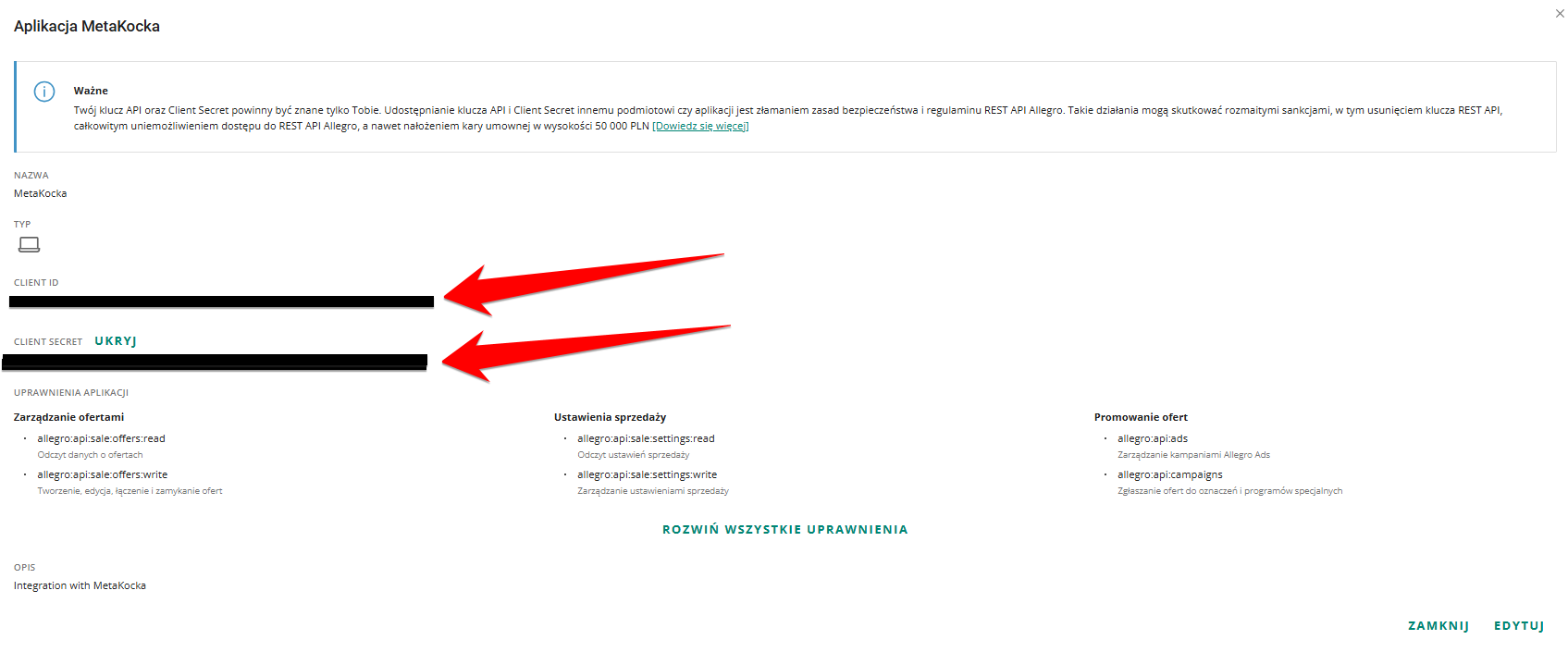
Copy both values and use them in MetaKocka in the connection settings for the new Allegro store. Also select the right "Shop" - one of the first four, which are tied to specific countries you can sell in and that your store is linked to:
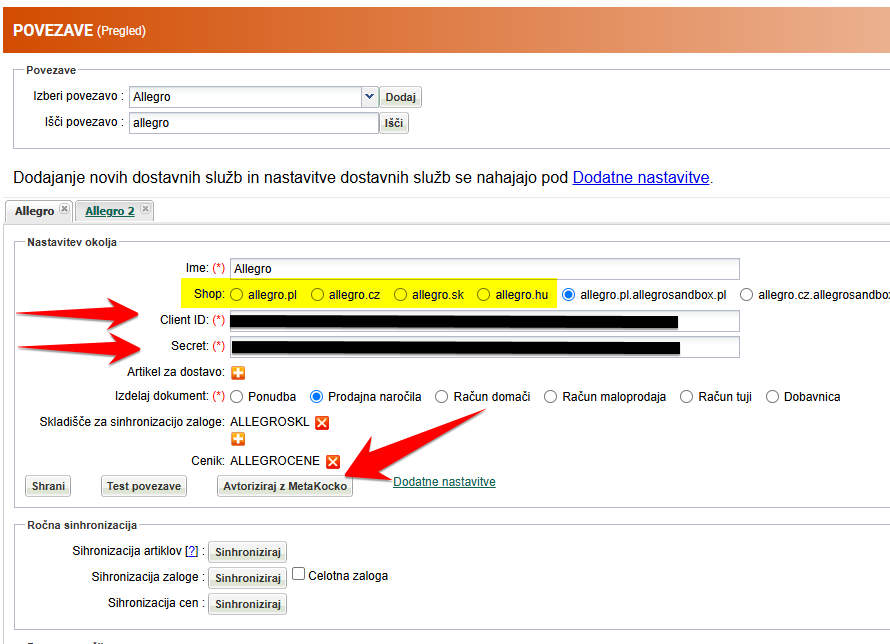
Save the settings and then click the "Authorize with MetaKocka" button. This starts the OAuth process that allows MetaKocka access to the store - in the new window, also select the following:
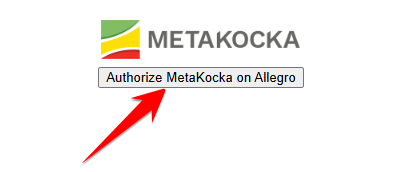
You are then automatically redirected to the Allegro online store, where you confirm the various permissions you give this connection. After confirming, you can go back to MetaKocka - we recommend logging out and in again, or refreshing the MetaKocka page, so the connection data is refreshed. After that, the connection test should work - which means you have successfully connected Allegro and MetaKocka.
Was this article helpful?
That’s Great!
Thank you for your feedback
Sorry! We couldn't be helpful
Thank you for your feedback
Feedback sent
We appreciate your effort and will try to fix the article