
Printing courier labels - Office package
Users of the Office (Pisarna) package can print waybills for delivery services. More than 70 delivery services are available for shipping your parcels.
1. Go to Additional settings
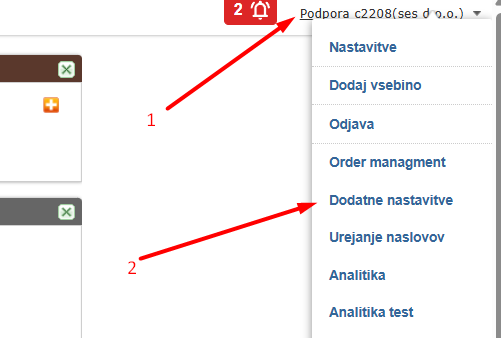
2. Set up the delivery service connections:
In Additional settings, Delivery services, add a new connection for the selected delivery service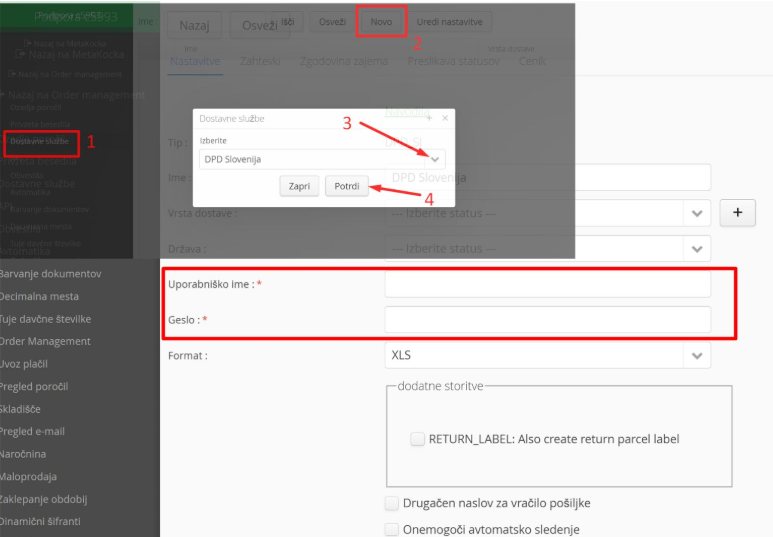
Detailed information on entering the required data for each delivery service is available at this link
3. How it works and how to use it:
Select the sales orders you want to create waybills for with the selected courier, click the tools icon and Print labels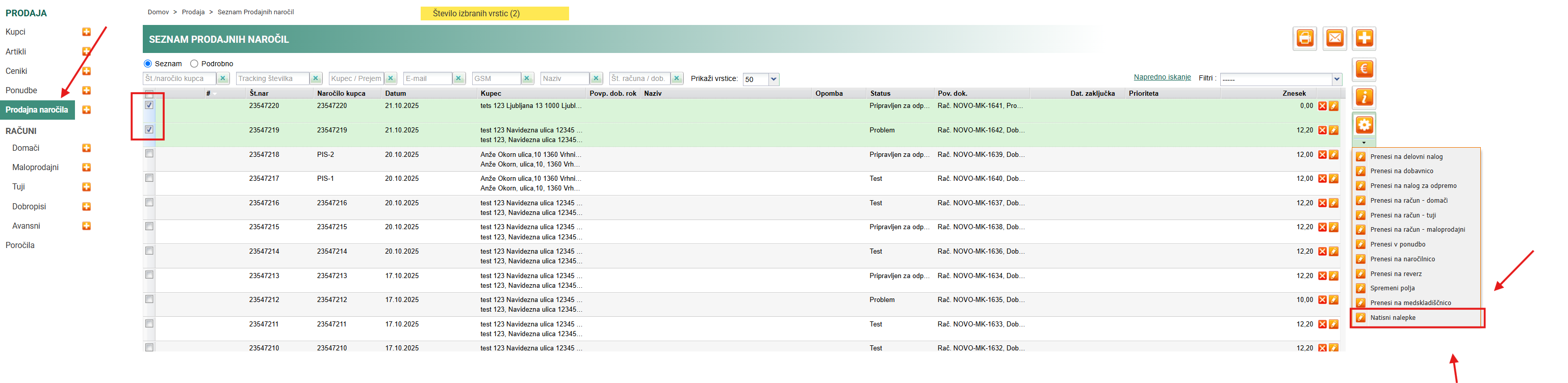
Clicking Print labels starts creating invoices for the selected orders and then waybills for the delivery service selected on the order.
When printing is finished, a dialog shows whether the waybills were created successfully. Download the waybills as PDF or click Open to open them in a new tab.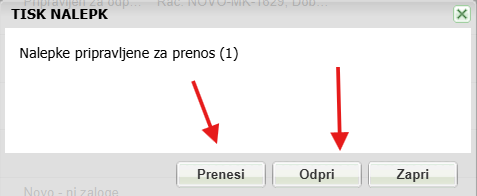
The tracking number is also saved on the order: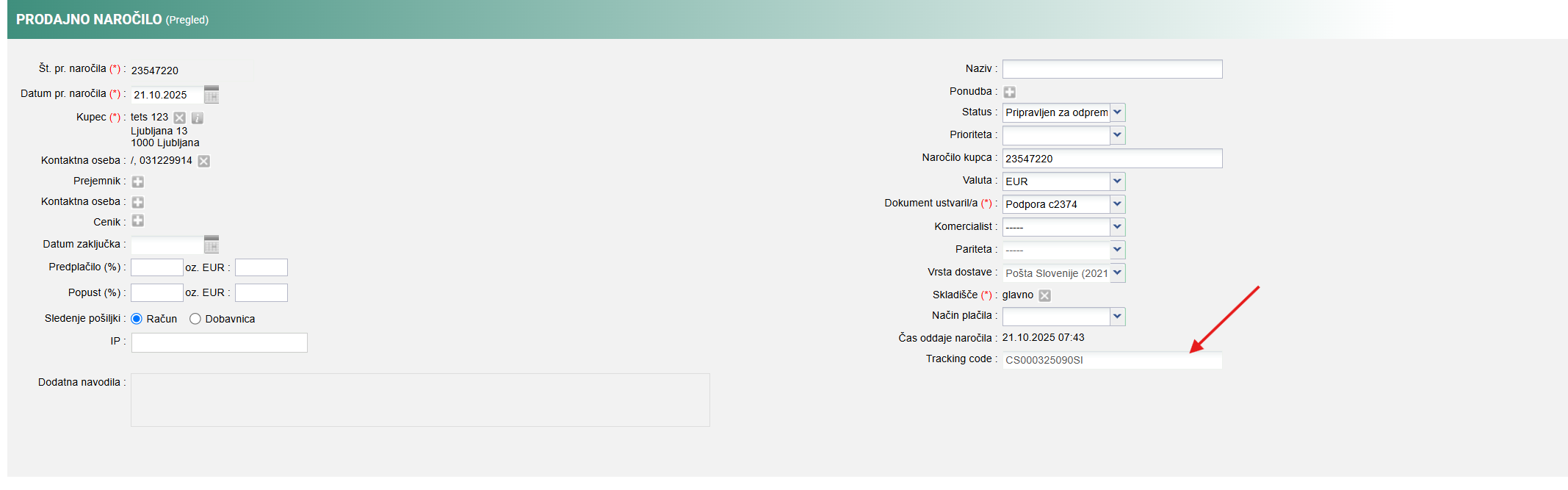
If there is an error and the waybill was not created, the error is shown and the order is moved to the Problem status: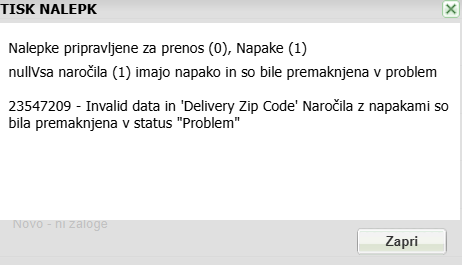

Fix the error and print again.
4. Special cases
- If you want to get an already created waybill again, repeat the procedure and the existing waybill will be shown again.
- If you want to create a new waybill, remove the tracking number from the sales order, save it and repeat the procedure.
- The errors shown are errors from the delivery service: MetaKocka creates a request with the delivery service, which processes it and reports an error if something was entered incorrectly, and we show you that error
- Labels can be printed for one delivery service at a time. Example: you can print labels for several orders at once for GLS, and then the next orders for another delivery service, e.g. Pošta Slovenije
Was this article helpful?
That’s Great!
Thank you for your feedback
Sorry! We couldn't be helpful
Thank you for your feedback
Feedback sent
We appreciate your effort and will try to fix the article