A) Create a new delivery service
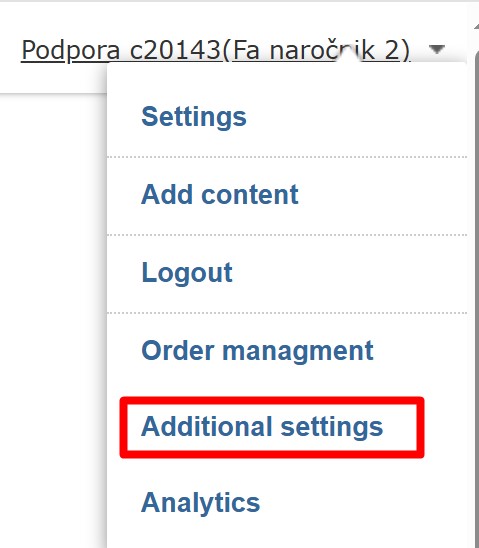
Go to the User drop-down menu -> Additional settings -> Delivery services, and create a new delivery service by clicking "New"
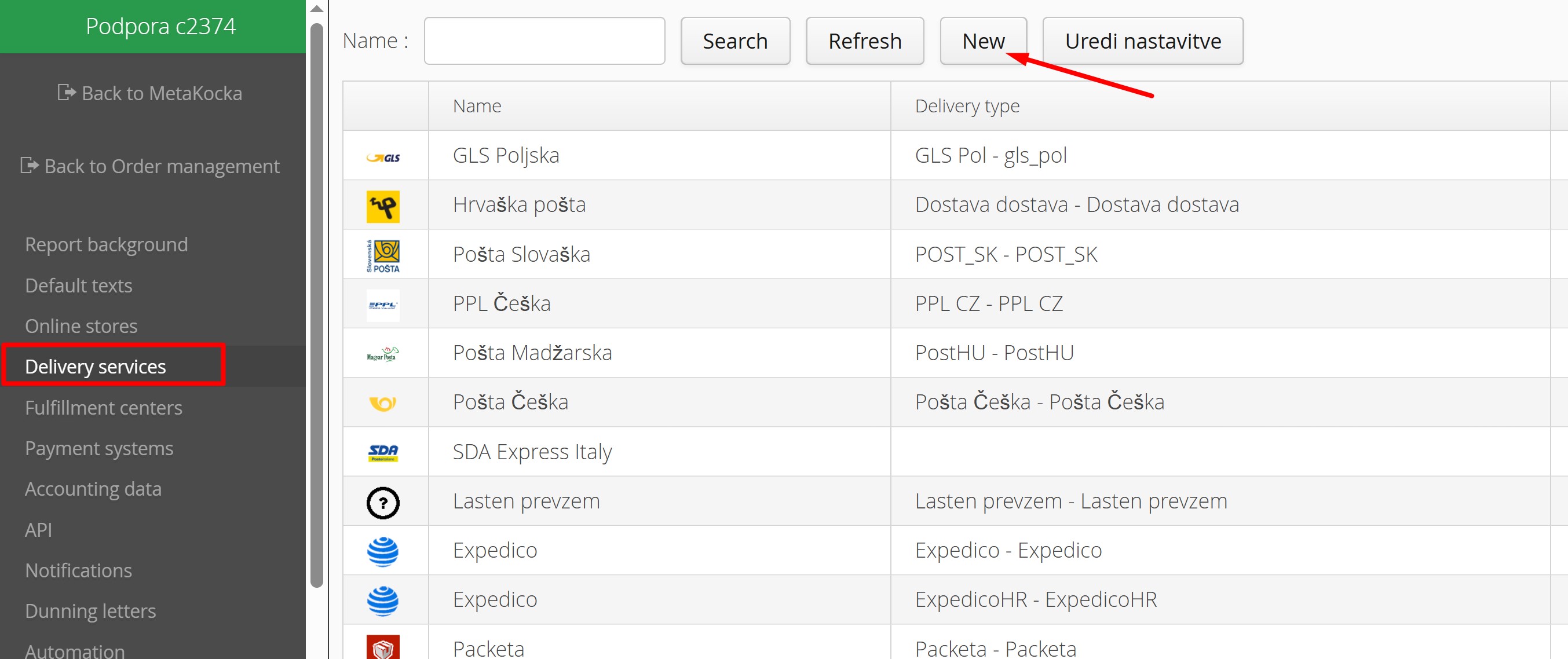
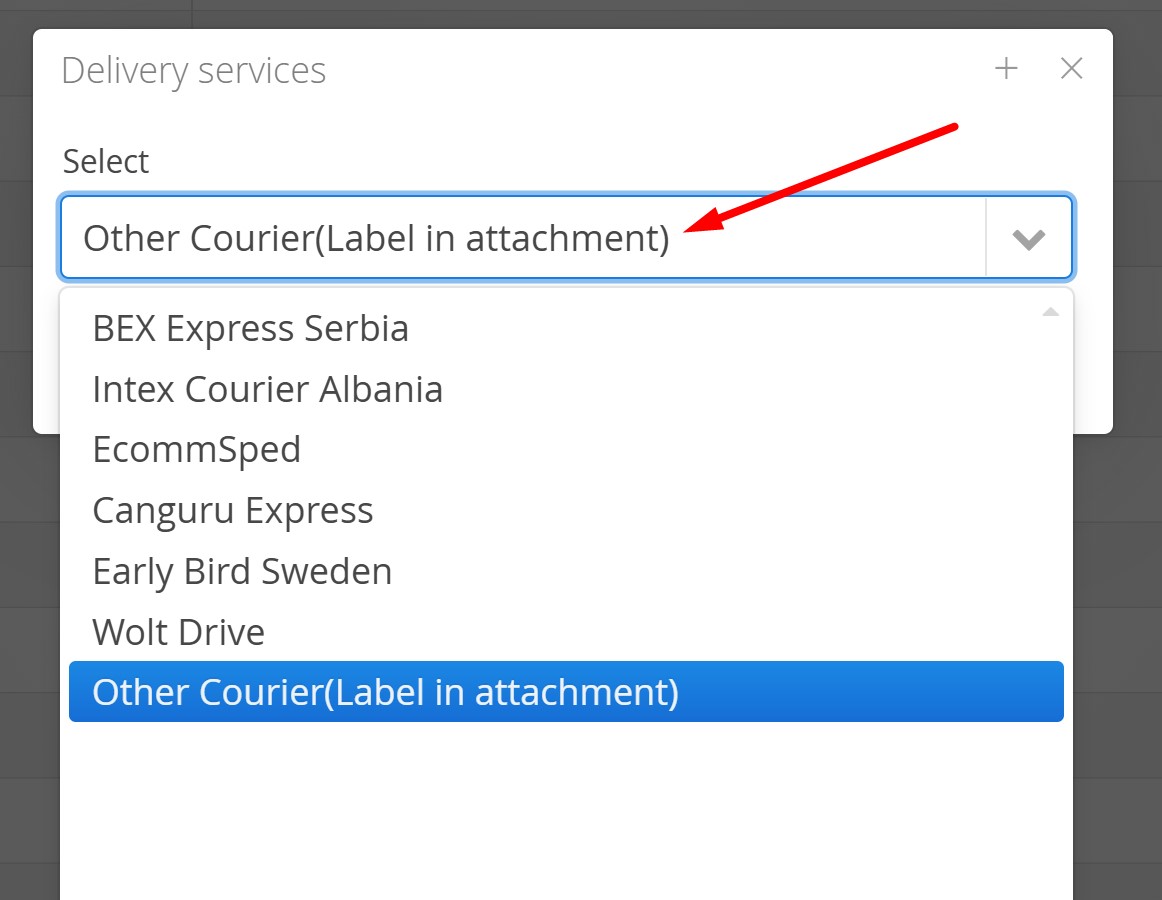
Select the option "Other Courier (Label in attachment)", and click Confirm
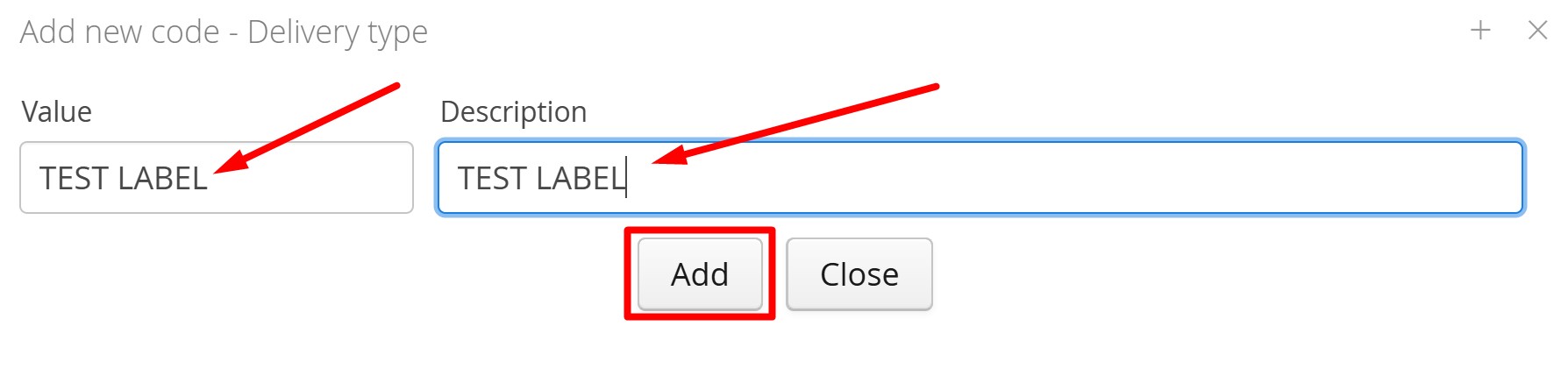
In the "Delivery type" field, click (+). In the "Value" field, enter the name of the new delivery service. In the "Description" field, enter the name again or a short description. Then click Add.
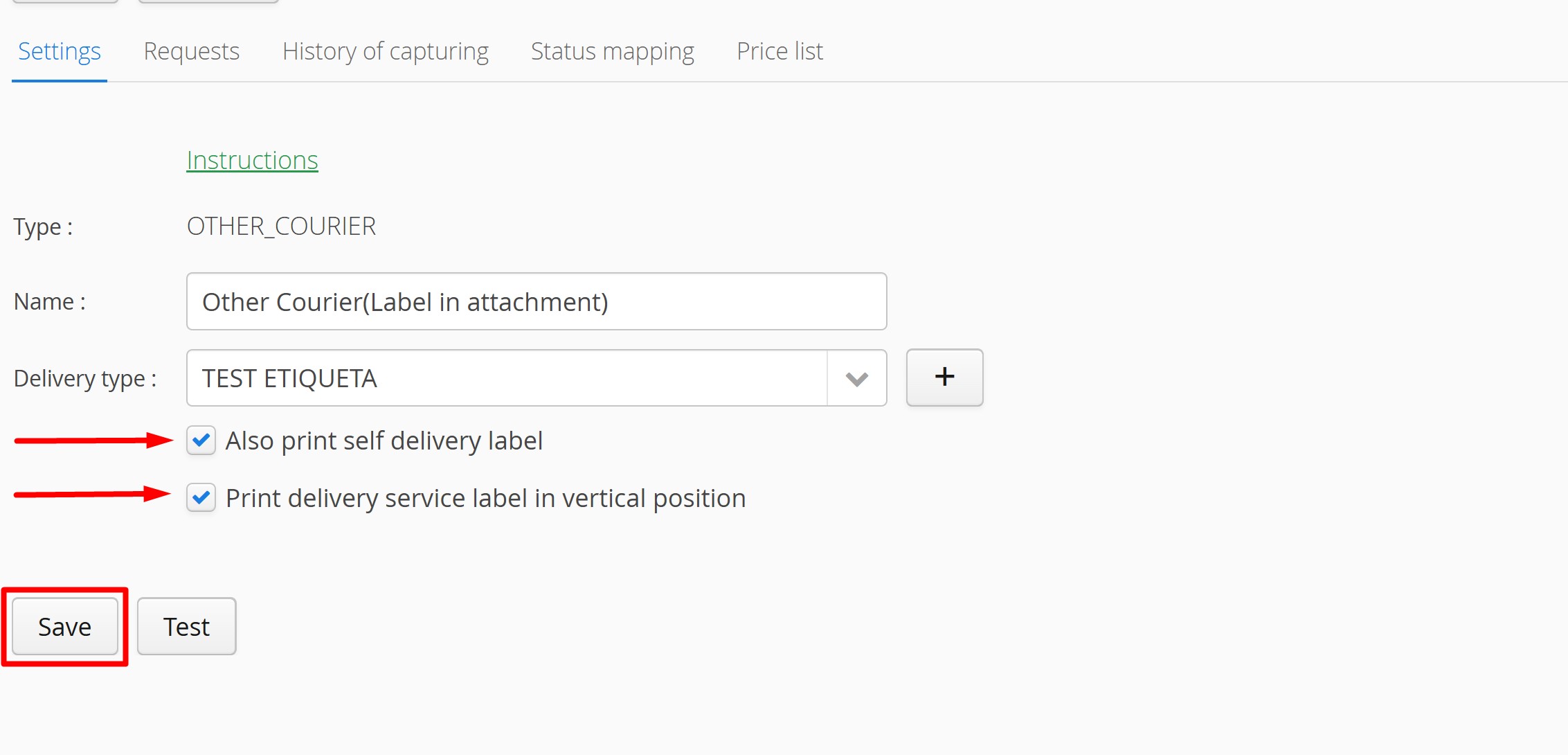
To finalize check the "Also print self delivery label" box. If you wish to print the label vetically, check the box "Print delivery service label in vertical position". Once you have entered the information, click Save.
Assign a delivery service label to an order
You can assign a label to an order via API or manually:
a) Assigning the label via API
b) Assigning the label manually:
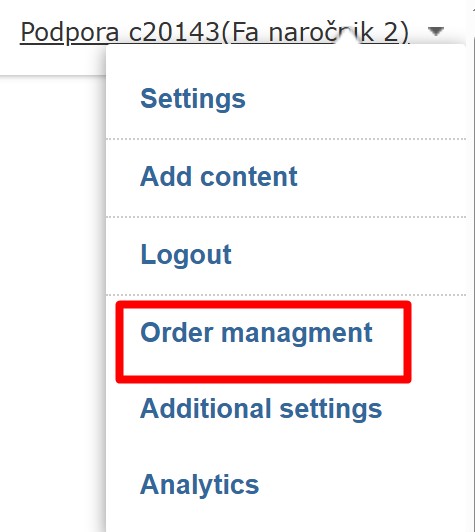
Go to the User drop-down menu -> "Order Management".
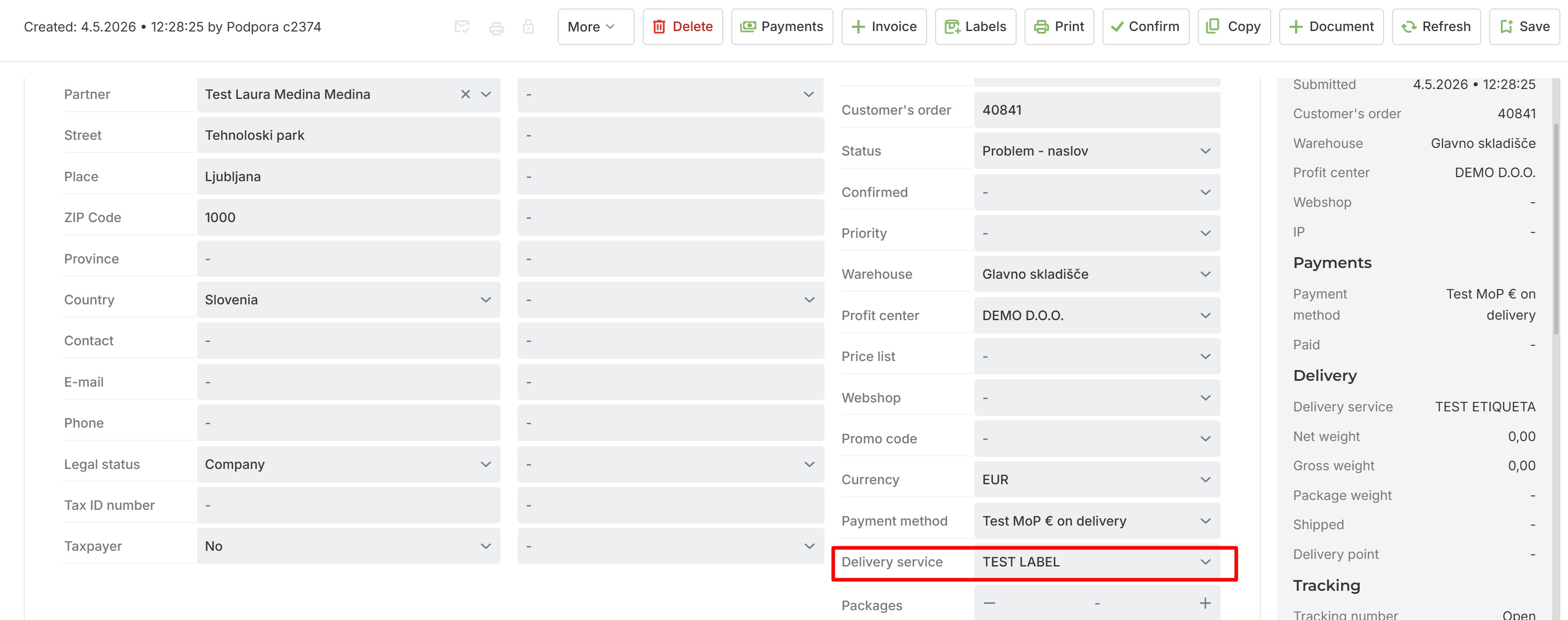
Open the order to which the label will be assigned. From the drop-down menu, choose the delivery service created in the previous steps.
In the Attachments tab, add the desired label. Click "Add file" and select the file.
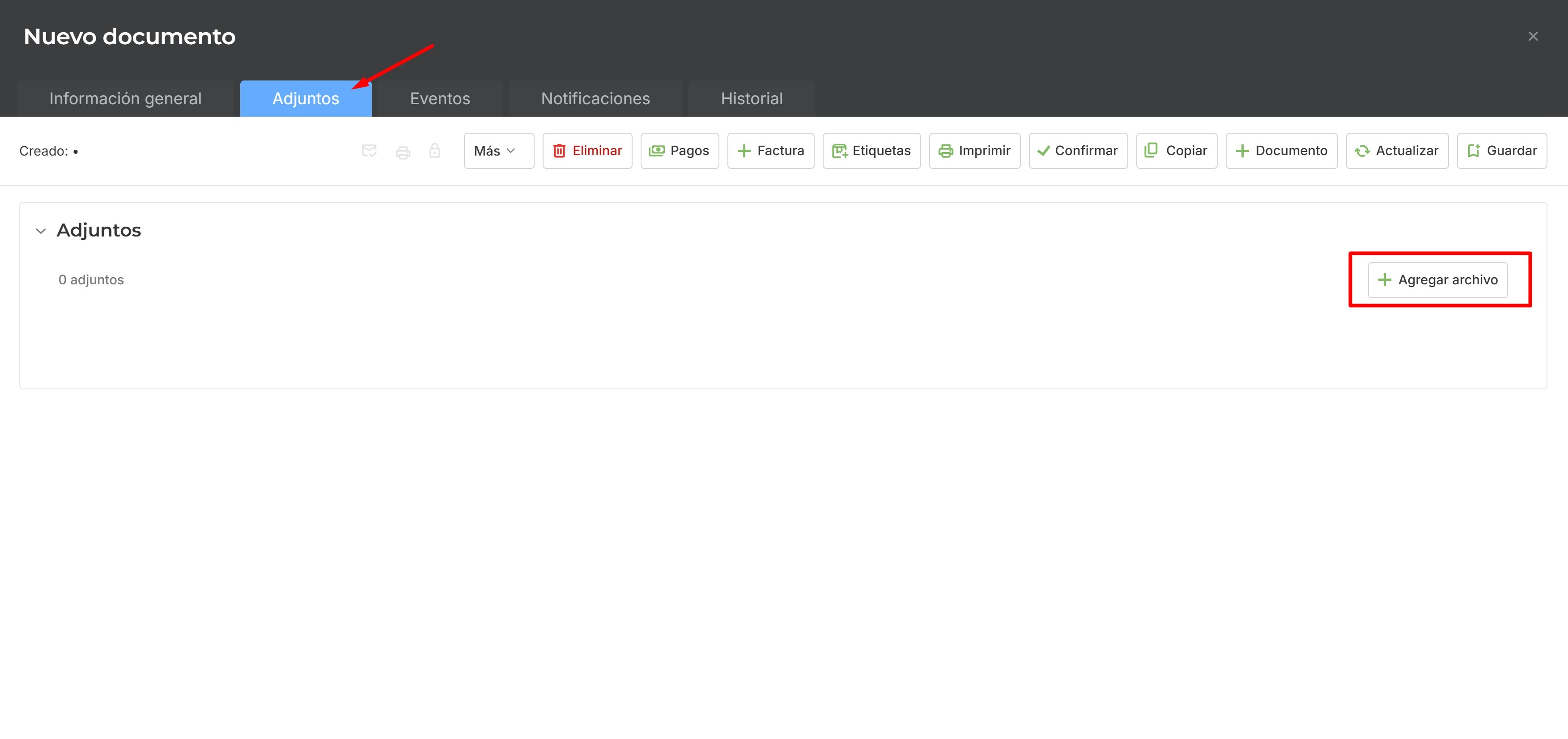 * IMPORTANT: the file must be a pdf file and be named "label.pdf" to be successfully added to the order
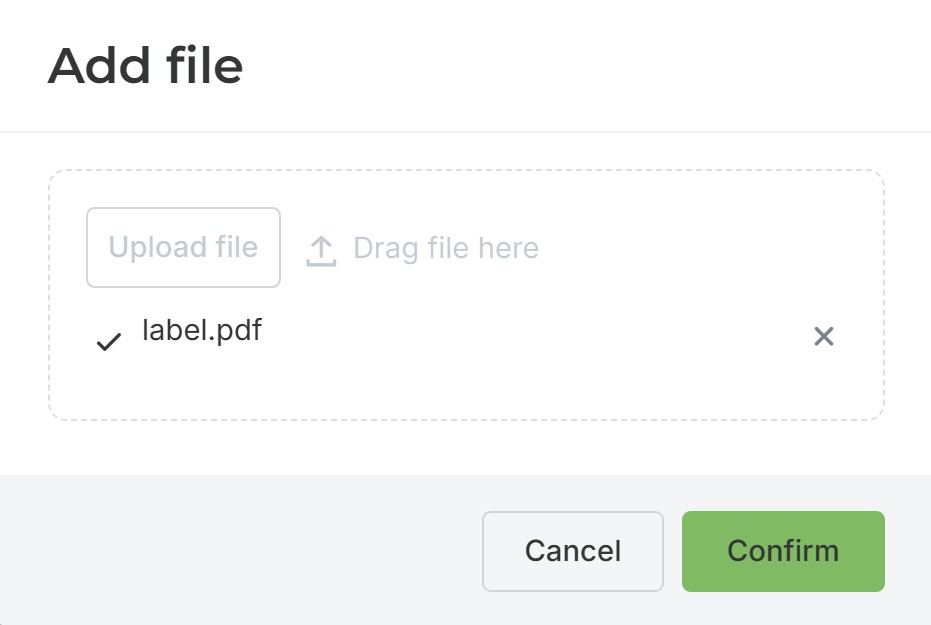
Confirm your choice and Save the changes.
B) Add delivery service connection
It is possible to add it through your Fulfillment account.
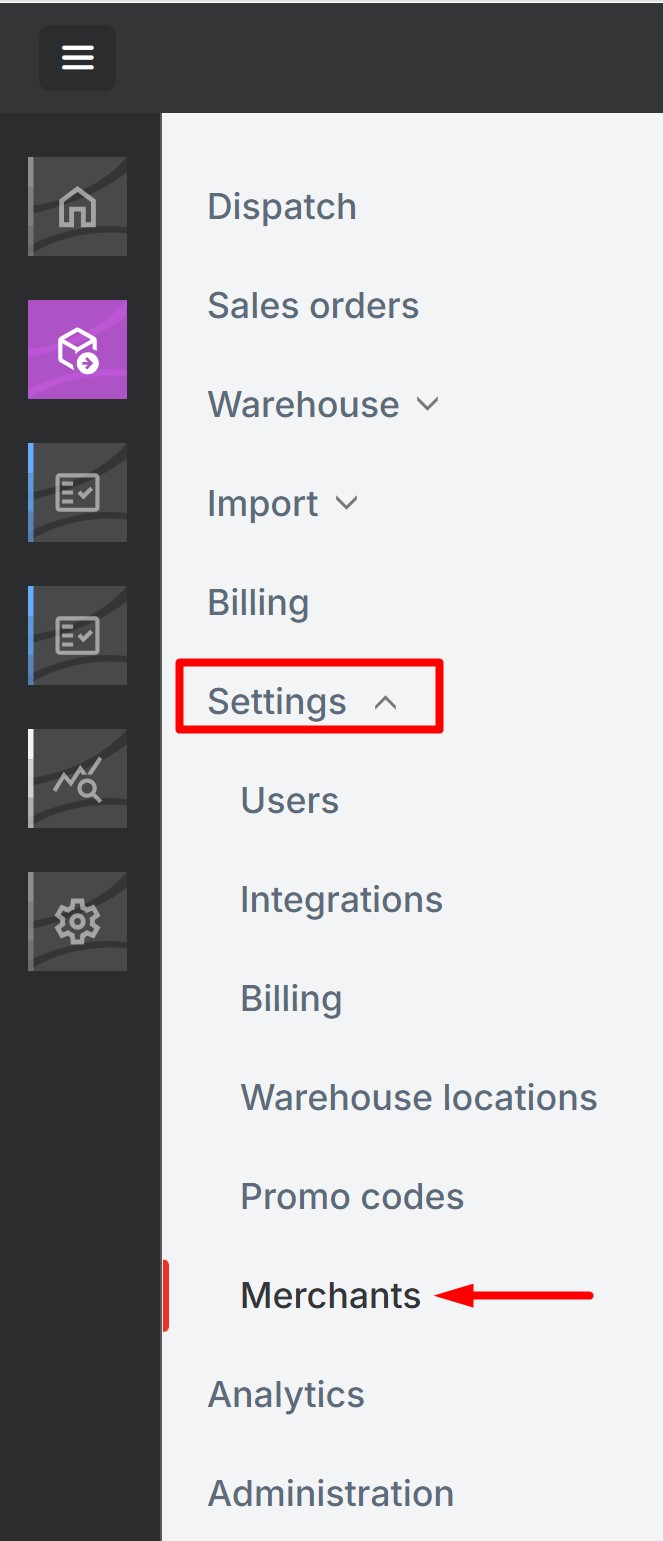
From your Fulfillment account, go to Settings -> Merchants
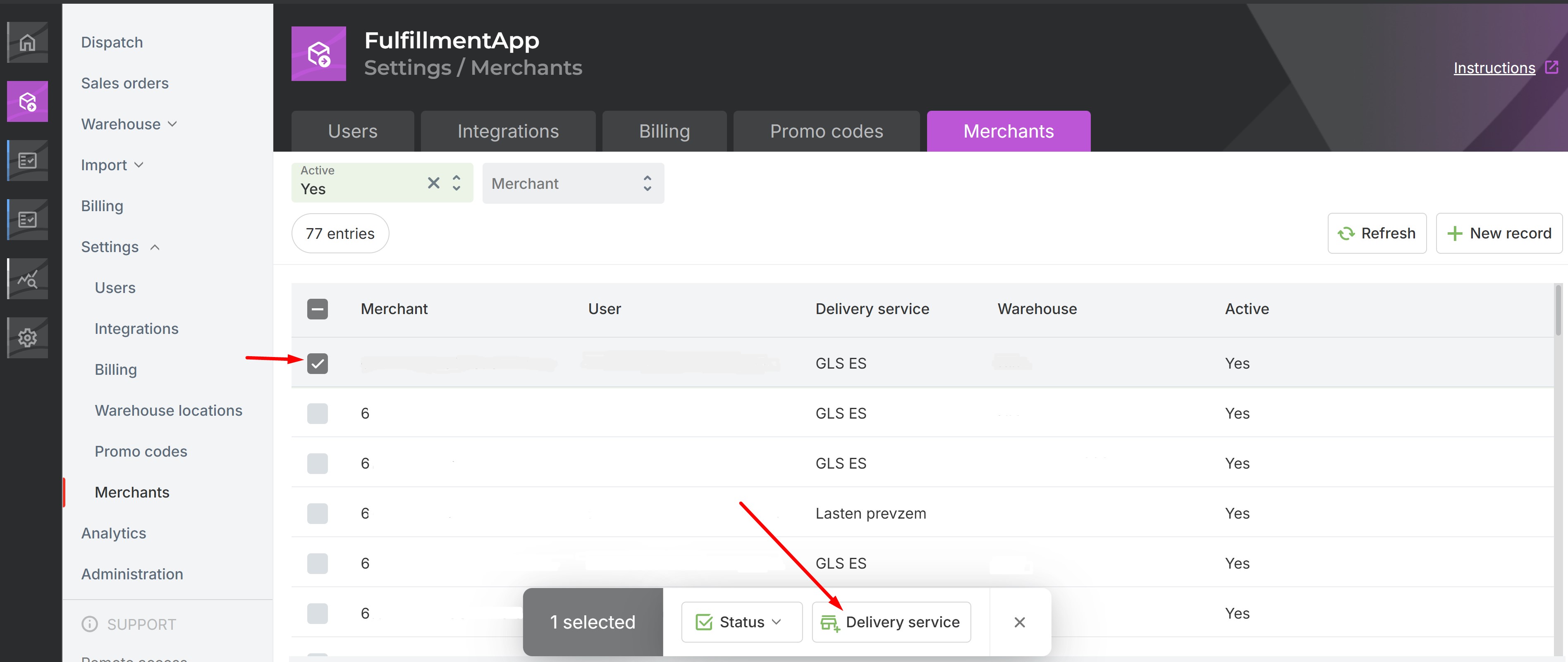
 Check the box next to the customer you want to connect to the delivery service, and click "Delivery service"
 A dialog box will pop up. Click "Add" and enter all the new delivery service details.
Also, check the "Also print self delivery label" box.
Once all the information is completed, click "Confirm" to save the data, and then click "Confirm" once more to establish the connection. 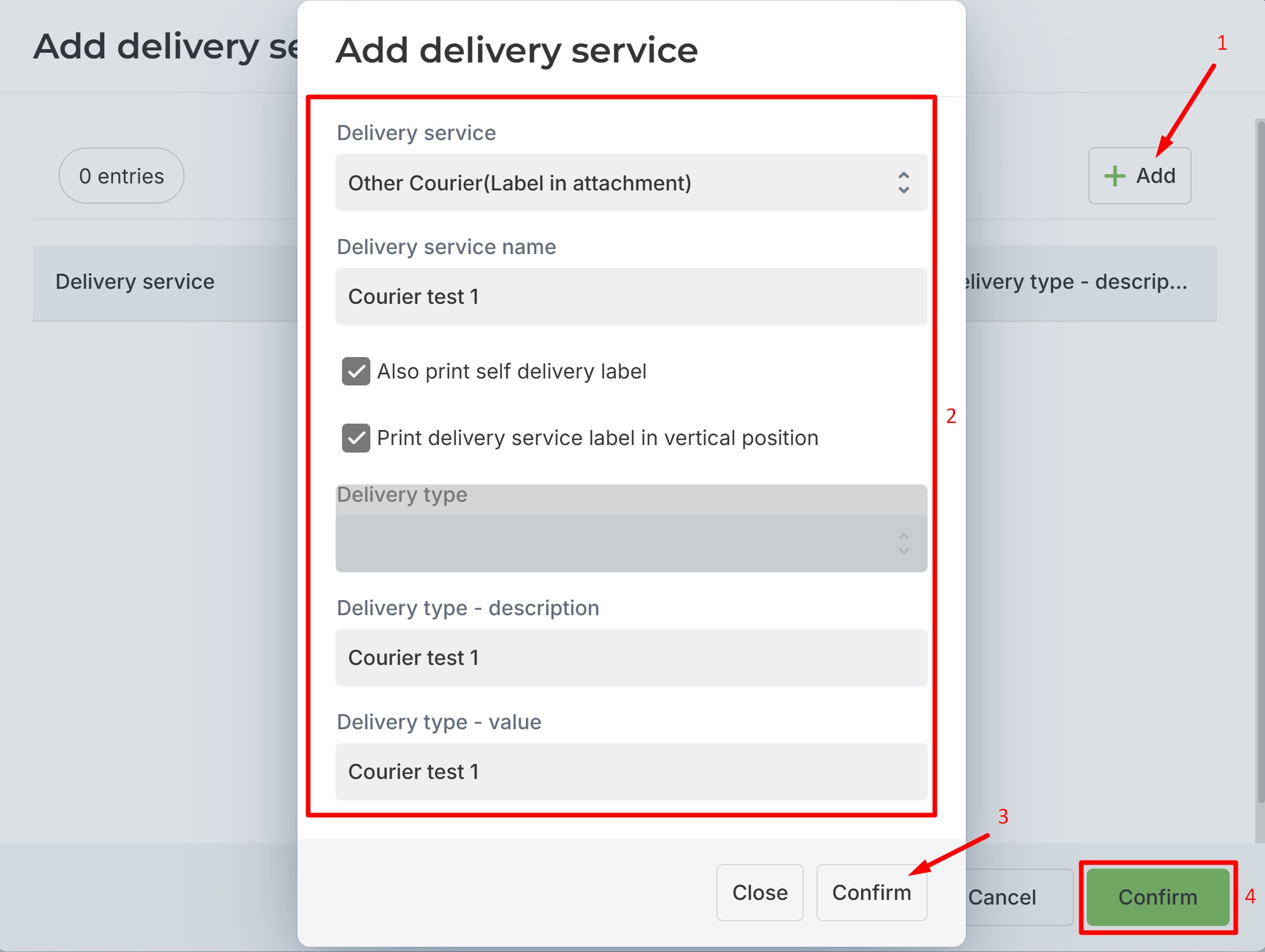
If you wish to print the label vetically, check the box "Print delivery service label in vertical position".

Was this article helpful?
That’s Great!
Thank you for your feedback
Sorry! We couldn't be helpful
Thank you for your feedback
Feedback sent
We appreciate your effort and will try to fix the article