
Shopamine (old implementation)
1. Setting up the connection
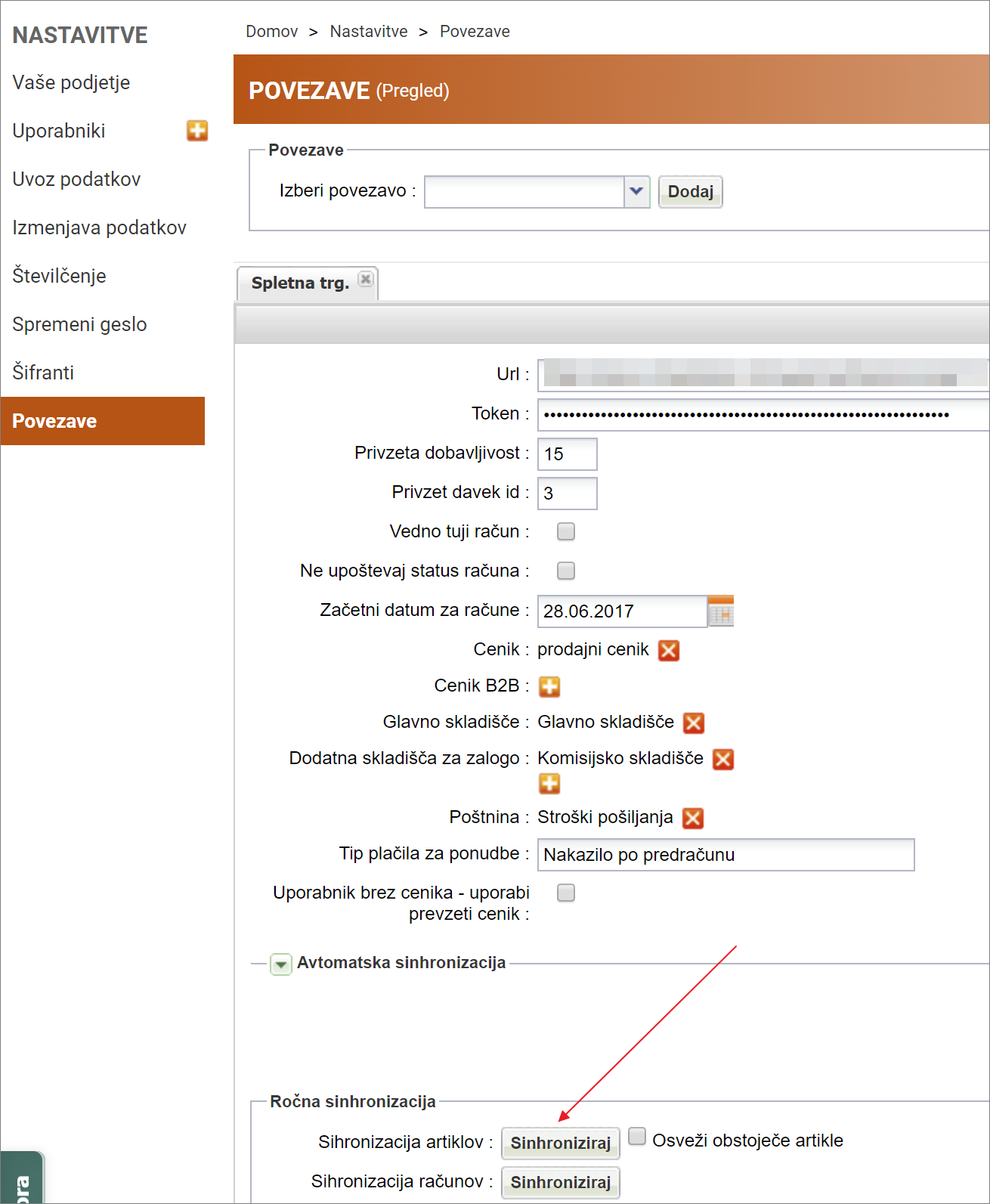
Under Settings > Links, add a new "Online store".
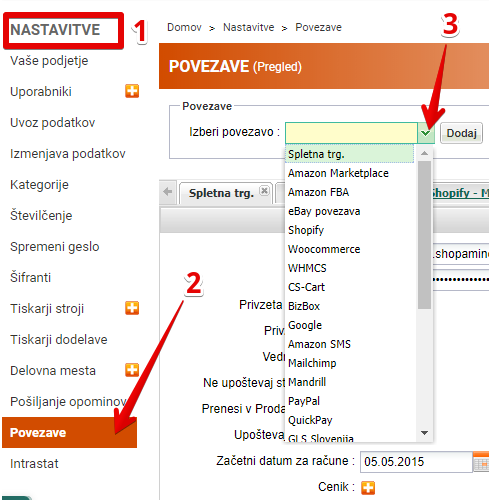
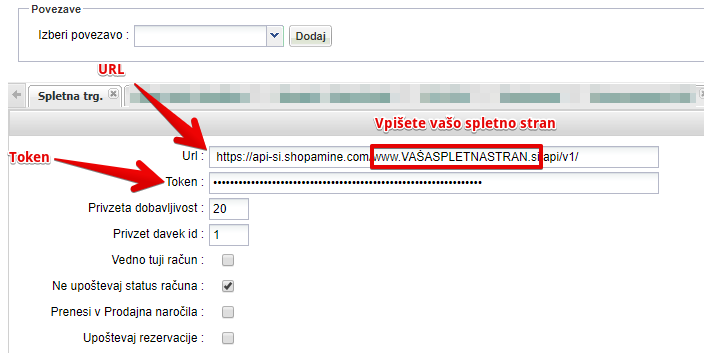
Enter the URL for API calls and your token (you get the API token in your Shopamine store under Settings > Integration > API authentication).
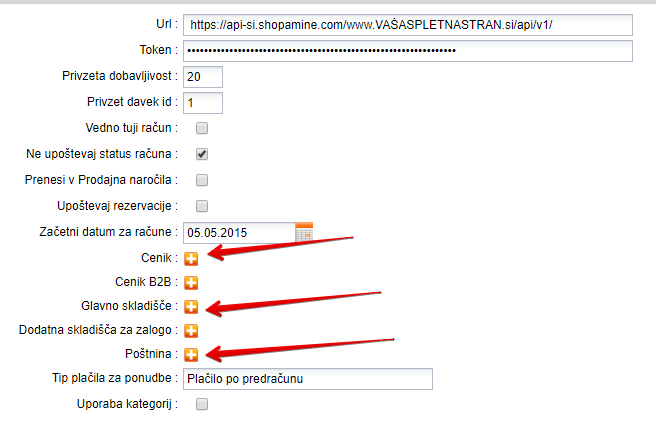
You also need to set the default warehouse and the price list used to update stock and prices in the Shopamine store.
In MetaKocka you also need tocreate a new productthat is used as the shipping cost, if you charge shipping.
2. Product synchronization
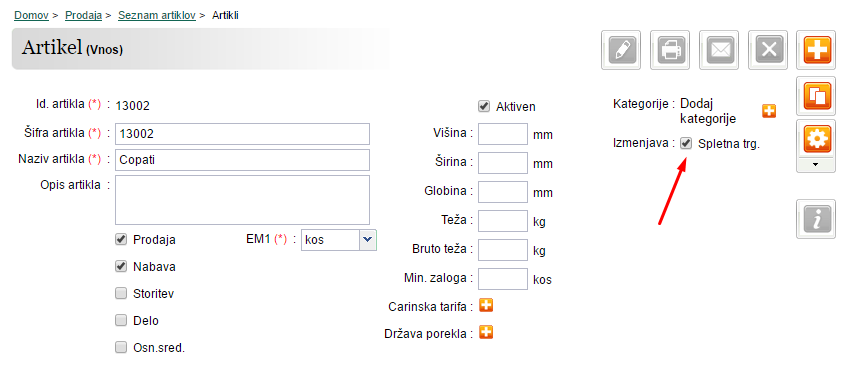
Clicking the "Product synchronization" button synchronizes all products from the Shopamine store to MetaKocka, and the other way round for products set up that way in MetaKocka (the product must be marked for exchange).
The "Refresh existing products" function only updates the basic information of products that are already synchronized.
Products picked up by synchronization (either by product synchronization or through new orders) are automatically marked for exchange - "Online store".
3. Invoice (order) synchronization
Orders that get the status "Payment received" or "Completed" in the Shopamine store are transferred to MetaKocka automatically.
Quotes are the exception: they are checked by payment type. The default setting is "Payment by proforma invoice", but you can change or remove it.
If you want orders to be transferred regardless of their status (as soon as the customer places them), set "Ignore invoice status".
If you want to import older invoices, set "Start date for invoices" and run "Invoice synchronization".
4. Stock synchronization
Stock is synchronized automatically every 15 minutes. You can also run it manually with the "Stock synchronization" button.
5. Price synchronization
Prices are set when products are imported or with the manual "Price synchronization".
6. Manual invoice transfer
You can also transfer invoices manually. First set the cut-off date and save the settings.

Then run "Invoice synchronization"

All invoices up to the cut-off date are transferred, except those already transferred by the system.
Warning: if you entered invoices manually, they will be duplicated.
7. Additional parameters
- Default availability: shown on products that are out of stock
- Default tax ID: enter 1 for 22%, 2 for 9.5% or 3 for 0%
- Always foreign invoice: new orders are transferred to Sales > Invoices > Foreign
- Ignore invoice status: orders that have not been confirmed or completed yet are also transferred
- Start date for invoices: cut-off date for order synchronization
- Price list: price list for synchronizing prices with the online store
- Main warehouse: warehouse for synchronizing stock with the online store
- Shipping: default product added to the invoice as shipping (its price is taken from the order)
- Payment type for quotes:names of payment types for which online orders are transferred as quotes
- User without price list - use default price list - if the online store reads prices from MetaKocka and there is no link to a partner by email address, the price from the selected price list can be returned.
When everything is set up, let us know so we can send your company's identification number to Shopamine.
8. How product prices are read
Before Shopamine shows prices to the user, it calls MetaKocka for any prices from the price list.
Prices are read from Shopamine into MetaKocka as follows:
- Shopamine sends a getUserPrices call with the user's email address and a list of products as pairs (MetaKocka product ID - quantity)
- MetaKocka uses the email to find the contact with that email -> linked address -> the default price list selected on the address. This gives the price list
- the product price is read from the price list, taking into account:
- the given quantity, if the price list has price tiers
- an additional discount, if one is set on the partner.
If step (2) is not met, MetaKocka does not return a price and the online store shows its own default price (MetaKocka has no influence on this). If you want the price from the default price list (selected under "Price list") to be read in this case, enable the setting "User without price list - use default price list".
9. Solving duplicate SKU numbers
If several products in the online store have the same SKU number, the product will not be transferred to the store as a new product.
The easiest way to find these products:
- run Product synchronization,
- in the Settings app, search for the string "Prišlo je do napake pri dodajanju artikla" (an error occurred while adding the product).
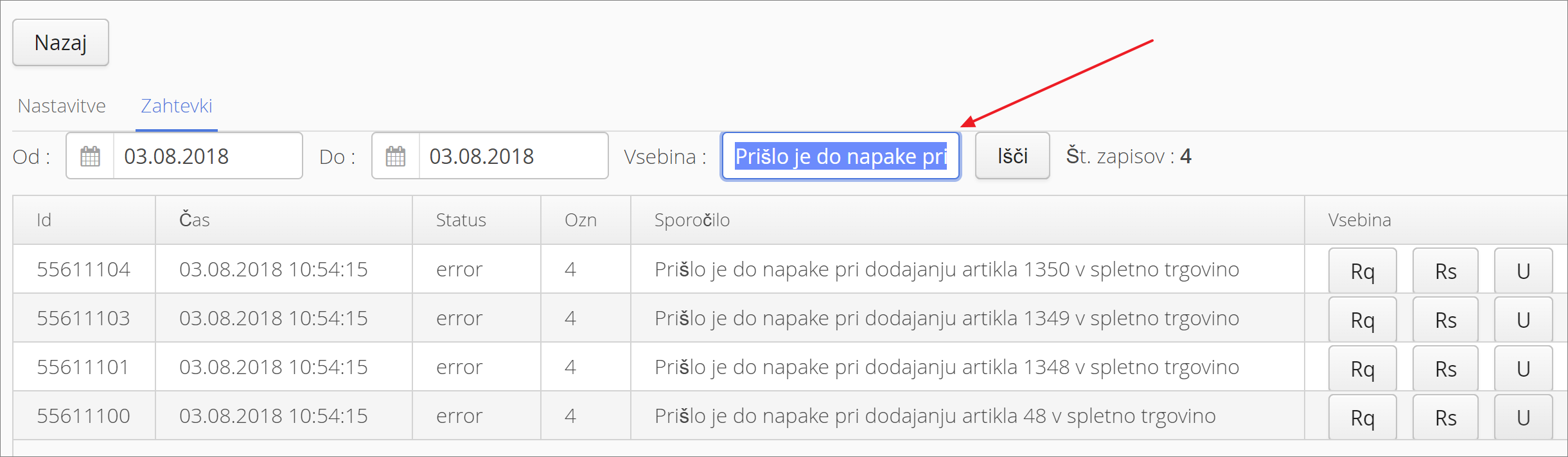
Clicking the "Rq" button shows the request that was sent.
{
"avail_in_days": 15,
"tax_class_id": 3,
"sku": "1366",
"unit_of_sale": {
"__": "kos"
},
"shipping_dimensions": {},
"stock_amount": 2,
"prices": {
"p1": 29.0000000000
},
"name": {
"__": "Eko 2-delni komplet za dojenčka - Čebelica 3-6 m"
},
"type": "physical",
"external_id": "1350"
}
Clicking the "Rs" button shows the error description. In this case it is Item with this user code already exists.
If we now search by SKU number - 1366 in our example - we get two results:
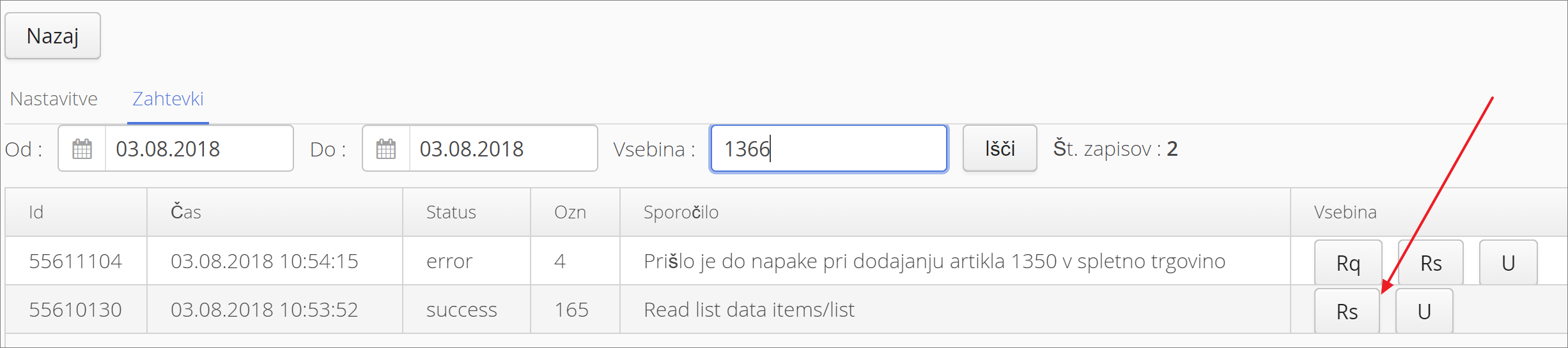
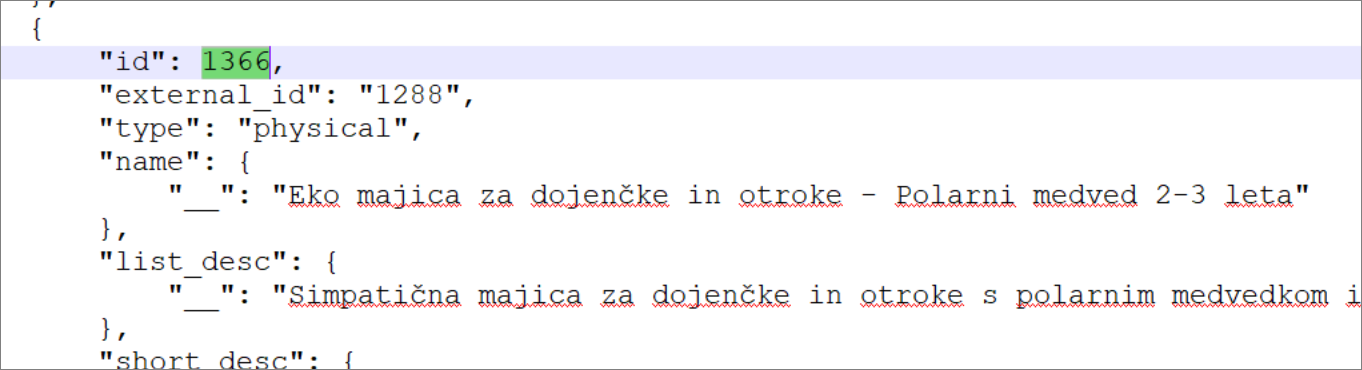
The request with the message "read list data items / list" contains a list of all products in the online store. Clicking "Rs" shows the data in structured JSON format. If we search for SKU "1366", we can see which product in the store it overlaps with.
Solution:
- for Shopamine, both the product ID (Shopamine JSON structure - id; MetaKocka - Product ID) and the product code (Shopamine JSON structure - external_id; MetaKocka - Product code) must be unique
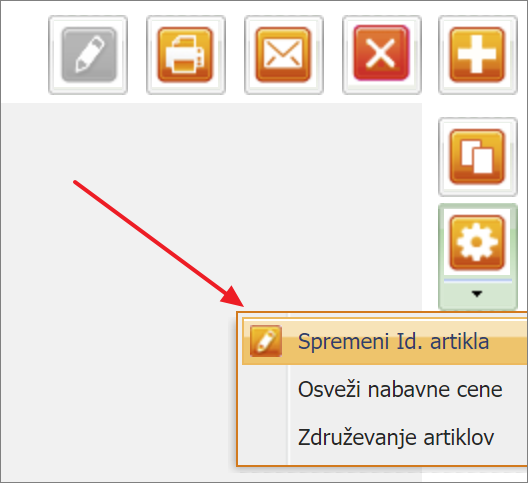
- so you need to set a new Product ID for the product (in MetaKocka via the product selection - see the image below) or a new product code (just change it on the product). For both new values, first check whether they already exist in Shopamine. The best way is to check the JSON structure above.
Transferring an order from Shopamine to MetaKocka
When an order is confirmed in Shopamine, it is transferred to MetaKocka automatically. The following events are logged:
- "Read buyer data" and "Read buyer address" - the buyer data is read. If the recipient is different, the recipient data is read as well
- "Shopamine bill push" - the Shopamine order is written to a MetaKocka document
Example from the request log:

Reading product prices getUserPrices
Before Shopamine shows prices to the user, it calls MetaKocka for any prices from the price list. The whole procedure is described in section "8. How product prices are read"
Example from the request log:

Stock refresh
Every 5 minutes MetaKocka checks whether stock has changed. For all products with a change, a notification is sent to the online store.
Example from the request log:

Was this article helpful?
That’s Great!
Thank you for your feedback
Sorry! We couldn't be helpful
Thank you for your feedback
Feedback sent
We appreciate your effort and will try to fix the article