
Fast printing
In MetaKocka, we have added the option to print invoices directly to the printer, without any intermediate steps (dialog, selection of printer, setting up a printer, etc.)
This option is useful especially in retail sales, where for a short time, a lot of invoices have to be printed, and for which settings are always the same.
Instructions:
1. Downloading application
First, please download the special software that must always be launched before using the direct printing feature.
The latest software test version is currently available at the following link:
https://main.metakocka.si/directprint/MetakockaHitroTiskanje_090.exe
For users without the Windows operating system, the JAR file is available, which can be launched with the latest Java platform version:
https://main.metakocka.si/directprint/direct_print_090.jar
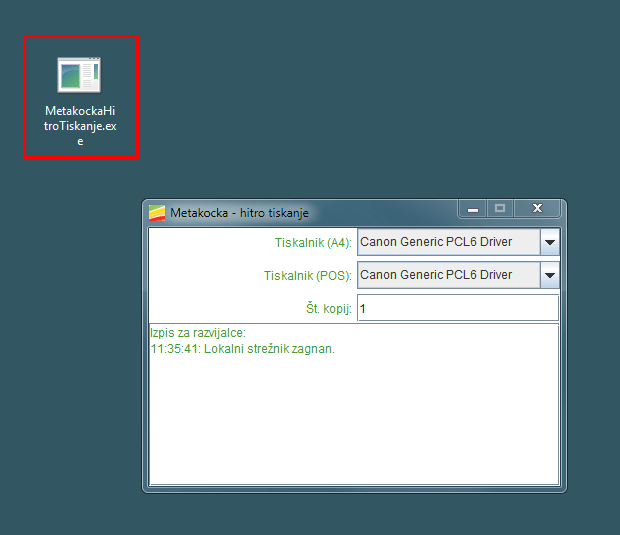
When the software is launched, the following window will be displayed, where the default printers for A4 format, POS, and number of copies can be selected:
2. Company settings
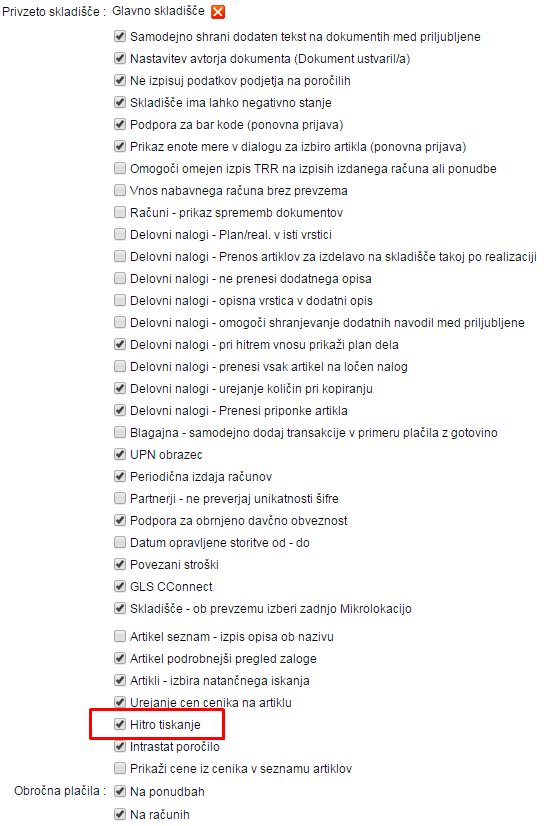
In company settings, enable the fast printing feature:
3. Dialog for printing
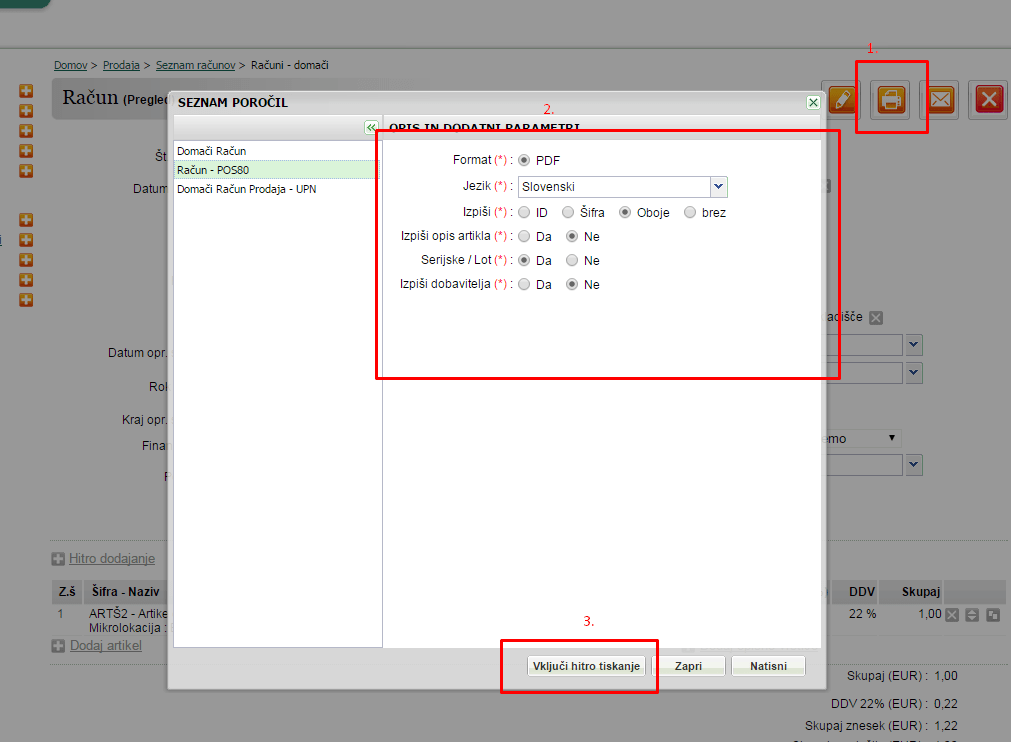
Set the default settings for printing the invoice or other documents and click on ''Enable fast printing''. Dialog will close.
Next time, the document will be printed automatically without your intervention.
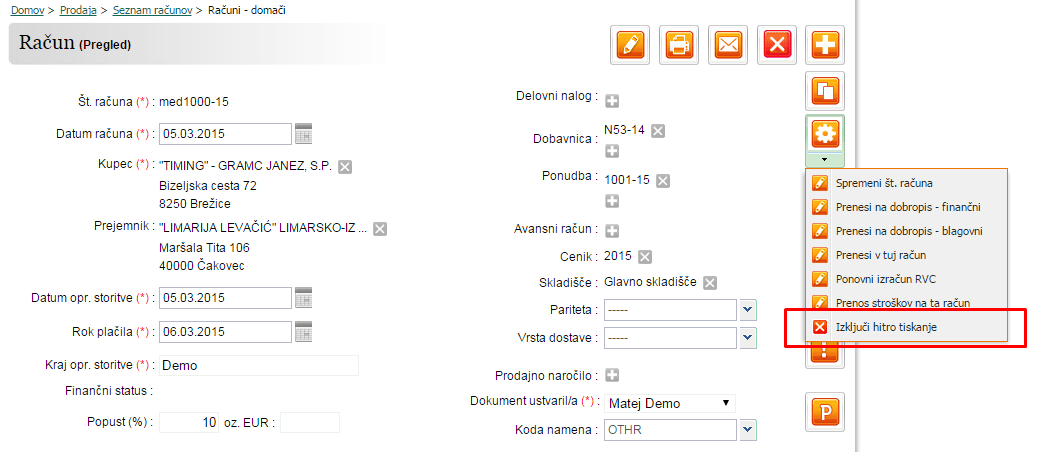
If the dialog for printing should be displayed again, select the ''Disable fast printing'' feature in Tools. The next time the document is printed, the dialog will be displayed.
4. Additional settings
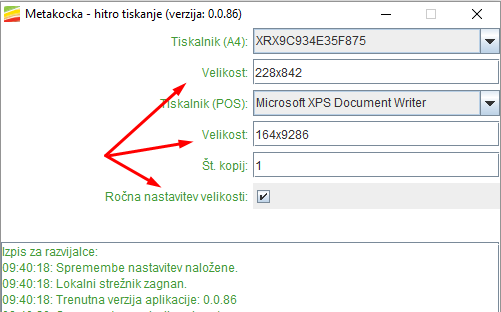
Sometimes the paper size should be set manually. In this case, enable the ''Manual size adjustment'' feature and enter it.
The following are the default sizes:
- A4 - 228x842
- POS 80 - 227x9286
- POS 58 - 164x9286
5. Automatic launch
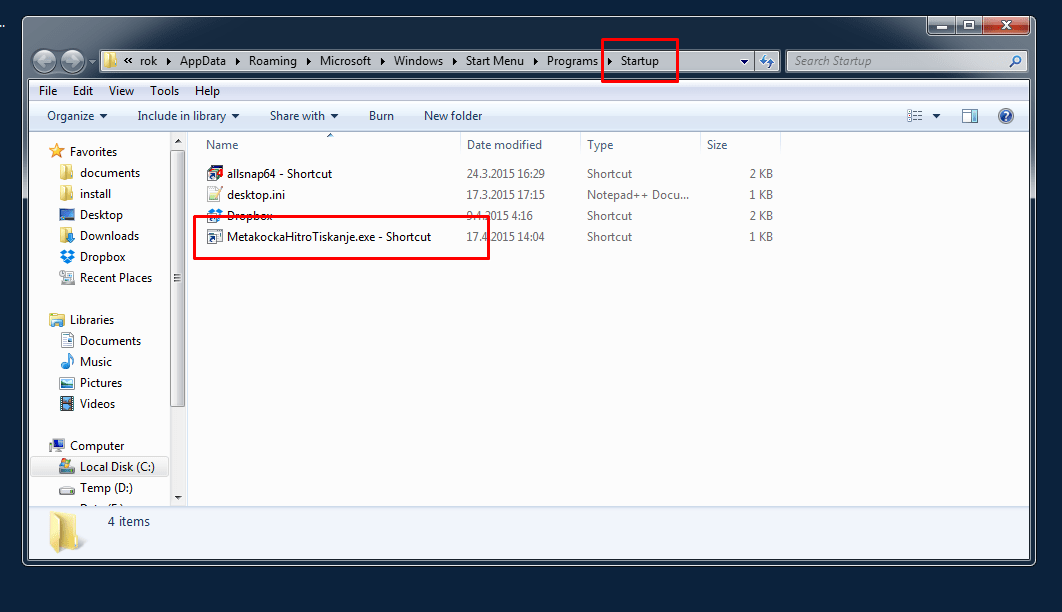
If the printing software should be launched after each system boot, it should be added to the ''Startup'' folder
The folder can be canceled by opening the file explorer window ''My computer'' where files on your hard disk can be viewed.
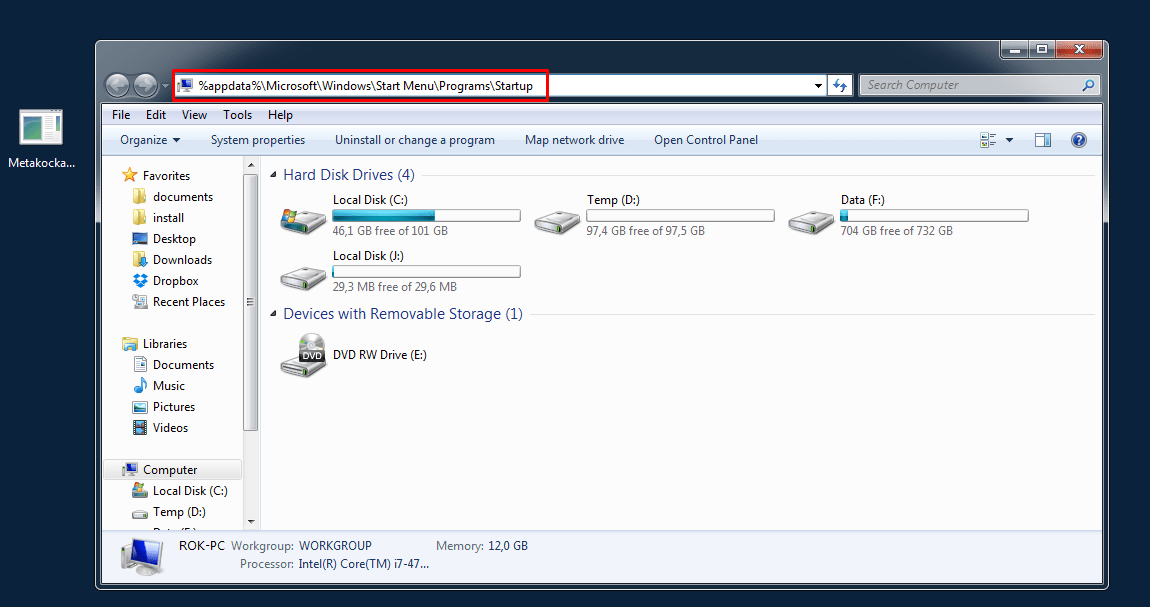
Enter the following row in the address field:
%appdata%\Microsoft\Windows\Start Menu\Programs\Startup
A folder will open where all programs launched at the startup will be displayed.
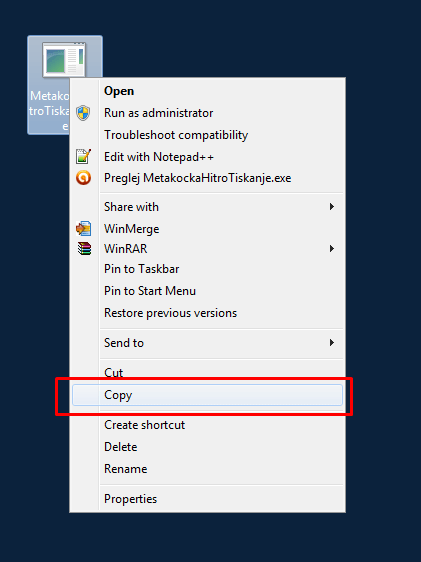
The previously created shortcut for our MetakockaFastPrinting.exe. application should be moved to this folder.
The following pictures display this procedure:
1) Enter the startup folder
2) Copy the shortcut of the fast printing program
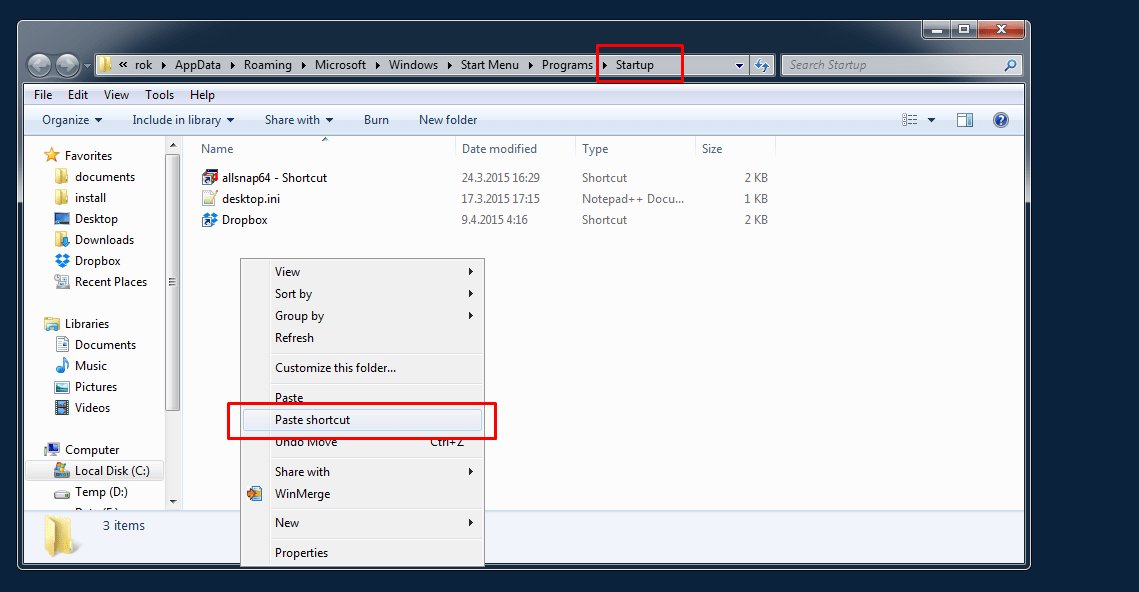
3) Final result
Issues with a digital certificate
Reason: outdated version of Java Runtime Environment (must be the update 101 or higher)
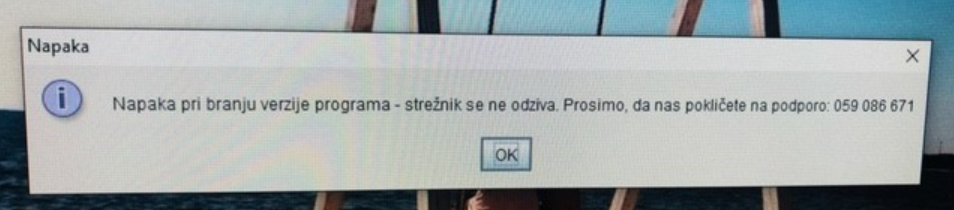
If the following error appears when launching/printing, an outdated version of the Java Runtime Environment is running on your computer.

The following should be done:
1. Close the fast printing application
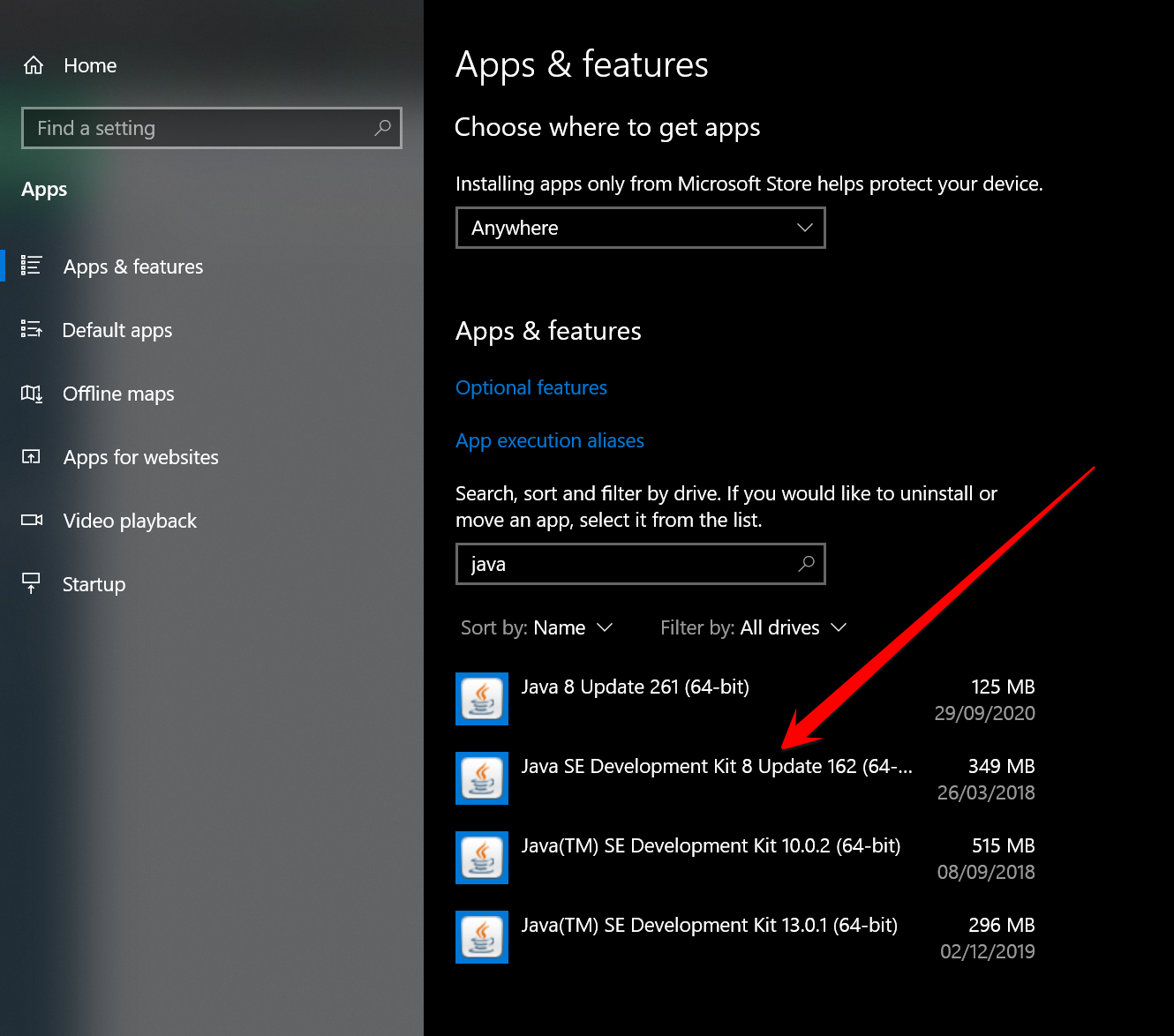
2. Remove the 8th version of Java Runtime Environment through the Windows applications
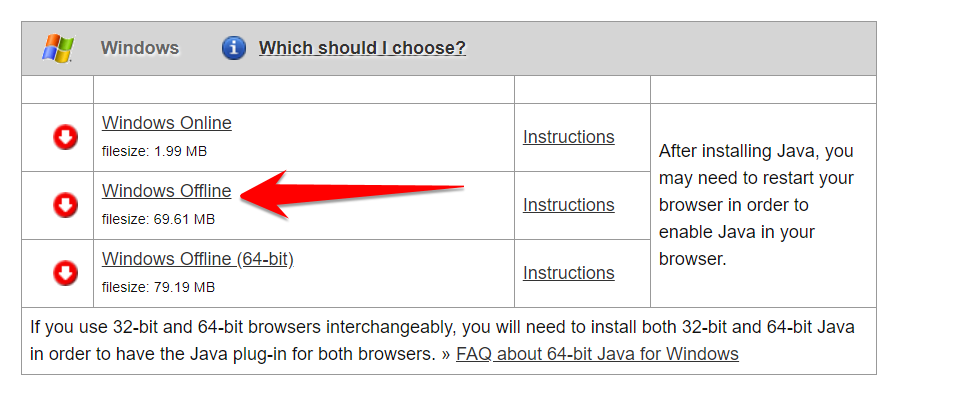
3. Download the latest version, which must be a 32-bit one.
https://www.java.com/en/download/manual.jsp
4. Relaunch the program for fast printing
Issues with launching the Java Runtime Environment
When facing issues with launching the Java Runtime Environment that is already set on your computer, we suggest the following:
1. Download the "direct_print.jar" file (see the link at the beginning of this article) directly to the Desktop (not the Downloads folder).
2. Open Notebook, enter "cmdc start javaw -jar direct_print.jar" and save that file as "Metakocka fast printing.bat". Be careful when saving the file - for ''Save as Type'' select ''All files''.
3. Now the icon is present on the desktop and the Java Runtime Environment should be launched.
Was this article helpful?
That’s Great!
Thank you for your feedback
Sorry! We couldn't be helpful
Thank you for your feedback
Feedback sent
We appreciate your effort and will try to fix the article