
Order Management 2 - Frequently asked questions and errors
Frequently asked questions:
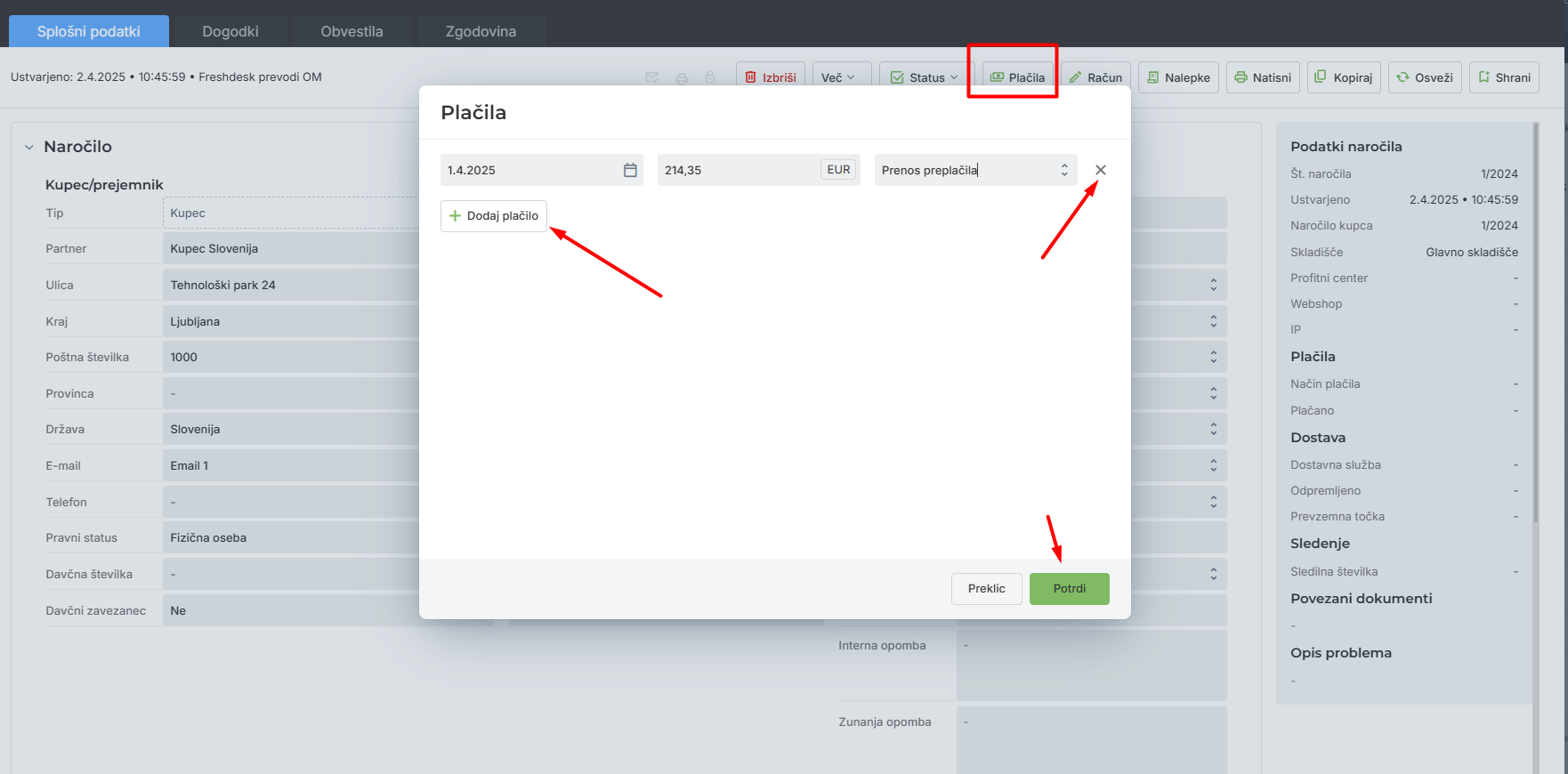
How do I edit a payment?
Sales order - Payments - you can add, remove and change payments.
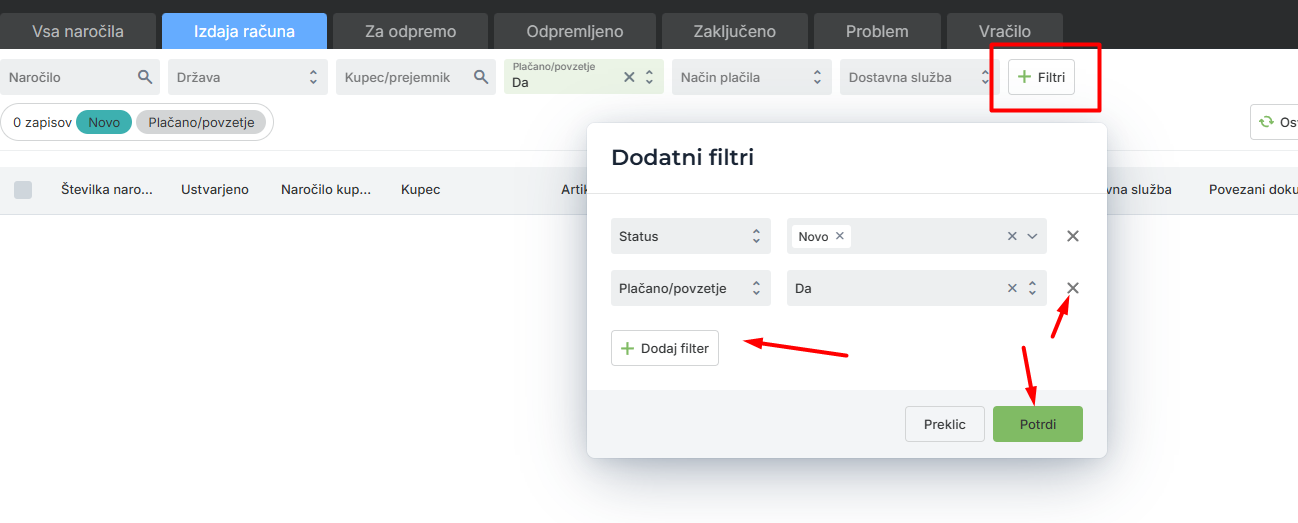
How do I filter orders?
"+ Filters" opens the dialog with all filters. Here you can check what is already enabled, disable or change it, or add new filters.
Where can I import COD payments?
Select Import, then select what you are importing (orders, COD payments, credit notes...). If it is a general import, it is set to the configuration by default. Add the file and import it. The result on the right shows whether the import was successful.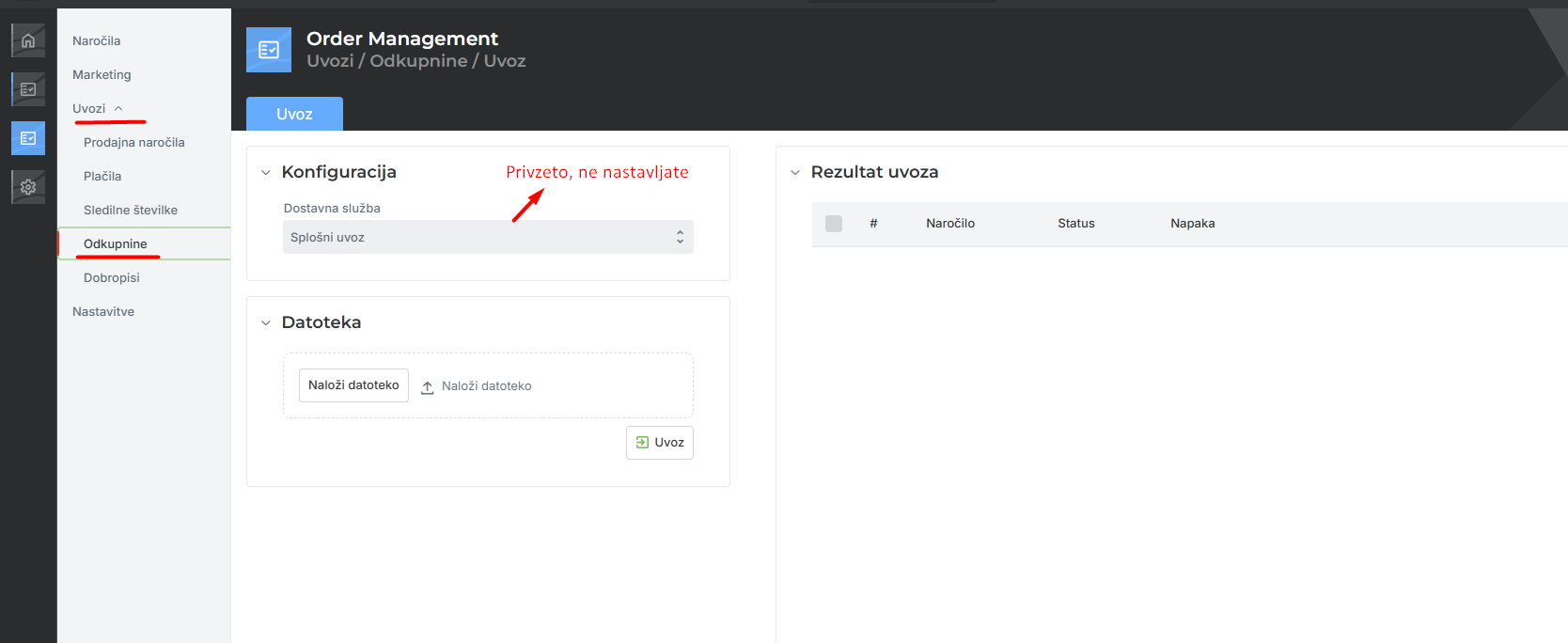
How do I change the status in bulk?
Select the orders, choose "Status" and the target status.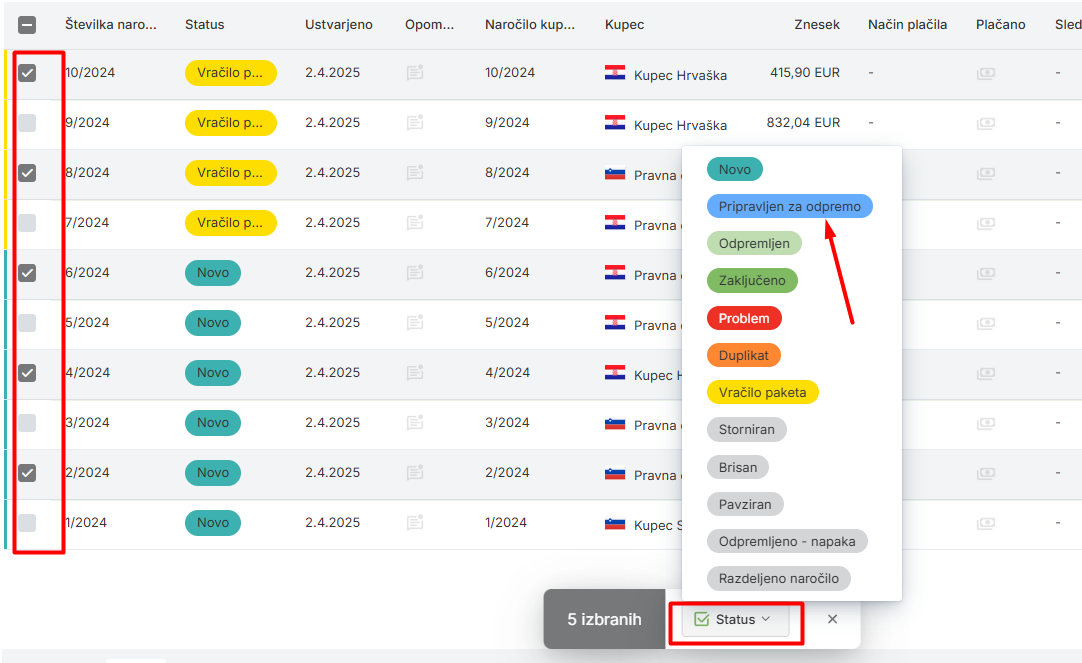
How do I change the delivery service in bulk?
Open the "To ship" list, select the order, open More and select Delivery service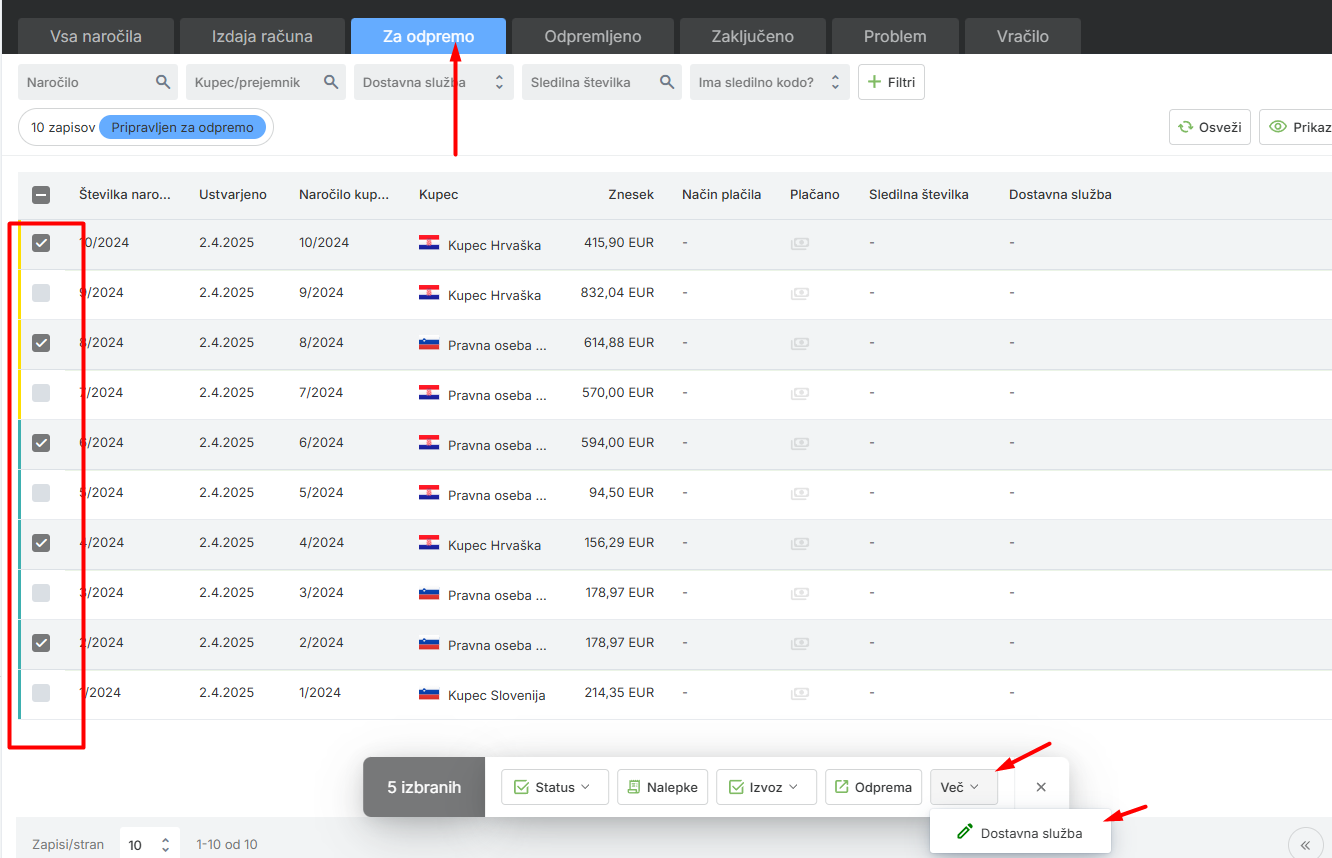
How do I create an invoice?
Open the "Invoicing" list, select the orders and run the "Invoice" action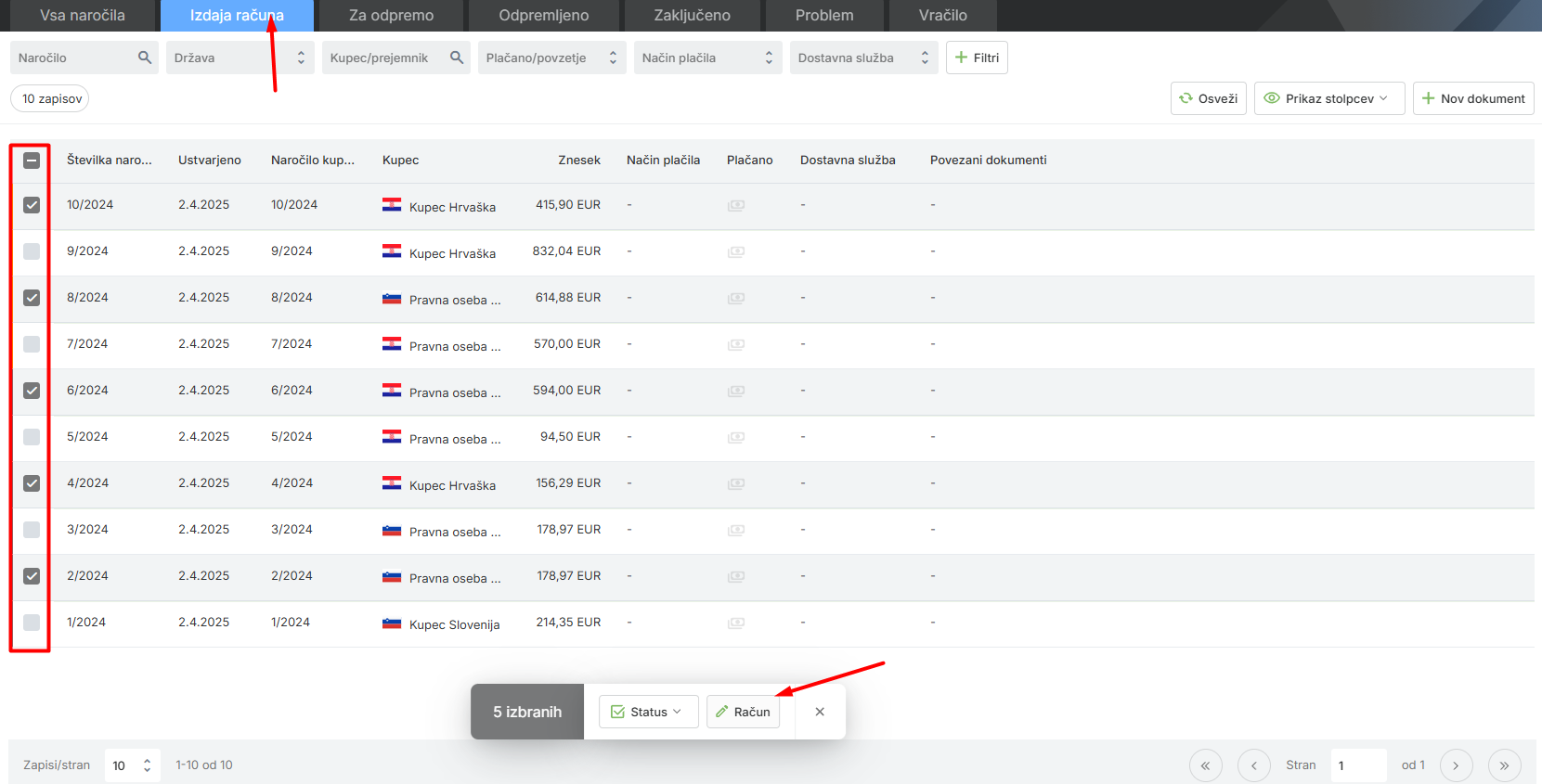
How do I create a label and mark the order as shipped?
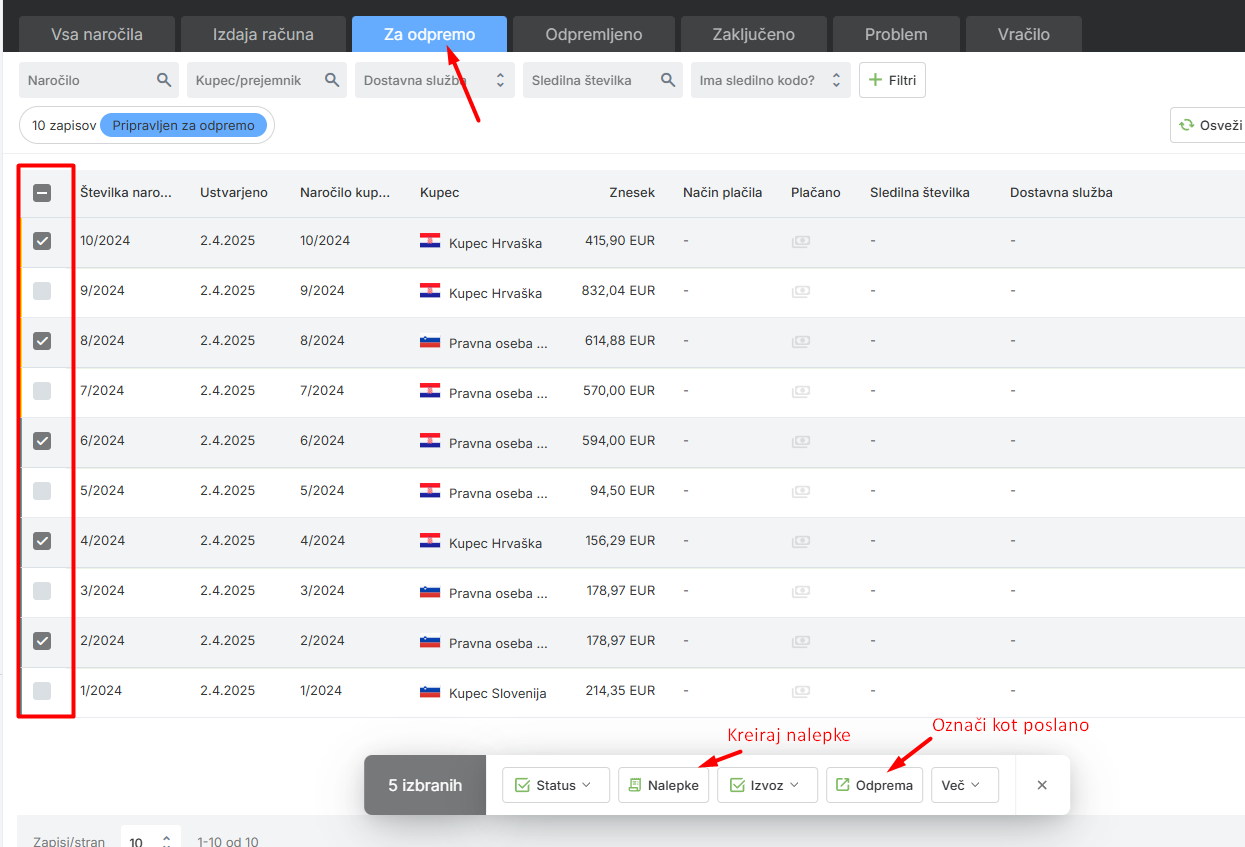
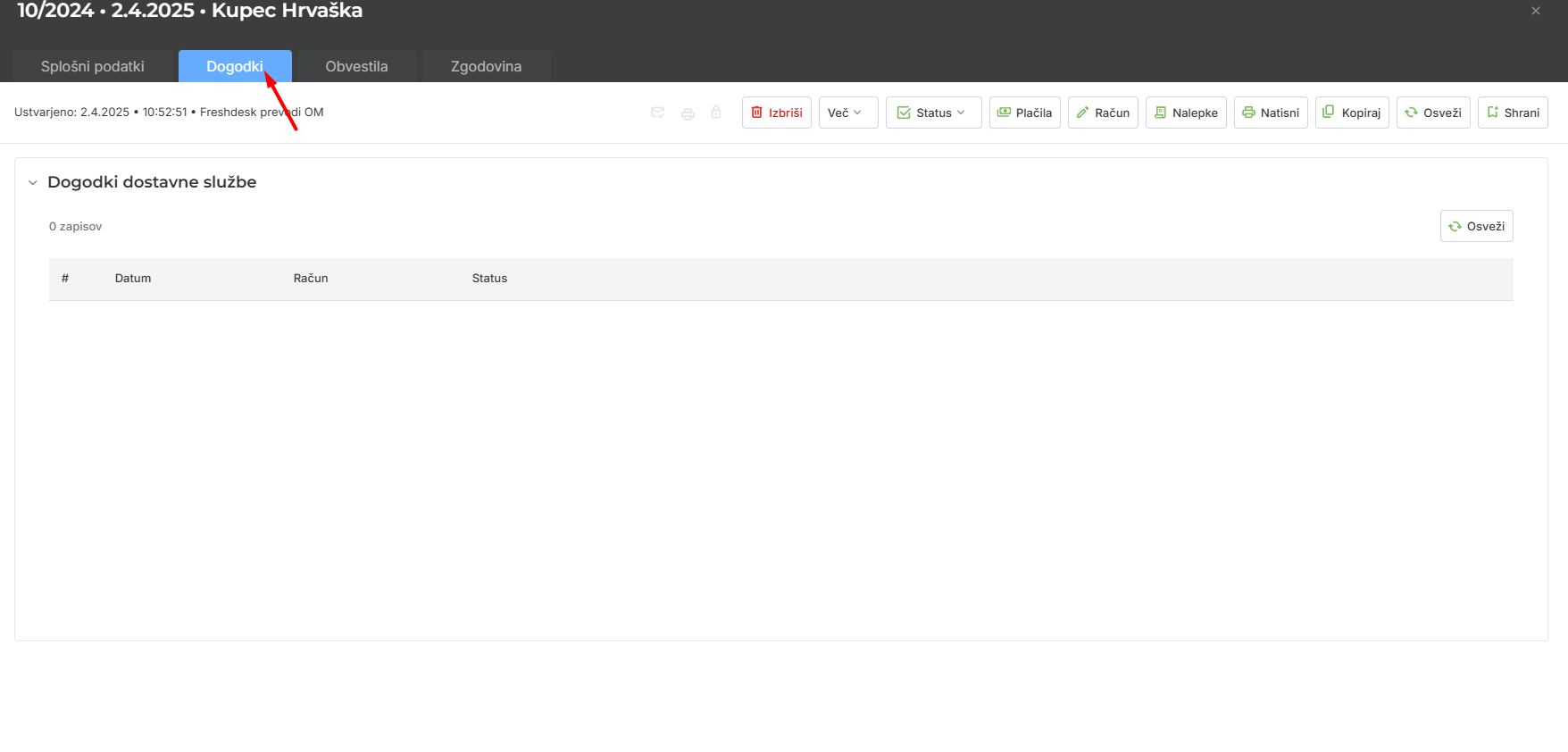
How can I see what is happening with the delivery?
You can see the delivery events on the sales order in the "Events" tab.
Common errors:
I cannot issue an invoice:Solution: check that the product is in stock. Check that the order is in the right status / adjust the filters.
I cannot issue a label:Solution: check that you have the right delivery service and that the invoice has been created.
Problem creating a label:Solution: check the note; it contains the reason why the delivery service rejected the label. Fix the error and try again.
If you do not know the reason for the problem, contact the delivery service. You can see more about the error in Additional settings - Delivery services - Requests. There you will find the log you can send to the delivery service for more information about the error.
The label has (no) COD amount: Solution:Check the payments and edit them so that the COD amount is correct.
If you want a certain payment type NOT to require COD, set this in Additional settings - Order Management - Deferred payments (B2B).
Was this article helpful?
That’s Great!
Thank you for your feedback
Sorry! We couldn't be helpful
Thank you for your feedback
Feedback sent
We appreciate your effort and will try to fix the article