
Order Management 2 - Filters
Each list has preset filters intended for use. You can change this by removing the preset filters in the additional filters dialog. You can then use the whole list or adjust it with filters.
Adding an additional filter:
The dialog for adding filters appears.
You can only have 1 empty filter at a time; when you select a filter, the button for adding the next one is unlocked.
The "Add filter" button stays locked until you select a filter; then it unlocks and lets you add the next one.
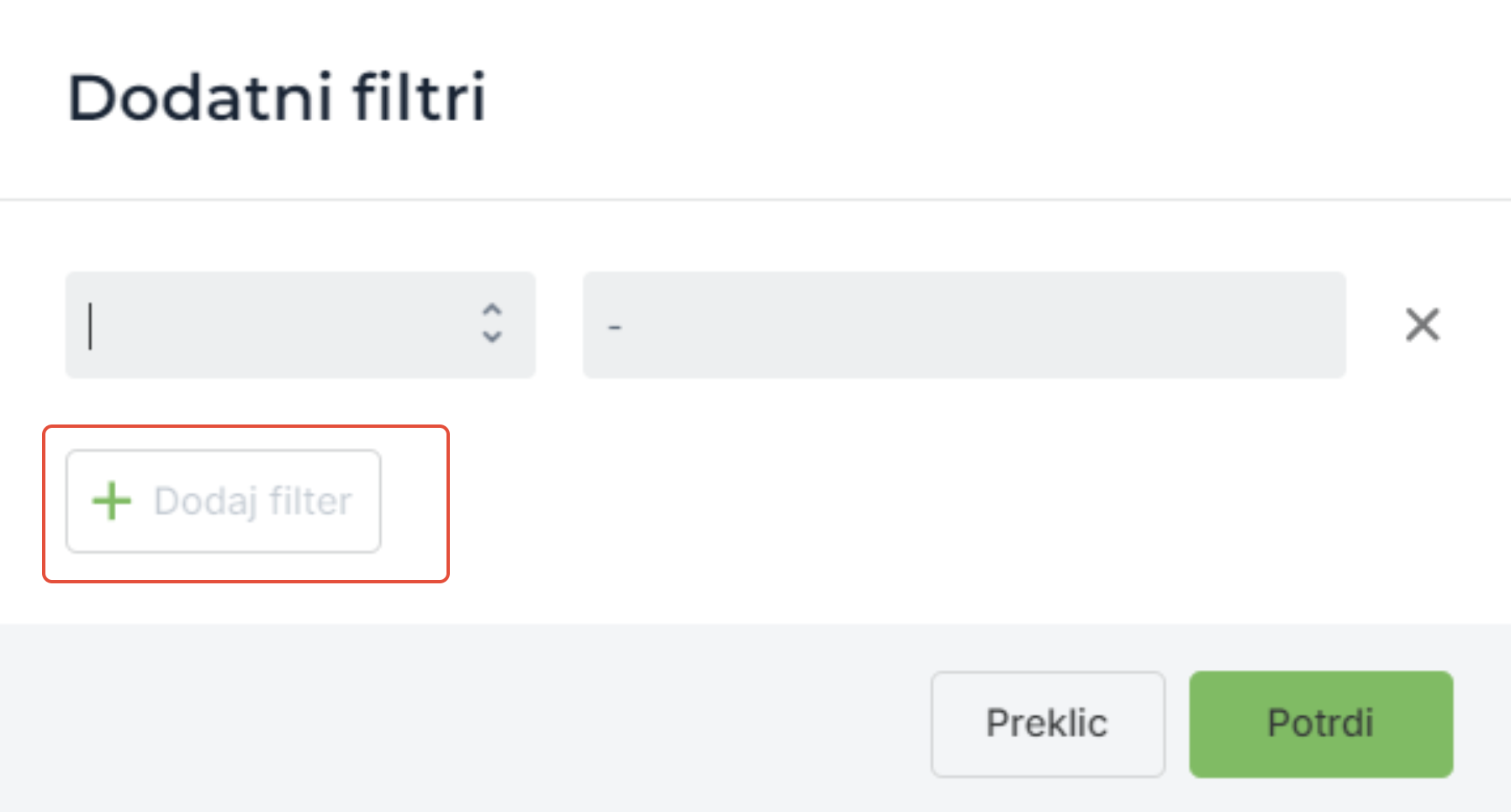
Since a filter is selected, you can now add a new filter.
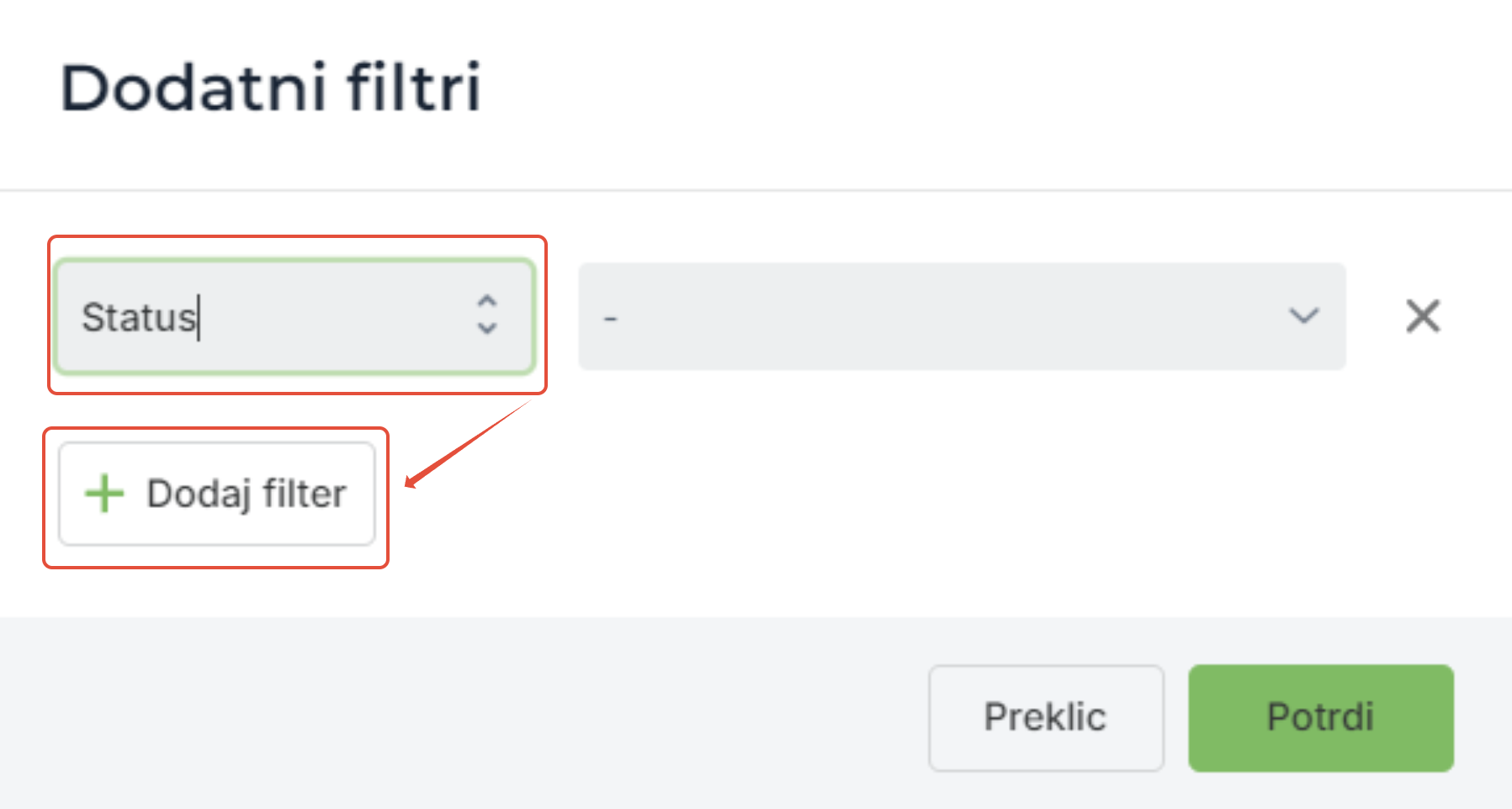
When you have selected all the filters you want, fill them in with values and confirm.
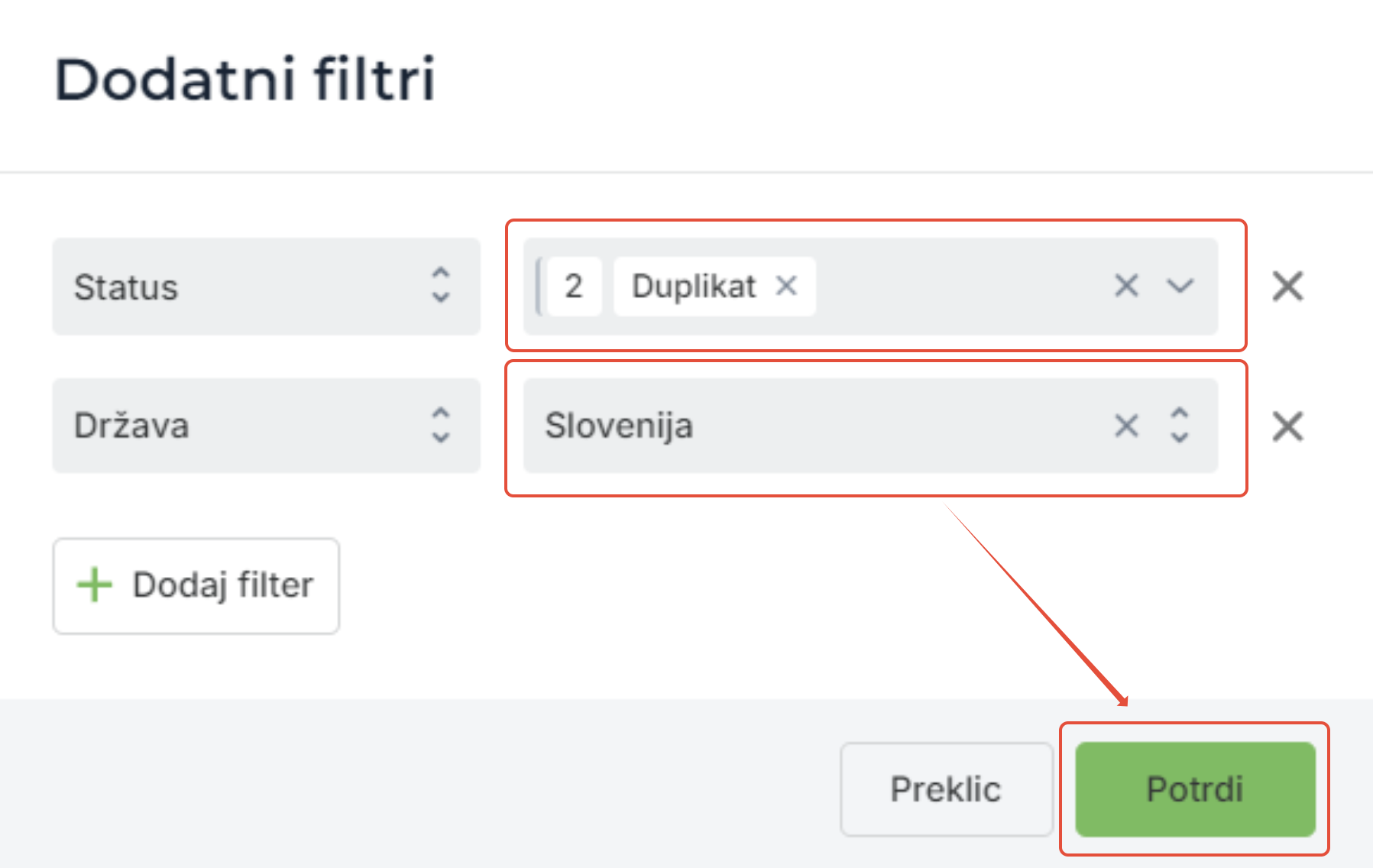
Filters that can search by several values at the same time.
"status, not status, warehouse, online store, profit center, not profit center"
The result is then filter value 1 + filter value 2. Example:
Status 1: New
Status 2: Completed
Was this article helpful?
That’s Great!
Thank you for your feedback
Sorry! We couldn't be helpful
Thank you for your feedback
Feedback sent
We appreciate your effort and will try to fix the article